
16 min read
Is Your Private Community Actually Private? Five Places Members-Only Content Leaks

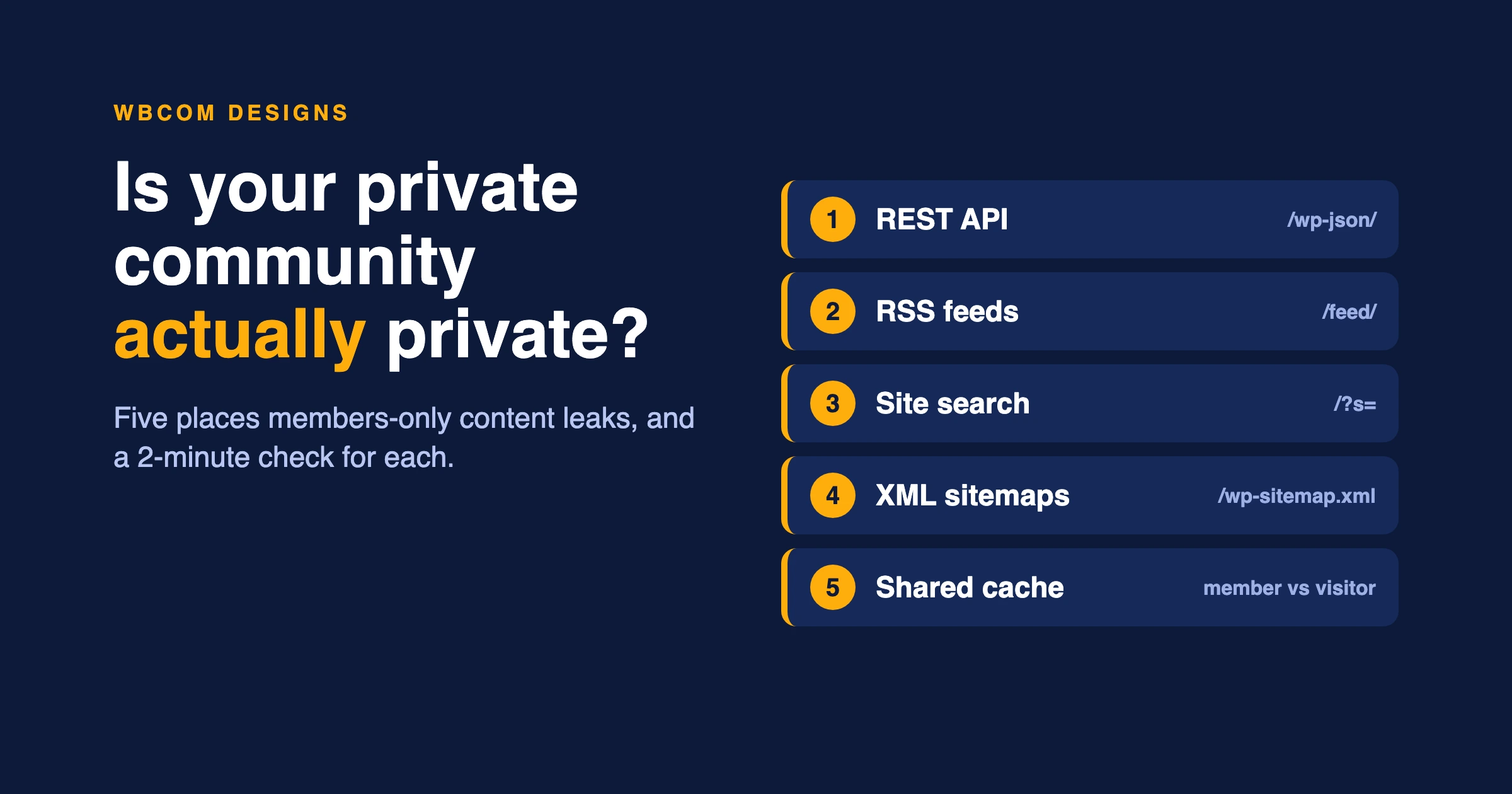
Short answer: probably not completely. If you run a private community on WordPress, hiding a page from logged-out visitors stops people opening it. It does not stop the same content from leaving your site through five other doors that WordPress opens by default: the REST API, RSS feeds, site search, XML sitemaps and a shared cache. Every one of them can be checked in two minutes from a private browser window, and every one has a fix. This guide walks through all five, in plain English, with the exact addresses to try.
We ship plugins that lock communities, so we see how this goes wrong from the inside. In November 2026 we released a security update to a plugin built to keep communities private. Its own release notes list pages that stayed readable through the REST API, feeds, search and sitemaps. If that can happen to a plugin made for the job, it can happen to your setup too.
Key takeaways
- A locked page and locked data are different things. Check the page, then check the five side doors.
- You can test your own site with a private browser window and six addresses. No tools or logins are needed.
- Search, feeds, sitemaps and the REST API belong to WordPress, not to your community plugin. Whatever you run, test them.
- Re-test after every plugin update, theme change or caching change. A leak often comes back with a new setting.
- Only test sites you own or have permission to test.
Why does a private community on WordPress leak when the page is locked?
Think of your community as a house. A login wall is the front door. But WordPress also publishes your content in machine-readable forms so that search engines, news readers and apps can find it. Those forms were built for public blogs. They run alongside the front door, and a plugin has to close each one on purpose.
There are two common ways it goes wrong. First, a plugin checks the request when someone opens a page, but not when a feed or the REST API builds a list of pages. Second, a plugin hides the content but leaves the title, the link or a short excerpt behind. Neither shows up when you click around your own site while logged in as an admin, which is why most owners never notice.
Here is the whole routine on one page. We will go through each row in detail.
| Where it leaks | What to open in a private window | What a leak looks like | The fix, in short |
|---|---|---|---|
| REST API | /wp-json/wp/v2/posts and /wp-json/ | Titles, links or text of members-only items | Require login for REST, or use a plugin that does it per route |
| RSS feeds | /feed/ and /comments/feed/ | Members-only titles or text in the feed | Block feeds for logged-out visitors, or show summaries only |
| Site search | /?s= followed by a word from a private page | A private title, link or excerpt in the results | Remove private content from search results |
| XML sitemaps | /wp-sitemap.xml or your SEO plugin’s sitemap | Private page links or member name pages listed | Remove those items from the sitemap |
| Shared cache | Same page as a member and as a visitor, one after the other | One person’s private data shown to another | Make the cache key depend on who is looking |
How do I check my private community WordPress site safely?
Open a private or incognito window in your browser. A private window starts with no login, so you see exactly what a stranger sees. Have one item of members-only content ready, such as a locked page, a private group or a member-only post, and note a distinctive word from its title.
These checks only read public addresses. Do them on your own site, or on a client site with permission. This guide describes what to look for. We have not tested anyone else’s site for it, and you should not either.
Write down what you find as you go. A simple note with the address, the date and what you saw is enough, and it makes the re-test after a fix quick.
Leak 1: the REST API
What leaks
WordPress has a built-in REST API, a set of addresses that return your content as data. According to the official REST API reference, the posts list returns published posts by default. That is right for a public blog. For a members-only site it means a list of every published post is one address away, with the title, link, excerpt and often the full content. Community plugins add their own routes for members, groups and activity, and those can list people and posts too.
The 2-minute check
- In a private window, open
yoursite.com/wp-json/wp/v2/posts. If you see a long block of text with titles and links, the list is open. If you see a message saying you are not allowed, or an error code such as 401 or 403, the door is closed. - Open
yoursite.com/wp-json/. This is the index, and it lists the namespaces on your site. Look for entries that belong to your community plugin or to BuddyPress, such as a path starting with/wp-json/buddypress/. - Open
yoursite.com/wp-json/wp/v2/users. Look at whether it lists names, and whether any of those people are members who should not be discoverable. - Try the same for pages:
yoursite.com/wp-json/wp/v2/pages. Search the result for the distinctive word from your private page.
Not every open list is a leak. If your blog posts are meant to be public, they should show up. The leak is a members-only title, link or text appearing where a stranger can read it.
The fix
The WordPress developer documentation explains that you should not switch the REST API off completely, because parts of the admin depend on it. Instead it shows how to require a login for requests, using a filter called rest_authentication_errors that returns an error for logged-out visitors (see the REST API FAQ, read November 24, 2026). A developer can add that in a few lines, and then allow only the routes you want public, for example a login or a contact form.
If you use a plugin that locks content, check that it covers REST, and check the version. In BuddyPress Lock, the July 2026 release 2.3.1 started blocking the REST API for logged-out visitors while the lock is active. The 2.4.0 release in November went further: pages locked with Protected URLs are no longer readable through REST lists, feeds or sitemaps. The release notes list each change.
Keep it fixed
Re-test the three addresses after you add any plugin that registers routes, such as a membership, forum, directory or course plugin. New routes appear without any warning.
Leak 2: RSS feeds
What leaks
Feeds are made for news readers. WordPress creates a main feed and a comments feed by default, and the official documentation describes the comments feed as showing the comments made on your site. A community adds more: many plugins publish an activity feed for the whole site, for each member and for each group. If any of these is built from the same list your community shows only to members, a feed reader can read it without an account.
The 2-minute check
- In a private window, open
yoursite.com/feed/. Read the titles. Are any of them from a members-only area? - Open
yoursite.com/comments/feed/. Comments on private posts are the usual surprise. - Open your community’s activity page and add
/feed/to the end of the address. If your activity page is atyoursite.com/activity/, tryyoursite.com/activity/feed/. Do the same for one member profile and one private group if your plugin offers feeds there. - Look at the links inside the feed items. A private item with a link and a title is already a leak, even if the text is missing.
The fix
Decide whether you want public feeds at all. For a members-only site, most owners do not, and a plugin or a developer can turn feeds off for logged-out visitors. If you keep a public feed for your blog, make sure it only lists public posts and set it to show summaries. In WordPress this is the Settings, Reading option that controls whether each feed item shows the full text or a summary.
BuddyPress Lock 2.4.0 is a good example of the detail involved. Its release notes say the BuddyPress activity feeds (site-wide, member, group, favorites and mentions) are blocked for logged-out visitors when Activity, Members or Groups is locked, and always under Full Protection. The plugin also stopped locked pages from appearing in a comments feed link or in a member and group activity feed link.
Keep it fixed
Re-run the three feed addresses whenever you change which parts of your community are locked. A setting that locks Members does not necessarily lock Groups or Activity, and each has its own feed.
Leak 3: site search
What leaks
Search results are built by a query, and a query does not know about your login wall unless a plugin tells it. The page may be correctly locked when you click on it, while the result list still shows its title, address and a snippet to a stranger. Search is also where a member’s name and profile can appear.
Our own release notes show how easy it is to get this wrong. Before BuddyPress Lock 2.4.0, a locked page kept its title, URL and excerpt in search results for logged-out visitors, even though opening it was blocked. The cause was subtle: the plugin compared a full path to a page slug, so a nested page never matched. A test that only clicked the locked page would pass, and a test that searched for it would fail.
The 2-minute check
- Pick a distinctive word from the title of a private page, group or post. Use a word that does not appear on any public page.
- In a private window, open
yoursite.com/?s=thatword. - Read the results. A private title, link or snippet is a leak. “No results” is the right answer.
- Repeat with a member’s name or a private group’s name, if your community has a members directory that search can reach.
- Optionally, type
site:yoursite.com thatwordinto a search engine in the same window. This shows what outside search engines have already collected. If a private page appears there, ask the search engine to remove it and fix the cause first.
The fix
There are two layers. Inside your site, your locking plugin or a developer needs to remove private items from search queries for logged-out visitors. Outside, the page needs a noindex instruction so search engines do not keep it. BuddyPress Private Community Pro 3.2.1 added that: its release notes say locked pages tell search engines not to index them, and that locked pages answer with a normal status so uptime monitors do not count them as errors.
Keep it fixed
Re-run the search check after any change to your permalinks, your page structure or your lock rules. Nested pages, such as a page inside a section, are where matching errors tend to hide.
Leak 4: XML sitemaps
What leaks
A sitemap is a list of addresses you hand to search engines. WordPress has made one by default since version 5.5. The core team’s announcement, dated July 22, 2020, says the index is at /wp-sitemap.xml, and that sitemaps are created for public post types and taxonomies, as well as author archives and the homepage. That means a list of your pages, and a list of your authors, is published unless you remove it. SEO plugins create their own sitemaps, often at /sitemap_index.xml.
For a private community the interesting items are the members-only pages that were never meant to be advertised, and the users sitemap, which lists the people who can be found. Under BuddyPress Lock 2.4.0 the users sitemap is closed while Members is locked. The same release fixed a case where a whitelist entry of / made the XML sitemap public again under Full Protection, because WordPress treats sitemap requests as the front page.
The 2-minute check
- Open
yoursite.com/wp-sitemap.xmlin a private window. If it loads, follow the links inside it to the posts, pages and users lists. - If you use an SEO plugin, open its sitemap too, usually
yoursite.com/sitemap_index.xml. - Scan the lists for members-only pages, private group addresses and member names.
- Open the users list, for example
yoursite.com/wp-sitemap-users-1.xml. A list of names or profile links on a private community is worth a decision.
The fix
The WordPress core announcement names the filters a developer can use: wp_sitemaps_add_provider to drop the users sitemap, wp_sitemaps_post_types to drop a post type, and wp_sitemaps_taxonomies to drop a taxonomy (read from the core announcement on November 24, 2026). If you use an SEO plugin, it has its own setting to exclude post types and author archives, so use that rather than hand-written code.
Keep it fixed
Re-check the sitemap after you add a post type, such as a forum, a course or an event. New post types are public in the sitemap by default unless the plugin says otherwise.
Leak 5: a shared cache
What leaks
This is the hardest one to see, and the most serious when it happens. A cache saves the result of slow work so the next visitor gets it fast. If the saved result depends on who asked, and the cache does not know that, the next person receives the previous person’s version.
We fixed a real case in BuddyPress Birthdays 2.5.1. Its release notes say that on sites with a persistent object cache, the All Members list no longer shows one visitor’s privacy-filtered birthdays to other visitors. In plain terms, a list filtered for one visitor could be shown to another. The same release stopped birthdays set to Only Me, Friends or All Members from being announced in the public activity feed. The notes tie the problem to sites that use a persistent object cache, which is common on larger communities.
The same idea applies to page caches and CDNs. If your host or plugin stores a full copy of a member page and serves it to everyone, a logged-in view can reach a logged-out visitor.
The 2-minute check
- In a normal window, log in as an ordinary member with no admin rights. Open a members list or a profile and note what you can see that a stranger should not.
- In a private window, open the same address. You should see less, or be asked to log in.
- Switch back and forth three times, reloading each time. A cached page that shows the member view to the private window is the leak.
- If your site shows a header such as
x-cacheorcf-cache-statusin your browser’s developer tools, look at it on the member page. A HIT on a page that depends on the viewer needs an explanation.
The fix
Page caches and CDNs should never store pages for logged-in members. Most caching plugins and hosts have a rule for this, based on the login cookie, so check that it is on. For object caches, a plugin must include the viewer in the cache key whenever the data depends on who is looking, and must clear it when privacy settings change. If you use a plugin that filters by privacy, ask the vendor whether it does, and test with the steps above.
Developer note: a cache key such as members_list is wrong when the content depends on the viewer. Add the viewer’s identity or role, or skip the cache for the filtered list. Do not store a rendered, privacy-filtered result under a shared key.
Keep it fixed
Re-test after you switch hosts, turn on a CDN, or install Redis or Memcached. Those are the moments a cache starts to be shared.
What about files, images and video?
Every private community WordPress site has the same blind spot here. This guide is about the five places a list can leak. Direct file addresses are a sixth. An uploaded image or document has a public address unless something protects it, and anyone who has the link can open it. If you sell video or private course files, see our guide to stopping paid videos and course files from being shared.
Which private community WordPress setup is easier to keep private?
For a new community we start with BuddyNext. Its spaces come in three types, according to its documentation: Open, Private and Secret. A Private space is listed in the directory, and a non-member who opens it sees the About tab while the feed stays locked until a request is approved. A Secret space is hidden from the directory and from non-members, and joining is by invitation. BuddyNext Pro adds membership plans that can be attached to a space. The documentation is explicit that the About tab of a private space shows its name, description and rules, so the identity of a private space is not secret even though its content is.
None of that replaces the five checks. The REST API, feeds, search and sitemaps come from WordPress, and any plugin can add a route or a list. Run the checks on a BuddyNext site just as you would on any other, and again after each update.
If you run an existing BuddyPress community, BuddyPress Lock and BuddyPress Private Community Pro are our tools for the job. The 2.4.0 and 3.2.1 releases of November 2026 close the REST, feed, search and sitemap doors described above. We cover them in Wbcom Designs Updates #6. For the wider picture of privacy on BuddyPress, see our posts on adding privacy features to a private community and on how AI plugins can put member data at risk.
A 10-minute routine you can repeat
- Open a private window and write down the date.
- Open
/wp-json/wp/v2/posts,/wp-json/and/wp-json/wp/v2/users. Note what loads. - Open
/feed/,/comments/feed/and your activity feed. - Search
/?s=for one private title and one member name. - Open
/wp-sitemap.xmland your SEO plugin’s sitemap, and scan the lists. - Log in as a plain member, load a members list, then reload it in the private window, three times.
- Write down anything that surprised you, fix it, and re-test the same address.
- Repeat after every plugin update that touches privacy, caching, SEO or your community.
A simple record to keep
| Date | Address checked | What a stranger saw | Fixed on |
|---|---|---|---|
| Example | /?s=payroll | Title of a members-only page | After the lock plugin update |
Frequently asked questions
Is a private community on WordPress ever fully private?
A private community WordPress site can be private enough for your needs if you close each door and keep testing. The login wall is only one door. The REST API, feeds, search, sitemaps and caches need their own checks, and any new plugin can add another route. Treat privacy as something you verify, not something you switch on once.
Can I just turn the REST API off?
The WordPress developer documentation advises against disabling it, because parts of the admin depend on it. The documented approach is to require a login for requests with the rest_authentication_errors filter, and to allow only the routes you need to stay public.
Will hiding a page from search engines make it private?
No. A noindex instruction asks search engines not to list a page. It does not stop anyone who has the address from opening it, and it does not protect a feed or an API list. Use it as one layer, together with real access control.
My site has a password-protected page. Is that enough?
A password asks for a password before it shows the page content. It is still worth checking your feed, search and sitemap for the page title, and deciding whether the title alone is a problem for you.
How often should I run the checks?
After every plugin or theme update that touches privacy, caching, SEO or your community, and after any change to your host or CDN. If you do nothing else, run them before a launch and after each major update.
What if I find a leak?
Write down the address and what you saw, close it with the fix above or with your plugin vendor’s help, and re-test the same address in a private window. If the content was sensitive, assume it may already have been collected and decide whether you need to tell your members.
Want a second pair of eyes on your community’s privacy?
Our team runs privacy audits for members-only communities on WordPress. We check the five doors above and your caching setup, and we hand back a short list of what to close. See our private community services or contact us to ask for an audit.
Where to go from here
A private community WordPress site stays private only while you keep checking it. Pick a time this week, open a private window, and work through the table at the top. It takes less time than reading this guide, and it tells you something no plugin screen will: what a stranger can see. If you find something, close it, write it down and test again. Then do the same after your next update.
Related reading