
30 min read
How to Build an Online Community You Own on WordPress (No SaaS Lock-In)


Lena wants to start something of her own: a community for designers, photographers and other creative people. The people are already there. The problem is where they live. One chat group, one video channel, one page for events, and nothing connects them.
She has a second worry, and it is the bigger one. “I don’t want to rent it. If I stop paying a platform, I lose my members and everything we built.”
That is the opening of our new animated walkthrough, Build a Community You Own. Bud, our guide, answers Lena by opening a real Wbcom Designs community site and clicking through every part of it: the social feed, photo and video sharing, a forum for questions, courses, events and the points and badges that keep people coming back. This post covers everything in the video and then goes further, so you can see how to build an online community you own on your own WordPress site, what your members get, and what you control as the owner.
Chapters in the video: 0:00 What Lena wants. 1:06 Try the demo personas. 1:37 BuddyNext community. 3:47 MediaVerse photos and videos. 4:38 Jetonomy questions and answers. 5:40 Learnomy courses. 6:52 Eventonomy events. 7:48 Points, badges and challenges. 8:25 Lena’s questions.
What this guide covers
- Why owning your community matters
- The stack behind the site
- Try the demo: one site, many people
- The community itself: BuddyNext
- Photos and videos: WPMediaVerse
- Questions and answers: Jetonomy
- Courses: Learnomy
- Meetups and events: Eventonomy
- Keeping people coming back: WB Gamification
- Lena’s questions: start small, stay in control, work on phones
- How to get started
- Communities this stack fits
- FAQ
Why owning your community matters
People clearly want to gather online. Meta reports that almost 1.8 billion people use Facebook Groups every month. Demand is not the question. The question is whose ground the gathering happens on.
When your community lives inside someone else’s product, their rules decide what you can build, what your members see and what happens to your work if you leave. Lena put it plainly in the video: stop paying and you lose the members and everything you built together. Owning the site changes that in four practical ways.
1. Control over how it works
On your own WordPress site you decide which features are on, who can post, who can create spaces or events, and what gets held for review. Every one of those switches appears later in this guide as a real settings screen, not a promise.
2. Your members and data stay with you
Member profiles, posts, photos, course progress and event registrations sit in your own database on hosting you choose. That matters for trust and for compliance. Under Article 20 of the GDPR, people have the right to receive their personal data in a structured, machine-readable format. When the data is on your site, you can answer that request yourself instead of waiting on a vendor’s export tool.
3. Growth on your terms
On a site you own, getting bigger is a hosting decision you make. Your thousandth member does not move you into a different plan or change the rules of the space. You add capacity when you need it and keep everything else as it was.
4. Your brand, your domain
The community runs at your address, under your name and in your design. In BuddyNext you literally type the community name into a settings field, and it shows in the header, the emails and the browser title.
Online community platform or your own site: the honest trade-off
Most people searching for an online community platform are choosing between two models. A hosted platform runs the software for you on its servers, under its terms. A self-hosted community runs on your own WordPress site, where you pick the host, the plugins and the rules.
Neither comes without work. Hosted means less setup, but you live with someone else’s feature list, branding limits and export options. Self-hosted means you are responsible for hosting, updates and backups, the same as any WordPress site you already run. In return you get a community you can change, move or extend whenever you like, and nobody can switch it off for you. For anyone who has been burned by a platform changing its rules, that trade is usually worth it.
What data ownership means in practice
Data ownership sounds abstract until you need it. In practice it means three things. Your member list can leave with you: the BuddyNext member directory in the admin has an Export CSV button, and the Eventonomy attendee list exports the same way. Your content sits in your own database, so a normal WordPress backup covers posts, photos, courses and events. And your members’ privacy is your call, from who can see the feed to whether location data stays on uploaded photos.
You are also building on familiar ground. According to W3Techs, WordPress runs 38.5% of all websites and 57.5% of sites whose content management system is known (November 2026). Hosts, developers and help are easy to find. If you are still weighing where to run a community, our comparison of the most popular platforms for an online community sets the options side by side, and what the word community actually means is a useful read before you plan one.
The stack behind the site
Bud’s answer to Lena’s wish list is not one giant plugin. It is a family of WordPress plugins from Wbcom Designs, each handling one job, all working together on one site.
| Lena needs | Plugin | What it adds |
|---|---|---|
| People to talk and connect | BuddyNext | Activity feed, spaces, profiles, member directory, messages, notifications, moderation |
| Members to show their work | WPMediaVerse | Photo and video gallery, uploads with privacy, albums and collections |
| Fewer repeated questions | Jetonomy | Forums, questions and answers, idea boards, voting and reputation |
| To teach | Learnomy | Course catalog, lessons, quizzes, progress, grading |
| Meetups | Eventonomy | Events, RSVPs, calendars, attendee lists and check-in |
| People to keep coming back | WB Gamification | Points, badges, levels, challenges, kudos, leaderboards |
Two more pieces round it out: the Wbcom Demo Installer, which builds a ready demo like the one in the video, and the Reign theme if you want a community-focused theme for the site.
Why a community platform with courses and events beats separate tools
You could run a chat app, a course platform, a ticketing tool and a forum side by side. Lena already had a version of that, and it was the problem. Separate tools mean separate logins, separate profiles and no shared history. On one site, a member has one account across the feed, the gallery, the forum, the courses and the events, and the points they earn in one place count everywhere. Jetonomy, for example, pairs with BuddyNext automatically and lets BuddyNext own the header and navigation, so the forum feels like part of the same site rather than a bolt-on.
Try the demo: one site, many people
The tour starts on the Try the demo page. Each card is a sample member who already has posts, courses and tickets in place, so the site feels lived in from the first click.

There is Alex, a regular member with posts, spaces and followers. Priya is a creator who shares photos, videos and albums. Marcus is a student with courses in progress, quizzes, notes and certificates. Sara goes to events and already has RSVPs and tickets. A site owner card opens the hub for members, spaces and moderation.
One click puts you in that person’s account. For an owner this is the most useful screen on the site. You can test every role and every flow before a single real member arrives, and you see the community as a member sees it, not only as an admin.
Why test with sample members before you launch
An empty community is the hardest thing to sell to a new member. A demo with realistic people shows you what every page looks like when it is busy: how the feed reads with twenty voices in it, how a space looks with members and posts, how a course catalog feels with progress bars filled in.
It also catches problems early. Switch to the student account and check that a locked lesson is really locked. Switch to the attendee and check the RSVP flow end to end. Switch to the creator and upload a photo with private visibility, then confirm another member cannot see it. Ten minutes of role testing saves a lot of awkward support messages after launch.
The community itself: BuddyNext
BuddyNext is the social layer: the place where people post, talk, follow each other and gather by topic. Bud logs in as Alex to show the member side first.
The activity feed
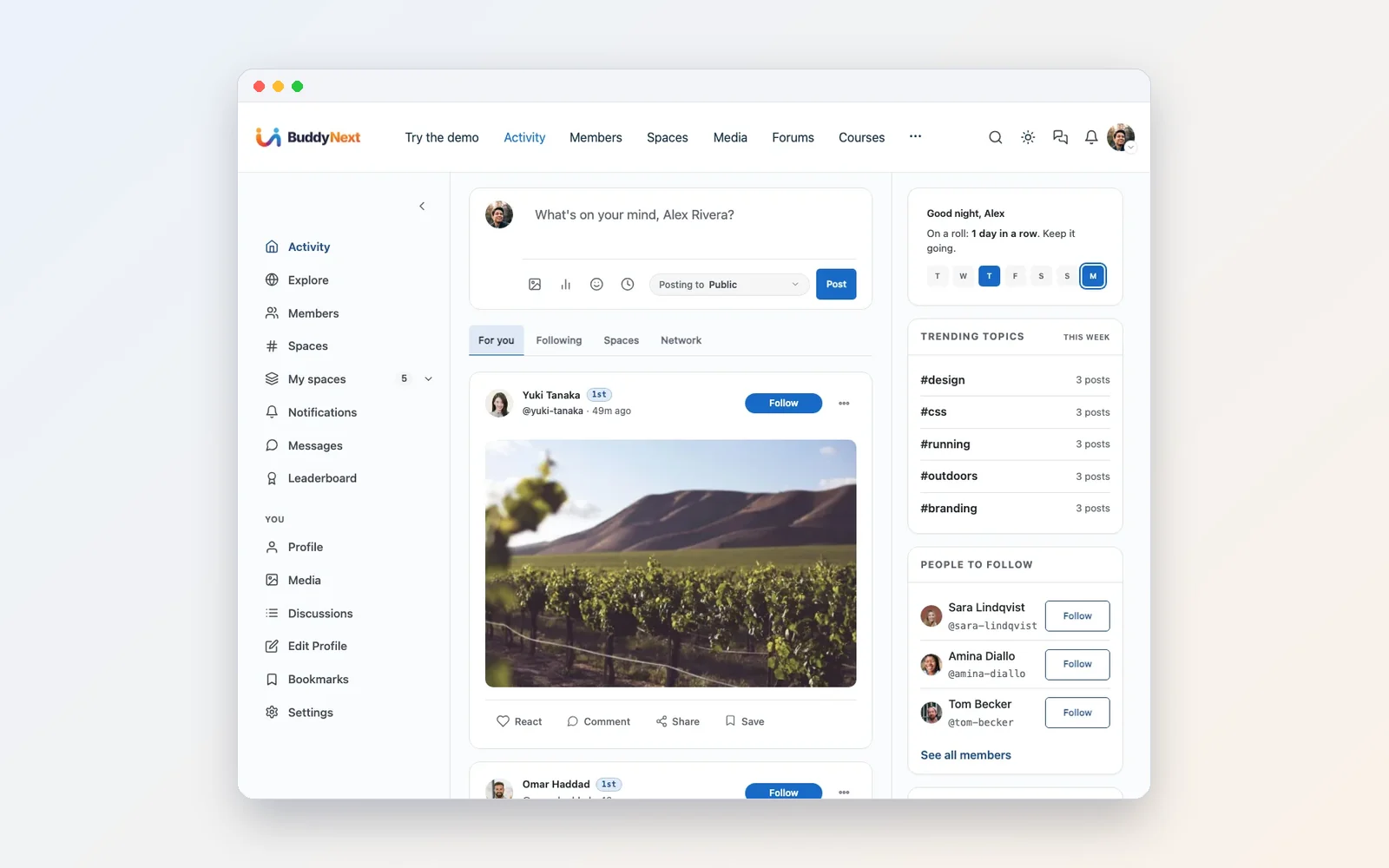
Alex can post an update, add photos or create a poll from the composer. Before posting he chooses who sees it: everyone, only his followers, only his connections, or just himself. He can also schedule a post for later, which helps when an announcement has to land at a set time.
The feed splits into tabs (For you, Following, Spaces and Network) so people see what matters to them instead of one long stream of noise. Every post can be reacted to, commented on, shared or saved to read later. Anyone can report a post that breaks your rules.
How to create a social network website on WordPress
This is the shortest answer to one of the most common questions in this space. Install BuddyNext on a WordPress site and the core surfaces are already there: an activity feed, spaces, member profiles, a member directory, messaging and moderation. You do not assemble a social network from a dozen parts. You switch on the pieces and give them your name.
The feed itself covers what members expect from any social app. Posts, polls and photos, six reactions, hashtags, @mentions, threaded comments and bookmarks. Profiles carry a cover image, a bio, custom profile fields, activity, connections and the spaces a member has joined, so people have a real identity inside your community rather than a bare WordPress account.
Spaces for every topic
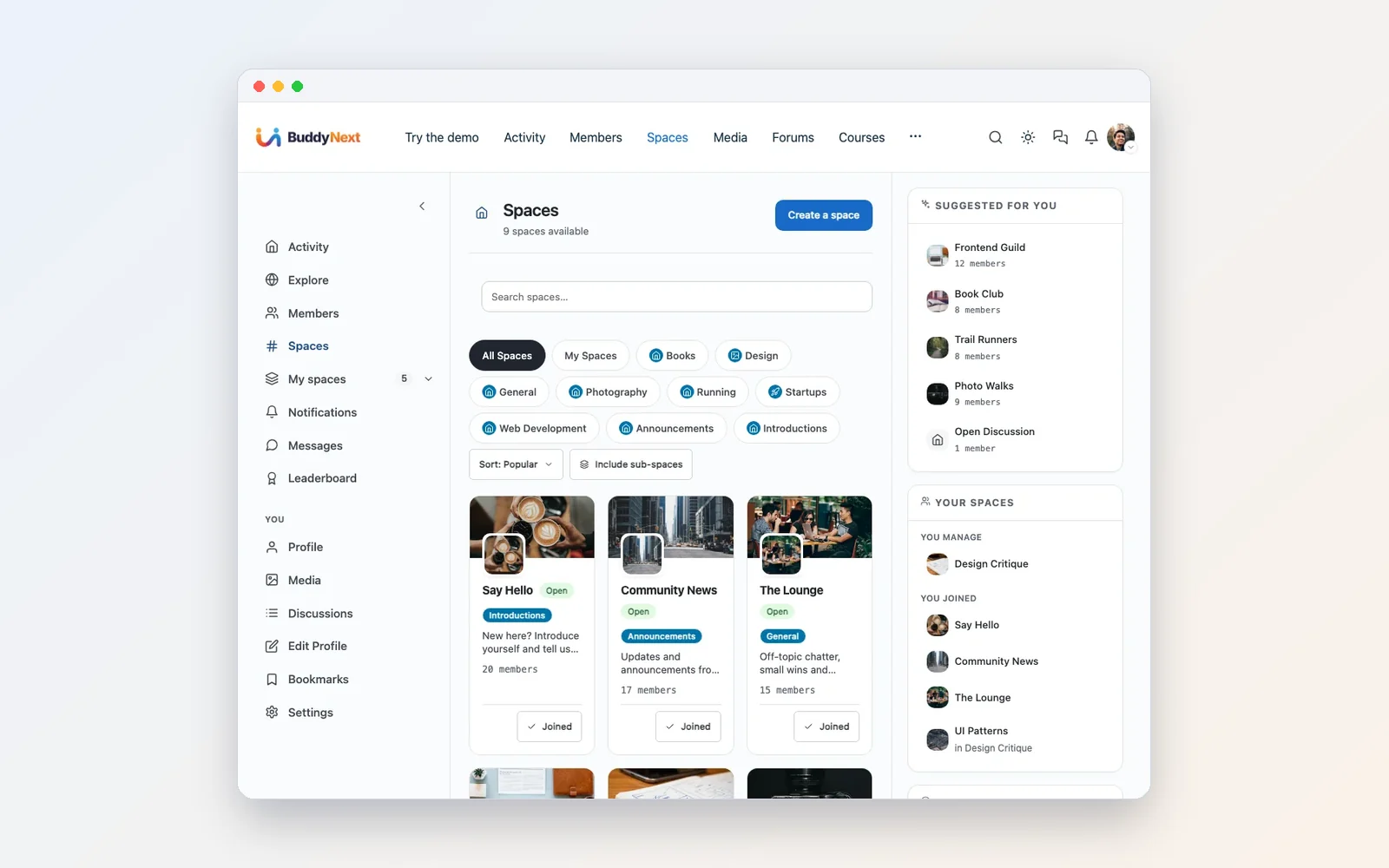
A space is a room for one topic: Design Critique, Photo Walks, Book Club. You sort spaces into categories such as Design, Photography or Running, and a space can hold sub-spaces for smaller groups. Some spaces are open to everyone. Private ones ask people to request to join, and you decide who gets in. Lena spotted the use straight away: a paid workshop group, or a team that wants privacy.
How to create a private group on WordPress
Spaces come in three visibility levels. Open spaces anyone can join. Private spaces that people request to join, where you or the space owner approve each request. And secret, invite-only rooms that do not show up for people who are not in them. Each space has its own feed, its own member list and its own roles, and space owners get their own moderation tab, so a busy group does not have to wait on the site admin for every decision.
That covers most private group needs: a cohort of paying students, a leadership team, a volunteer committee, or a support circle that needs a closed room.
Members and direct messages
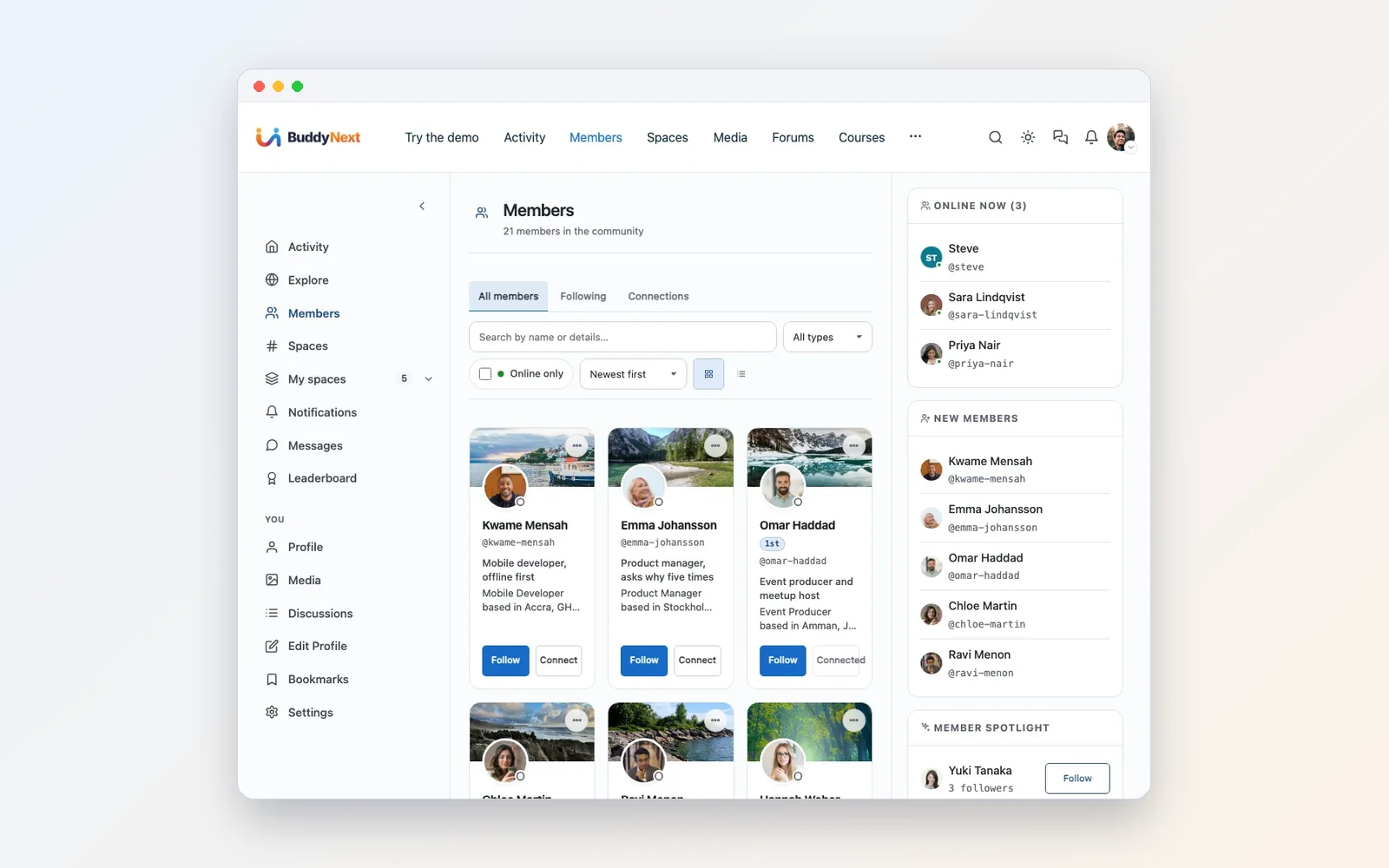
The directory lets Alex follow people, send a connection request or message them directly. A search box and an online-only filter make it easy to find someone who is around right now.
A WordPress member directory people actually use
A member directory is only useful if people can find each other in it. BuddyNext lets members search and filter the whole membership by name, role, space or interest, and sort by recent, active or alphabetical. Follow and message buttons sit on every card, so finding someone and starting a conversation is one step. Trusted members can carry a verified badge, which helps in communities where people want to know who they are talking to.

Messages feel like a chat app: private one to one conversations, with photos shared inside the thread. If someone is unpleasant, members can mute, block or report them on their own without waiting for you.
One detail worth knowing if you are looking for a private messaging plugin for WordPress: on this stack, messaging runs on WPMediaVerse, which is also why photos and files slot straight into a conversation. Messages are switched on or off in one place in the WPMediaVerse settings. Turn them off and BuddyNext hides the Message links across the site, while existing conversations are kept for when you switch them back on.
Notifications people can manage

Notifications are grouped by type, covering mentions, comments, reactions, spaces, follows and messages, so catching up takes seconds. Each member picks which notifications they want in their own preferences.
What you control as the owner

Switch to the owner’s view and you see every member, when they joined and when they were last active. You can add your own profile fields, create member types, send invites, and suspend someone when you need to. Note the Export CSV button: your member list is yours to take wherever you like.
Moderation lives in one place. Posts can be held for review, reports come in to a single queue, and suspensions follow a clear flow with a reason the member sees and a set length. The same menu holds appeals and a moderation log, so decisions leave a record.

In settings you name your community, decide whether the feed is public to logged-out visitors, and turn on a bottom tab bar for phones. New sites get an Apply recommended settings button that switches on the usual community features in one go, and you fine-tune from there.
How to moderate an online community
Moderation tools only work with clear rules behind them. A practical setup for a new community looks like this:
- Write short rules and pin them. The demo site keeps a Community Guidelines space in its forum, so new members can find the rules in one obvious place.
- Let members protect themselves. Report, mute and block are available to every member, which takes a lot of small conflicts off your desk.
- Work one queue. Administrators and community moderators can handle reports from the front end, filtered by type and sorted by most reported, while space owners use their own space’s moderation tab.
- Be consistent with suspensions. Each suspension carries a reason the member sees and a set length, members can appeal, and the moderation log keeps a record of every decision.
- Use approval where risk is highest. Hold posts for review in new or sensitive areas, and leave trusted spaces open.
Photos and videos: WPMediaVerse
Lena’s members are creatives. “They’ll want to show their work, not just talk.” That is what WPMediaVerse adds: a proper gallery for photos and videos inside the community.
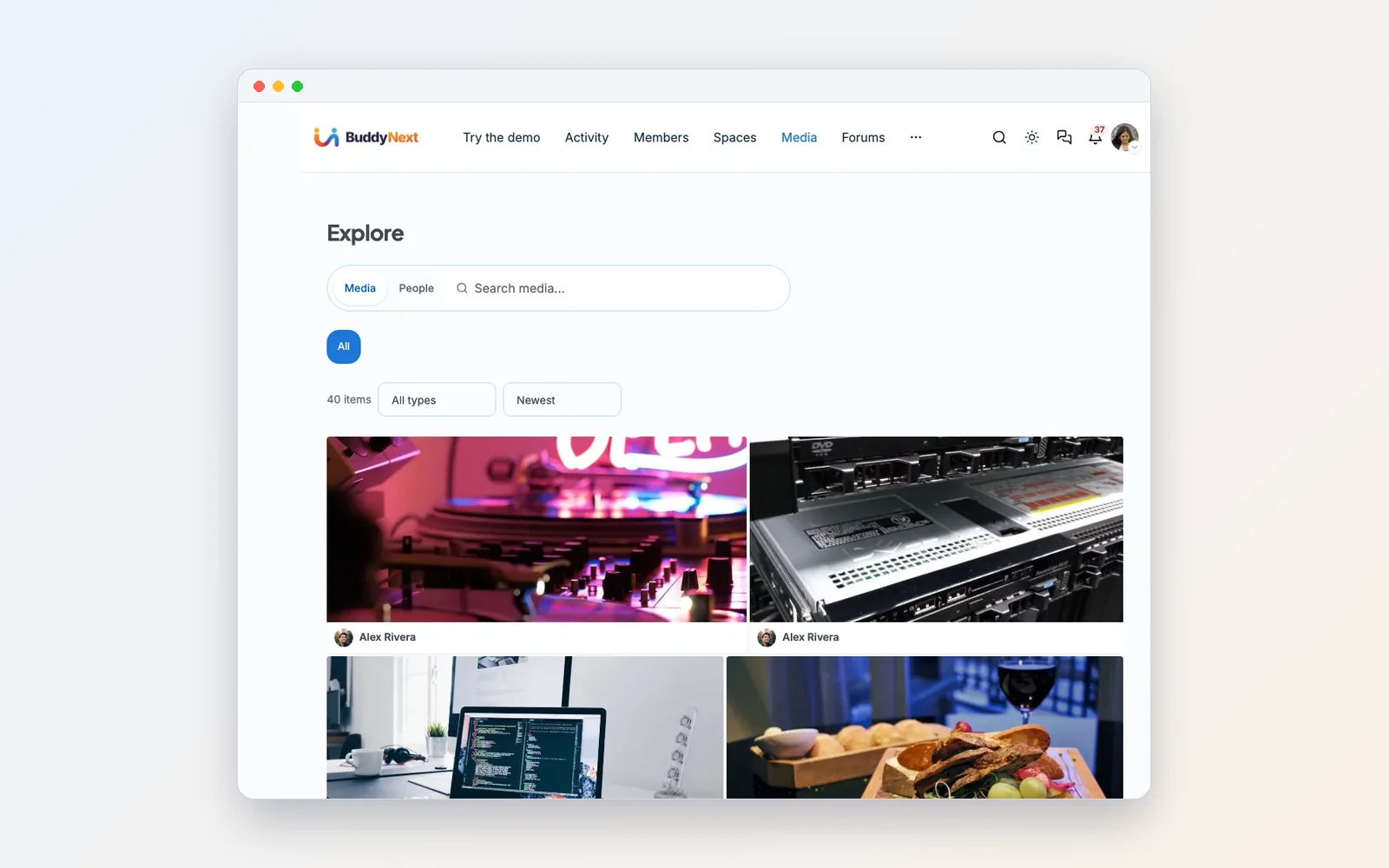
The gallery has search, filters by media type and sorting. Priya drags her photos and videos onto the upload page and picks who can see each one. Then she adds a title, a description and tags, and decides whether people can download it.

Everything she shares lands in My Media, organised into albums and collections, where she can edit or delete it later.
The owner side. Lena asked the right question: what stops someone uploading something they shouldn’t? You set the rules. Which file types are allowed, who can upload, the maximum upload size and how much storage each member gets. You can make the gallery members only, set the default privacy for new uploads, and let members choose their own privacy per item. One setting removes GPS location data from uploaded photos, which protects members who share pictures taken at home. Anything reported goes to a moderation queue where you approve or reject it.
A WordPress photo gallery for members
If you have searched for a way to let members upload photos from the front end, this is the piece that does it. Members upload from the site itself, never from wp-admin, into their own albums and collections. Each upload gets its own privacy level, from everyone down to friends, a group, or only the member. Other members can react, comment and follow the creators they like, and a lightbox shows work at full size.
WPMediaVerse also runs an automatic safety check on uploads before they go public, which adds a layer on top of member reports. It works on its own or alongside BuddyPress, and its upload block, lightbox and gallery can be placed on any page with the block editor. If one member needs more room than the default, you can give that member a different storage limit on their profile.

Questions and answers: Jetonomy
Every community owner knows this one. The same questions come up every week, and you answer them one by one. Jetonomy fixes that with a discussion area that has forums, questions and answers, and idea boards.
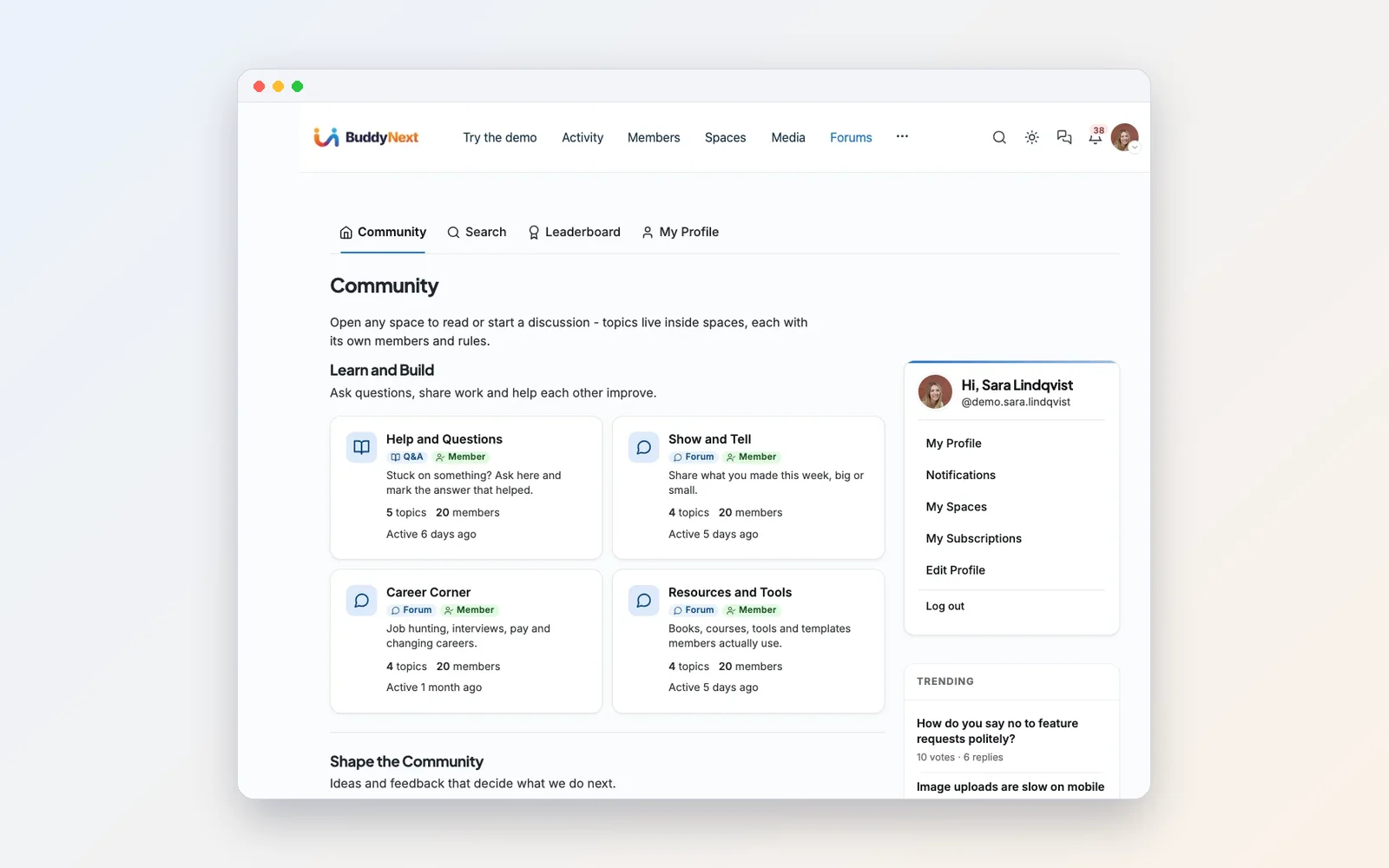
Discussions are grouped into their own spaces, such as Help and Questions, Ideas, or Show and Tell, and topics are tagged so they are easy to find. Members vote on the most useful replies, the best answers rise to the top, and helpful people earn reputation.
Lena’s reaction says it all: “So the community starts answering for me.” And every good answer stays on your site, searchable, for the next person who asks. That is knowledge you keep, not a thread that scrolls away in a chat app.

The owner side. Each discussion space has a type (feed, forum, Q&A or ideas), a join policy and a visibility, so it can be open to everyone or kept private. New topics and replies can wait for your approval. Flagged posts come to you, and you can ban someone who keeps breaking the rules.

You can even rename things in the terminology settings, so a space or a topic is called whatever your community calls it, and you choose who is allowed to create new spaces.
How to add a forum to WordPress
Jetonomy is the forum layer of this stack, and it gives you four kinds of space in one plugin: a classic forum, Q&A with a real accepted answer, an ideas board with voting and a public roadmap, and a feed. You switch each kind on or off, and spaces can be public, private or hidden, with join policies of open, approval or invite.
Inside a discussion, members get threaded replies, up and down voting, accepted answers, bookmarks, following, drafts, scheduled posts, tags and prefixes. Full-text search and cross-space tags make old answers easy to find, which is the whole point of a Q&A space. Six trust levels promote active members automatically and hand your best people more tools, and spam protection covers reCAPTCHA, Turnstile and Akismet.
Jetonomy also stores its data in its own database tables, so your home page, blog and shop stay fast even at 100,000+ topics.
Courses: Learnomy
“Now the big one for me. I want to teach.” With Learnomy, courses run on the same site as the community, so students learn where they already talk. Bud switches to Marcus, the student.
What the student sees

The catalog lets students filter by level, by instructor and by topic. Marcus sees his own courses first, split into in progress, completed and not started, with a Continue button that takes him back to where he left off.

On a course page people see the full curriculum, try a preview lesson, meet the instructor and read reviews from other students before they enroll.

Inside a course, students work through each lesson, mark it complete and join the discussion under it. A progress bar shows how far they have come. That discussion box matters more than it looks: questions get asked next to the material, and other students can answer them. We wrote more about why that progress record is worth keeping in progress bars, streaks and the course nobody wants to restart.
What the teacher controls

The teacher’s dashboard shows enrollments over time, your students and reviews waiting for you. The course builder is where you plan it all: sections, lessons and quizzes in the order you want. You can make students finish each lesson before the next one unlocks.

When students submit written answers, they wait in a grading queue for you. In settings, solo academy mode is for when you are the only teacher, and you can let students sign up on their own or keep course content for logged-in members only. If teaching is the main reason you are building a site, our step-by-step guide on how to create an LMS website in WordPress goes deeper on payments, quizzes and certificates.
How to create an online course with Learnomy
Creating an online course is mostly planning, and the builder is shaped around that. A simple path:
- Start with the outcome. Write one sentence about what a student can do after the course, then group the steps into sections.
- Build lessons in the format that fits. Learnomy supports video, audio, PDF and reading lessons, with drag-to-reorder and autosave.
- Add quizzes to check understanding. Question types include multiple choice, true or false, short answer, fill in the blank and essay, with a reusable question bank, timed attempts and an essay grading inbox for written answers.
- Set the pace. Completion rules, content drip and prerequisites decide whether students move freely or unlock lessons in order.
- Reward completion. Certificates are signed and QR-verifiable, so a student can prove what they finished.
How to sell courses on WordPress
Each course can be open at no charge, paid, manually enrolled or part of a membership. Checkout runs through Stripe or PayPal directly on your site, with recurring memberships, trials, coupons and gift codes built in, and the money goes to your own account. If other teachers join you, they can apply to teach, get their own instructor dashboard and earn a revenue share tracked on every sale.
Meetups and events: Eventonomy
For Lena, the photo walks and meetups are what really bring people together. Eventonomy puts them on the same site as everything else.
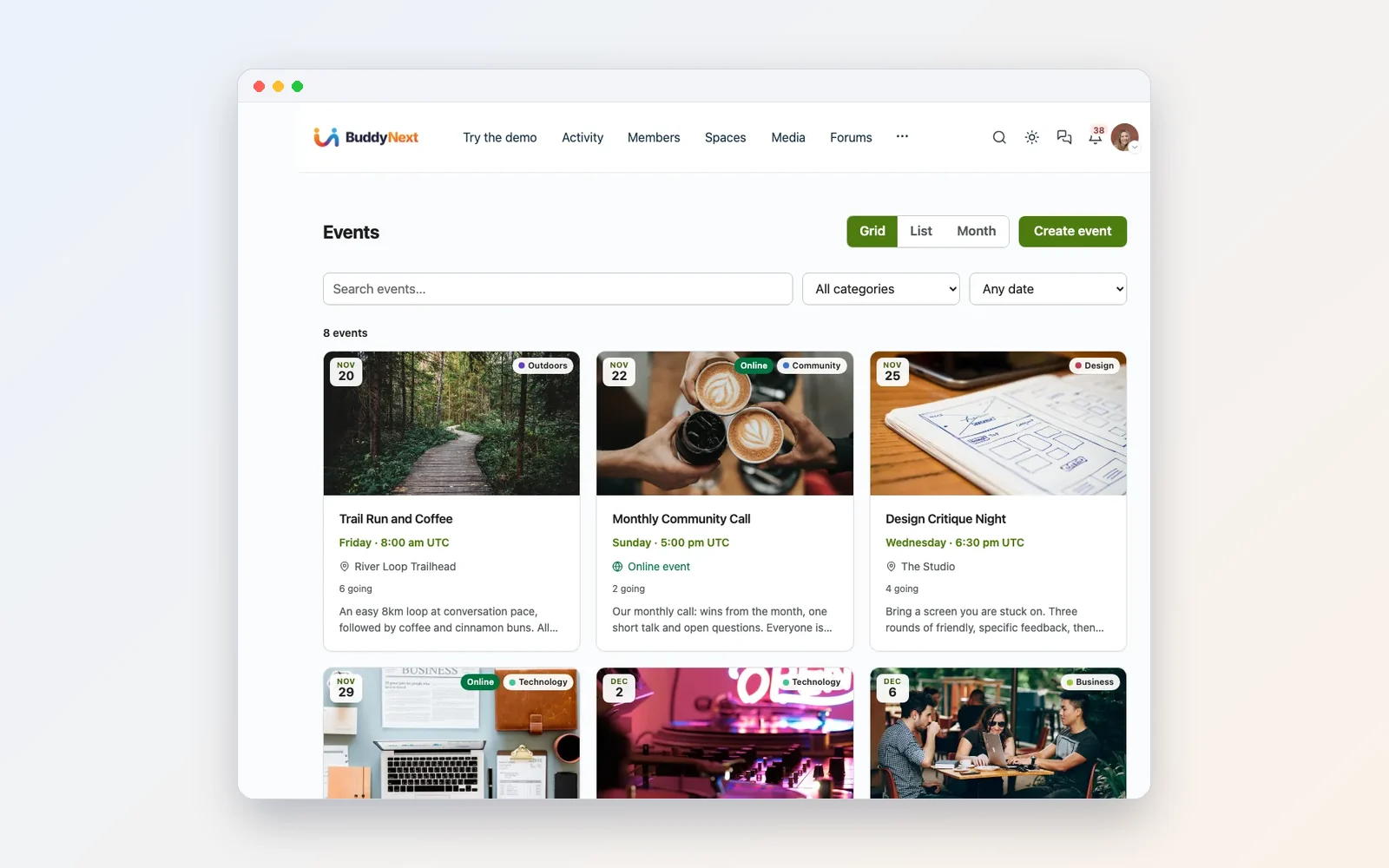
Events show as a grid, a list or a monthly calendar. Each one has a date, a category and a place. Some are in person, like the Street Photography Walk. Some are online, like the Monthly Community Call.

Sara says she is going, or maybe, with one click. She adds the event to her own calendar and sees who else is going. Can members host their own meetups? If you allow it, yes. You choose which members can create events and how many each person can create.

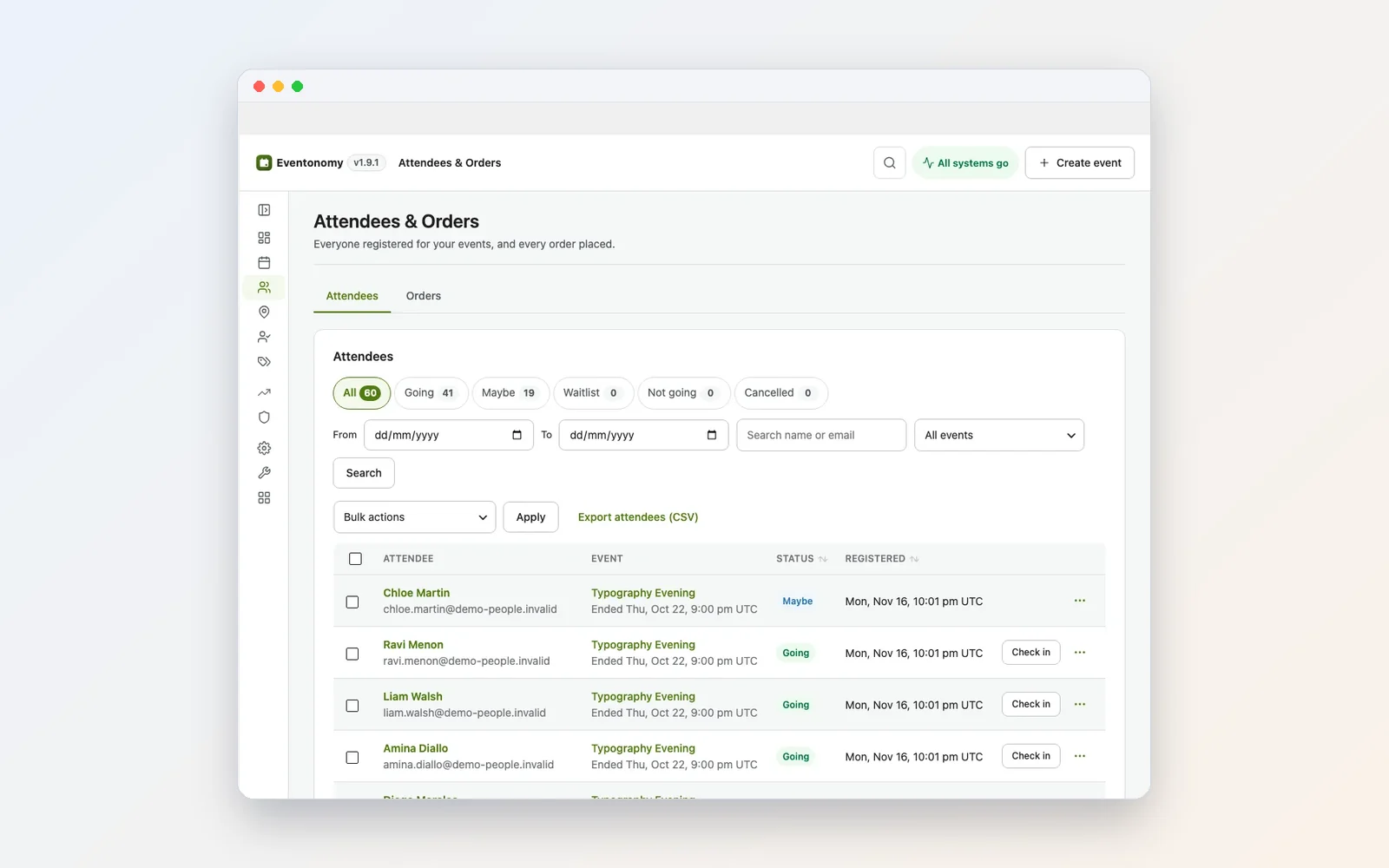
The owner side. Your Command Center shows upcoming events, registrations and a live feed of who just signed up. For every event you see who is going, who is a maybe and who is on the waitlist. You check people in at the door and export the list. Venues and organizers are saved once and reused, so creating the next event is quick.
A WordPress event RSVP plugin built for meetups
Event RSVP is where a lot of community tools fall short, so it is worth spelling out what this one does. Members answer going, maybe or no in one click, with optional guest counts. You can set a capacity, and a waitlist catches the overflow automatically. Site-wide RSVP questions let you ask for a dietary need or a T-shirt size in the same form.
People do not even need an account. A guest can RSVP with a name and an email address and gets a magic link, valid for seven days, to manage or cancel it. That makes Eventonomy useful for open meetups where half the room has not joined the community yet.
Calendars, recurring meetups and member-hosted events
Visitors can browse events as a grid, a list, a month calendar or an upcoming list, each at its own link you can share. An ICS calendar feed and add-to-calendar buttons put events into people’s own calendars, and every event page carries event markup for search engines. Weekly photo walks or monthly calls do not need to be created one by one: daily, weekly, monthly and yearly series are built in.
Keeping people coming back: WB Gamification
Lena’s last item: how do you keep people active after the first week? Bud’s answer is points and badges from WB Gamification.

Members earn points for posting, answering, finishing courses and joining events. Because every plugin sits on one site, all of it counts toward the same total. That is the quiet advantage of one connected site over five separate tools: a helpful forum answer and a finished course land in the same profile.
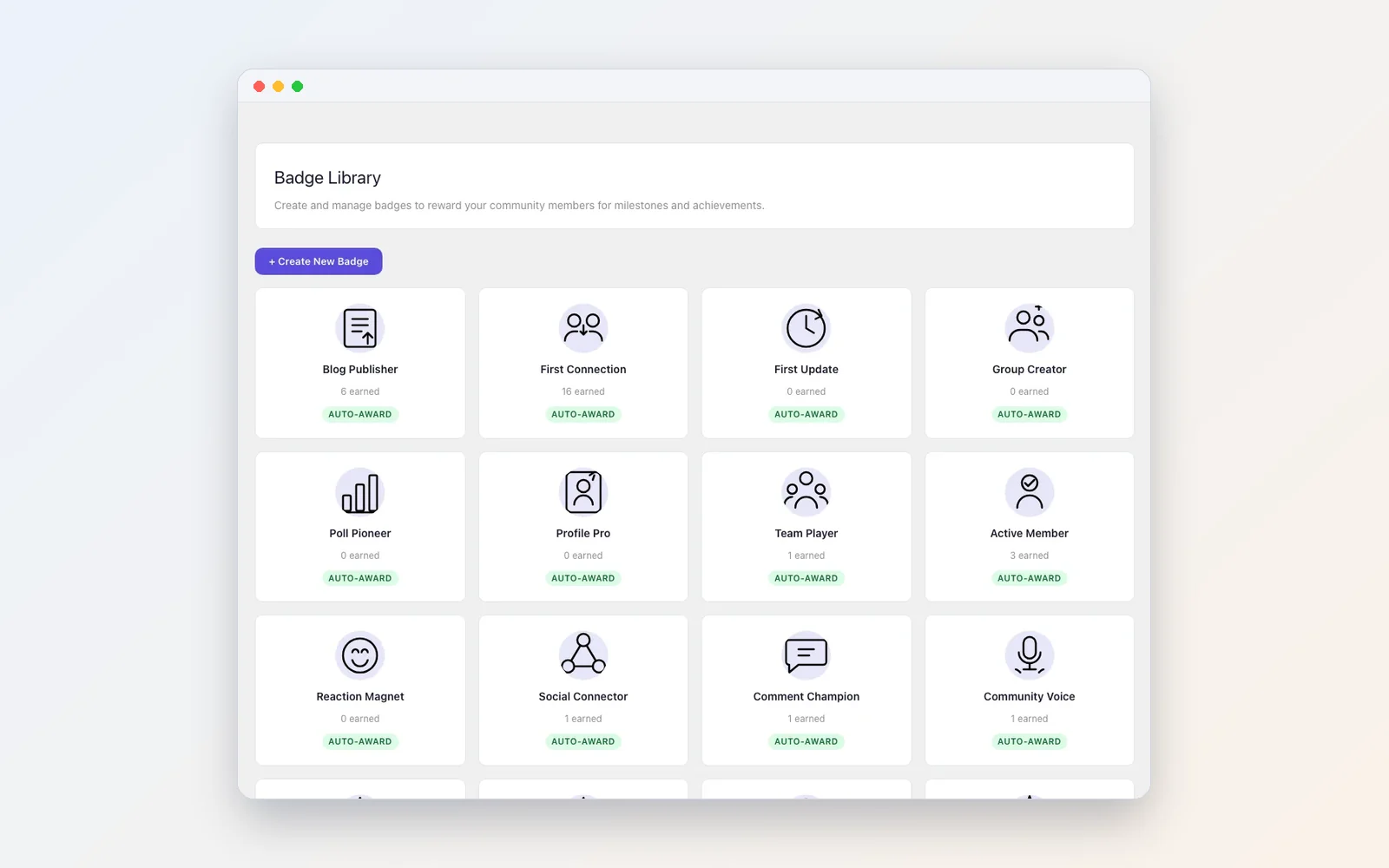
Badges unlock automatically, like First Connection, Comment Champion and Century Club. You can also award special ones by hand, such as Event Host. On top of that you can run challenges with bonus points, set levels, and let members thank each other with kudos.

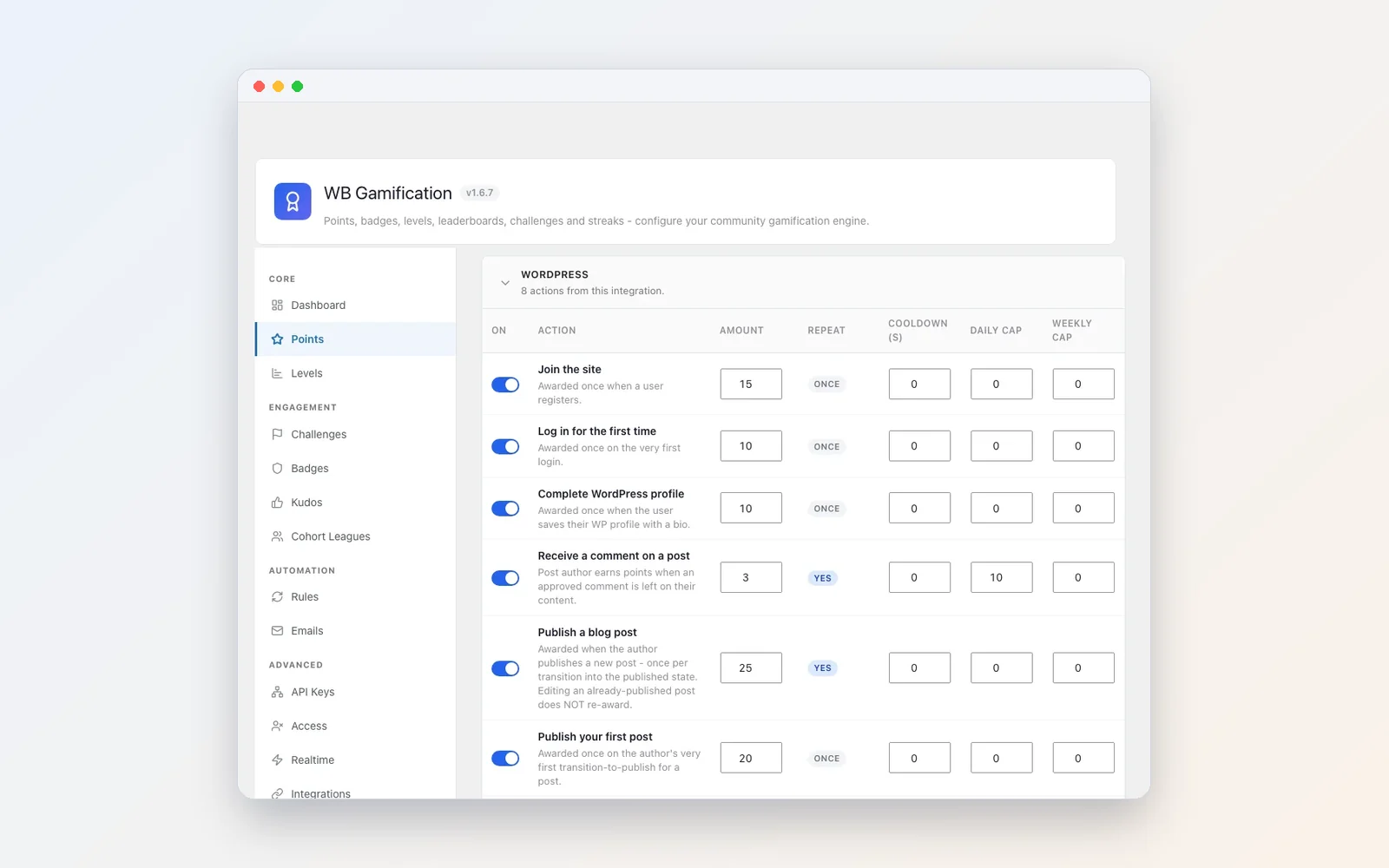
Most important for an owner, you control the rules. You set how many points each action is worth, whether it repeats, and daily or weekly caps, so nobody can game it by spamming one action.
Gamification ideas for an online community
Points alone do not bring anyone back. What works is rewarding the behaviour you want more of and giving members something to aim for. A few ideas you can set up with WB Gamification:
- A welcome path. Small auto-award badges for a first post, a first connection and a completed profile turn the first week into a set of easy wins.
- Streaks with milestones. Daily activity streaks with grace periods and milestones at 7, 30, 100 and 365 days give regulars a reason to open the site.
- Fair leaderboards. Cohort leagues group members into small sets with weekly promotion and demotion, so someone who joined last week competes with peers, not with your all-time leader.
- A shared goal. Community challenges set one counter that everyone contributes to, and everyone earns when it is hit. Good for a 100-photo week or a month of answered questions.
- Peer thanks. Kudos let members recognise each other, with daily limits so it stays meaningful.
- Something to spend. A redemption store lets members exchange points for rewards you define.
- Badges worth sharing. Badges stay private until a member shares them, and a shared badge gets its own public page with an OpenBadges 3.0 credential and a LinkedIn link.
Lena’s questions: start small, stay in control, work on phones
By the end of the tour Lena has the honest questions every new owner asks. Bud’s answers are worth repeating.
“Do I have to switch everything on from day one?” No. Start with the community, then add courses or events when you are ready. Each part is its own plugin.
“If I change my mind later, is it locked?” It is your site. You control the design, the settings and the data. Nothing lives on someone else’s platform.
“I’m not very technical. Is setup hard?” You can load demo content like the site in the video, see everything working, then remove the samples and keep your setup.
“Does it work on phones?” Yes. The whole site adapts to small screens. The feed, the courses and the events all fit, so members join in from anywhere.

How to get started
Here is the shortest path from nothing to a working community you can click through, in the same spirit as Bud’s advice: start small, add parts as you need them.
- Set up WordPress on hosting you control. Use a fresh install or a staging copy for the first build, not a site people already use.
- Install BuddyNext first. It gives you the feed, spaces, profiles, messages, notifications and moderation. Apply the recommended settings, then set your community name.
- Add only the parts your community needs. WPMediaVerse for a creative group, Jetonomy for a help forum, Learnomy if you teach, Eventonomy if you meet, WB Gamification once there is activity to reward.
- Build a demo with the Wbcom Demo Installer. In the installer you choose what the site is for (community, learning, events and more) and it builds a believable demo with sample members, a dated activity feed, a designed home page and a Try the demo page with one-click switching between sample accounts. It installs the plugins a demo needs and never emails the sample people.
- Test every role. Use the persona cards to check the site as a member, a creator, a student and an attendee, then as the owner.
- Finish the demo and invite real people. The installer’s Start my real site option removes the sample people and what they made, and keeps your settings, pages and menus.
On themes: the plugins work with the theme you already have, and the demo installer can build our plugin demos on any theme. If you want a theme built for community sites, look at Reign.
How to start a community: a launch checklist
The software is the easy part. What decides whether a new community takes off is the first few weeks. Before you invite everyone, run through this list:
- Decide public or members-only. A public feed helps people discover you. A members-only site feels safer for sensitive topics. BuddyNext, WPMediaVerse and Learnomy each have a setting for it.
- Open a few spaces, not twenty. Three or four active rooms beat a long list of empty ones. Add more when people ask for them.
- Seed real content. Post the answers to your most common questions in the Q&A space before launch, so the first visitor finds something useful.
- Invite founding members first. A small group of your most active people sets the tone that everyone else copies.
- Put the first event on the calendar. A date gives people a reason to join now rather than later.
- Write the rules down. Short, specific guidelines make moderation decisions easier to explain.
Communities this stack fits
Lena runs a creative community, but the same building blocks fit many other groups. A few examples, using only what the plugins in this guide do.
If you are looking for online community examples to model yours on, these are the patterns we see most often, with the parts of the stack each one leans on.
A coaching community
A coach sells a program and wants clients to support each other between calls. A private BuddyNext space holds each cohort, with request-to-join so only enrolled clients get in. The program itself lives in Learnomy, with lessons that unlock in order and written answers that wait for the coach to grade. Monthly group calls go into Eventonomy as online events, and a challenge in WB Gamification rewards clients who post their weekly check-in.
Why this works for coaching: clients get support between sessions from people in the same program, course progress shows the coach who is moving through the material, and the whole archive of questions and answers stays with the program for the next cohort. Learnomy memberships with recurring billing suit ongoing coaching rather than a one-off course.
A creator hub
Photographers, illustrators and video makers want a home for their work that is not ruled by someone else’s feed. WPMediaVerse gives each member a gallery with albums, collections and per-item privacy, plus a choice about downloads. A Show and Tell space in Jetonomy collects feedback, and badges mark milestones like a first upload or a popular post.
A professional association
An association needs a member directory, a place for members to ask each other questions, and a calendar of meetings. BuddyNext’s directory with custom profile fields and member types covers the first. Jetonomy Q&A spaces with voting build a searchable library of answers. Eventonomy handles chapter meetings with RSVPs, waitlists, check-in at the door and an exportable attendee list. Because the member data sits on the association’s own site, it stays with the association when committees and volunteers change.
For an association website, member types and custom profile fields do a lot of quiet work: a field for region or specialism makes the directory searchable in the way members actually look for each other. Guest RSVP helps with public events where non-members attend, and private spaces give boards and working groups somewhere to talk away from the main membership.
A training academy
A training company or a solo instructor runs Learnomy as the core, with solo academy mode if there is one teacher and course content locked to logged-in members. Each course can have its own discussion under every lesson, and a BuddyNext space per course gives students somewhere to meet outside the lessons. Live workshops go on the events calendar, and points for finished courses give learners a reason to start the next one.
A local club or meetup group
Running clubs, book clubs and photo walk groups live on events. Eventonomy lets trusted members host their own meetups, with a limit on how many each person can create. Spaces keep each activity separate, and the feed carries the photos and the chat afterwards. The Discord-style community guide shows another way to shape the same tools for groups that live in real-time chat.
Recurring series are the key feature here. A weekly run or a monthly book club is created once, and every date shows on the calendar with its own RSVP list. Members add the series to their own calendars, and points for attending reward the regulars who keep the club going.
FAQ
How do I build an online community I own?
Run it on your own WordPress site instead of a hosted platform. Install a community plugin such as BuddyNext for the feed, spaces, profiles and messages, then add plugins for media, forums, courses, events and rewards as you need them. Your members, content and data stay in your own database.
Can WordPress run a full community with courses and events?
Yes. The site in our video runs a social feed, photo and video sharing, forums and Q&A, courses, events and gamification together on one WordPress install, using BuddyNext, WPMediaVerse, Jetonomy, Learnomy, Eventonomy and WB Gamification.
Do I need to install every plugin at once?
No. Each part is its own plugin. Most owners start with the community (BuddyNext) and add courses, events or media later, when their members ask for them.
How do I keep my community safe?
Members can report posts and mute, block or report other members. As the owner you get review queues for posts, media and forum topics, suspensions with a reason and a length, bans in the forum, and settings for who can upload, create spaces or host events. WPMediaVerse can also remove GPS location data from uploaded photos.
I’m not technical. Can I still set this up?
Yes. The Wbcom Demo Installer builds a working demo with sample members and content, so you can see every feature before you change anything. When you are ready, it removes the samples and keeps your settings, pages and menus.
Does a WordPress community work on mobile?
Yes. The feed, courses and events in the demo all adapt to phone screens, and BuddyNext has an optional bottom tab bar for phones that you switch on in settings.
What is an online community?
An online community is a group of people who gather around a shared interest, goal or practice and talk to each other regularly in one online place. The difference from an audience is direction: an audience listens to you, a community also talks to itself. We go deeper in what the word community actually means.
How do I start an online community from scratch?
Pick a clear purpose and a specific audience, choose where it will live, open a few spaces, seed them with useful content and invite a small group of founding members before you announce it widely. On WordPress, BuddyNext gives you the community itself and the Wbcom Demo Installer lets you see a working setup before you build your own.
What are good community engagement ideas?
Regular events, a weekly prompt or challenge, a Q&A space where members answer each other, recognition through badges and kudos, and notification digests that remind quiet members what they missed. The common thread is giving people a reason to come back that is not just another notification.
Can I move an existing forum or courses to this setup?
Yes, for the most common WordPress sources. Jetonomy imports topics, replies, users and attachments from bbPress, wpForo and Asgaros while keeping old URLs working, and Learnomy has a guided importer for courses, lessons and quizzes from LearnDash, Tutor LMS and LifterLMS.
Build the community you own
Lena summed it up at the end of the video: one site that she owns, where people talk, share their work, ask questions, learn and meet up, and keep coming back. None of it lives on someone else’s platform.
Start with BuddyNext, then add WPMediaVerse, Jetonomy, Learnomy, Eventonomy and WB Gamification as your members need them. Want to see it all running first? Install the Wbcom Demo Installer on a fresh site and click through it as Alex, Priya, Marcus and Sara.
Related reading