
18 min read
Stopping Paid Videos and Course Files From Being Downloaded and Shared on WordPress: What Actually Works

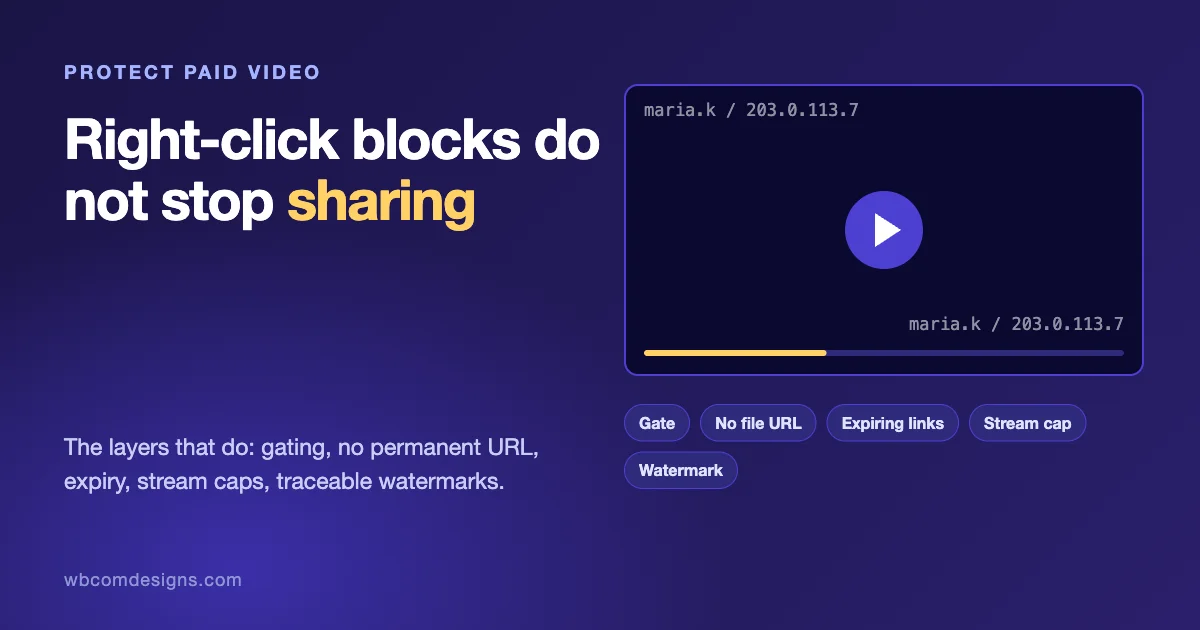
A customer pays for your course. Two weeks later the whole video library is in a shared folder, a Telegram group, or a free forum thread. If you sell video lessons or downloadable course material on WordPress, that story is not hypothetical, and the first thing most owners try is the cheapest: switch off right-click, hide the download button, and rename the file to something nobody would guess.
Those measures stop a casual visitor who is idly curious. They do not stop anyone who wants the file, because the browser has to receive the file to play it, and whatever the browser can receive, a person with the browser’s own tools can save. This article is about what works instead. It is a problem-first guide: what owners try and why it fails, what real protection needs, what no tool can promise, and how MediaShield, our own video protection plugin, approaches each layer. We take the MediaShield details only from its live product pages and its documentation, and where those pages state a limit, we state it too.
The short answer
- You cannot make a video impossible to copy. A viewer can point a phone at the screen. The realistic goals are to stop casual downloading, stop link sharing, and make a leak traceable to the account that caused it.
- Protection is layers: gate who can start playback, never expose a permanent file address, expire any address you do hand out, limit how many streams one account can run, and mark every playback with the viewer’s identity.
- Right-click blocking and hidden buttons are a deterrent for casual users only. They belong in the stack as the thin outer layer, never as the plan.
- Tracing a leak beats trying to prevent it entirely. A visible, moving watermark with the viewer’s name changes behaviour, because sharing stops being anonymous.
What owners try first, and why it fails
Disabling right-click
A script that blocks the context menu removes one way to reach the video. The browser still downloads the video data to play it, and every desktop browser has developer tools with a network panel that lists the request, the address and the file. Disabling right-click does nothing to any of that. It also affects honest users: it blocks copy and paste of text near the player and annoys people who simply want to open a link in a new tab.
MediaShield’s own documentation is open about this. It describes the Block Right-Click setting as disabling the browser context menu over the player, on by default, and describes the Block Save Shortcut (Ctrl+S or Cmd+S) as off by default and working only when the keypress happens inside a protected player, with no interception of View Source, print or developer tools shortcuts. Its product page describes the outcome as casual ripping stopping at the door, which is an accurate description of the limit.
Hiding the file address
Many owners remove the download button and rely on the file path being obscure, for example /wp-content/uploads/2026/10/lesson-04.mp4 with a harder name. The problem is that the address has to reach the browser for the player to fetch the file, and it often sits in the page source. You can check this on your own site in a minute. Open a lesson page while logged out of the admin, as a customer would be, and search the HTML for a video file extension.
# Does the lesson page expose a direct video file address?
curl -s https://example.com/lesson-04/ | grep -oE 'https?://[^"'\'' ]+\.(mp4|webm|m4v|mov)' | sort -u

# If an address turns up, ask for it with no cookies, like a stranger would
curl -sI https://example.com/wp-content/uploads/2026/10/lesson-04.mp4 | head -5
If the second command returns HTTP/2 200 and a content-length, the file is public. Anyone who ever sees that address, including one paying customer, can share it, and the link keeps working for as long as the file exists. A secret name is a password that never changes and is sent to every viewer.
The same documentation page makes a useful admission about its own past. The Hide Video Source URL setting is on by default and applies to self-hosted video, and before version 1.3.0 it was cosmetic: the file address was printed in the page markup and removed by JavaScript afterwards, so View Source revealed it. Since then the player requests a plugin endpoint instead of the file address, and that endpoint checks access on every request, including seeks. We mention it because it is the same trap the owner falls into, and because checking this kind of claim on your own site, as in the commands above, is the right habit with any protection plugin.
Relying on the login wall alone
Putting lessons behind a login stops search engines and strangers. It does not stop a paying member from downloading the file after they log in, and it does not stop two people sharing one account. A login is the first gate, and it needs partners.
Trusting the Referer check
Some setups refuse requests whose Referer header does not name your domain. That keeps casual embedding on other sites in check, and it is a useful courtesy. It is easy to defeat for anyone using a script or a command line tool, since the header is set by the client. MediaShield’s documentation calls its Allowed Domains list a courtesy measure for this reason, noting that Referer headers can be forged.
Private hosting links that never expire
Some video hosts and cloud storage services hand out a private link. If the link does not expire and is not tied to a viewer, you have the same problem as the hidden file name with a longer address. Check how long yours lives.
What real protection needs
Think of five jobs, and notice that each one answers a different way of leaking.
| Job | The leak it answers | How it works |
|---|---|---|
| Gate access | Strangers and logged-out visitors watching | Login, role or purchase check before playback starts, and again for each request for the file |
| Never expose a permanent address | A file link pasted into a forum | The player asks your server for a stream, and your server decides each time |
| Expire what you hand out | A link that works for months | Signed addresses with an expiry time, tied where possible to the viewer |
| Limit concurrent use | One account shared with many people | A cap on simultaneous streams per account |
| Mark the playback | Screen recordings and re-uploads | A watermark with the viewer’s identity, so a leak names its source |
1. Gate access, and keep gating
The check has to run on the server, not in JavaScript, and it has to run more than once. Checking only when the page loads lets someone take the file address and use it later. A well-built gate checks when playback starts and again each time the player asks for more of the file, including when a viewer seeks. MediaShield’s access control page describes this order: administrators always pass, then the login gate, then a per-video role, then the allowed-domain list, then your own rules through the mediashield_can_watch filter. It says the checks run when a watch session starts and again on each request for a self-hosted file.
Two details from the documentation are worth knowing before you rely on it. Per-video role matching is exact, not a hierarchy, so a video restricted to the subscriber role refuses an editor. And the free plugin has no built-in membership or LMS integration, so you connect them through that filter, while Pro includes adapters for LearnDash, LifterLMS and Tutor LMS.
2. Do not expose the file at all
For files on your own server, the pattern is to keep the real files outside any public path, or deny direct access to them, and let a script that checks the visitor deliver the bytes. On nginx, the efficient way is to let PHP make the decision and hand the transfer to the web server with an internal redirect. Here is a minimal sketch for downloadable course files such as PDFs and worksheets. It is an illustration of the pattern, not a drop-in product, and you must adapt the checks to your membership plugin.
<?php
// mu-plugin: deliver protected course files after an access check.
add_action( 'template_redirect', function () {
	if ( empty( $_GET['course_file'] ) ) {
		return;
	}
	if ( ! is_user_logged_in() ) {
		wp_die( 'Please log in.', 'Login required', array( 'response' => 403 ) );
	}
	// Replace with your real entitlement check (membership level, purchase, enrollment).
	if ( ! current_user_can( 'read' ) ) {
		wp_die( 'No access.', 'Forbidden', array( 'response' => 403 ) );
	}
	$name = basename( sanitize_file_name( wp_unslash( $_GET['course_file'] ) ) );
	$path = '/protected-files/' . $name; // an nginx internal location, not public.
	header( 'X-Accel-Redirect: ' . $path );
	header( 'Content-Disposition: attachment; filename="' . $name . '"' );
	exit;
} );
location /protected-files/ {
internal;
alias /var/www/protected-files/;
}The internal directive means a visitor cannot request that location directly, only PHP can hand it off with X-Accel-Redirect. On Apache, the equivalent is the X-Sendfile header with the mod_xsendfile module. Test it the way an attacker would: request the protected address directly, with no cookie, and confirm you get a 404 or 403.
3. Expire anything you hand out
When the video lives on a CDN or object store and your server cannot stand in the middle of every request, use signed links that expire. The idea is simple: your server builds a link containing an expiry time and a signature computed with a secret key. The storage layer checks the signature and the time and refuses anything else. A shared link then dies on its own.
If you run nginx, its secure link module implements exactly this, and the documentation example is a good way to understand the mechanism. The configuration checks an md5 hash and an expires timestamp passed in the query string:
location /s/ {
	secure_link $arg_md5,$arg_expires;
	secure_link_md5 "$secure_link_expires$uri$remote_addr secret";

	if ($secure_link = "") { return 403; }
	if ($secure_link = "0") { return 410; }
}
Your application creates the matching link. This is the generator from the same documentation, which we ran to confirm the output. For the path /s/link, the client address 127.0.0.1, the key secret and an expiry of 2147483647 it prints _e4Nc3iduzkWRm01TBBNYw:
printf '%s' '2147483647/s/link127.0.0.1 secret' | openssl md5 -binary | openssl base64 | tr +/ -_ | tr -d =The link is then /s/link?. Use a short expiry for video, long enough for a viewing session and no longer. Binding the signature to the client address, as in this example, stops a link working elsewhere, with one drawback: viewers whose address changes mid-session, for example when a phone moves from wifi to mobile data, will be refused until the page fetches a fresh link. Decide that trade-off on purpose.
You can test any signed-link setup, whatever product provides it, with one more pair of requests: fetch the link right away and expect a 200, then change one character of the signature and expect a 403, then wait past the expiry and expect a 410 or 403.
4. Limit simultaneous streams
Account sharing is the quietest leak. One purchase turns into six viewers, and nothing is downloaded at all. A cap on simultaneous streams per account does not stop two people taking turns, but it makes sharing awkward, and when combined with a watermark that names the account, it makes it risky.
MediaShield’s free plugin includes this. According to its documentation, Max Concurrent Streams defaults to 2 per account. Only logged-in accounts count, and guests are never limited. The player sends a heartbeat every 30 seconds, and a session silent for 5 minutes stops counting. When a viewer goes over, they see “Too many active streams. Please close another video first.” The documentation also says an administrator can end all of a user’s sessions through a REST endpoint, POST /wp-json/mediashield/v1/session/revoke-user, and that this release has no admin button for it, so blocking the account’s new streams means changing the user’s role or deactivating the account.
5. Mark every playback
A watermark does not stop recording. It changes the cost of sharing, because the recording carries the name of whoever made it possible. For this to work the mark must be hard to crop and hard to remove, and it must identify a person, not just your brand.
The MediaShield documentation describes its watermark as the main forensic tool. In the free plugin it draws the viewer’s display name and IP address over the video, and anonymous viewers, when login is not required, are labelled Guest plus their IP. Pro expands this to seven configurable fields: display name, email, IP address, user ID, timestamp, site name and custom text. It is a client-side canvas that cycles through four corners and the centre, with a position swap interval you can set, default 30 seconds. Shorter intervals make cropping harder. The documentation lists its limits plainly: it does not stop screen recording, a determined viewer can crop it out though that removes much of the frame, if the canvas is removed or hidden MediaShield pauses self-hosted video and hides platform iframes, and behind a proxy or CDN the IP shown may be the proxy’s address, which you can fix with the mediashield_trusted_ip_headers filter. It also appears only at the Standard or Strict protection level.
What no tool can do
It is worth being blunt, since overselling here costs owners money and trust. No combination of settings stops someone from recording their screen or pointing a camera at it. MediaShield’s protection settings page says exactly this and describes the approach as deterrence: the watermark makes any recording traceable.
DRM raises the bar further for streamed video by encrypting the stream and delivering keys only to authorised players. It is a different tier of protection with its own cost and complexity. MediaShield Pro offers ClearKey DRM. Its Pro page describes this as AES-128 software DRM with DASH and HLS packaging, and says hardware-backed Widevine L1 is not included. In plain terms: it deters downloading tools and casual copying of the stream, and it is not the same protection a major film studio gets from hardware-backed DRM. If you need studio-grade protection, you need a platform that provides that, with the contract and price that come with it. For most course sellers, the five layers above plus traceability are the practical sweet spot.
How MediaShield approaches this
MediaShield is our video protection plugin for WordPress. The free plugin works with self-hosted files (MP4, WebM, MOV and M4V) and with YouTube, Vimeo, Bunny Stream and Wistia embeds, through one player. Everything in this section comes from its live product page and documentation, and we point out where a feature is Pro or where the docs state a limit.
| Layer | What MediaShield does | Where it applies |
|---|---|---|
| Gate access | Require Login on by default, per-video role, allowed domains, your own rules through a filter | Free. LMS adapters are Pro |
| No permanent address | Hide Video Source URL: the player asks a plugin endpoint for the stream, which checks access on every request and uses a signed token naming the viewer | Self-hosted video only. Has no effect on YouTube, Vimeo, Wistia or Bunny embeds, which need the video ID in the embed address |
| Limit streams | Max Concurrent Streams per account, default 2 | Free. Applies to logged-in accounts only |
| Mark playback | Moving watermark with name and IP | Free. Seven fields are Pro |
| Casual copy blocking | Right-click, save shortcut, developer-tools detection | Free. Detection is skipped on touch devices and screens narrower than 1024 px |
| Encrypted stream | ClearKey DRM, AES-128 software DRM | Pro. No hardware-backed Widevine L1 |
| See what happens | Views, sessions, completion and active viewers with member drill-down; Pro adds heatmaps, a realtime dashboard, suspicious-activity alerts and CSV or PDF export | Free and Pro |
The documentation defines protection levels, which decide how much applies to each video. None is a free preview with no login gate, watermark or session tracking. Basic adds a login gate and the protection controls but records nothing. Standard adds the watermark, session tracking and milestones. Strict includes everything in Standard and forces developer-tools detection, pause on detection and source-URL hiding on for that video, regardless of the global toggles. The practical lesson is that the setting for each video matters. A video left at Basic has no watermark and no session tracking.
Pricing and tiers are on the product pages: the free plugin costs nothing with no licence key, and Pro plans are listed from $59 a year or $199 lifetime for one site, with 30-day money-back terms on paid plans. Check the page for current terms before buying, since pricing changes. You can read the plugin’s features at the MediaShield page, the Pro page and the documentation.
The complete setup: MediaShield with Learnomy for courses
Protecting a video is half of a course business. The other half is knowing who is allowed to watch it. If you sell courses on WordPress, the setup we would build is Learnomy for the course, the student and the payment, and MediaShield for playback.
From its product page, Learnomy is a free LMS plugin with courses, sections and lessons, enrolments (free, paid, manual or membership-based), quizzes, signed QR-verifiable certificates, Stripe, PayPal and a WooCommerce adapter for payments, recurring memberships, and instructor commissions. Its FAQ says checkout runs through your own Stripe or PayPal account with no platform fees and no per-student charges. The page lists seven lesson content types, including video, audio, PDF, embed and download, and says protected video works when the MediaShield plugin is active. The page does not label that feature as Free or Pro, so check on your own site which side of the line it falls on. Learnomy lists version 2.1.3, updated 15 October 2026, with Pro plans from $149 a year or $399 lifetime for one site.
How the pieces divide the work, using the layers from this article:
| Layer | Who does it |
|---|---|
| Who bought and who is enrolled | Learnomy: enrolment, payments, memberships |
| Who may start playback, and again on each request | MediaShield: login, per-video role, allowed domains, and the mediashield_can_watch filter for your own rules |
| No permanent file address | MediaShield: Hide Video Source URL for self-hosted video |
| Limit account sharing | MediaShield: Max Concurrent Streams, default 2 |
| Trace a leak | MediaShield: moving watermark with name and IP (seven fields in Pro) |
| Proof of completion | Learnomy: progress tracking and signed certificates |
Two limits to plan for. MediaShield’s documentation says the free plugin has no built-in membership or LMS integration and that you connect one through the filter, while Pro lists adapters for LearnDash, LifterLMS and Tutor LMS. The pages we read do not describe a Learnomy-specific adapter beyond Learnomy’s statement that protected video works with MediaShield active, so we would test the enrolment check on a staging copy before launch, with the test plan in this article. And the usual caveat holds: this deters and traces, it does not make recording impossible.
If you want this built and tested for you, our agency side handles the work: see WordPress development services for custom work and maintenance for what keeps it healthy. Start with the free plugins, Learnomy and MediaShield, and upgrade when a specific need appears.
A test plan before you launch
Whatever product you use, test it as an opponent would. Allow an hour and a spare browser profile.
- Logged out. Open a protected lesson with no login. You should see a login prompt, not a player.
- Wrong role. Log in with an account that should not have access and confirm refusal.
- View source. Search the page source and the network panel for any video file address. For self-hosted video, you should see a stream endpoint, not a file path.
- Cold request. Copy any address you find and request it with no cookies, using curl. You should get a refusal.
- Expiry. If signed links are in use, test a valid link, a changed signature, and an expired link.
- Two streams. Start playback in two browsers on one account, then a third. The third should be refused when your cap is two.
- Watermark. Record a short clip of your own screen and check that the viewer name appears and moves.
- Mobile. Repeat the main checks on a phone. Some browser-based detections are skipped on small screens, so you need to know what that device actually gets.
- Revoke. Practise ending a leaker’s access: end the account’s sessions, change the role, and confirm they are refused.
When a leak happens anyway
Have a procedure before you need it. Find the leaked copy and read the watermark. Match the name or ID to an account. Revoke that account’s access, check the order record and the stream history, and contact the customer. Most leaks are careless rather than malicious, a member sharing a login with a colleague, and a short, firm message handles most of them. For commercial piracy, collect the evidence and use the host’s takedown process. Whatever the case, document what happened and tighten the layer that failed.
It also helps to say in your terms of sale that the content is licensed to one person, that sessions are monitored, and that sharing a login ends the licence. People behave better when they know the playback is marked.
Common questions
Can I stop people downloading my videos completely?
No tool can promise that. You can stop casual downloading and link sharing, and make leaks traceable. Any product that promises more should be tested hard before you rely on it.
Is disabling right-click enough?
No. It removes one menu, and the browser’s developer tools still show the video request.
Does embedding from YouTube or Vimeo protect my video?
It moves hosting, but not secrecy. For embeds the provider’s video ID must be in the page, so MediaShield’s source-hiding does not apply to them, per its own documentation. Use the provider’s own privacy settings and a domain restriction, and accept that embeds protect less than self-hosted video behind a stream endpoint.
Does a watermark hurt the viewing experience?
A little. The docs let you set opacity, colour and the position swap interval, and for small players only the name appears. Choose a setting that is visible enough to deter and quiet enough to ignore.
What about PDFs and other course files?
The layers are the same: gate access on the server, do not expose a permanent file path, expire any link you issue, and deliver through a script. The nginx example above is a starting point, and the video-specific parts of MediaShield do not apply to documents.
Should I pay for Pro?
Only if you need what it adds: seven watermark fields, DRM, the analytics, suspicious-activity alerts or LMS auto-completion. The free plugin covers the gate, stream caps, source hiding for self-hosted video and the basic watermark. Start there, test it, and upgrade when a specific need appears.
What we could not verify
- How MediaShield behaves in your hosting setup. We relied on its product pages and documentation, not a test on your stack. Run the test plan above on your own site.
- Whether the signed stream token has an expiry. The documentation says the URL carries a signed token naming the viewer, and does not state its lifetime in the pages we read.
- Playlist behaviour. The product page lists a Playlist block, and the pages we read do not describe access control for playlists.
- Third-party protection products. We have not tested any competitor and make no comparison.
Related reading
For a worked example of the building blocks, see our step-by-step guide to a Netflix-style protected video platform on WordPress. For images, Protect Every Image You Publish covers watermarking and hotlink protection, and if you are weighing hosted alternatives, our comparison of video hosting platforms with DRM protection sets out the options.
Sources
Related reading