
17 min read
Migrate From LearnDash to Learnomy: What Moves, What Stays


Short answer: if you want to migrate from LearnDash, Learnomy has a built-in importer that reads LearnDash directly and rebuilds your categories, courses, sections, lessons, topics, quizzes and questions as native Learnomy content. It can also bring across who was enrolled and which lessons they finished, with the original completion dates. It does not move payments, pricing, coupons, orders, certificates or old quiz scores, and it has no entity for groups, assignments or LearnDash add-on data. Plan for a weekend on a staging copy for a normal-sized library, and a few weeks of quiet checking after that.
That is the whole story in four sentences. The rest of this guide is the detail you need before you touch anything: what the price situation actually is, what each part of a migration does, what you rebuild by hand, what it costs over three years, and the order we would do it in. We make Learnomy, so we have an interest here. We have tried to say plainly where staying on LearnDash is the better choice.
Key takeaways
- The free Learnomy importer moves categories, courses, sections, lessons, topics, quizzes, questions, enrolments and progress, with the original completion dates.
- It does not move payments, pricing, coupons, orders, certificates, old quiz scores, groups or add-on data.
- Imported courses arrive free, so import on staging or set them to Closed access first.
- Over three years the licence difference is real, but the LearnDash figures assume yearly renewal. Check your invoice.
- Rehearse on a staging copy: dry run, import content, then people, then rebuild what stays behind.
What did LearnDash change, and does it affect you?
Start with what we can check ourselves, because the internet is loud on this topic and not all of it is reliable.
LearnDash now sits under Liquid Web, after the StellarWP brand was retired earlier this year. We covered that change in our guide to StellarWP alternatives. On the day we wrote this, the LearnDash pricing page lists one bundle with five site-count tiers: $350 for one site, $599 for ten sites, $799 for 25 sites, $899 for 50 sites and $999 for 100 sites. Every tier includes the same four products: LearnDash, The Events Calendar, Give and Kadence. The plan cards we could read do not print a billing period, so check your own invoice to see whether you pay that yearly.
Here is the part that matters for the word “rise”. Public price trackers disagree. One tracker recorded a $259 entry plan disappearing from the page between 12 and 19 October and logged no across-the-board list-price increase. Forum and Reddit posts describe renewals that jumped sharply, and at least one developer on X has announced a LearnDash migration service this week. We cannot verify any of those individual renewal stories, and we are not going to repeat a percentage we cannot source.
So the honest version is this: the packaging changed, the entry plan is gone from the public page, and some owners are seeing renewal notices that surprised them. Whether you are one of them depends on your invoice, not on a headline.
A two-minute check before you decide anything
- Open your latest LearnDash renewal notice or invoice and write down the amount, the renewal date and the number of sites it covers.
- Open the current pricing page and find which tier matches your site count.
- Compare. If the two numbers are close, the price is not your reason to move, and you should only continue if something else is pushing you out.
If you want a calmer framework for the same situation, our licence-risk checklist for site owners walks through a vendor price change without drama. The short version: a price change tells you about the vendor’s direction, it does not break your site, and you almost always have time.
Will my courses keep working if I just leave LearnDash installed?
Yes, and this is the most useful fact in the whole guide. An installed, running plugin does not stop because a licence renewal is overdue. What stops is updates and support. Your courses, lessons and learner records live in your own WordPress database, not on a vendor server.
That gives you a calm way to migrate. You do not have to leave on the renewal date. Many owners let the licence lapse, keep the old plugin running while they build and test the new setup, and only switch learners over once they trust it. The one thing to be careful about is security. A plugin that no longer receives updates is a plugin you should not leave exposed for long, so treat the lapsed licence as a clock, not a permanent state.
What does the Learnomy importer move when you migrate from LearnDash?
The importer lives under LMS Settings > Import in the WordPress admin. It runs on the same site where LearnDash is installed, reads the LearnDash content in place, and writes Learnomy content next to it. It never edits, deletes or writes back to LearnDash. Your old setup keeps working exactly as before, which is what makes a safe rehearsal possible.
For LearnDash specifically, the importer can bring these across:
| LearnDash item | What you get in Learnomy |
|---|---|
| Course categories and tags | Categories and tags, brought across with their courses |
| Courses | Learnomy courses |
| Course section headings | Sections |
| Lessons | Lessons |
| Topics | Sub-lessons under the lesson |
| Quizzes | Quizzes |
| Questions | Questions, with type mapping (see below) |
| Course access (enrolments) | Enrolments, so each learner can open the imported course |
| Completed lessons and topics | Progress, with the original completion date |
Drafts, private and pending items come across too, not just published ones. The importer counts them on purpose so a half-finished course does not silently disappear from your new site.
How does the import run on a big library?
You choose a source, tick what you want, and click Preview import. That preview is a dry run. It counts exactly what will be created, lists warnings and prints a plain “Not migrated” list, and it writes nothing. Only then do you click Start import.
The live run works in batches of 50 items in the background through Action Scheduler, so a large library does not time out a single page. The screen shows a live percentage and per-item counts. Parents are imported before children (categories, then courses, then sections, then lessons), so you never have to think about ordering.
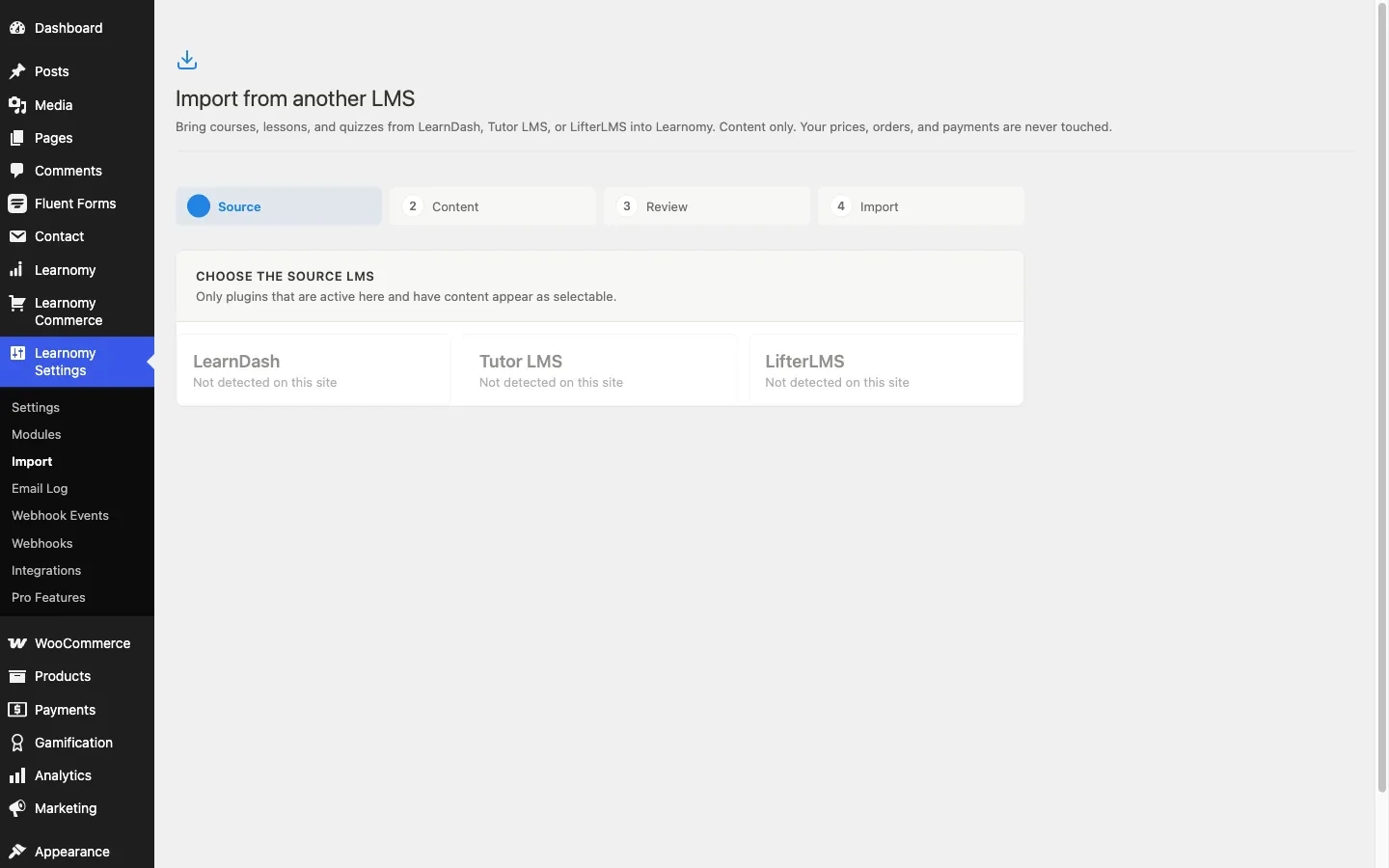
Two details owners tend to love once they see them. Re-running is safe: each source item is remembered, so a second run skips what already came across instead of creating duplicates. And every run has an id that you can undo, which deletes exactly what that run created, including child rows and tag links. If you prefer the command line, wp learnomy migrate preview learndash, wp learnomy migrate run learndash --async and wp learnomy migrate undo <run-id> do the same job.
For the full step-by-step version, including the REST routes and the question-type fallback filter, see our developer-friendly how-to, Migrate LearnDash, Tutor LMS or LifterLMS to Learnomy. This guide is the decision piece: whether to move, and what it costs.
How do LearnDash quiz questions map to Learnomy?
Quizzes are where most migrations lose something, so we want to be specific. The importer reads LearnDash’s quiz tables and translates each question type:
- Single choice becomes single-answer multiple choice.
- Multiple choice becomes multi-answer multiple choice.
- Free answer becomes short answer.
- Cloze (fill in the blank) becomes fill in the blank.
- Essay stays essay.
- Sorting becomes ordering.
- Matrix sorting becomes matching.
- Assessment (survey or Likert style) has no Learnomy equivalent and is skipped.
Skipped questions are listed by name in the run warnings, so you know exactly which ones to rebuild by hand. The dry run shows the same list before you commit, which means you can count the damage in advance. If your quizzes are mostly the first six types, expect a clean result. If you leaned heavily on survey-style questions, budget real time for rebuilding them.
What happens to old quiz scores?
They stay behind. The importer does not reconstruct per-question attempt scores. A learner who passed is marked complete, but the detailed history of each attempt does not travel. If you need those scores for an audit or an accreditation file, export them from LearnDash before you retire it and store the file somewhere safe. That is a ten-minute job now and an impossible one later.
What happens to learner progress and completion dates?
This is where a lot of migration tools quietly fail, and it is worth a short story.
An early version of the progress import read who finished what, but wrote the time the import ran instead of the time the learner actually finished. Every lesson, and every course completed through those lessons, carried the migration date. For a hobby course nobody cares. For a continuing-education or compliance record, that is a wrong answer on a document someone may show an auditor.
We caught it, fixed it, and shipped the fix in Learnomy 2.1.4. The importer now keeps the date each lesson was completed, and a course finished through its lessons takes the date of the last one. If certificates are switched on for the course, the certificate Learnomy issues for that completion carries the same date, not the import day. A missing or zero date in the source stays empty rather than becoming 1970. The full list of changes in that release is on our Learnomy release notes page, and the dates fix is one line among many.
Still, run your own spot check. Pick three learners with different histories, one who finished long ago, one halfway through and one who never started, and compare their LearnDash and Learnomy records side by side before you tell anyone the move is done.
What does not move, and what do you rebuild by hand?
Better to know now. Based on what the importer is built to read, these stay behind:
- Payments, pricing, coupons and orders. The importer never touches money. Imported courses arrive set to free access on purpose, so that importing content can never affect billing. You set real pricing afterwards.
- Certificates. No reliable per-course certificate flow exists to carry over. You enable certificates per course in Learnomy and pick a template.
- Old quiz attempt scores, as covered above.
- Groups, assignments and essay submissions. These are not among the items the importer reads. If you run company groups with group leaders, plan to rebuild that structure.
- Data from LearnDash add-ons. Anything a third-party add-on stored in its own tables is outside the importer’s reach.
- Page-builder layouts and theme-specific templates you designed around LearnDash shortcodes. The content moves, the page design does not.
Heads up: The free-by-default point deserves its own warning, because it can hurt. If you import onto a live site that is visible to the public, your paid courses are suddenly sitting there with no price. Do the import on a staging copy, or set the imported courses to the Closed pricing model before anyone can see them. Closed is the option LearnDash users already know: no on-site checkout, no Buy button, and you grant access by email, CSV upload or an incoming webhook. It does not need the payments module switched on.
Try the importer on a staging copy
Learnomy is free, and the importer is part of the free plugin. Run the dry run first and read the counts before you commit to anything.
How do my existing buyers keep their access?
The importer brings learners and their enrolments across, so people who already had a course can open it. The harder question is what happens next month, when a new person buys.
If you sell through WooCommerce, Easy Digital Downloads, MemberPress, Paid Memberships Pro or Restrict Content Pro, you probably do not want to rebuild your checkout. This is the situation our two most recent releases were shaped around.
Learnomy 2.1.4 added Access Grants: an order in another store, a membership plugin or an automation can give a person access to courses and plans without recording a sale inside Learnomy. A signed webhook takes grant and revoke instructions, and an Access Log lists every grant with its store and order number so the owner can remove one, retry a refused one or grant it anyway. A refund or revoke removes only the access its own sale gave, so someone who also holds the course through a membership does not lose it by accident.
Learnomy Pro 2.1.4 added a store and membership bridges module, switched off until you turn it on, for WooCommerce, Easy Digital Downloads, Restrict Content Pro, Paid Memberships Pro and MemberPress. You pick what a product or level unlocks: courses, membership plans, learning paths, seats in a Space or places in a cohort. Access follows the store. A paid order grants, a refund takes back, and a cancelled subscription keeps access to the end of the paid period.
If you would rather sell inside Learnomy, the free plugin includes Stripe and PayPal checkout, coupons and membership plans, and 2.1.5 adds clear instructor-earnings rules: a plan’s monthly revenue is shared across its published courses and paid to each course’s author at their own rate, and a refund claws the instructor’s share back as a negative earning. That matters if your LearnDash site pays multiple instructors and you have been doing the arithmetic in a spreadsheet.
How much does it cost over three years?
Here is the arithmetic, with the assumptions written down so you can change them. We exclude hosting, because you pay for it on either side.
| Setup | Year 1 | 3-year total |
|---|---|---|
| LearnDash bundle, 1 site (assuming $350 a year) | $350 | $1,050 |
| LearnDash bundle, 10 sites (assuming $599 a year) | $599 | $1,797 |
| Learnomy Free, any number of sites | $0 | $0 |
| Learnomy Pro Personal, 1 site, annual | $149 | $447 |
| Learnomy Pro Personal, 1 site, lifetime | $399 once | $399 |
| Learnomy Pro Agency, unlimited sites, annual | $399 | $1,197 |
| Learnomy Pro Agency, unlimited sites, lifetime | $999 once | $999 |
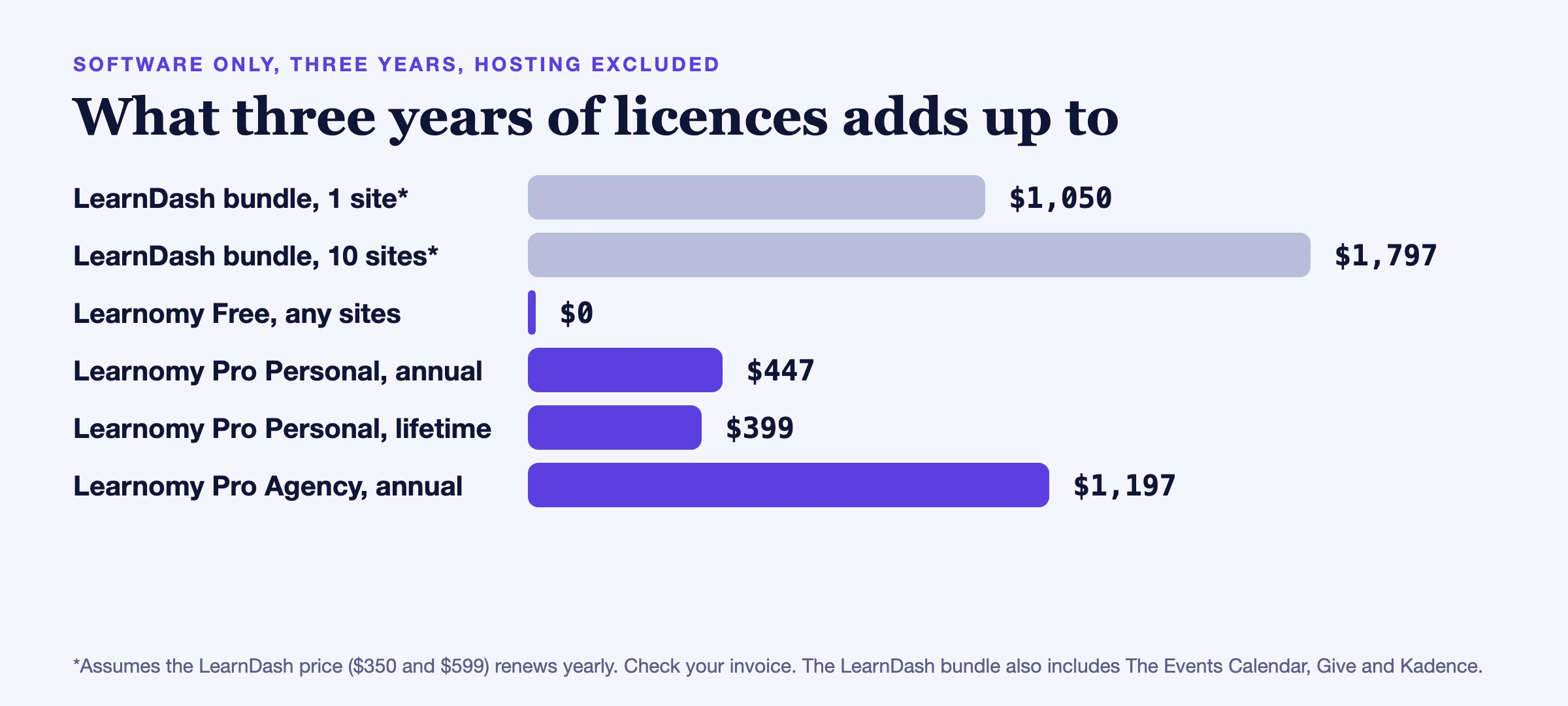
Three honest caveats. First, the LearnDash figures assume the bundle price renews yearly, which you should confirm on your invoice. Second, the LearnDash bundle includes The Events Calendar, Give and Kadence, so if you use those, the comparison is not like for like and you would pay for replacements. Third, Learnomy Pro prices come from our Learnomy Pro page today, with a 30-day money-back guarantee on every Pro plan, and we change prices rarely but not never.
Also note what the free plugin already includes before you add up Pro: all 15 modules, unlimited courses and students, exam-grade quizzes and certificates, memberships, commerce, instructor sharing, the REST API and the importer itself. Many small academies never need Pro. Pro adds the institution layer: learning paths, cohorts, Spaces, store bridges, Stripe Connect payouts, SCORM and xAPI, and white-label. Every Pro tier includes all 16 extensions and differs only by site count and support priority.
In what order should I migrate?
This is the order we would follow, and it is the order that has the fewest ways to go wrong.
1. Snapshot what you have
Take a full database backup. Export the quiz scores and any certificate records you need to keep. Write down your pricing, your groups and which add-ons you rely on. This is the list you will compare against at the end.
2. Clone to staging
Copy the whole site, LearnDash included, to a staging address. Do not install anything on the live site yet.
3. Install Learnomy and run the dry run
Activate Learnomy on staging, open LMS Settings > Import, choose LearnDash, tick the content items and click Preview import. Read the counts and the warnings. Count the skipped questions. This one screen tells you how big the job really is.
4. Import content first, then people
Run the content import on its own. Open a few courses and check structure, lesson text and media. Then run enrolments and progress. Splitting it this way means a content problem is found before it is tangled up with learner data. If something looks wrong, undo the run and try again with a different selection.
5. Rebuild what stays behind
Set pricing or Closed access on each course. Switch on certificates and choose a template. Recreate groups if you need them. Rebuild the skipped questions. Our guide to building an LMS website in WordPress with Learnomy covers payments, certificates and launch settings if you want a step-by-step companion.
6. Connect your checkout
Decide whether you sell inside Learnomy or keep your store and send access through Access Grants or the bridges. Buy a test product, check that access arrives, then refund it and check that access goes away.
7. Test as a learner
Log in as a few real learners. Open a lesson, finish a quiz, trigger a completion. Check the emails. Check it on a phone, because most learners will.
8. Switch over
Put the live site in maintenance for a short window, repeat the import on the live copy or push the staging site live, and point your menus and links at the new course pages. Keep LearnDash installed but inactive for a few weeks as a safety net, then retire it once you have confirmed nothing is missing.
Will my theme and page design survive?
Partly, and this is easy to underestimate. Learnomy picks up the brand colour and text style from common themes. As of 2.1.5, Astra, Kadence, Twenty Twenty-Five, GeneratePress, Blocksy, Neve and Ollie lend their colours to Learnomy, so a site on Kadence, for example, looks like itself without a custom stylesheet. A hand-built page that wraps LearnDash shortcodes will need to be rebuilt with Learnomy’s blocks or templates. Treat it as a design task, not a data task, and do it on staging.
What if I want learners and my team in one place?
Some owners leave LearnDash because they want community around the courses and are tired of bolting on a second system. Learnomy sits beside BuddyNext for profiles, activity and groups on the same WordPress install. We wrote about the thinking behind that in More Than an LMS. It is optional, and it is not a reason to move on its own.
When should you stay on LearnDash?
If you are still comparing options rather than ready to move, our roundup of the best LearnDash alternatives covers the wider field. This guide assumes you have already narrowed it down.
We would rather lose a sale than lose your trust, so here are the honest cases for staying.
- You depend on groups with group leaders and a lot of reporting. LearnDash has years of work there, and rebuilding it is real effort. Learnomy Pro has team plans and seat packs, but they are not a copy, and you should test them against your own workflow in a free sandbox first.
- You use several LearnDash add-ons that store their own data. That data does not travel.
- Your renewal is close to what it was last year and nothing else is wrong. Moving a working academy for a small saving is rarely worth the risk.
- You have no spare weeks. A rushed migration in the middle of a launch is how learners lose progress.
If none of those describe you, and the invoice does, then a rehearsed move is a sensible decision.
Want a team to run the move for you?
We build Learnomy and we look after WordPress sites. A maintenance plan covers the staging copy, the rehearsal and the checks around a migration.
Frequently asked questions
Can Learnomy import from LearnDash for free?
Yes. The importer is part of the free Learnomy plugin. You do not need a Pro licence to run it.
Do I have to keep LearnDash active during the import?
Yes. The importer reads LearnDash live while it runs, so LearnDash must stay installed and active until the import is finished and reviewed. After that you can deactivate it.
Will my learners have to create new accounts?
No. Learners are WordPress users on the same site, and the importer grants their existing accounts access to the imported courses. They log in as before.
Can I import only some courses?
You choose by item type in the wizard, and you can use the command line for a narrower selection. Start with a single content type on staging and add more as you gain confidence. If a run is wrong, undo it by its run id.
What happens to my certificates?
Existing LearnDash certificates are not migrated. Learnomy issues its own certificates from a template you choose per course, and a course imported as complete is dated with the original completion date if certificates are enabled for it.
Does the import change my LearnDash data?
No. It is one-directional. It reads LearnDash and writes Learnomy, and it never modifies or deletes anything in LearnDash.
How long does a migration take?
The import itself runs in the background in batches and finishes in minutes to hours depending on library size. Most of the real time goes into the checking and rebuilding around it. We would not promise a number without seeing your library, so run the dry run and judge from the counts.
Is Learnomy tied to one payment provider?
No. Built-in Stripe and PayPal checkout is in the free plugin, and Access Grants plus the Pro bridges let a different store or membership plugin handle the sale while Learnomy handles the learning.
Where to go from here
You do not need to decide today. Run the dry run on a staging copy, read the counts and the skipped-question list, and let the numbers decide for you. You can try Learnomy first on the Learnomy product page, and the release notes show exactly what changed in each version. If you would rather have a team run the move for you, our WordPress maintenance plans cover checks like these.
Related reading