
7 min read
How to Customize BuddyPress Theme Templates with a Child Theme


Are you running a social networking website, or planning to build one with WordPress and BuddyPress? The BuddyPress plugin (version 14.5.4 at the time of writing, with more than 90,000 active installations) gives you members, groups and activity streams, and its pages can be restyled without touching the plugin itself. To get there you need a WordPress theme that is fully compatible with BuddyPress. Our free BuddyPress theme, BuddyX, is rated 5-star in the WordPress theme repository. It has ready layouts and advanced customization settings that help you set up a site in a few minutes, even if you are new to web designing.
Last updated: 6 November 2026
Quick answer
To customize BuddyPress theme templates, create a child theme, add a buddypress folder inside it, and copy the template you want to change from the plugin’s bp-templates/bp-nouveau/buddypress/ folder into the same relative path. BuddyPress loads the child theme copy first, so plugin updates never overwrite your edits.
Now let’s take a look at how to customize and override BuddyPress theme templates, step by step.
How BuddyPress finds a template
BuddyPress does not render its pages from files inside your theme by default. It keeps its own templates in the plugin, in the bp-templates folder. In the current plugin that folder holds two template packs, bp-legacy and bp-nouveau, and the Nouveau pack contains the files this guide overrides (browse the Nouveau templates in the plugin source).
When a page loads, BuddyPress runs through a “template stack”, a list of directories checked in order. The code registers the child theme directory first (priority 10), then the parent theme directory (priority 12), and the template pack’s own folder after those. Inside each directory it looks in three subfolders: buddypress, community, and the theme root. The first match wins.
Two practical consequences follow from that order.
- A file in
child-theme/buddypress/members/members-loop.phpbeats the parent theme and the plugin version. - You only need to copy the files you want to change. Everything you leave out keeps coming from the parent theme or the plugin.
If you need an extra location, such as a shared must-use plugin folder, BuddyPress exposes the bp_register_template_stack() function and the bp_get_template_stack and bp_get_template_locations filters in bp-core/bp-core-template-loader.php.
Before you start
- Create and activate a child theme. WordPress needs only a
style.csswith aTemplateheader matching the parent folder name. - Find the original file in the plugin’s
bp-templates/bp-nouveau/buddypress/folder, or in your theme’s ownbuddypressfolder if the theme already overrides it. - Copy it into the child theme at the same relative path. Keep the folder names exact, because the path is what BuddyPress matches.
- Edit the copy, never the original.
How to customize BuddyPress theme templates
To change the default BuddyPress template files, create a child theme and make all the changes to template files inside it.
Here, we use our BuddyX theme to customize and show you how BuddyPress pages look on the front end after changes.
BuddyPress Single Member Page Template
In BuddyX theme, the Single Member page structure is - /buddyx/buddypress/members/single/home.php
To customize this template, follow these steps:
- Create members folder in child theme/buddypress/members
- Generate a single folder in child theme/buddypress/members/single
- Create home.php file in child theme/buddypress/members/single/home.php
- The single member page template is now /child-theme/buddypress/members/single/home.php
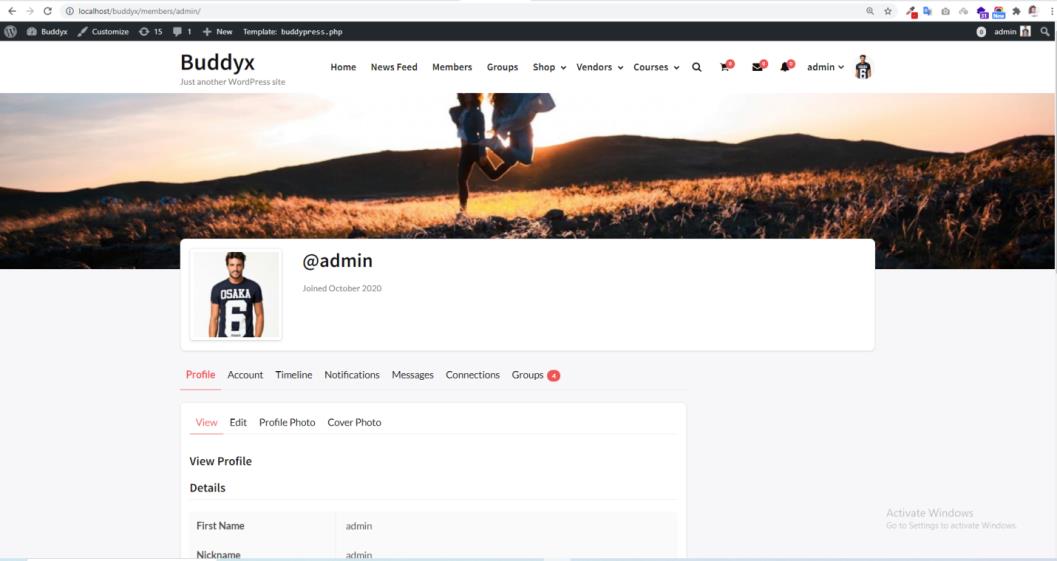
Before creating home.php file in the child theme, single member page looks like this -
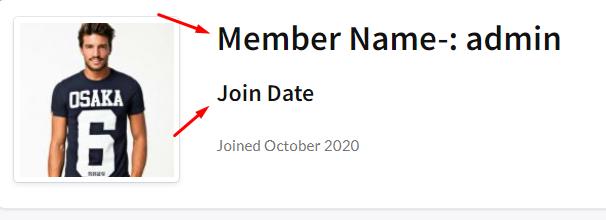
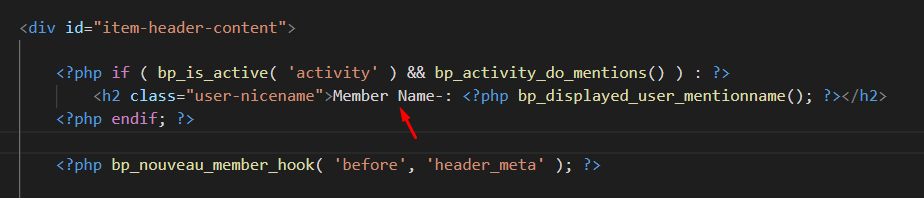
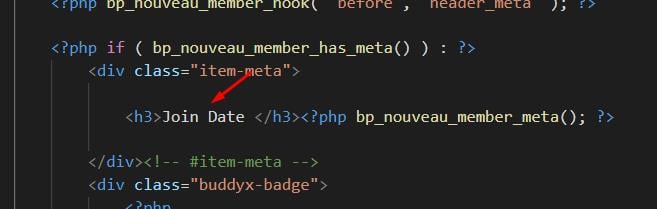
The cover-image-header.php file is used by home.php, so override it in the child theme as well.
After overriding cover-image-header.php, it looks like this:

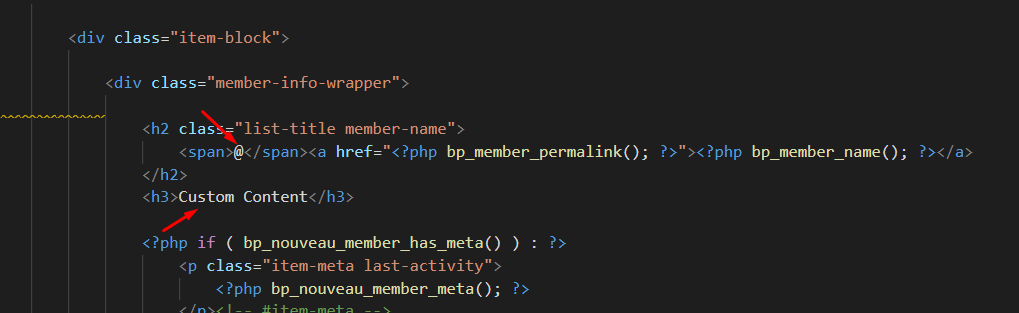
BuddyPress Members Archive Page Template
In the buddyx theme, Member page structure is - /buddyx/buddypress/members/members-loop.php
If you want to override this template:
- Create the
membersfolder inside the child theme’sbuddypressfolder. - The template path is now /child-theme/buddypress/members/members-loop.php.
- Create
members-loop.phpat that path in the child theme.
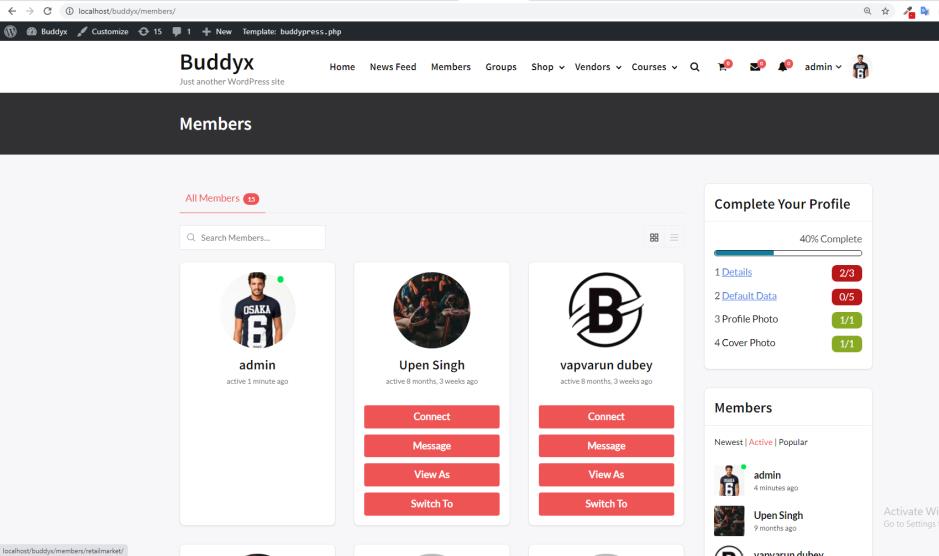
Before Creating members-loop.php in the child theme, member page looks like this -
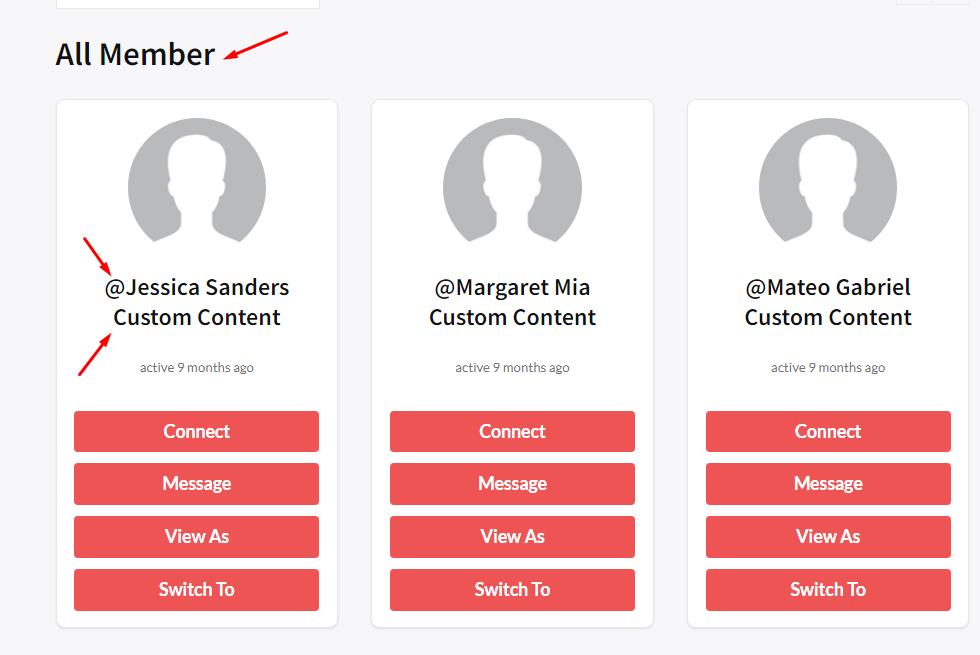
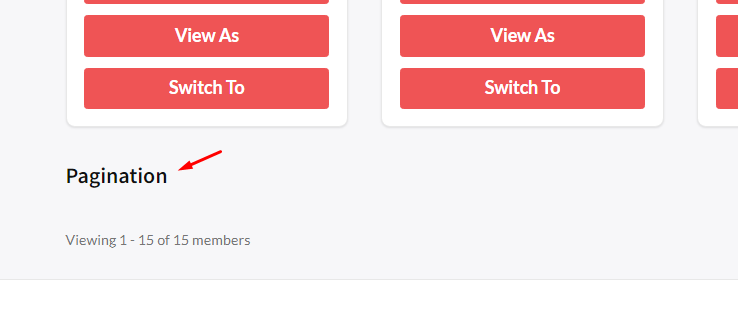
After creating members-loop.php in the child theme, member page looks like this -
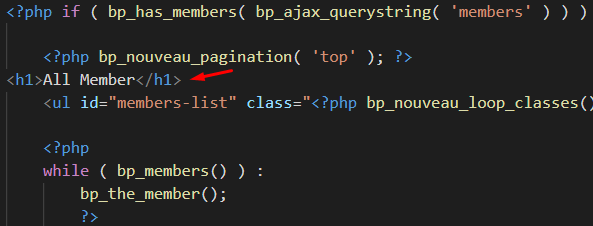
members-loop.php file in child theme
BuddyPress Single Group Page Template
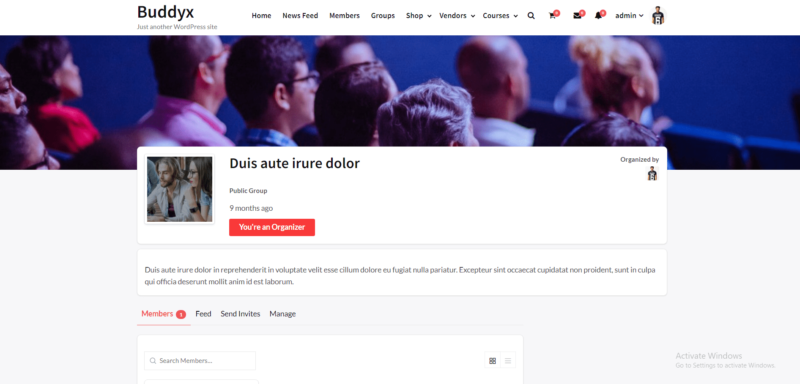
In the buddyx theme, Single Group page structure is - /buddyx/buddypress/groups/single/home.php
If you want to override this template, then follow these steps:
- Create groups folder in child-theme/buddypress/groups
- Create home.php in child theme/buddypress/groups/single
- The single group page template is now /child-theme/buddypress/groups/single/home.php
Before creating home.php in child-theme/group/single, single group page look like this -
After creating home.php in child-theme/group/single, single group page looks like this -
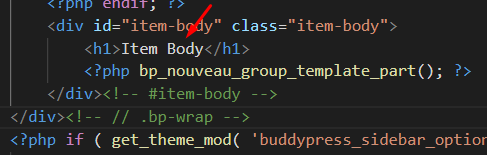
The cover-image-header.php file is used by home.php, so to override the single group page, override cover-image-header.php in the child theme too. After the override, the page looks like this.
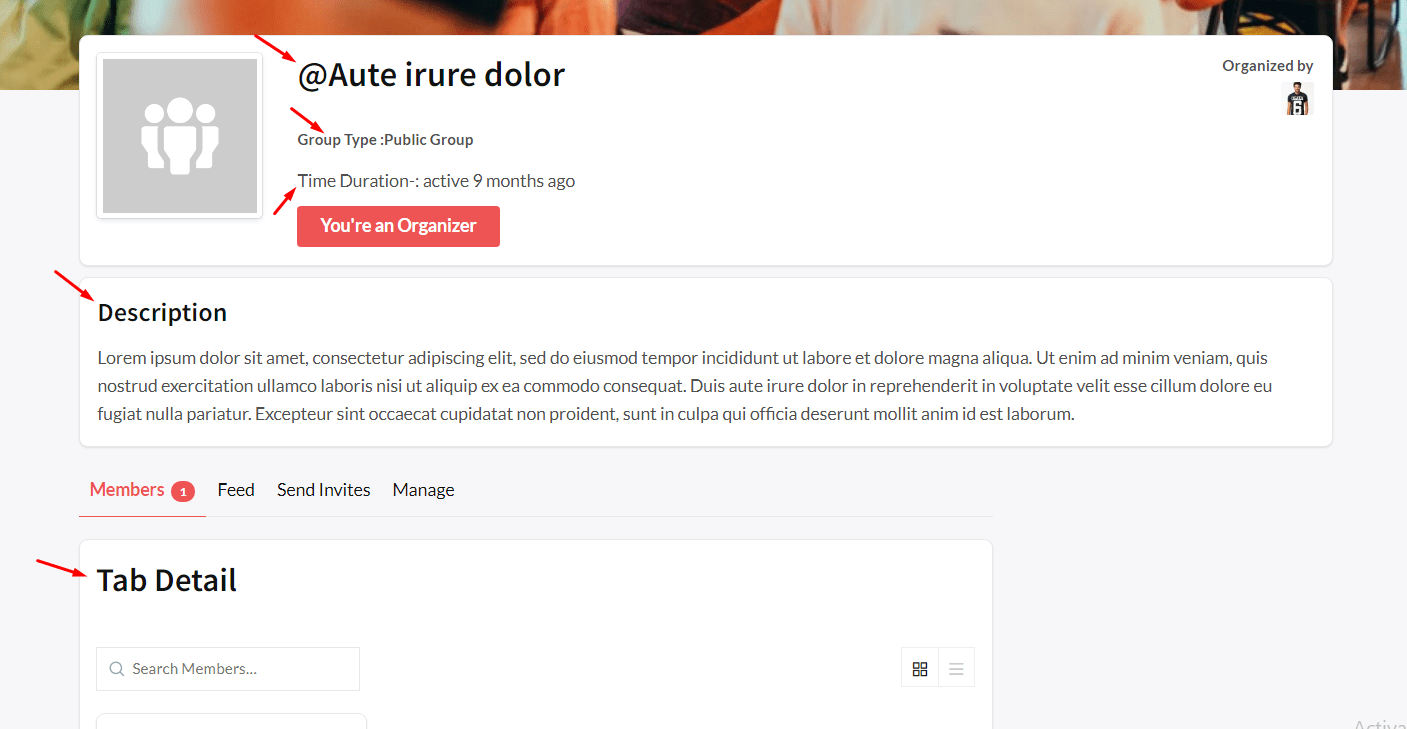
cover-image-header.php

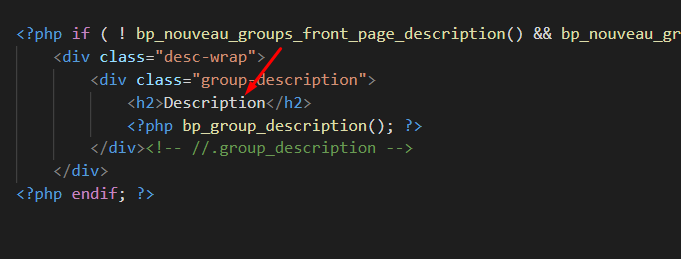
home.php in child-theme/group/single
BuddyPress Group Archive Page Template
In the buddyx theme, the Group page structure is - /buddyx/buddypress/groups/groups-loop.php
If you want to override this template:
- Create the
groupsfolder inside the child theme’sbuddypressfolder. - The template path is now /child-theme/buddypress/groups/groups-loop.php.
- Create
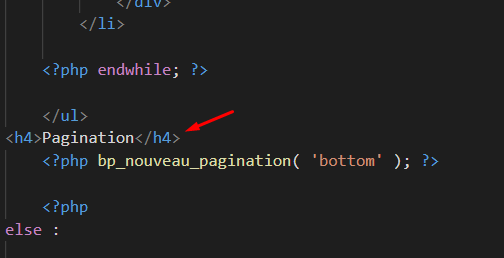
groups-loop.phpat that path in the child theme.
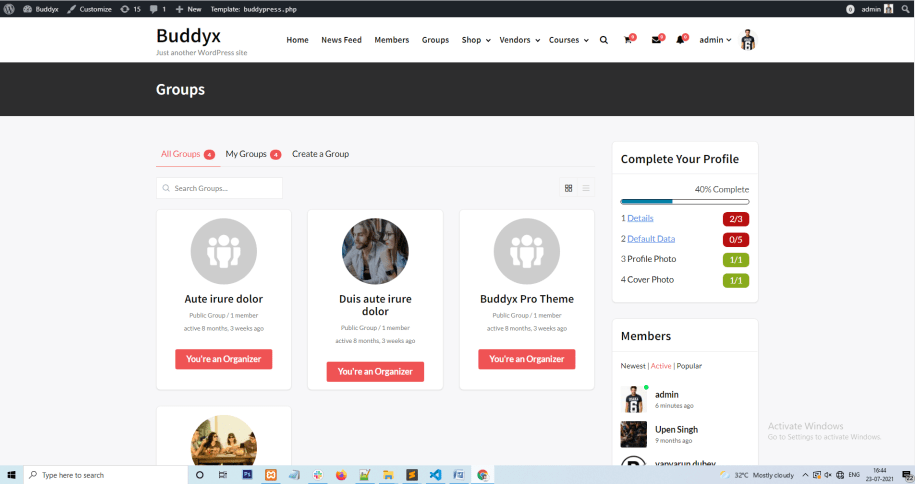
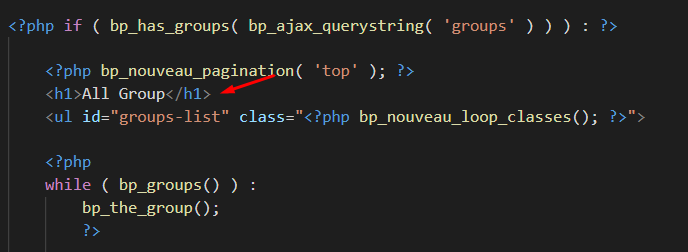
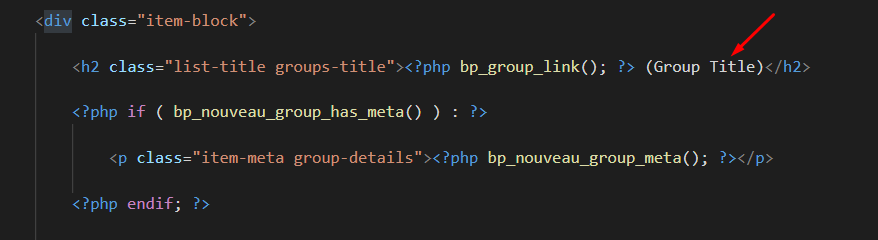
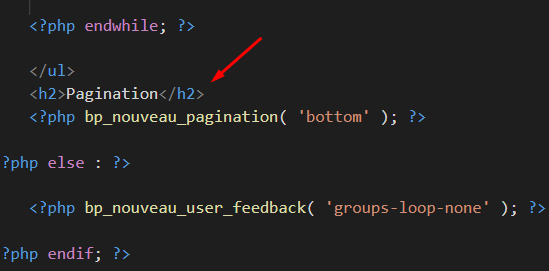
Before creating groups-loop.php in child-theme/groups/, the group page looks like this -
After creating groups-loop.php in child-theme/groups/, the group page looks like this -
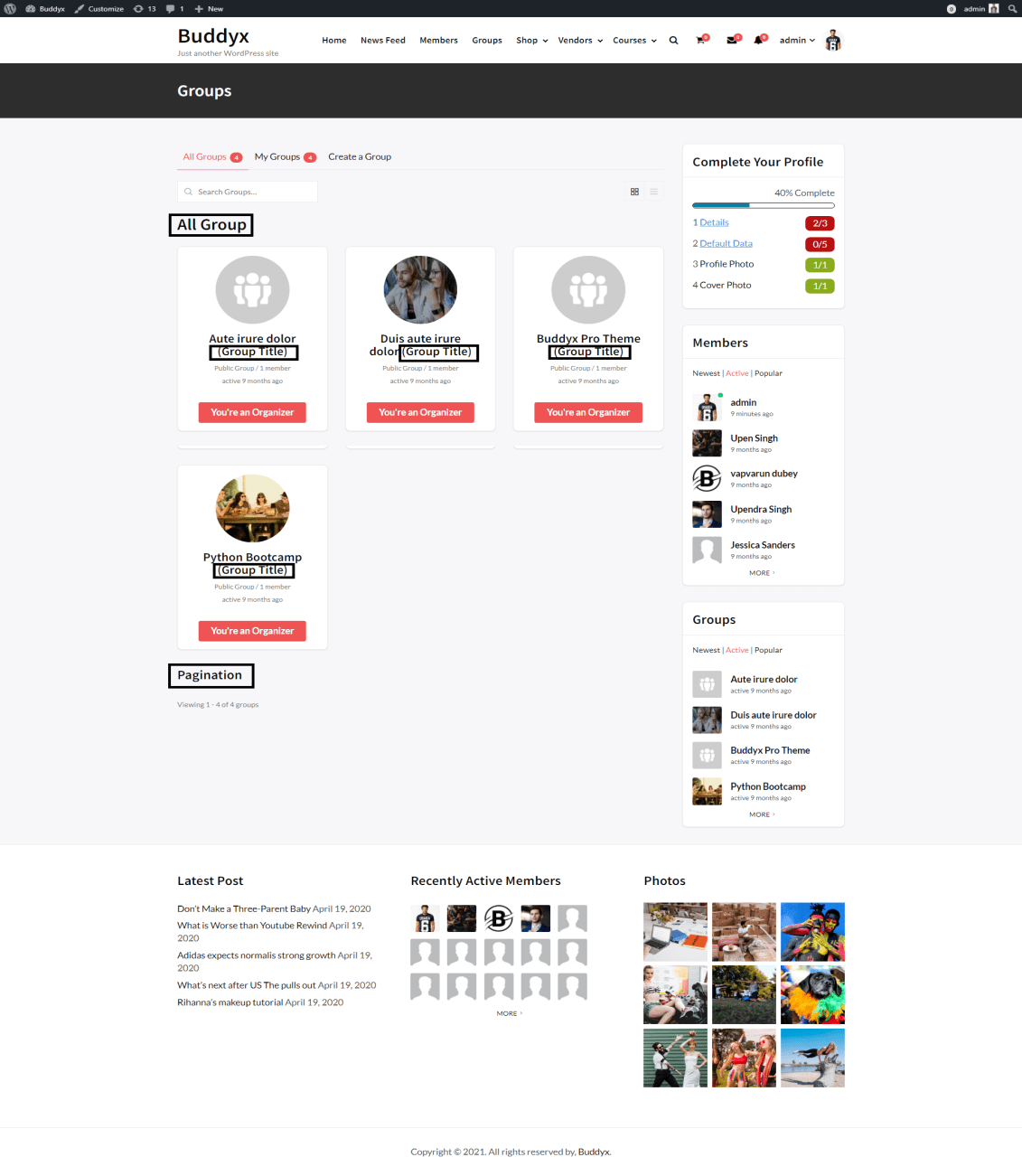
groups-loop.php in child-theme/groups
BuddyPress Single Activity Page Template
In the buddyx theme, the Single Activity page structure is - /buddyx/buddypress/activity/single/home.php
If you want to override this template, then follow these steps:
- Create activity folder in child-theme/buddypress/activity
- Create home.php in child theme/buddypress/activity/single
- Now Single Activity page structure is - /child-theme/buddypress/activity/single/home.php
Before creating home.php in child-theme buddypress/activity/single, the page looks like this -
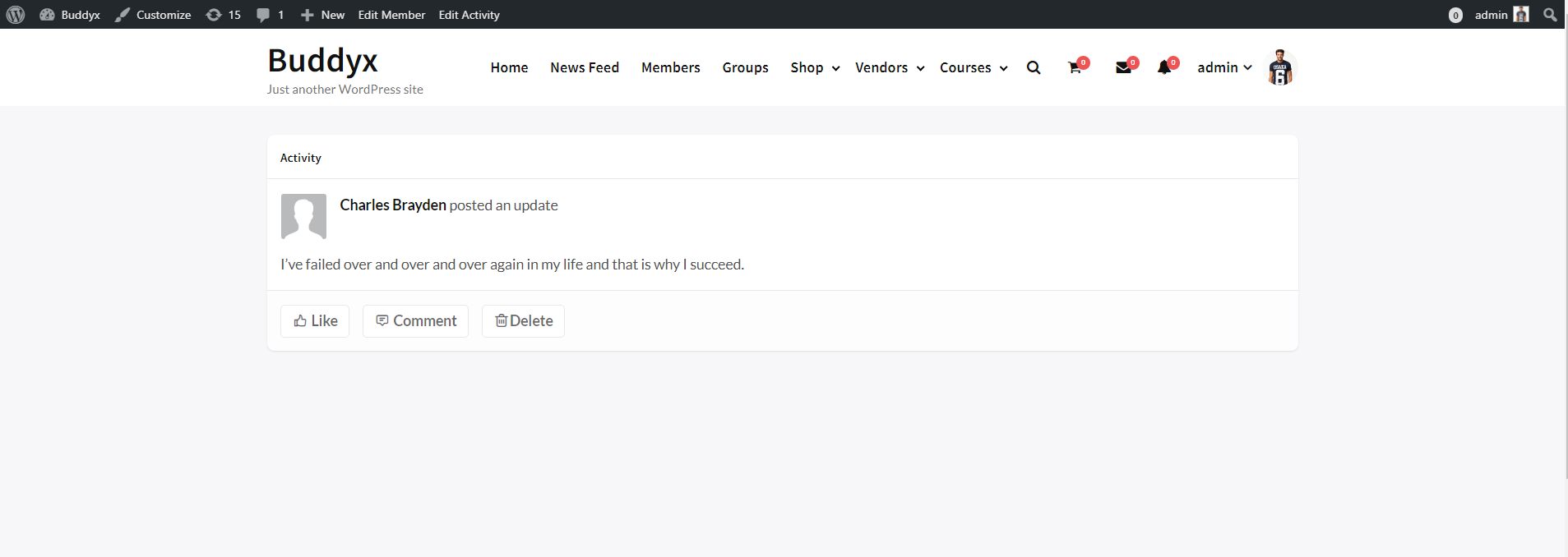
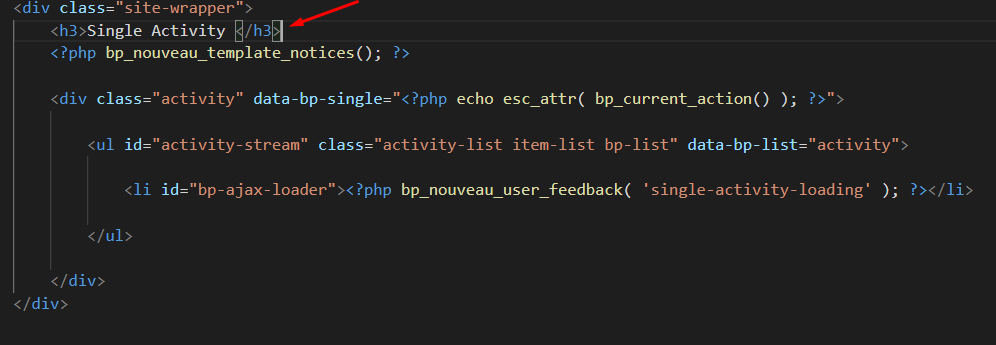
After creating home.php in child-theme buddypress/activity/single, the page looks like this -
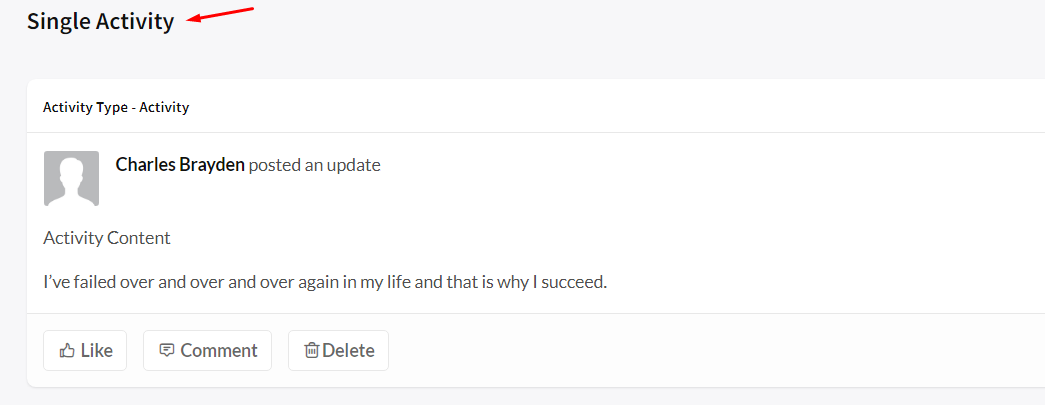
home.php file in buddypress/activity/single
Activity page
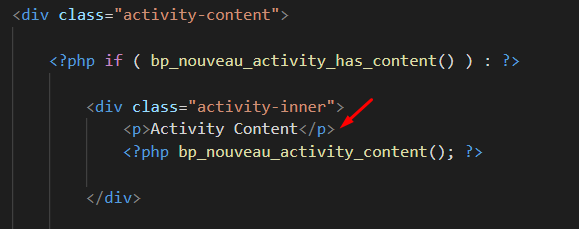
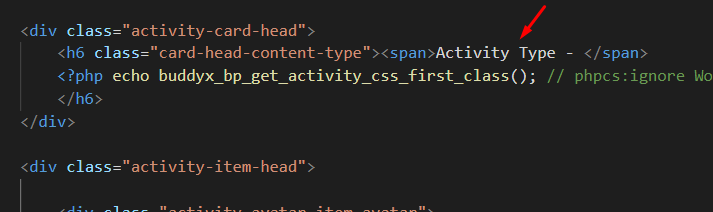
In the buddyx theme, Activity page structure is - /buddyx/buddypress/activity/entry.php
If you want to override this template, then follow these steps:
- Create activity folder in child-theme/buddypress/
- Create entry.php in child theme/buddypress/activity
- Now Activity (news-feed) page directory structure is - /child-theme/buddypress/activity/entry.php
- Create entry.php in /child-theme/buddypress/activity/entry.php
Before creating entry.php in child-theme buddypress/activity, the page looks like this -
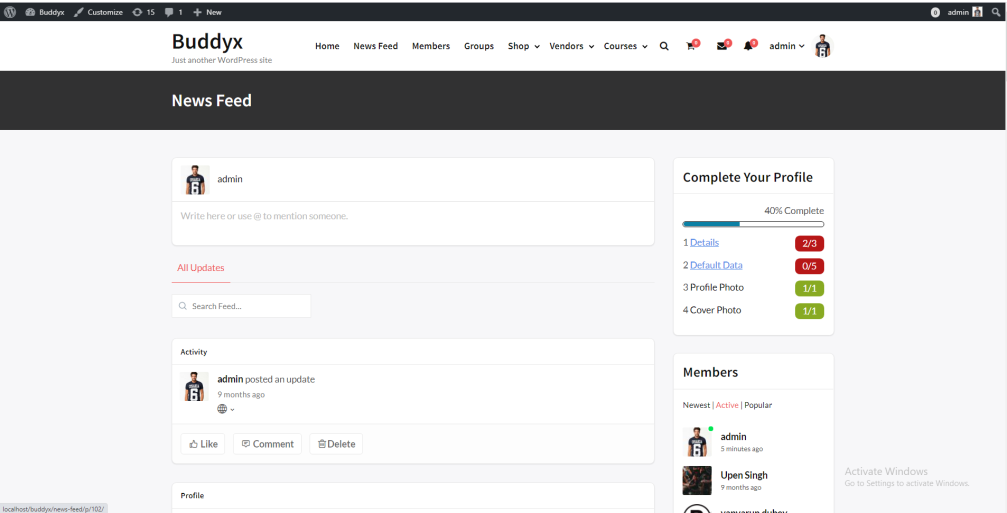
After creating entry.php in child-theme buddypress/activity, the page looks like this -
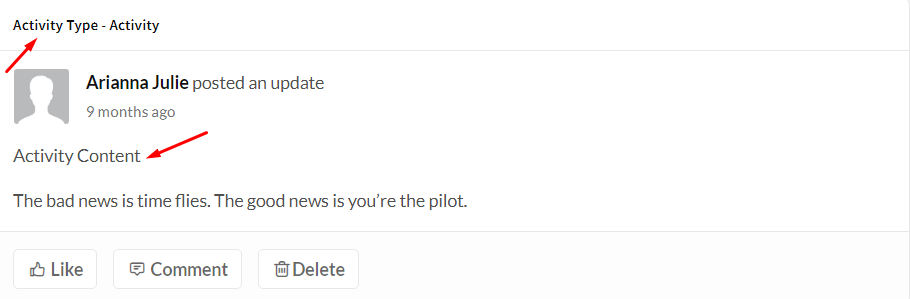
entry.php in child-theme buddypress/activity
Common template overrides at a glance
| Page | Template path inside the child theme’s buddypress folder |
|---|---|
| Single member profile | members/single/home.php (plus members/single/cover-image-header.php) |
| Members directory loop | members/members-loop.php |
| Single group | groups/single/home.php (plus groups/single/cover-image-header.php) |
| Groups directory loop | groups/groups-loop.php |
| Single activity | activity/single/home.php |
| Activity item | activity/entry.php |
All six paths exist in the Nouveau template pack in BuddyPress 14.5.4, as listed in the plugin source.
Troubleshooting template overrides
- Nothing changes. Check that the child theme is the active theme and that the file sits in a
buddypressfolder with the same subfolders as the plugin. - Layout breaks after a BuddyPress update. A copied file no longer matches the plugin’s markup or functions. Compare your copy with the current plugin version and merge the changes.
- Only part of a page changes. Pages are built from several files, for example
home.phppulls incover-image-header.php. Override each file that contains the markup you want. - You only need to add content. Use BuddyPress action hooks instead of copying a whole template, so your site has fewer files to maintain.
Next steps for your BuddyPress templates
 The template customization feature gives you endless possibilities to customize the look and feel of BuddyPress Pages with BuddyX theme. Using this feature you can customize everything you want. Try our BuddyX theme today and see what kinds of awesome customizations you can make!
Frequently asked questions
Where do I put BuddyPress template overrides?
Put them in a buddypress folder in your child theme, using the same subfolders as the plugin. For example, the members directory loop goes in buddypress/members/members-loop.php.
Can I edit the template files inside the BuddyPress plugin?
No. Plugin updates replace those files, and your edits are lost. Copy the file to your child theme and edit the copy.
Which BuddyPress template pack should I copy from?
Copy from the Nouveau pack at bp-templates/bp-nouveau/buddypress/, which holds the files used in this guide. If your theme already ships its own buddypress folder, copy from there instead so you start from the version your theme uses.
Do I need a child theme to override BuddyPress templates?
A child theme is the safest option because theme updates do not overwrite it. BuddyPress checks the child theme directory first, then the parent theme, then the plugin.
Why does my override stop working after a BuddyPress update?
Your copied file is out of date compared with the plugin version. Compare it with the current template and merge any changes.
Interesting Reads:
BuddyPress Shortcodes for Activity, Members, and Groups
Related reading
- Astra Buddypress Compatible Theme Guide
- Unlocking The Power of Wordpress Building And Monetizing Engaging Online Communities With Reign Buddyx And Buddyx Pro
- Creating a Community With Buddyx The Ultimate Alternative to Discord
- Buddyx Theme vs Buddyboss Theme
- Build an Online Learning Community
- How to Build a Brand Community Platform