
10 min read
How to Add Photo Sharing to BuddyPress


Looking to add photo sharing BuddyPress support without building a custom plugin from scratch? WPMediaVerse plugs directly into your existing activity stream, member profiles, and groups, and this guide walks through exactly how it works, with real screenshots from a live install.
Why BuddyPress Doesn’t Do This Out of the Box
BuddyPress gives a community activity streams, profiles, groups, and messaging, but it was never built around media specifically. Members can attach a single image to an activity update in recent versions, but there’s no dedicated media gallery, no member-owned albums, no automatic moderation on uploads, and no real engagement mechanics built around photos and video. For a community where sharing visual content is a core activity, not an occasional attachment, that gap shows up fast.
This guide walks through adding real photo (and video, and document) sharing to an existing BuddyPress site using WPMediaVerse, what actually changes in the activity stream, profiles, and groups, with real screenshots from a working install.
What You’re Actually Adding
Installing WPMediaVerse alongside BuddyPress isn’t a simple attachment upgrade, it adds a parallel media layer that plugs into BuddyPress’s existing structure rather than replacing it:
- A dedicated Attach media button in the activity “What’s new” composer, alongside a privacy dropdown controlling who can see each post.
- A Media tab on every member’s profile, with its own Media and Albums sub-views.
- A Media tab inside every BuddyPress group, so group-specific photo sharing doesn’t get mixed into the general activity stream.
- Automatic AI content moderation on every upload, before it’s visible to anyone else.
- BuddyPress’s own notification bell picking up media events (someone reacted to or commented on a photo) alongside its existing notifications.
Step 1: Install and Activate
Install WPMediaVerse from the WordPress plugin directory (or upload the Pro zip if you’re using the paid tier) and activate it. WPMediaVerse detects an active BuddyPress installation automatically and initializes its BuddyPress integrations, the activity composer button, profile and group Media tabs, and the notification bridge, without any manual configuration.
There’s nothing to toggle on in a settings screen for this part specifically, the detection is automatic and happens on plugin load. If you don’t see the media icon in the activity composer after activating, the most common cause is a caching layer serving a stale version of the composer template, clearing your page cache (not just browser cache) usually resolves it. The other common cause is a BuddyPress component being disabled site-wide, the Activity component specifically needs to be active for the composer integration to register at all.
Step 2: Sharing a Photo From the Activity Stream
Once active, the standard BuddyPress “What’s new” composer gets a new icon alongside the emoji and poll options: an image icon for attaching media.
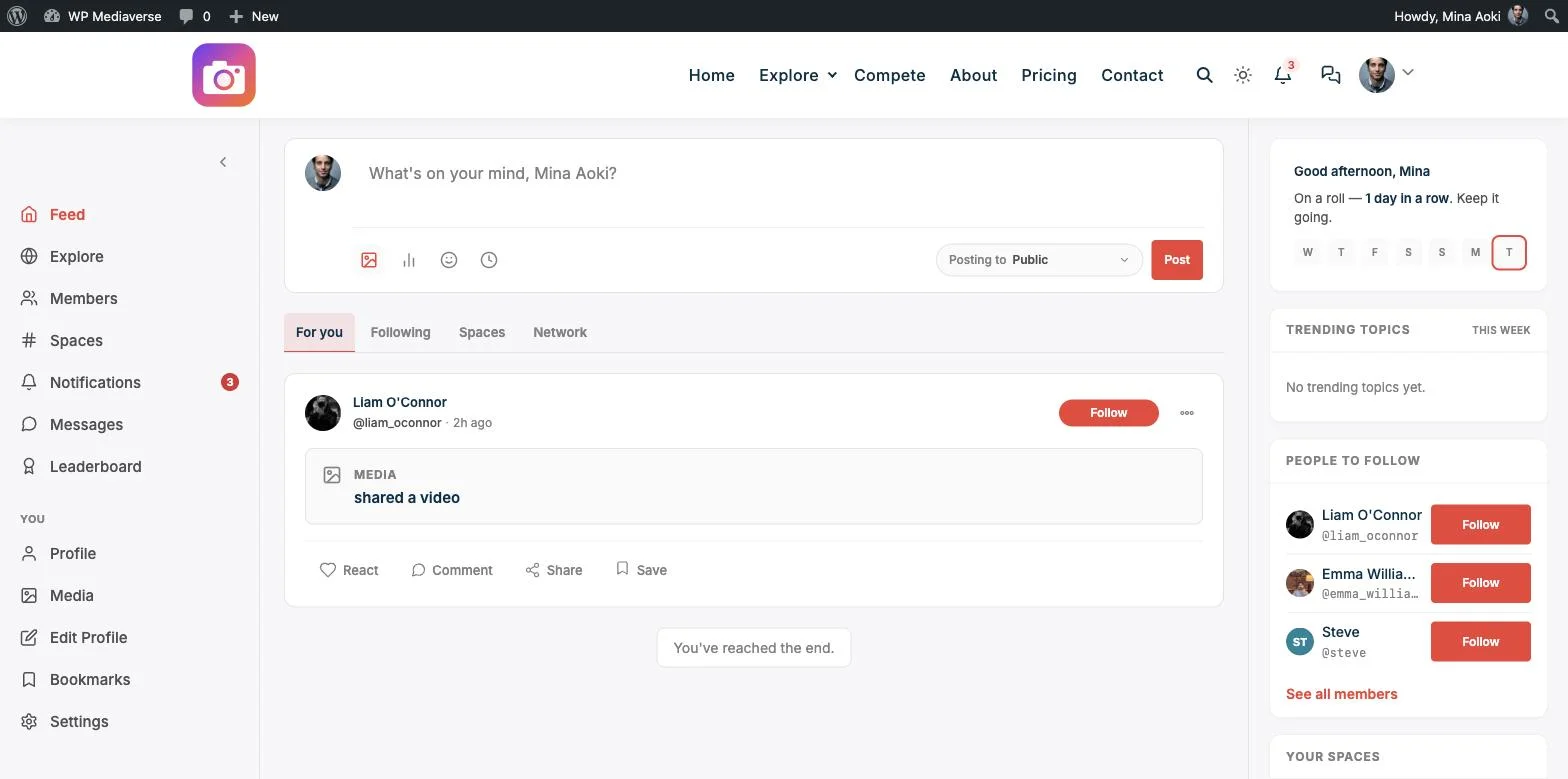
That’s the real composer, the image icon (highlighted above) opens a file picker for the upload, and the “Posting to” dropdown next to Post controls who can see the resulting activity item, Public, Members, Friends, or Private, filtered end-to-end rather than just hidden client-side. Below it in the real feed sits an actual media post, “shared a video”, with normal React, Comment, Share, and Save actions, media posts behave like any other activity item, just with richer content attached.
This is the fastest path for most members: post a photo the same way they’d post a status update, without leaving the activity stream or learning a separate upload flow.
Step 3: The Profile Media Tab
Beyond one-off activity posts, every member gets a dedicated Media tab on their profile, sitting alongside BuddyPress’s existing Posts, Replies, and Network tabs.
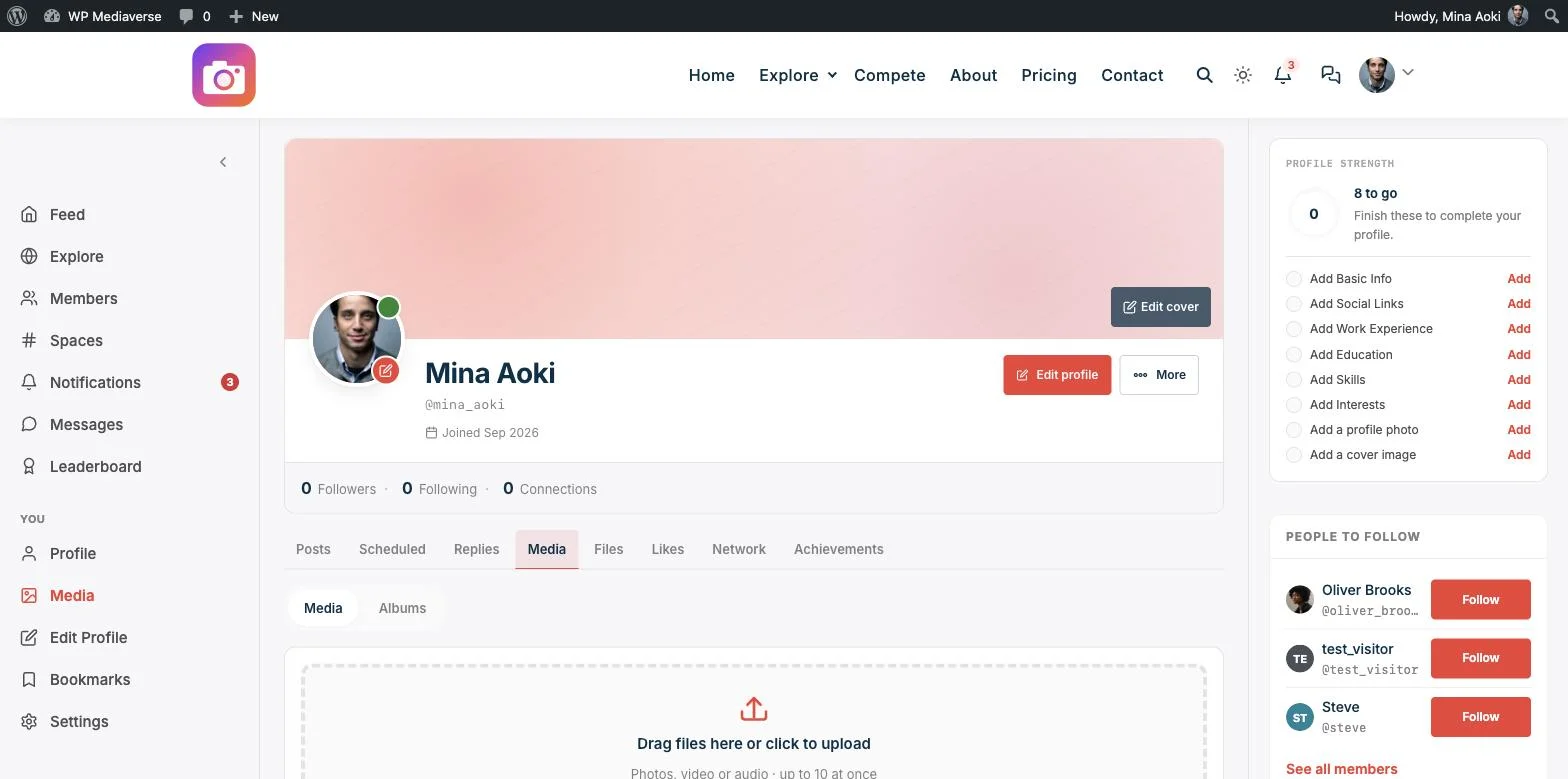
That’s a real profile, the Media tab has its own Media and Albums sub-tabs, and a drag-and-drop upload zone accepting photo, video, or audio, up to 10 files at once. This is where a member’s full library lives, distinct from the activity stream, which only shows individual posts as they happen. A visitor checking someone’s profile can browse their entire media history in one place instead of scrolling back through months of activity items.
Albums specifically are member-curated collections, a member deliberately groups related photos (a trip, a project, a season) rather than everything landing in one undifferentiated stream by upload date.
Step 4: Media Inside Groups
BuddyPress Groups get the same treatment: a dedicated Media tab appears in the group navigation, separate from the group’s general activity stream. This matters for any group where photo sharing is a real, recurring activity, a photography club, a local meetup group, a project team, rather than an occasional attachment buried in discussion posts.
Group media respects the same privacy and moderation rules as everything else: uploads are automatically screened, and visibility follows the group’s own membership rules rather than the site-wide activity privacy settings.
This separation is worth understanding when you’re planning how to introduce the feature to a specific group. A private group with an existing culture of frequent photo sharing (a trip-planning group, a local meetup, a project team) tends to adopt the Media tab immediately, because it solves a problem members already have, scrolling back through a long discussion thread to find a photo someone posted three weeks ago. A more discussion-oriented group may use it more sparingly, and that’s fine, the tab doesn’t force any behavior, it just makes dedicated media sharing available when a group actually wants it.
Why Not Just Use BuddyPress’s Native Attachment?
Recent BuddyPress versions do let a member attach a single image to an activity update natively, which raises a fair question: why add a whole media plugin for something BuddyPress already partly does? The honest answer is that native attachment and a real media layer solve different problems.
A native attachment is exactly that, a file riding along with a status update, with no gallery, no album, no dedicated profile section, and no moderation beyond whatever comment moderation already exists for the update itself. It works fine for an occasional photo, but it doesn’t give a member a place to build a library, doesn’t group related uploads together, and doesn’t give admins any automated screening on what gets posted.
WPMediaVerse’s integration treats media as its own first-class content type rather than an attachment riding along with something else. That distinction matters most once photo or video sharing becomes a real, recurring pattern rather than an occasional one-off, at that point, members want a place to browse their own and others’ full history, not just whatever happens to still be visible in a scrolling activity feed. For a closer side-by-side of how WPMediaVerse stacks up against the other established options, see this comparison of the three main BuddyPress media plugins.
Step 5: What Happens Behind the Scenes
A few things happen automatically that are worth understanding, since they explain what members will notice:
- AI moderation runs on every upload before it’s visible to anyone else, screened via OpenAI Vision, with flagged content routed to a real admin moderation queue rather than published immediately.
- Privacy is enforced end-to-end, not just hidden in the interface. A Friends-only media post is filtered out of the underlying activity query for anyone who isn’t a friend, not merely styled differently.
- Notifications route through BuddyPress’s own bell, so a member doesn’t need to check a separate WPMediaVerse dashboard to see that someone reacted to their photo, it shows up exactly where BuddyPress notifications already appear.
- Existing BuddyPress avatars are recognized automatically, a member who already uploaded a profile photo through BuddyPress isn’t prompted to upload a separate one for WPMediaVerse.
What This Doesn’t Replace
WPMediaVerse layers onto BuddyPress rather than replacing any of its core functionality, activity streams, groups, friend connections, and BuddyPress’s own messaging (if you’re using it) all continue working exactly as before. What changes is that media specifically gets a purpose-built layer: dedicated galleries, automatic moderation, and (on Pro) engagement mechanics like reactions, photo battles, and community contests that BuddyPress alone doesn’t offer.
If your community’s media needs are genuinely minimal, occasional profile photo changes, the rare activity-stream image, this integration is more than you need. It earns its place specifically when photo, video, or document sharing is a real, recurring part of what your members do.
Getting Members to Actually Use It
Installing the integration is the easy part, the real work is getting existing members to notice and adopt a new way of sharing that wasn’t there before. A few things genuinely help:
- Post the first few media items yourself, as an admin or moderator, before announcing the feature broadly. An empty Media tab on every profile looks unfinished; a handful of real posts gives new visitors something to react to immediately.
- Announce it where members already are, a pinned activity post explaining what changed is more effective than a separate email most members won’t open. Since the composer change is visible directly in the activity stream, many members will notice the new icon organically anyway.
- Seed a group specifically if you have an active group that would benefit from dedicated media, photography clubs, project teams, local meetup groups are the most natural early adopters, and their activity tends to pull the rest of the community along.
- Set moderation expectations up front. Members uploading for the first time should understand that content is automatically screened before it’s visible to others, this avoids confusion if a borderline upload takes a moment to clear the queue.
Adoption on a site that’s been running BuddyPress for a while without a media feature tends to be gradual rather than immediate, members have existing habits around how they share. Most communities see meaningful uptake within the first few weeks once a critical mass of visible media content exists for new uploaders to react to and build on.
Setting Realistic Expectations for a Growing Community
A small or mid-size BuddyPress community running on shared hosting handles WPMediaVerse’s free tier comfortably, media is stored on your own server the same way any WordPress upload is. As a community’s media volume grows, particularly with video content, it’s worth watching server storage and page load times on media-heavy pages like the profile Media tab and group galleries.
This is where the free-to-Pro decision becomes concrete rather than abstract: Pro’s cloud storage offload (S3 or BunnyCDN) and video transcoding exist specifically for the point where self-hosted storage and inconsistent video playback start becoming a real, measurable problem rather than a hypothetical one. There’s no need to plan for that on day one, but it’s worth knowing the upgrade path exists before storage becomes an urgent fire to put out. If you’re planning a community built specifically around visual content from day one rather than adding media to an existing site, this guide to building a photography community website with BuddyPress and WPMediaVerse walks through the full setup.
Frequently Asked Questions
Do I need to reconfigure BuddyPress to add this?
No. WPMediaVerse detects an active BuddyPress install and initializes its integrations automatically, the activity composer button, profile and group Media tabs, and notification bridging all appear without manual setup.
Will this conflict with BuddyPress’s own basic media attachment feature?
No, WPMediaVerse’s media layer runs alongside BuddyPress’s native capabilities rather than overriding them. The added Attach media button and Media tabs are additive.
Does group media respect the group’s privacy settings?
Yes. Media shared inside a group follows that group’s own membership and visibility rules rather than the site-wide activity privacy dropdown used for general activity posts.
Is moderation automatic, or does an admin have to review every photo?
Every upload is automatically screened by AI before publication. Only flagged content routes to the admin moderation queue for a human decision, most uploads never need manual review at all.
Can members organize their photos into albums, or is everything one continuous stream?
Albums are a real, member-curated feature, accessible from the Media tab’s Albums sub-view on their own profile. A member chooses what goes into an album rather than it being auto-generated from activity posts.
What if my community wants contests or reactions beyond a simple like?
That’s part of WPMediaVerse’s broader feature set: six reaction types are included free, and Pro adds photo battles, open challenges, and bracket tournaments with real XP rewards, none of which exist in BuddyPress alone.
Will existing activity posts and profile content be affected when I activate this?
No. Activating WPMediaVerse adds new capability, it doesn’t modify or reprocess any existing BuddyPress activity items, profile fields, or group content. Members will see the new Attach media button and Media tabs going forward, but nothing about their existing history changes.
Does this work with a custom BuddyPress theme, or only default styling?
WPMediaVerse’s BuddyPress integrations hook into BuddyPress’s standard template and component structure, so they work with most properly-built BuddyPress-compatible themes. A heavily customized theme that overrides BuddyPress’s activity or member templates directly may need minor adjustments to fully match its styling, worth a visual check after activating on any non-default theme.
Is WPMediaVerse the right photo sharing BuddyPress plugin for an existing community?
For a site already running BuddyPress with an established member base, yes, WPMediaVerse activates its BuddyPress integrations automatically and adds media capability without requiring migration or reconfiguration of existing groups, profiles, or activity data.
Bottom Line
Adding real photo sharing to BuddyPress doesn’t require replacing your community platform or migrating anything, WPMediaVerse installs alongside BuddyPress and adds a dedicated media layer directly into the activity composer, member profiles, and groups, with automatic moderation built in from the first upload. See the Pro plans for cloud storage, video transcoding, and the full contest and engagement feature set once your community’s media needs grow. For most existing communities, this is the fastest path to real photo sharing BuddyPress support without a platform migration.
Related reading