
10 min read
How to Migrate From rtMedia to WPMediaVerse (Step-by-Step)


Ready to migrate from rtMedia to WordPress the right way? This guide walks through the exact steps, using WPMediaVerse’s dedicated, batched Import Migration tool instead of a manual export-and-reupload process, so nothing rtMedia already stores gets touched until you’ve verified the result.
Why Sites Actually Leave rtMedia
rtMedia was, for years, the default answer to “how do I add photo and video sharing to BuddyPress.” Upload from the activity feed, media tabs on profiles and groups, likes, comments, photo tagging, it covered the basics a community media plugin needs to cover, and did it free. Plenty of sites built on it are still running fine today.
The sites that outgrow it almost always hit the same wall: storage. rtMedia saves every photo, video, and document as a standard WordPress attachment, a real row in wp_posts with post_type = attachment. That’s simple and reliable at a few hundred uploads. Past a few thousand, every media query, the activity feed, a profile’s media tab, search, has to filter the same posts table that holds every page, post, and revision on the site. Pages that were instant start lagging, and there’s no configuration fix for it, the storage model itself is the ceiling.
The usual first response is to throw caching at the problem, and caching genuinely helps for a while. It papers over the symptom without touching the cause: the underlying query is still scanning a table that grows with every single post, page, and media upload combined, forever. Eventually a community active enough to need better performance outgrows what caching alone can fix, and the only real answer left is a storage model that was never sharing a table with the rest of the site’s content in the first place.
This guide walks through actually moving off rtMedia to WPMediaVerse, using the real migration tool, not a manual export-and-reupload process.
Worth saying plainly: none of this is a criticism of rtMedia as a project. It did the job it was built for, at a time when “attach media to a WordPress post” was the obvious, sensible way to build a community media feature. The problem is specifically about scale, not about whether the plugin was built well, and it’s the exact reason WPMediaVerse was built on its own dedicated tables instead of following the same pattern.
Before You Start
None of the steps below require touching rtMedia’s own configuration or content directly, the migration tool reads from what’s already there. What it does require is a bit of preparation on your side, mostly the kind of basic hygiene that’s good practice before any database-level change, not anything specific to this particular migration.
- Back up your database. Any migration that touches existing content should start from a real, restorable backup, not “I’m pretty sure it’ll be fine.”
- Install WPMediaVerse alongside rtMedia. Don’t deactivate rtMedia first, the migration tool reads directly from rtMedia’s own database tables, so it needs to still be installed (active or not) for the data to be there to read.
- Check your media volume. A few hundred items migrates in minutes. A community with tens of thousands of rtMedia uploads should expect the batched import to take real time, which is fine, it’s designed to run in the background.
The Real Migration Tool
WPMediaVerse Pro ships a dedicated Import Migration screen built specifically for this, not a generic importer repurposed for the job.
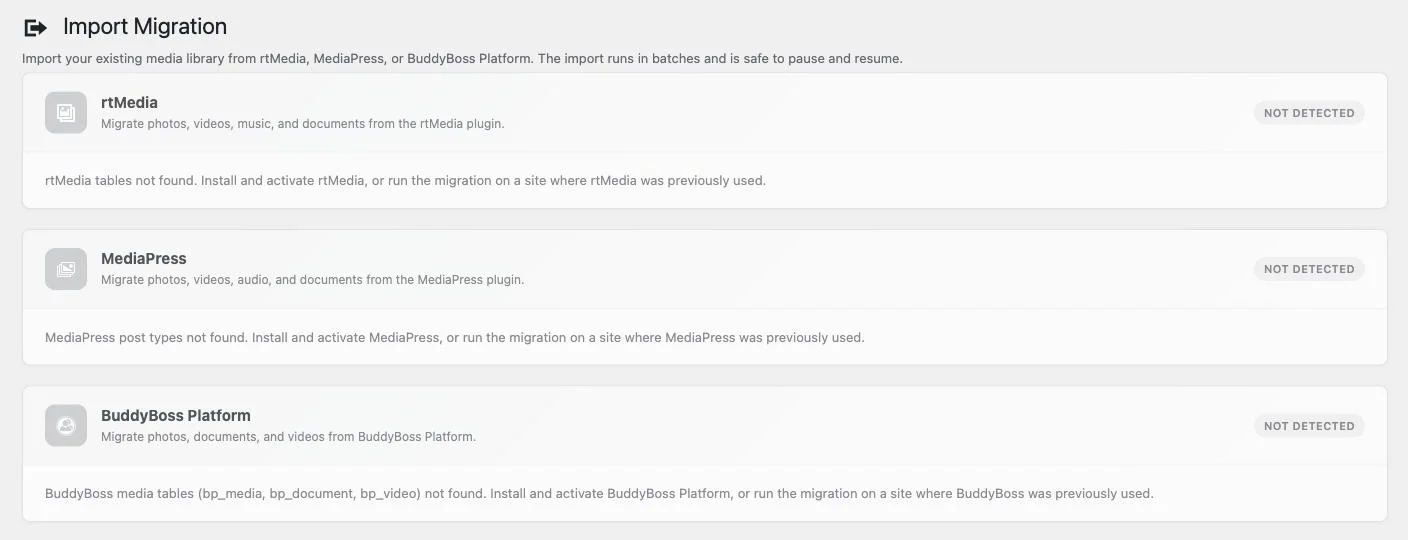
That’s the actual admin screen: it auto-detects whether rtMedia, MediaPress, or BuddyBoss Platform tables exist on the install (each one shown here as “NOT DETECTED” simply because none of those plugins happen to be installed on this particular site, on a real rtMedia site it would show as detected and ready), and each source gets its own card describing exactly what it migrates, for rtMedia specifically: photos, videos, music, and documents.
The import runs in batches and is explicitly built to be safe to pause and resume, which matters more than it sounds for a large library. A migration that has to run start-to-finish in one sitting, with no way to stop and pick back up, is a real risk on a community with years of accumulated uploads. A batched, resumable import means a large migration can run overnight, get paused if something else needs the server, and pick back up exactly where it left off.
That batching also protects the live site while migration is running. Rather than one long-running process that locks up database tables and risks timing out on a large library, batched processing works through the import in manageable chunks, each one completing cleanly before the next starts, which keeps the rest of the site responsive for actual visitors the whole time the migration is in progress.
Step by Step: How to Migrate From rtMedia to WordPress
- Install and activate WPMediaVerse (free) alongside your existing rtMedia install, then activate Pro for the migration tool specifically.
- Open Import Migration in the WPMediaVerse admin menu. If rtMedia’s tables are present, the rtMedia card will show as detected instead of “NOT DETECTED” the way the screenshot above shows on a site where it isn’t installed.
- Start the import. The tool reads rtMedia’s existing attachment records and recreates them as real WPMediaVerse media entries, in WPMediaVerse’s own database tables, preserving author, upload date, and the original file.
- Let it run in batches. For a large library, expect this to take a while, check back rather than assuming something’s stuck if it’s still running after a few minutes on a big site.
- Verify a sample once it completes: spot-check a handful of migrated items (an older upload, a recent one, something from a less-active member) to confirm content, author, and date all carried over correctly before doing anything else.
- Check total counts. Compare the number of items rtMedia reported before migration against what shows in WPMediaVerse’s own media library afterward. A close match is the simplest, fastest sanity check that the batch import actually completed rather than stalling partway through unnoticed.
- Deactivate rtMedia only after verification passes. Keeping it installed but inactive for a short overlap period is a reasonable safety net in case anything needs a second look.
- Announce the change to your community once you’re confident. Members who are used to finding their photos in a specific place appreciate a heads-up, even when the underlying change is meant to be invisible day to day.
What Actually Changes After Migration
The most important change is invisible day to day and matters enormously at scale: media now lives in WPMediaVerse’s own database tables instead of the shared wp_posts attachment table. The explore feed, profile media tabs, and search all query against tables built specifically for that job, which is the direct fix for the performance ceiling that likely drove the migration decision in the first place.
Member-facing features also expand. rtMedia covers uploads, likes, comments, and tagging. WPMediaVerse adds a real explore feed with filtering, member-created albums, direct messaging, AI moderation on new uploads, and (on Pro) photo battles, challenges, and tournaments, none of which exist in rtMedia at all. Migrated content doesn’t automatically gain these (a migrated photo doesn’t retroactively become part of an album unless a member adds it to one), but the features are there and available for everything uploaded going forward.
It’s worth setting expectations with an active community around this specific point: migration brings the content across, it doesn’t retroactively organize it into the new features. A member who had two hundred photos scattered across rtMedia activity posts will have those same two hundred photos in WPMediaVerse afterward, not automatically sorted into albums, that’s still something they’d choose to do themselves going forward if they want it.
Six privacy levels per upload replace rtMedia’s simpler public/private model, which is worth reviewing after migration, since migrated content will carry over with a sensible default but a community that wants more granular privacy control on specific older uploads can now set it.
Performance is the change most members will actually notice, even if none of them could name why. An explore feed and search that used to lag as the library grew now runs against tables purpose-built for exactly those queries, so the site simply feels faster, especially for the members with the largest personal libraries, who were feeling the old bottleneck the most acutely even if they never filed a complaint about it.
What Can Go Wrong, and How to Actually Handle It
The most common real issue isn’t data loss, it’s a migration that looks finished but isn’t, because it ran out of time or hit a server limit partway through a large batch. This is exactly why the batched, resumable design matters in practice, not just in theory: if a run stops early, the fix is running it again, not starting over. Check the total counts (covered in the steps above) before assuming everything came across.
The second thing worth watching for is file path or storage permission issues, particularly if the WordPress install has moved servers or hosts at some point since the original rtMedia uploads happened. If migrated items show up with broken thumbnails or missing files specifically, that’s usually a sign the original files aren’t where the database record expects them to be, worth checking upload directory permissions and paths before assuming the migration tool itself is at fault.
If something does look wrong after a migration run, the fact that rtMedia’s original tables are untouched during the process is the real safety net. Nothing about running the import deletes or modifies rtMedia’s own data, so a migration that produced unexpected results can be investigated, and re-run, without having lost the source data it was reading from.
Frequently Asked Questions
Will migrated photos and videos keep their original upload date and author?
Yes, the migration tool preserves the original author and upload date rather than re-dating everything to the moment of migration, so a community’s actual upload history stays intact and accurate.
Do I need to migrate everything at once?
The batched, pause-and-resume design means you’re not forced into an all-or-nothing single session, but the practical goal is a complete migration, running both plugins in parallel long-term (with content split between two separate media systems) isn’t a real end state, it’s just a longer transition.
What happens to comments and likes on migrated content?
The migration is built to carry over the media itself with its author and date intact. Engagement history (existing likes and comments from rtMedia specifically) is a separate consideration from the media migration itself, worth verifying directly against your specific rtMedia version and migration run rather than assuming, since plugin behavior here can vary by version.
Can I migrate from MediaPress or BuddyBoss Media instead of rtMedia?
Yes, the same Import Migration tool detects and handles MediaPress and BuddyBoss Platform media tables as separate, dedicated migration paths, not just rtMedia. The process is the same shape: install alongside the existing plugin, run the detection, migrate in batches, verify, then retire the old plugin.
Is there a risk of losing data during migration?
Any migration carries some risk, which is exactly why a full database backup before starting isn’t optional. The tool itself reads from rtMedia’s tables rather than deleting from them during the process, so the original data stays in place and recoverable until you’ve verified the migration and made the deliberate choice to deactivate rtMedia.
How long does a migration actually take?
It depends entirely on library size and server resources, there’s no universal number worth quoting. A few hundred items typically completes in minutes. A community with tens of thousands of uploads accumulated over years should plan for the batched process to run over a longer stretch, hours rather than minutes, which is exactly the scenario the pause-and-resume design exists for.
Do I need to tell my members before migrating?
Not strictly required for the migration itself to work, but it’s good practice on any active community. Since content, author, and dates carry over intact, most members won’t notice anything changed unless you tell them, but a brief heads-up avoids confused support questions if someone happens to check the site mid-migration and sees things in a transitional state.
Bottom Line
If rtMedia’s storage model has become the thing slowing your community down, the fix isn’t a manual export-and-reupload project, it’s a real, built-for-this migration tool that detects rtMedia’s existing tables and moves the data across in batches, with the original data left untouched until you’ve verified the result and are ready to switch over. Download WPMediaVerse free to get started, or see the Pro plans for the migration tool itself.
Related reading