
12 min read
Fix WooCommerce Orders That Fail in Google Chrome


A customer emails you: “I tried to place the order three times in Chrome and it never went through. It worked in Safari.” You open the store in Chrome yourself, click Place Order, and it works fine. That pattern (failures in one browser, for some people, some of the time) almost never means Chrome itself is broken. It means something on your checkout page depends on a cookie, a script, or a request that Chrome is handling differently for that customer than for you.
In our support work on WooCommerce stores, “Chrome won’t let me order” resolves to one of five causes in nearly every case: a session cookie that does not survive the checkout, a cached checkout page, a JavaScript conflict (often triggered by an extension or autofill), a blocked AJAX or payment request, or a payment gateway script that fails to load. This guide walks through how to tell them apart and fix each one.
First, get the facts from the customer
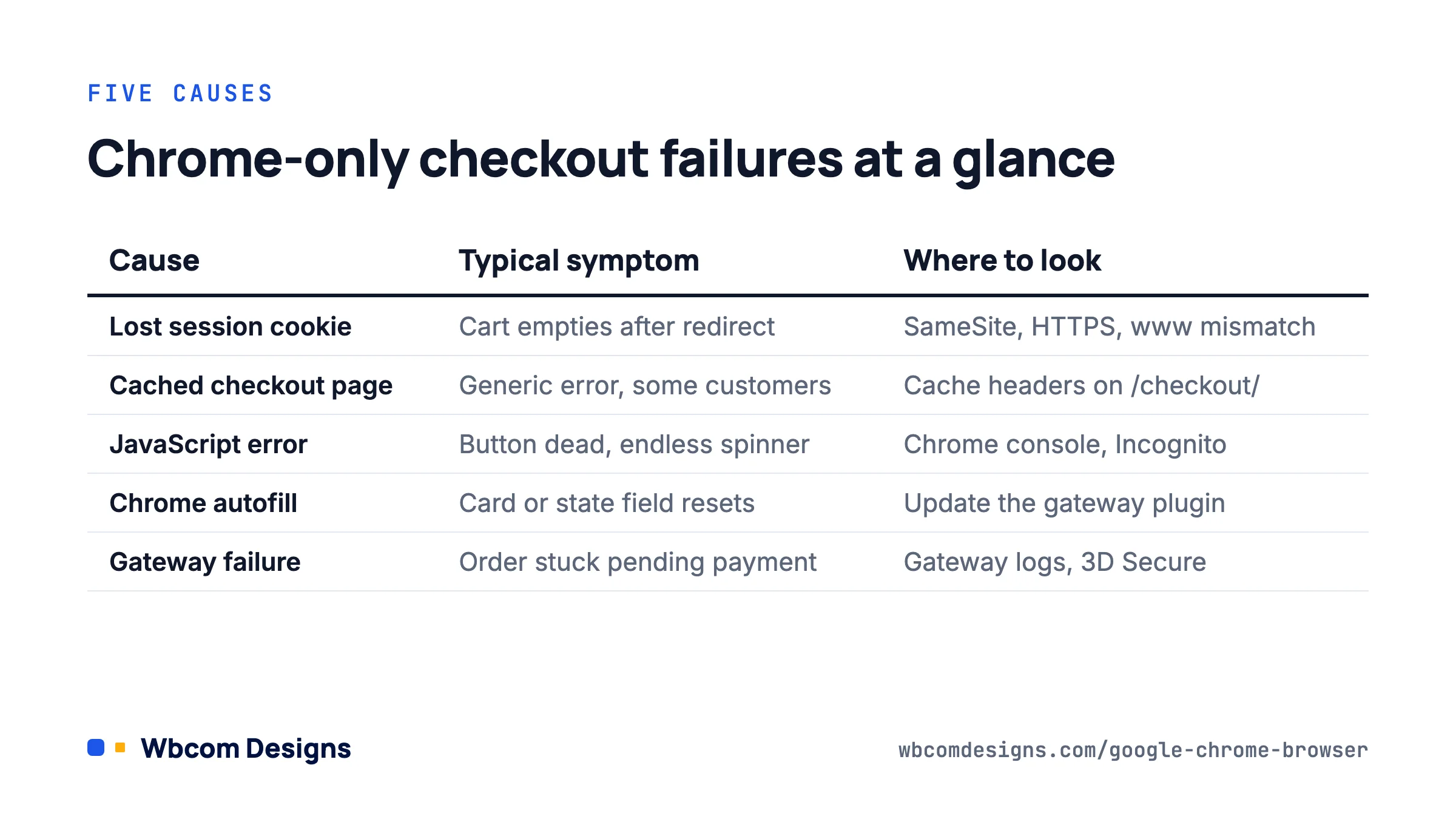
Before you touch a setting, collect enough detail to reproduce the problem. Vague reports (“it doesn’t work”) send you chasing the wrong thing for hours. Ask for these five items and you will usually know the cause before you open the admin.
- What exactly happened? The spinner ran forever, an error appeared under the button, the page reloaded with an empty cart, or it jumped back to the cart page. Each points to a different cause.
- The exact error text. “Error processing checkout. Please try again.” is WooCommerce’s generic message. “Invalid payment method” or a gateway-branded message narrows it down fast.
- Chrome version and device. Ask them to visit chrome://version and copy the first line. Chrome on Android behaves differently from desktop Chrome, especially with autofill.
- Extensions. Ad blockers, privacy extensions (uBlock Origin, Privacy Badger, Ghostery) and password managers interfere with checkout scripts more than anything else.
- Did Incognito work? If the order goes through in an Incognito window, the cause is an extension or a stale cookie, not your server. That one question saves more time than any other.
On your side, check WooCommerce → Status → Logs for the time of the attempt. Failed orders often leave a “pending payment” order in WooCommerce → Orders with a note from the gateway. If you see that, the checkout form submitted successfully and the problem is on the payment side.
Cause 1: the session cookie is lost during checkout
WooCommerce tracks a guest’s cart with two cookies, woocommerce_cart_hash and wp_woocommerce_session_[hash]. If either one is missing when the customer presses Place Order, WooCommerce has no cart to convert into an order. Chrome is stricter than other browsers about when it will send a cookie, which is why cookie problems show up as “Chrome-only” bugs.
SameSite and Secure attributes
Chrome treats cookies without a SameSite attribute as SameSite=Lax, and refuses to send SameSite=None cookies unless they also carry Secure. This matters whenever the customer leaves your site and comes back, which is exactly what redirect-based gateways (PayPal Standard, many bank redirect methods, 3D Secure challenges) do. The customer returns from the bank, Chrome drops the session cookie because the request came from another site, and the cart is empty.
The fix is to run the entire store over HTTPS, with no exceptions. Check the Site Address and WordPress Address in Settings → General both start with https://. Then open Chrome DevTools (F12), go to Application → Cookies, and look at the WooCommerce cookies. They should show Secure ticked and a SameSite value. If your hosting or a security plugin rewrites cookies, that is where to look.
www versus non-www
A surprisingly common cause: the shop pages live on https://www.example.com but a payment gateway or a hard-coded link sends the customer back to https://example.com. To Chrome those are two different sites, and the session cookie set on one is not sent to the other. Pick one hostname, set it in Settings → General, and make sure your server redirects the other with a 301. Then check the return URL configured inside each gateway’s settings.
Cookie consent banners
Since Chrome began enforcing stricter cookie behaviour, we have seen several stores where a consent plugin was configured to block “functional” cookies until the visitor accepted. A customer who dismissed the banner without accepting could browse and add to cart, but the session cookie was never written. Check your consent plugin’s category settings and make sure WooCommerce’s session cookies are classed as strictly necessary.
Cause 2: the checkout page is being cached
A cached cart or checkout page is the single most common reason for “the cart emptied itself” and “the total was wrong” reports. Page caches, CDNs and even some server-level caches can serve one customer’s checkout HTML (including the nonce embedded in the form) to another. When the second customer submits, the nonce fails and WooCommerce returns the generic checkout error.
WooCommerce sends a DONOTCACHEPAGE constant and no-cache headers on cart, checkout and account pages, and most caching plugins respect them. The ones that cause trouble are:
- CDN page rules (Cloudflare “Cache Everything”) that ignore origin headers. Add a bypass rule for
/cart/*,/checkout/*,/my-account/*and/?wc-ajax=*. - Server caches such as Varnish or LiteSpeed configured by the host. Ask them to exclude the same paths and to bypass cache whenever a
woocommerce_*orwp_woocommerce_session_*cookie is present. - Checkout pages that were renamed or moved. If your checkout is not the page set under WooCommerce → Settings → Advanced → Page setup, WooCommerce will not flag it as uncacheable.
- Nonce lifetime. A customer who leaves the checkout tab open overnight will submit a nonce older than 24 hours. WooCommerce handles this for logged-out users, but some custom checkout code does not. If complaints cluster around long sessions, that is the clue.
To test, load the checkout in Chrome, open DevTools → Network, reload, and look at the response headers for the document. A cf-cache-status: HIT or x-cache: HIT header on a checkout page is your answer.
Cause 3: a JavaScript error stops the form from submitting
The WooCommerce checkout (both the classic shortcode form and the Checkout block) is driven by JavaScript. The block version talks to the Store API at /wp-json/wc/store/v1/checkout; the classic version posts to /?wc-ajax=checkout. If any script on the page throws an uncaught error before the checkout script attaches its handlers, the Place Order button does nothing or the spinner never stops.
Open the checkout in Chrome, press F12, select the Console tab, reload, and attempt an order. Red errors that mention a theme or plugin file name tell you which component is at fault. Two patterns account for most cases we see:
- Extension interference. Ad blockers block scripts whose URL contains words such as “track”, “pixel”, “analytics” or “ads”. If your theme or a marketing plugin bundles checkout logic into a file with one of those words in its name, a blocker kills checkout for every customer using it. Ask the customer to test in Incognito (extensions are off by default there). If it works, rename or split the offending asset.
- Duplicate jQuery or duplicate gateway scripts. A theme that loads its own jQuery, or two plugins that both enqueue Stripe.js, can break the gateway’s card fields. The console error usually says the payment element “is already mounted” or that a function is undefined.
If the console is clean but the button still fails, switch to the Network tab, filter by “checkout”, and look at the status code of the request that fires when you click Place Order. A 403 means a firewall (server WAF, Wordfence, Cloudflare) blocked it. A 500 means PHP failed; enable WP_DEBUG_LOG and read wp-content/debug.log. A request that never appears at all means the JavaScript never ran.
Cause 4: Chrome autofill and address autocomplete
Chrome’s autofill is aggressive, and WooCommerce’s checkout has had a long history of small bugs around it. Two are worth knowing about.
The first affects card fields. On Chrome for Android, autofilling a saved card can populate the CVC before the card number and expiry, which causes some gateway card elements to validate a half-filled form and show an error. Customers hit this, see “your card number is incomplete”, and assume the store is broken. Typing the number manually works. If you use WooCommerce Payments or the Stripe gateway, keep the plugin current; the gateway teams have shipped fixes for this more than once.
The second affects the address form in the Checkout block. WooCommerce added address autocomplete in 2025, and the block cannot always tell the difference between a customer typing and Chrome’s native autofill populating the fields. The result is a country or state field that resets after autofill, which then fails validation with “Please enter a valid state”. The workaround for customers is to select the state again; the fix for store owners is to stay on a current WooCommerce release and, if the problem persists, disable the block’s address autocomplete under WooCommerce → Settings → Advanced → Features.
Cause 5: the payment gateway rejects or never loads
If the order reaches “pending payment” status and then stalls, the checkout form worked and the gateway did not. Typical reasons include:
- 3D Secure pop-up blocked. Chrome’s pop-up blocker, or a privacy extension, blocks the authentication window. The customer sees nothing and the order sits pending. Gateways that use an inline modal (Stripe, WooPayments) avoid this; redirect-based ones do not.
- Mixed content. A single
http://image or script on the checkout page is enough for Chrome to downgrade the padlock and, for some gateways, refuse to render card fields. Use the Console tab; Chrome lists mixed content warnings explicitly. - Webhook failures. The charge succeeds but your site never receives the webhook confirming it, so the order stays pending and the customer thinks it failed. Check the webhook log in your gateway dashboard and make sure your firewall allows the gateway’s IP ranges.
- Test keys in live mode. It sounds obvious, but after a staging-to-live migration it happens often enough to check.
Enable the gateway’s debug log in WooCommerce → Settings → Payments → [gateway] → Manage, reproduce the failure, then read WooCommerce → Status → Logs. The gateway response will name the real reason, which is more reliable than anything the customer can tell you.
A diagnostic checklist you can run in ten minutes
| Symptom | Most likely cause | Quick test | Fix |
|---|---|---|---|
| Cart empties on return from payment | Session cookie dropped (SameSite, www mismatch) | DevTools → Application → Cookies after redirect | Force HTTPS, one hostname, fix gateway return URL |
| “Error processing checkout” for some customers only | Cached checkout page or expired nonce | Check cache headers on /checkout/ | Exclude cart, checkout, wc-ajax from every cache layer |
| Button does nothing, works in Incognito | Extension blocking a script | Console errors, Network tab shows no checkout request | Rename or separate assets with “track”/”ads” in the URL |
| Spinner forever, request returns 403 | WAF or security plugin blocking wc-ajax or Store API | Network tab status code | Allowlist /?wc-ajax= and /wp-json/wc/store/ |
| Card fields show “incomplete” after autofill | Chrome autofill order on mobile | Reproduce on Android Chrome with a saved card | Update gateway plugin; advise manual entry meanwhile |
| Order stuck at pending payment | 3DS pop-up blocked or webhook not received | Gateway dashboard event log | Switch to inline 3DS; allow gateway IPs through firewall |
Ruling out a plugin or theme conflict without breaking the live store
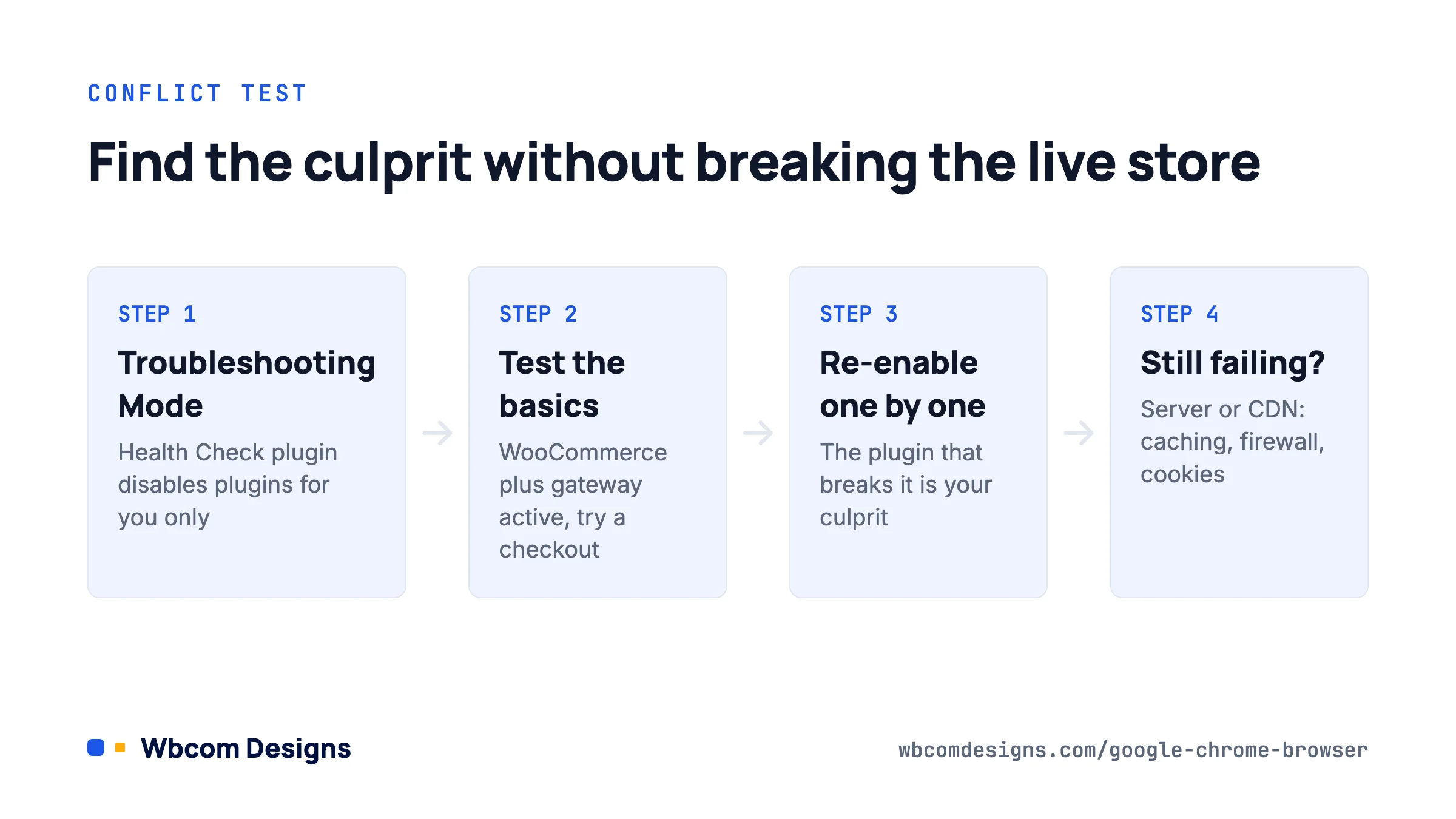
When the console points at nothing specific, the reliable method is a conflict test. Doing this on a live store scares people, so use the Health Check & Troubleshooting plugin from WordPress.org. Its Troubleshooting Mode disables all plugins and switches to a default theme for your session only; customers keep seeing the normal site.
- Install and activate Health Check & Troubleshooting, then go to Tools → Site Health → Troubleshooting and enable Troubleshooting Mode.
- Re-enable WooCommerce and your payment gateway from the admin bar menu. Attempt a checkout in Chrome (use the gateway’s test mode or a 100% coupon).
- If checkout works, re-enable plugins one at a time, testing after each. The one that breaks it is your culprit.
- If checkout still fails with only WooCommerce and the gateway active, switch back to your theme. If it then breaks, the theme is the problem.
- If it fails even on a default theme with only WooCommerce active, the issue is at the server or CDN level: caching, firewall, PHP errors, or cookies.
Keep notes as you go. In our experience the culprit is a performance or optimisation plugin (script delay, JavaScript minification, “remove unused CSS”) roughly half the time. Those features should always exclude checkout scripts, and many do not by default.
Preventing the next report
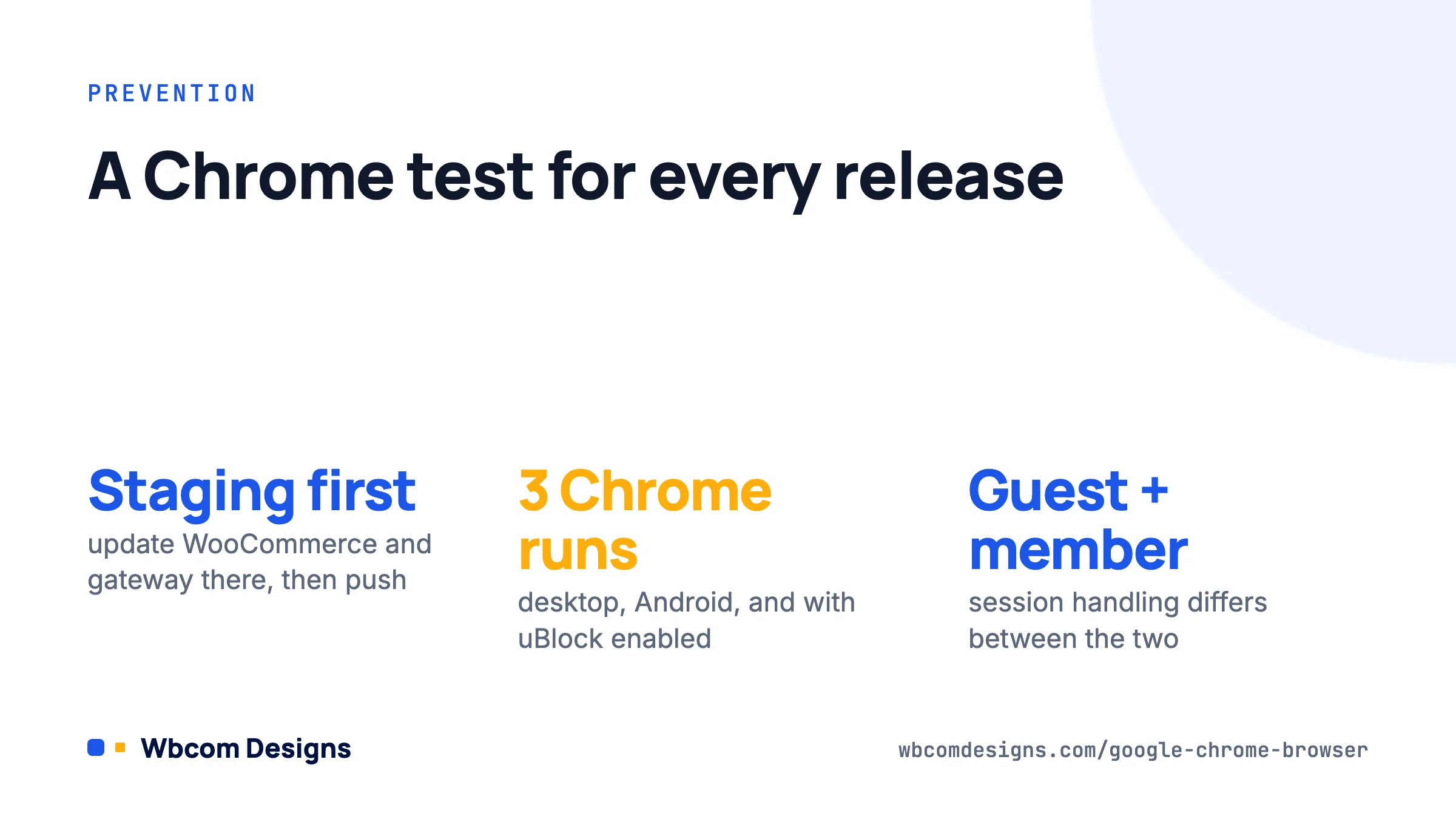
Once the immediate fire is out, a few habits stop it recurring. Keep WooCommerce and your gateway plugin updated on a staging copy first, then push to live; most checkout regressions are fixed within a release or two, and being three versions behind is how you inherit bugs that everyone else has already left behind. Add a Chrome test to your release checklist: a real purchase on desktop Chrome, Chrome on Android, and Chrome with uBlock Origin enabled. Run the purchase as a logged-out guest and as a logged-in customer, because the session handling differs.
If your store depends on revenue from the checkout and you do not have anyone watching logs, a monthly maintenance plan that includes test orders after every update pays for itself the first time it catches a broken checkout before a customer does. And if the failure turns out to be custom checkout code or a gateway integration that needs rework, our WooCommerce development team deals with exactly these problems every week.
FAQ
Why does checkout work for me but not for my customers?
You are logged in as an administrator, so caching plugins bypass the cache for you and your session cookie is already set. Customers are guests, often on mobile, frequently with extensions installed. Test as a logged-out guest in an Incognito window, then in a normal window with an ad blocker, to see what they see.
Should I tell customers to clear their cookies?
It works as a one-off fix because it forces a fresh session cookie, but it is not a solution. If clearing cookies fixes it, you have a cookie persistence problem (usually SameSite, www mismatch or a caching layer), and it will hit the next customer too.
Does switching from the classic checkout to the Checkout block fix Chrome issues?
Sometimes. The block uses the Store API rather than admin-ajax style requests, which avoids some firewall false positives, and it handles nonces differently. But it also drops support for many older checkout customisations and gateway plugins. Test it on staging with every gateway you use before switching, and read the WooCommerce cart and checkout blocks status page for the current compatibility list.
Is there a Chrome flag customers can change?
Do not go down that road. Asking customers to change browser flags is a support dead end and fixes nothing for the next visitor. Fix the cookie, cache or script problem on your side instead.
Where to start
Ask the customer whether Incognito works. If yes, look at extensions and scripts. If no, open DevTools on the checkout page yourself as a logged-out guest, check the cache headers, watch the Network tab while you place an order, and read WooCommerce → Status → Logs. Nine times out of ten the answer is sitting in one of those three places within fifteen minutes.
Related reading