
8 min read
How to Set Up Guest Checkout in WooCommerce


Forcing shoppers to register before they can pay is one of the most reliable ways to lose an order. Baymard Institute’s long-running checkout research puts “the site wanted me to create an account” among the top reasons people abandon at checkout, cited by roughly a quarter of US shoppers who gave up on a purchase. WooCommerce ships with guest checkout turned off on a fresh install, so the fix is a two-minute settings change, followed by a few decisions about how you want to capture accounts afterwards.
Below is the full setup for both the block checkout and the classic shortcode checkout, the “create an account after checkout” flow WooCommerce added in version 9.5, the situations where guest checkout cannot apply, and the problems we see most often when it is switched on.

Turn on guest checkout
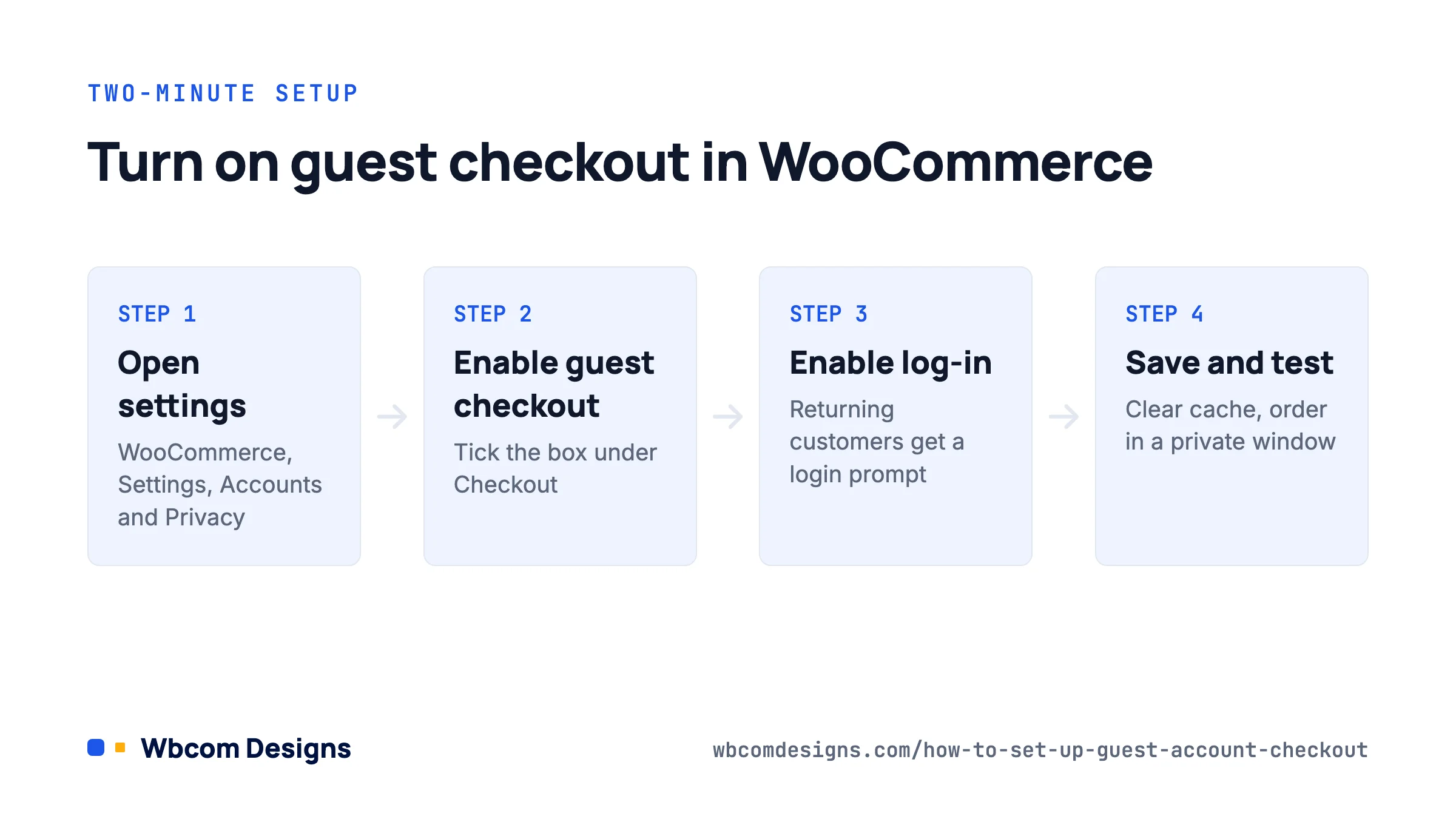
Everything lives on one settings tab.
- Go to WooCommerce → Settings → Accounts & Privacy.
- Under Checkout, tick Enable guest checkout (on older versions the label reads “Allow customers to place orders without an account”; the behaviour is the same).
- Tick Enable log-in during checkout as well. This adds a “Returning customer? Click here to login” prompt (or an email-based login prompt on the block checkout) so existing customers are not pushed through as guests by accident.
- Click Save changes.
Clear your page cache if you run one, then open the checkout in a private browser window. Add a product, reach the checkout and confirm there is no “Create an account” password field blocking the Place Order button. If you still see a required password field, one of the cases in the “When guest checkout is unavailable” section below is probably in play.
Choose how accounts get created
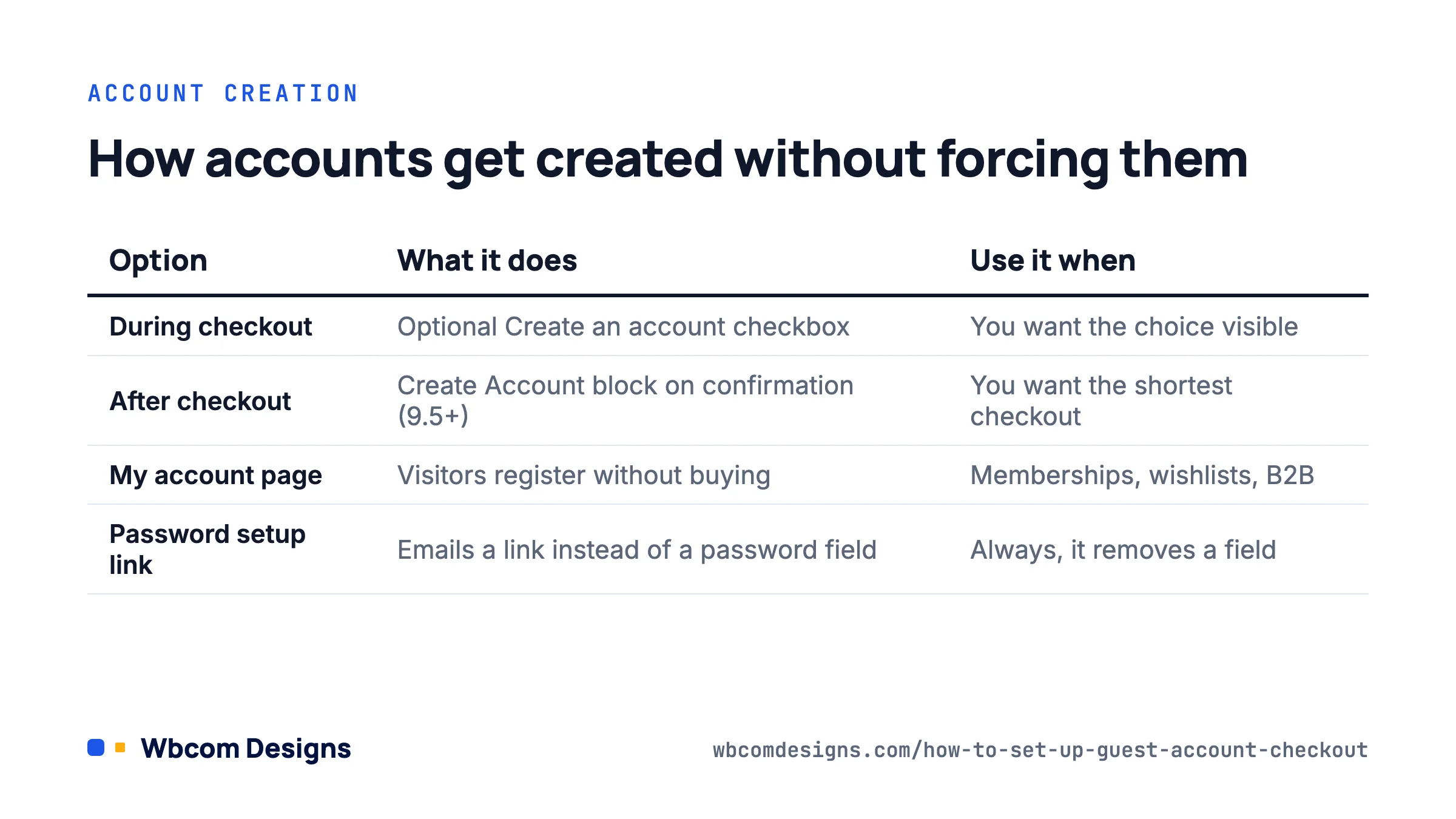
Turning off forced registration does not mean giving up on accounts. The same tab has an Account creation group with three independent options, and the right mix depends on your store.
| Option | What it does | Use it when |
|---|---|---|
| During checkout | Shows an optional “Create an account?” checkbox on the checkout form. Guests can tick it; nobody is forced. | You want the choice visible but not in the way. |
| After checkout | Adds a Create Account block to the order confirmation page so the shopper can claim the order once payment is done. Needs the block checkout and a block theme. Added in WooCommerce 9.5 (December 2024). | You want the shortest possible checkout and are happy to ask afterwards. |
| On the “My account” page | Lets visitors register from the My Account page without buying anything. | Memberships, wishlists, B2B price lists. |
Two supporting settings sit underneath:
- Send password setup link: instead of asking for a password at checkout, WooCommerce emails a link to set one. Turn this on. It removes a field from the form, and it is what makes the “After checkout” flow feel effortless.
- Use email address as account login: generates the username from the email. The block checkout forces this on and hides the option, which is fine; nobody wants to invent a username mid-purchase.
Our default on new stores is guest checkout on, log-in during checkout on, “During checkout” on with the password setup link, and “After checkout” on wherever the theme allows it. That gives shoppers three low-friction chances to become a customer without a single mandatory step.
Block checkout vs classic checkout: what changes
Since WooCommerce 8.3 (late 2023) new stores get the block-based Cart and Checkout. Stores that predate that often still run the [woocommerce_checkout] shortcode. Guest checkout works on both, but the details differ.
Block checkout
The Contact Information block at the top of the form handles everything. With guest checkout on, a shopper types an email and moves straight on to address and payment. If the email matches an existing account and log-in during checkout is on, an inline “Log in” link appears. If “During checkout” account creation is enabled, a “Create an account” checkbox appears under the email field and, with the password setup link on, no password is requested. You can edit the wording by clicking the block in Pages → Checkout.
Classic shortcode checkout
The form shows a “Returning customer? Click here to login” toggle at the top when log-in during checkout is enabled, and a “Create an account?” checkbox in the billing section when “During checkout” is enabled. The “After checkout” option does nothing here; that block only renders on the block-based Order Confirmation template.
If you are still on the shortcode checkout in 2026 and want the post-purchase account prompt, switching is done from WooCommerce → Settings → Advanced by pointing the Checkout page at a page containing the Checkout block. Test with every payment gateway you use first; a few older gateways still do not support the block checkout.
When guest checkout is unavailable
WooCommerce will override your setting and require an account in a handful of situations. Knowing them saves a support ticket.
- Subscription products. WooCommerce Subscriptions needs a user record to bill renewals against, so any cart containing a subscription forces registration. The Accounts & Privacy tab shows an extra option, “Allow subscription customers to create an account during checkout”, when the extension is active.
- Membership products. WooCommerce Memberships and most membership plugins do the same for the same reason.
- Downloadable products with “Downloads require login” enabled. This lives under WooCommerce → Settings → Products → Downloadable products. Guests can still buy downloads if that box is unticked; they get links in the order email and on the order received page.
- Code that forces it. Themes and checkout plugins sometimes hook
woocommerce_checkout_registration_requiredand return true. Search your theme and mu-plugins for that filter if the setting seems to be ignored.
Stores that sell services through WooCommerce often fall into a grey area. If the buyer needs to come back, exchange files and approve deliverables, an account is genuinely useful. Woo Sell Services, our plugin for selling services through the WooCommerce checkout, handles this by keeping the purchase as a normal WooCommerce order and then moving the conversation into a per-order dashboard, so you can still let the first purchase happen as a guest and invite the buyer to set a password from the order email.
Controlling guest checkout with code
Sometimes you want guest checkout for most products but not all. The woocommerce_checkout_registration_required filter decides whether the checkout demands an account on the current request. Here is a small snippet that requires registration only when the cart contains a product in a “training” category:
add_filter( 'woocommerce_checkout_registration_required', function ( $required ) {
    if ( ! WC()->cart ) {
        return $required;
    }
    foreach ( WC()->cart->get_cart() as $item ) {
        if ( has_term( 'training', 'product_cat', $item['product_id'] ) ) {
            return true;
        }
    }
    return $required;
} );
Put it in a small site-specific plugin rather than the theme’s functions file so it survives a theme change. If you also want to hide the optional “Create an account?” checkbox for a specific product type, woocommerce_checkout_registration_enabled is the companion filter.
For stores that need more than a filter, for example a B2B store where wholesale buyers must log in but retail visitors may not, our WooCommerce development team builds that kind of conditional checkout logic regularly.
Keep the benefits of accounts without forcing them
The fear with guest checkout is losing the data and the relationship. In practice you lose very little if you set the rest up properly.
- Order tracking for guests. WooCommerce includes an Order Tracking block (and the
[woocommerce_order_tracking]shortcode) that lets a guest look up an order by number and email. Put it on a page linked from your footer and from the order confirmation email. - Automatic linking. When a guest later registers with the same email, WooCommerce attaches past guest orders to the new account automatically. The Create Account block on the confirmation page does this instantly.
- Email follow-up. Order confirmation emails reach guests the same as account holders. Marketing automation tools (Klaviyo, Mailchimp, FunnelKit, Groundhogg) all pick up guest orders through the WooCommerce order hooks, so abandoned cart and post-purchase sequences still work.
- Analytics. WooCommerce → Analytics → Customers lists guests alongside registered customers, so lifetime value reporting is not affected.
Troubleshooting
The setting is on but checkout still asks for a password
Check the cart for subscriptions or memberships, check the downloadable products login setting, and then deactivate checkout-related plugins one at a time. If the problem disappears with your theme switched to Storefront, the theme is overriding the checkout template; look for an outdated copy of form-billing.php in the theme’s woocommerce folder.
Returning customers complain they cannot log in at checkout
“Enable log-in during checkout” is off, or a caching plugin is serving a cached checkout page. Exclude /checkout/, /cart/ and /my-account/ from page caching. Most caching plugins do this automatically when WooCommerce is detected, but custom cache rules on the server often do not.
Guests say they never received the order email
That is deliverability, not guest checkout. Install an SMTP plugin (WP Mail SMTP, FluentSMTP) and send through a transactional provider. Guests depend on that email more than account holders because it is their only record.
The Create Account block does not appear after checkout
It needs three things: the block checkout, a block theme (or a classic theme that supports the block-based order confirmation template) and the “After checkout” option ticked under Account creation. On classic themes it simply will not render.
FAQ
Does guest checkout hurt repeat purchases?
Not in our experience, provided “After checkout” or “During checkout” account creation is offered with the password setup link. Shoppers who intend to return will create an account once they trust you, and they are far more likely to reach that point if the first order was painless.
Can guests use coupons and free shipping?
Yes. Coupons, shipping zones and tax rules are evaluated on the cart, not the user. The only exception is coupons restricted to specific email addresses or usage limits per user, which WooCommerce enforces by billing email for guests.
Should I disable guest checkout for high-value orders?
No. Fraud screening belongs in your payment gateway (Stripe Radar, PayPal’s risk tools) and in order status review, not in a registration wall. Registration does not stop a fraudster; it only stops a legitimate buyer in a hurry.
Is guest order data covered by GDPR?
Yes. Guest orders contain personal data, and the Accounts & Privacy tab has retention settings (“Retain completed orders” and so on) plus erasure options that apply to guest orders as well as accounts. Set a retention period that matches your accounting obligations.
Where to start
Enable guest checkout and log-in during checkout today, switch on the password setup link, and turn on account creation during and after checkout. Then place a test order as a guest in a private window, check that the order tracking page works, and confirm the emails arrive. That covers ninety percent of stores. The remaining ten percent, with subscriptions, memberships or conditional rules, need the filters above or a short custom plugin.
The official Accounts and Privacy settings documentation is the reference for every label mentioned here, and the WooCommerce 9.5 release post covers the Create Account block in more detail.
Related reading