
16 min read
Replacing an In-House or Legacy CMS: How Enterprise Content Moves With Its Structure Intact

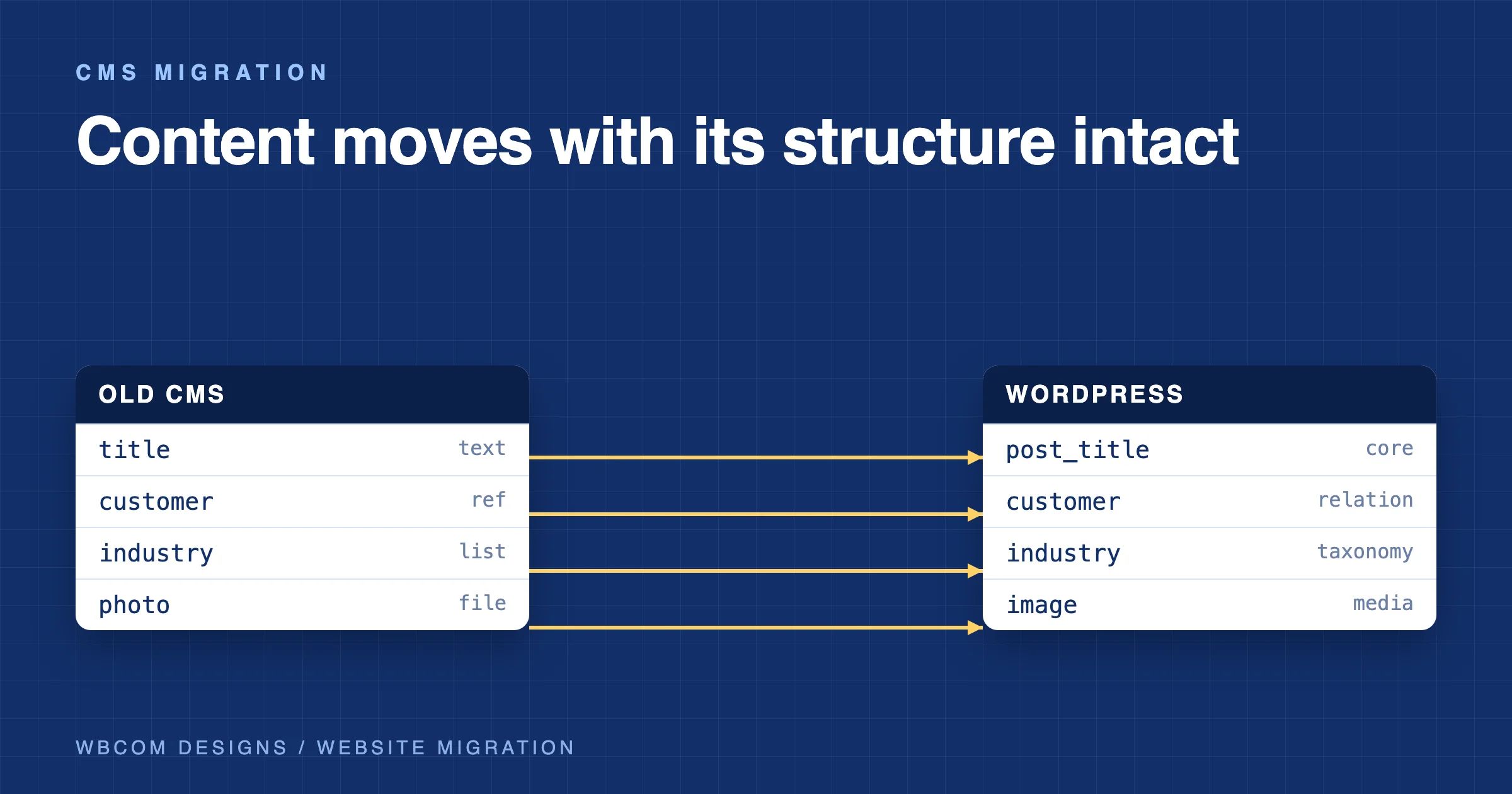
A CMS migration keeps enterprise content intact when the structure is mapped before any content moves. That means a written content model map (every type, field and relationship on the old system, and where each lands on the new one), an importer that can run more than once without duplicates, media copied with its metadata, authors and users mapped on purpose, and a URL map for every old address. It also means staged imports with counts checked after each stage, and a delta sync for the changes made while you build. Skip the map and you get what many teams get: a pile of pages with the words intact and the meaning gone.
This is written for the CTO, head of digital or content operations lead who has to replace a legacy or in-house CMS and wants the content to arrive with its structure. We build the importers we ship, and we describe three of them below, with links to our own write-ups, so you can see what “repeatable and checked” looks like in practice. For a CMS migration of your own, the same method applies whatever the source system is.
Why does structure get lost in a CMS migration?
Most lost structure is lost in the first import, and nobody notices for weeks. The usual causes:
- Everything becomes one blob. The old system stored a product with twelve fields. The import writes one long HTML body, so filters, comparisons and templates that used those fields stop working.
- Relationships turn into text. A case study that pointed to a customer record, a product and an author now contains three names as plain words.
- Order is lost. Related items, menus and featured lists lose their order, because the import sorted by date.
- Dates and zones shift. Times stored in one zone are read in another, and “published at 9am” becomes “published at 2:30pm”.
- Media is orphaned. Files are copied, but captions, credits and alt text are not, and the body text still points at the old file paths.
- Authors collapse. Every item is now “admin”, because the old users were never mapped.
- Drafts and states vanish. Only published content moved, and the half-finished work editors relied on is gone.
Every one of these is a mapping decision that was never made. The fix is to make the decisions on paper first.
Step one: take inventory of the old system
Before you design anything on the new platform, read the old one. For each content type, record:
- How many items exist, split by status (published, draft, archived, deleted).
- Every field: name, type, whether it is required, and how often it is filled in.
- Every relationship: which type points to which, one to one or one to many.
- Every taxonomy, tag set or category tree, and how deep it goes.
- Every media type and where the files live.
- Every user and role, and which users still work there.
- Every URL pattern the system creates.
- Every integration that reads or writes the content: search, newsletters, CRM, mobile app, partner feeds.
Pull this from the database or the system’s own API, not from what people remember. Our website migration page lists the first phase the same way: list every page, address, form, integration and search-ranking signal on the current site.
What can the old system actually export?
This is the first technical question, and it is also a cost driver. Our migration page names it directly: the volume of data to move, what the source platform can export, the number of URLs that need redirects and whether the design changes at the same time all affect the price. Some systems give you a clean API. Some give you only database access. Some give you a CSV with the relationships stripped out. An in-house CMS can be the hardest of all, because nothing about it is documented outside the developer’s head. If the developer has left, record a walkthrough of the system now.
Step two: map the content model
The content model map is the single most valuable document in a CMS migration. It is a table, one row per field, and it answers: where does this go?
| Old type | Old field | New home | Notes |
|---|---|---|---|
| Case study | Title, summary | Post type “case study”, title and excerpt | Straight copy |
| Case study | Customer (reference) | Relationship to “customer” post | Needs two-pass import |
| Case study | Results (repeating group) | Blocks or repeater field | Decide structure first |
| Case study | Industry (list) | Taxonomy “industry” | One term per value |
| Product | Specs (key and value pairs) | Custom fields | Keep keys identical |
| Person | Photo | Featured image with credit | Copy the credit |
| Person | Office (reference) | Relationship to “office” post | Two-pass import |
| Any | Status, publish date | Post status and date | Store in UTC |
| Any | Revision history | Decide: keep or drop | Often dropped |
A few notes on the hard rows.
Custom fields. Keep field names and types stable, so templates and integrations written against them keep working. If the old type used a strict list of allowed values, enforce the same list on the new one.
Relationships. An item that points to another item is stored as an ID. IDs on the old system mean nothing on the new one. The importer must hold an old-ID to new-ID table, and it must import in an order that makes the target exist before the pointer is written. In practice this means parents before children: customers before the case studies that cite them. Our LearnDash importer follows this rule, importing categories, courses and sections before lessons.
Repeating groups and layouts. Old systems often store a flexible page as a list of components. Decide per page type whether each component becomes a block in the new editor, a structured field or a retired layout. Most sites have a few page types, and a script can handle each.
Rich text with references inside. A paragraph that says “see our [link to item 4412]” has an embedded reference. The importer rewrites it to the new item’s address. If it does not, the old addresses leak into the new site.
Dates and time zones. Store every time in UTC and show it through one formatter. Check a sample of items from before and after any daylight saving change.
States and workflow. Map every status: draft, in review, approved, scheduled, archived. If the new system has fewer states, decide where the extra ones go. Do not drop them silently.
Multiple languages. Decide whether translations become separate posts linked together or one post with several fields, and map the link between a source item and its translations explicitly.
Do this table with a content owner in the room, not just a developer. They will tell you which types are dead, and which fields matter.
Step three: move media with its metadata
Media is the part that makes a migrated site look finished or broken.
- Copy the files, then the facts about them. Title, alt text, caption, credit, licence and expiry all travel with each file.
- Deduplicate by content, not by name. The same logo may exist under six names. Hash the file and keep one copy.
- Rewrite every reference. Article bodies, fields and galleries point at old file addresses. Each one is rewritten to the new location.
- Check remote items. Embedded video and social posts are references, not files. Our MediaPress importer write-up makes this point: remote YouTube, Vimeo and Facebook oEmbed items need separate checks.
- Keep the original until the end. Never delete the old file store until the new site has run cleanly.
At scale, copying hundreds of thousands of files takes real time. Run it in batches, log failures per file and retry only the failures.
Step four: users, authors and passwords
Decide what a user means on the new system.
- Staff who still work there become real users with the right role.
- Former staff become author profiles without logins, so bylines survive and nobody keeps access.
- Guest contributors and agencies need author entries of their own, so they do not all collapse into one account.
- Customers and members are a separate project with a privacy review.
Passwords are the one thing teams hope will move and often cannot. Our migration page says passwords usually do not transfer. Members set a new password at first sign-in, and the plan says so beforehand. Tell users before cutover and give them a clear way back in.
Step five: build the URL map
Every address the old system ever created needs a plan. That includes the obvious ones (articles and pages), the quiet ones (tag archives, author pages, pagination, print views) and the old ones that still earn links.
- Generate the list from the old database and from the old sitemap, then add the top pages from analytics and the backlinks you know about.
- Map each old address to exactly one new address, or mark it as retired.
- Use single-step 301 redirects. Google’s site move guidance says to avoid redirect chains, to keep the redirects for as long as possible (generally at least a year), and to return a 404 or 410 for content you are not moving (Google: site move with URL changes).
- Test the redirects in bulk on staging before cutover.
Our own importers draw a useful line here. Our bbPress to Jetonomy write-up says no redirects are created automatically, that forum and profile redirects can use pattern rules, and that topic redirects need a one-to-one list because the new addresses include the space name. That is typical. An importer moves content, and the URL map is a separate deliverable.
What should a good importer do?
This is where we can be specific, because we write and ship importers. Here are the properties we hold ours to, each with a place you can check it.
It never writes to the source. Our LearnDash importer reads LearnDash in place and never writes to or deletes LearnDash data. Our MediaPress importer never modifies or deletes MediaPress’s tables. If the import goes wrong, the old system is untouched.
It has a dry run. Our LearnDash importer has a preview that writes nothing and lists counts, warnings and a “not migrated” list. Our bbPress importer has a dry-run flag on the command line that validates and counts everything without writing a row. A dry run turns surprises into a list you can read before anything is written.
It runs in batches and can resume. Our MediaPress importer completes each batch before the next begins and can pause and resume. The LearnDash importer runs in background batches of 50 through Action Scheduler with live progress. At enterprise volume, a single long request will time out, so batches are the only safe design.
It can run again without duplicates. Our bbPress importer recognises what it already brought across, adds only new topics and replies and creates no duplicates, which enables a catch-up import on launch day. We say plainly in the same write-up that this does not hold for two other forum importers, where a second run creates duplicates. Check this property on any importer you rely on, because it decides whether delta sync is possible.
It can undo. In our LearnDash importer each run has an ID, and undo removes only what that run created. A migration you can reverse is a migration you can try.
It tells you what it skipped. Our write-ups list what each importer leaves behind. For LearnDash, that includes payments, certificates, old quiz attempt scores and groups. For bbPress, it includes redirects, topic tags, subscriptions and reputation history. A report of exclusions is a feature.
It works from the command line too. Large imports need to run on the server, not in a browser tab. WordPress’s own import tooling reflects this: the WP-CLI wp import command is the command-line route into the WordPress importer, with options for author mapping and for skipping image resizing during a bulk run (WP-CLI: wp import).
You can read all three in our own words: Moving Off bbPress Without Losing Your Community, Migrate From LearnDash to Learnomy and How to Migrate From MediaPress to WPMediaVerse. They are about forums, courses and media, and not about an enterprise CMS. The point is the method: map first, read-only source, dry run, batches, safe reruns, a list of exclusions. We apply the same method to a legacy CMS migration, but the importer for your system is written for your system, and we will not pretend a ready-made one exists on a shelf.
Our website migration page lists the specialist importers that do exist as products: Learnomy for LearnDash, Tutor LMS and LifterLMS; Jetonomy for bbPress, wpForo and Asgaros Forum; BuddyNext for BuddyPress and BuddyBoss; Eventonomy for events plugins; Listora for directory plugins; and WP Career Board for WP Job Manager. For a general CMS, the work is a custom importer.
Step six: stage the imports
Do not run one big import. Build up in stages, and check each one.
- Pilot slice. Import a small, varied sample: one of each content type, with the oldest and the strangest examples. Review it with the content owners. This is where mapping mistakes show up cheaply.
- One type at a time. Import taxonomies and reference data first, then the types that others point to, then the types that point to them. Check counts after each type.
- Full import on staging. Run everything. Compare counts per type and per status, source against destination.
- Review by sampling. Open a random sample for each type, plus the biggest, the oldest and the most linked. Compare field by field with the old system.
- Full import again. After mapping fixes, run it again from scratch. If your importer is repeatable, this is cheap.
- Delta sync at cutover. Copy only what changed since the last run.
What do you check after each stage?
- Counts. Items per type and status, source against destination. A difference needs an explanation, even a small one.
- Samples. Ten per type, drawn at random, plus the extremes.
- Relationships. Pick items with pointers and confirm each points to the right target.
- Media. Open the pages with the most images, and check captions and credits.
- Links. Run a crawler over staging and list every internal link that returns an error.
- Dates. Compare published and modified times for a sample, especially across daylight saving changes.
- Search and filters. Anything that used a field on the old site, such as a filter, a sort or a feed, must work on the new one.
Our LearnDash write-up lists a good example of a check with teeth. It says to spot-check three learners with different histories (completed long ago, in progress, never started) against their source records, and to confirm completion dates match. It also notes that an earlier version of the importer stamped the import date instead of the original date, and that this was fixed in a later release. We tell you that because it is the kind of bug a sampling check catches, and a count check would miss.
Step seven: delta sync and the last day
While you build, the old system keeps changing. Editors publish, fix and unpublish. A delta sync handles that: it copies only the items added or changed since the last run, so the final import before cutover takes minutes.
A delta sync needs three things from the importer: a way to find what changed, safe reruns that do not duplicate, and a rule for deletions. Decide what happens when an item was deleted on the old system after the last run. Often the right answer is to flag it for review, and not delete it automatically.
For the last day, agree a short content freeze if the numbers are high. Tell editors the exact minute they stop on the old system and start on the new one.
What do you leave behind on purpose?
A migration is a good time to stop carrying things nobody uses.
- Dead content types used by one campaign years ago.
- Empty tags and categories.
- Duplicate pages.
- Old revision history, unless law or policy needs it.
- Spam, trash and test content.
- Fields nobody fills in.
Write the list down, get the content owner to sign it, and keep a full archive of the old database for as long as your records policy requires. Archive first, retire second.
How does this work at a large scale?
A CMS migration for an enterprise rarely involves a few hundred items. Plan for volume from the start.
- Batch everything, and make every batch resumable.
- Index the new system’s tables for the fields you filter and sort by, and paginate every list and admin screen, so the new site stays fast with hundreds of thousands of rows.
- Seed a realistic test. Load a copy at full volume on staging, so you find slow screens before the editors do.
- Count with COUNT queries, not by loading every row to count them.
- Log per item, so a failure names the item and the reason.
- Keep the importer off the live site. Run it against staging, and move the result at cutover.
How long does it take, and what does it cost?
It depends on the volume of data, what the source can export, the number of URLs that need redirects and whether the design changes at the same time. Those are the cost factors our migration page names, and they are the right ones to ask any vendor about.
For timing, our page gives an audit of one to two weeks, migration and staging of two to six weeks, a single low-traffic cutover window and 30 days of monitoring afterwards. An enterprise CMS migration with a custom importer, many content types and heavy integrations can run longer, and we would rather tell you that after the audit than quote a number before it. Our pricing is fixed, quoted within 48 hours of a free discovery call, and small, well-defined moves may be sold as hourly blocks.
A checklist for the project sponsor
- We have an inventory of every type, field, relationship, taxonomy, media type, user and URL pattern.
- We know what the old system can export, and have tested it.
- A content model map exists as a table, with an owner’s sign-off.
- The importer never writes to the old system.
- The importer has a dry run, batches, resume, safe reruns and undo.
- We have a plan for media metadata, references and remote embeds.
- Users, authors and passwords have a written decision.
- Every old URL has a new address or a retirement.
- Imports are staged, with counts and samples checked at each stage.
- A delta sync and a content freeze are planned for cutover.
- The list of what we leave behind is signed off, and an archive exists.
- Someone owns the 30 days after launch.
Questions people ask
What is the biggest risk in a CMS migration?
Losing structure without noticing: relationships turned into text, fields merged into one body, dates shifted. A written content model map, a dry run and sampling checks catch it early.
Can we migrate an in-house CMS to WordPress?
Yes. It needs a custom importer, because no ready-made tool knows your data. The mapping document and the inventory are the first deliverables, and the old system’s export options decide how hard the import is.
Do passwords move?
Usually not. Our migration page says members set a new password at first sign-in, and the plan says so beforehand.
How do you avoid duplicates when you import more than once?
The importer must recognise what it already imported. Our bbPress importer does, and our write-up says which other importers do not. Check this before you rely on delta syncs.
How do you check that nothing was lost?
Compare counts per type and status, sample records field by field, test relationships, crawl staging for broken links and compare dates. A count match alone is not enough.
Do we keep the old system running?
Yes, during the build and as a fallback at cutover. Our migration page says the old site stays online during the build and remains a fallback at cutover.
The next step
If you have a legacy or in-house CMS to replace, start with the inventory and the content model map. We can do that audit with you, tell you what your system can export, and give a written fixed-price quote within 48 hours of a free discovery call. See how we run these projects on our website migration page, then send us the details: the system, the volume, the integrations and your timeline.
Related reading