
16 min read
Best Backup Migration Plugins to Secure and Move Your Website Easily in 2026



Why Backup and Migration Plugins Are Essential
1. Protection from Data Loss
Imagine your entire site disappearing overnight. It sounds dramatic, but it happens every day - a hosting glitch, an unexpected hardware failure, or malware can wipe your website clean. A backup plugin ensures you always have a copy of your full site ready to restore at any moment.
2. Hassle-Free Site Transfers
Moving your website used to be a nightmare. You had to export databases, move files, update URLs, fix broken links - and pray everything worked. Migration plugins simplify this down to a few clicks. Whether you’re changing hosts or moving from a staging site to a live site, the process becomes smooth and error-free.
3. Time-Saving Automation- Backup Migration Plugins
Manually backing up a website? No thanks. Backup plugins automate the entire process. You can schedule daily, weekly, or monthly backups and focus on running your business while your plugin quietly protects your site in the background.
4. Compatibility With Different Hosting Platforms
Whether you’re hosting on Bluehost, SiteGround, HostGator, Cloudways, or even a VPS, backup plugins are built to work across almost all hosting environments. No special configuration, no tech headaches.
5. Peace of Mind for Website Owners
At the end of the day, it’s all about peace of mind. Knowing your website is safe, secure, and easily restorable means you can focus on growth instead of worrying about risks.
Key Features to Look for in a Backup and Migration Plugin
1. Easy Backup and Restore Process
A good plugin should offer simple backup creation and one-click restore options. No coding, no database handling - just smooth, beginner-friendly functionality.
2. One-Click Migration
Whether you’re cloning your website or migrating it to a new host, the process should be quick and intuitive. Some plugins offer simple import/export tools, while others provide automated full-site transfers.
3. Cloud Storage Integration
Storing backups on your hosting server is risky - if the server goes down, your backups go down too. Look for plugins offering cloud support, such as:
- Google Drive
- Dropbox
- Amazon S3
- OneDrive
- Backblaze
- pCloud
Cloud backups = safer backups.
4. Automatic Scheduled Backups
A plugin that runs backups automatically is a huge time saver. You shouldn’t have to remember to back up your site - the plugin should handle it on a schedule you set.
5. Incremental Backups
If you have a large website, incremental backups are a lifesaver. Instead of backing up the entire site each time, only changed files are saved - making backups faster and more efficient.
6. Security Features
Your backups should be as secure as your live website. Look for features like:
- Backup encryption
- Malware scanning
- Password-protected restoration
- Secure cloud transfer
7. Large-Site Handling
Not all plugins are strong enough to handle big sites. Sometimes a timeout occurs during migration, or it fails to compress large media libraries. If your site is large, choose a tool specifically built for heavy lifting.
8. Customer Support and Documentation
Things don’t always go as planned. Good customer support, whether via documentation, forums, or direct help, can make a big difference when troubleshooting backup or migration issues.
Top Backup and Migration Plugins
| Plugin Name | Starting Price | Cloud Storage Support | Ease of Use | Migration Capability | Ideal For |
|---|---|---|---|---|---|
| UpdraftPlus | Free / Premium from $70/yr | Yes (GDrive, Dropbox, S3, etc.) | Very Easy | Yes (with Migrator addon) | Small-medium sites, beginners |
| Duplicator | Free / Pro from $49/yr | Yes (Pro) | Moderate | Excellent (best for developers) | Developers, agencies, large-scale migration |
| Jetpack VaultPress Backup | $4.95/mo | Yes (Jetpack Cloud) | Very Easy | Yes (1-click) | WooCommerce, real-time backup needs |
| Solid Backups (BackupBuddy) | From $99/yr | Yes | Moderate | Yes | Freelancers, staging and rollback needs |
| WPvivid Backup Plugin | Free / Pro from $49/yr | Yes | Easy | Yes (site-to-site migration) | Budget users, staging needs |
| All-in-One WP Migration | Free / Extensions from $69 | Limited in the free version | Very Easy | Excellent but size-limited | Beginners needing simple migrations |
| BackWPup | Free / Pro from $69/yr | Yes | Easy | Limited | Free backup users, small blogs |
| InstaWP Migration Tool | Free / Paid plans vary | Yes | Easy | Good (cloud-based approach) | Developers using InstaWP for staging |
| MigrateGuru | 100% Free | No (cloud handled by plugin servers) | Very Easy | Excellent, especially for large sites | Fast host-to-host migrations |
| Backuply | Free / Pro from $49/yr | Yes | Easy | Yes | Users needing a lightweight plugin |
| Backup Migration | Free / Pro from $29/yr | Yes | Very Easy | Yes | Beginners needing automated backups |
| BlogVault | From $89/yr | Yes (Offsite managed cloud) | Very Easy | Excellent | Ecommerce, enterprise, large sites |
| JetBackup (cPanel tool) | Usually included with the host | Yes | Moderate | Yes | VPS and cPanel server users |
| Snapshot Pro (WPMU DEV) | $15/mo+ | Yes | Easy | Yes | Developers, multisite networks |
| WP Staging | Free / Pro from $89/yr | Yes (Pro) | Easy | Yes (Pro) | Testing and staging environments |
1. UpdraftPlus- Backup Migration Plugins

UpdraftPlus is among the most widely used WordPress backup plugins, with millions of active installations. It has built a reputation for reliability, ease of setup, and flexibility for many site owners, from hobby bloggers to small businesses.
Key Features
- Full or partial backups of the database, files, themes, uploads, plugins, and other components.
- Manual on-demand backups plus scheduled backups from every 2 hours up to monthly.
- One-click restore from the WordPress dashboard with a simple interface.
- Remote and cloud storage support: Dropbox, Google Drive, Amazon S3, and more.
- Migration support: clone or migrate the site to another host using backups and restores.
Pros
- Very easy to install and use, suitable for non-technical users.
- Flexible backup options, complete or selective.
- Decent free version, suitable for small to medium sites.
- Wide support for remote storage, keeping backups off the hosting server.
Cons
- The free version has limitations and may miss some critical files.
- Larger sites, especially above 2 to 5 GB, may face performance issues.
- Premium support is behind a paywall; free users rely on community help.
Best For
- Small to medium blogs or websites with a moderate size.
- Users who prefer a simple, no-fuss backup solution.
- People who want affordable cloud-based backup storage.
Also Read: Top Cloud Migration Strategies for Modern Enterprises
2. Duplicator- Backup Migration Plugins

Duplicator is a longstanding plugin focused firmly on site migration, cloning, and backup and restore. It is well-suited for developers or users switching hosts and is respected for handling advanced workflows better than many simple plugins.
Key Features
- Full-site migration and cloning: copies the entire site, including files, database, plugins, and themes.
- Works even on a blank server without requiring WordPress to be pre-installed.
- Disaster recovery: restore the site even if locked out of the WordPress dashboard.
- Option for complete or custom backup packages.
Pros
- Excellent for migrations and cloning, more potent than many one-click tools.
- Handles larger sites and multisite setups well.
- Ideal for advanced users, agencies, or anyone who migrates sites often.
Cons
- Steeper learning curve compared to beginner-friendly plugins.
- Advanced features such as cloud storage and large-site support are in the Pro version.
- Less automated than dedicated backup-only plugins.
Best For
- Developers, agencies, or power users who frequently migrate sites.
- Migrations to blank servers or new hosting environments.
- Large sites, multisite installations, or sites requiring advanced workflows.
Also Read: SSL Migration Made Easy: Protecting Your WordPress Site
3. WPvivid Backup and Migration

WPvivid is a newer but fast-growing all-in-one backup and migration plugin. It includes backup, migration, staging, and cloud integrations in a single package, making it a versatile mid-range tool with a strong free version.
Key Features
- Backup and restore (full or partial) plus export and import workflows for migration.
- Cloud storage support: Google Drive, Dropbox, OneDrive, Amazon S3, SFTP, FTP, Wasabi, Backblaze, and more.
- Scheduled backups, including incremental backups.
- Staging site creation and pushing changes to live with the Pro add-on.
- Migration between sites with automatic URL replacement.
Pros
- Balance of backup, migration, and staging in a single plugin.
- Generous free version suitable for many small- to medium-sized sites.
- Many cloud storage options and flexible, selective backup rules.
- An intuitive interface that is easy for beginners.
Cons
- Some advanced features require the paid version.
- Performance may vary for very large or resource-intensive sites, depending on the hosting provider.
Best For
- Freelancers, small agencies, or site owners wanting backup, migration, and staging in one tool.
- Budget-conscious users need cloud integration.
- Sites that need selective backups or frequent migrations.
4. All-in-One WP Migration- Backup Migration Plugins
All-in-One WP Migration is a beginner-friendly and widely used migration tool with millions of active installations. It is ideal for users who want a simple way to export and import WordPress sites without complexity.
Key Features
- Easy export and import of the whole site, packaged into a single .wpress file.
- Drag-and-drop import interface, no coding or FTP required.
- Compatibility with most themes, plugins, and hosting environments.
- Free version available, with premium extensions for advanced features.
Pros
- Extremely easy to use for beginners.
- Reliable across many hosting providers and setups.
- Fast for small and medium sites.
Cons
- Backup file only works with this plugin, creating vendor lock-in.
- The free version has import size limits, requiring paid upgrades for larger sites.
- Some restore features are paywalled.
Best For
- Users migrating small to medium sites.
- Beginners need simple cloning and migration.
- Sites without very large media or databases.
5. BlogVault- Backup Migration Plugins
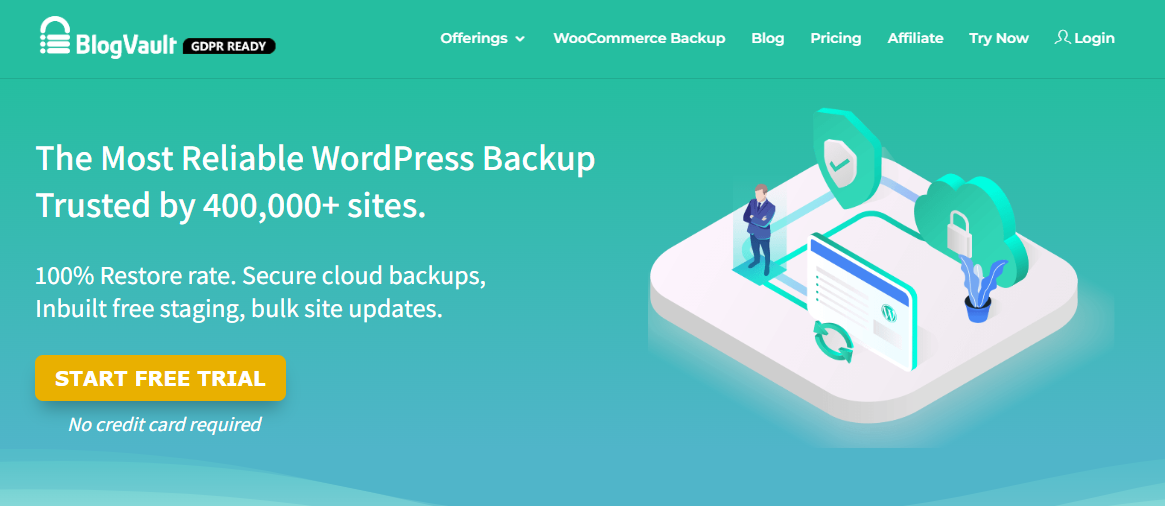
BlogVault is a premium all-in-one backup, migration, security, and staging solution. It functions as a fully managed backup service rather than a simple plugin, offering reliability and automation.
Key Features
- Automatic and incremental backups are stored off-site across multiple data centres.
- One-click restore and one-click migration.
- Built-in staging environment.
- Real-time backups for WooCommerce and high-traffic sites.
- Security and monitoring tools such as malware scanning, firewall, activity logs, and uptime monitoring.
Pros
- Enterprise-grade reliability with secure off-site backups.
- Handles large sites and multisite installations effectively.
- Ideal for frequently updated or ecommerce sites with real-time backup needs.
- Includes staging, security, and monitoring in one solution.
- Easy to set up and user-friendly.
Cons
- Paid service with no meaningful free version.
- Initial full backup may take time, depending on site size and hosting speed.
- If relying solely on hosted backups, discontinuing subscription may limit restore access.
Best For
- Medium to large sites, ecommerce, and high-traffic websites.
- Users who prefer a hands-off managed solution.
- Agencies managing multiple client sites.
6. Solid Backups (BackupBuddy)- Backup Migration Plugins
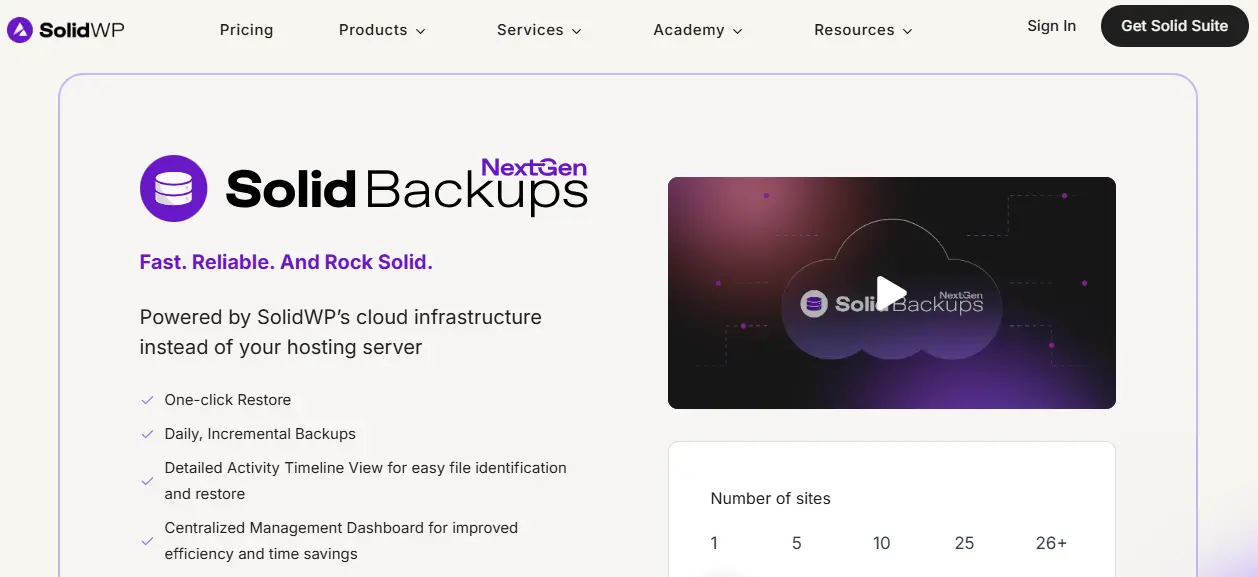
BackupBuddy, sometimes called Solid Backups, is a long-standing all-in-one backup plugin offering backup, restore, staging, deployment, and rollback before updates. Good for users wanting an integrated workflow with more manual control.
7. BackWPup- Backup Migration Plugins
BackWPup is a free or freemium plugin for database and file backups, with support for cloud and FTP storage. Best for users wanting a simple, free backup solution and who are comfortable manually restoring sites.
8. WP Staging
WP Staging focuses on cloning and staging your site for testing, rather than full backups and restores. Useful for testing updates safely before applying changes to the live site.
9. MigrateGuru and Similar Tools- Backup Migration Plugins
Specialised migration tools such as MigrateGuru, InstaWP Migration Tool, and Backup Migration focus on moving or cloning sites. These are useful for clean migration workflows, especially when backups are handled separately.
General Observations
- No one-size-fits-all solution; the best plugin depends on site size and needs.
- Free plugins work for small sites, but larger sites often need paid features.
- Some tools emphasise migration while others focus on backup and restore.
- Managed backup services differ from self-hosted backup plugins.
Quick Recommendations
| Use Case | Recommended Plugins |
|---|---|
| Simple blog or small site | UpdraftPlus, BackWPup, WPvivid (free) |
| Frequent migrations | Duplicator, All-in-One WP Migration, WP Staging |
| Medium or large site | BlogVault, WPvivid Pro, BackupBuddy |
| Full management, including security | BlogVault |
| Budget with cloud storage | WPvivid, BackupBuddy |
| Agencies or developers | Duplicator, BlogVault, BackupBuddy |
Also Read: Managing WordPress Security Just Got Easier!
How to Choose the Right Plugin for Your Website
Choosing a backup or migration plugin isn’t just about picking the most popular one - it’s about selecting the tool that genuinely fits your website’s needs. Every site is different: some are small personal blogs, some are heavy WooCommerce stores, and others are large, multi-page business sites that require careful handling.
Here’s a simple, practical guide to help you decide which plugin is best for you.
Determine the Size and Complexity of Your Website
The bigger your site, the more careful you need to be.
Small sites (blogs, portfolios, small business sites)
Tools like UpdraftPlus, Backup Migration, WPvivid (free), and BackWPup usually do the job perfectly.
Medium to large sites
These often require stronger backup engines or specialised migration features. Tools like Duplicator Pro, WPvivid Pro, All-in-One WP Migration (with extensions), and WP Staging Pro work better here.
Huge sites (WooCommerce, membership sites, LMS)
When your site is updated frequently and stores user data, you need incremental backups and high reliability. BlogVault, Jetpack VaultPress, and MigrateGuru are top choices.
Consider Your Technical Skill Level
Different plugins serve different skill levels.
Beginner-friendly tools
- UpdraftPlus
- Backup Migration
- All-in-One WP Migration
- MigrateGuru (simple migrations)
Intermediate to Advanced
- WPvivid Pro
- BackupBuddy
- Snapshot Pro
- JetBackup (server-level)
Developer-level tools
- Duplicator Pro
- WP Staging Pro
- InstaWP Migration (for staging workflows)
If you prefer something simple and automated, stick to plugins with clean dashboards and one-click actions.
Your Hosting Environment-
Your hosting environment can make a big difference in performance and compatibility.
Shared Hosting
Choose lightweight tools that don’t push server limits.
- UpdraftPlus
- WPvivid
- Backup Migration
- BackWPup
Managed WordPress Hosting (e.g., WP Engine, Kinsta, Flywheel)
Some hosts limit plugins. Consider:
- MigrateGuru
- BlogVault
- Jetpack Backup
VPS or Dedicated Servers
You can use more powerful or server-level tools.
- JetBackup
- Duplicator Pro
- WP Staging Pro
If you’re using restricted hosting, always check the host’s allowed plugin list before installing.
Budget Considerations
You don’t have to spend a lot to get quality backups - but for large or mission-critical sites, paid tools often make a difference.
Best free options
- UpdraftPlus (free)
- Backup Migration
- BackWPup
- WPvivid (free)
- MigrateGuru (free migrations)
Best value for money (affordable paid tools)
- WPvivid Pro
- Duplicator Pro
- All-in-One WP Migration Extensions
Premium, high-reliability options
- BlogVault
- Jetpack VaultPress
- Snapshot Pro
- BackupBuddy (Solid Backups)
A good rule of thumb: if your website generates income, treat backups as insurance and invest in a reliable premium tool.
Special Features You Might Need
Different websites need different capabilities. Here are some features worth considering.
Staging Environment Support
Useful if you test updates before pushing live. Best tools include:
- WP Staging
- BlogVault
- Snapshot Pro
- WPvivid Pro
Incremental Backups
Critical for WooCommerce sites or large databases. Best tools include:
- BlogVault
- Jetpack VaultPress
- WPvivid Pro
Offsite Cloud Storage
Always recommended - protects your data even if your host crashes. Best tools include:
- UpdraftPlus
- WPvivid
- Duplicator Pro
- BlogVault
Real-Time Backups
Important for active stores. Best tools include:
- Jetpack Backup
- BlogVault
Large-Site Handling
Some plugins struggle with sites over 2 to 5 GB. Best tools include:
- MigrateGuru
- BlogVault
- Duplicator Pro
Server-Level Backups
If you run a VPS or cloud server, consider:
- JetBackup
- cPanel and DirectAdmin tools
Takeaway: How to Make the Final Decision
When choosing a plugin, ask yourself these five essential questions:
- How large is my website?
- How often do I update it (posts, products, users, orders)?
- Do I need staging or just backups?
- Do I need an easy, one-click migration?
- What is my budget?
Your answers will instantly point you to the right plugin category.
Also Read: 9 Best WordPress backup services
Tips for Safe Website Migration
Tip 1: Always Create a Full Backup Before Moving Anything
This is the golden rule of migration.
Even if your migration tool promises a safe transfer, things can still break due to server limits, incompatible PHP versions, corrupted downloads, missing files, and more.
Before doing anything, make a full backup, including:
- Files (themes, plugins, uploads)
- Database (posts, pages, settings, orders)
- Config files (wp-config.php, .htaccess)
This way, even if something goes wrong, you can bring your site back with one click.
Tip 2: Test the Migration First on a Staging Site
A staging site is a private sandbox, a clone of your website where you can test changes without risking the live site.
Staging helps you check:
- Theme compatibility
- Plugin conflicts
- Broken layouts
- Missing images
- PHP version issues
- Speed differences
Plugins offering staging include:
- WP Staging
- BlogVault
- WPvivid Pro
- Snapshot Pro
Testing first can save hours of troubleshooting later.
Tip 3: Check Theme and Plugin Compatibility on the New Server
Different hosting environments have different configurations that can affect website performance.
Check factors such as:
- PHP version
- MySQL or MariaDB version
- Memory limits
- File permissions
- ModSecurity rules
- Server caching systems
- CDN integration
To avoid surprises, review your new host’s specifications, update themes and plugins beforehand, and disable unnecessary plugins.
Tip 4: Verify DNS and Domain Settings
If you’re migrating to a new domain or host, DNS settings are crucial.
Be sure to check:
- Nameserver updates
- A-records pointing to the new server
- www and non-www versions work
- MX records if email is separate
- Propagation status using DNS checking tools
DNS changes may take between 5 minutes and 48 hours. Setting a low TTL (such as 300 seconds) helps speed up propagation.
Also Read: WPvivid Review: Is It the Best WordPress Backup & Migration Plugin?
Tip 5: Test Everything After Migration Is Complete
After migration, verify all important parts of the website to ensure functionality remains intact.
Pages and Design
- Homepage loads correctly
- Fonts, images, and layout look normal
- No 404 errors
Forms
- Contact forms
- Quote forms
- Email confirmations
- Newsletter subscriptions
WooCommerce
- Add to cart
- Checkout
- Payment gateways
- Order emails
User Functionality
- Login
- Registration
- Membership access
- Downloadable files
Performance
- Site speed
- Caching
- CDN configuration
Bonus Tips
Tip 6: Disable Caching Before Migration
Caching plugins such as WP Super Cache, LiteSpeed Cache, or WP Rocket can interfere with migrations. Disable them before exporting or importing your site.
Tip 7: Update Permalinks After Migration
Go to Settings> Permalinks, then click Save without making any changes. This fixes broken URLs and 404 errors.
Tip 8: Clear Old Backups From the Server
Leaving large backup files on your server can consume storage and slow down your hosting environment.
Tip 9: Use SSL (HTTPS) Immediately
After migrating to a new host, activate SSL and use a search-and-replace tool to fix mixed content issues.
Tip 10: Test on Different Devices and Browsers
A site may look perfect on a desktop but broken on mobile. Test your site on:
- Mobile
- Tablet
- Chrome
- Safari
- Firefox

Conclusion on Backup Migration Plugins
Backups and migrations aren’t the most glamorous parts of running a website - but they are absolutely essential. Think of them as your site’s insurance policy: you hope you’ll never need them, but when something goes wrong, they’re the only thing standing between you and total data loss.
Throughout this guide, we’ve explored why backups matter, what makes a great backup or migration plugin, and how different tools compare based on pricing, features, cloud support, ease of use, and ideal users. Whether you’re managing a small blog, a growing business site, or a large dynamic WooCommerce store, the right tool can save you hours of stress and even hundreds of dollars in recovery costs.
Here’s the bottom line:
If you’re running a small or medium website, tools like UpdraftPlus, WPvivid, and Backup Migration offer excellent, beginner-friendly protection.
If you frequently move or clone websites, or if you’re a developer or agency, Duplicator, WP Staging, or All-in-One WP Migration can dramatically simplify your workflow.
If you run a large or mission-critical site, especially one with frequent transactions, BlogVault, Jetpack VaultPress, or MigrateGuru provide the reliability you can depend on.
But no matter which plugin you choose, the most important takeaway is this: always back up your website before making any major change, and keep your backups stored safely, ideally offsite.
Website issues will happen eventually - server crashes, malware attacks, accidental file deletions, plugin conflicts, hosting failures, and everything in between. The difference between a minor inconvenience and a full-blown disaster is usually just one thing: a solid, updated backup.
So please take a moment today to pick a plugin that fits your needs, install it, set up your backup schedule, and test a restore. Your future self will thank you, probably at a moment when you desperately need it.
Interesting Reads:
What To Expect From A Cloud Migration Consulting Process
10 Best Trading Platforms with Low Fees
The Ultimate Enterprise WordPress Hosting Solution: Reliable, Secure, and Fully Customizable
Related reading