
8 min read
How to Set Up and Edit WooCommerce Shipping Zones


Shipping zones are how WooCommerce decides what a customer pays for delivery. Each zone is a set of locations (countries, states, or postcodes) with one or more shipping methods attached, and WooCommerce matches a customer to the first zone in the list that covers their address. Get the zones and their order right and checkout quotes the right price every time; get them wrong and you either overcharge local customers or ship abroad at a loss.
This guide covers creating zones, ordering them, the three built-in methods, shipping classes and the flat rate cost formula, and a worked setup for a UK store shipping worldwide. Menu paths are for WooCommerce 11.0 (August 2026) but have been stable since zones arrived in WooCommerce 2.6.
How zone matching works
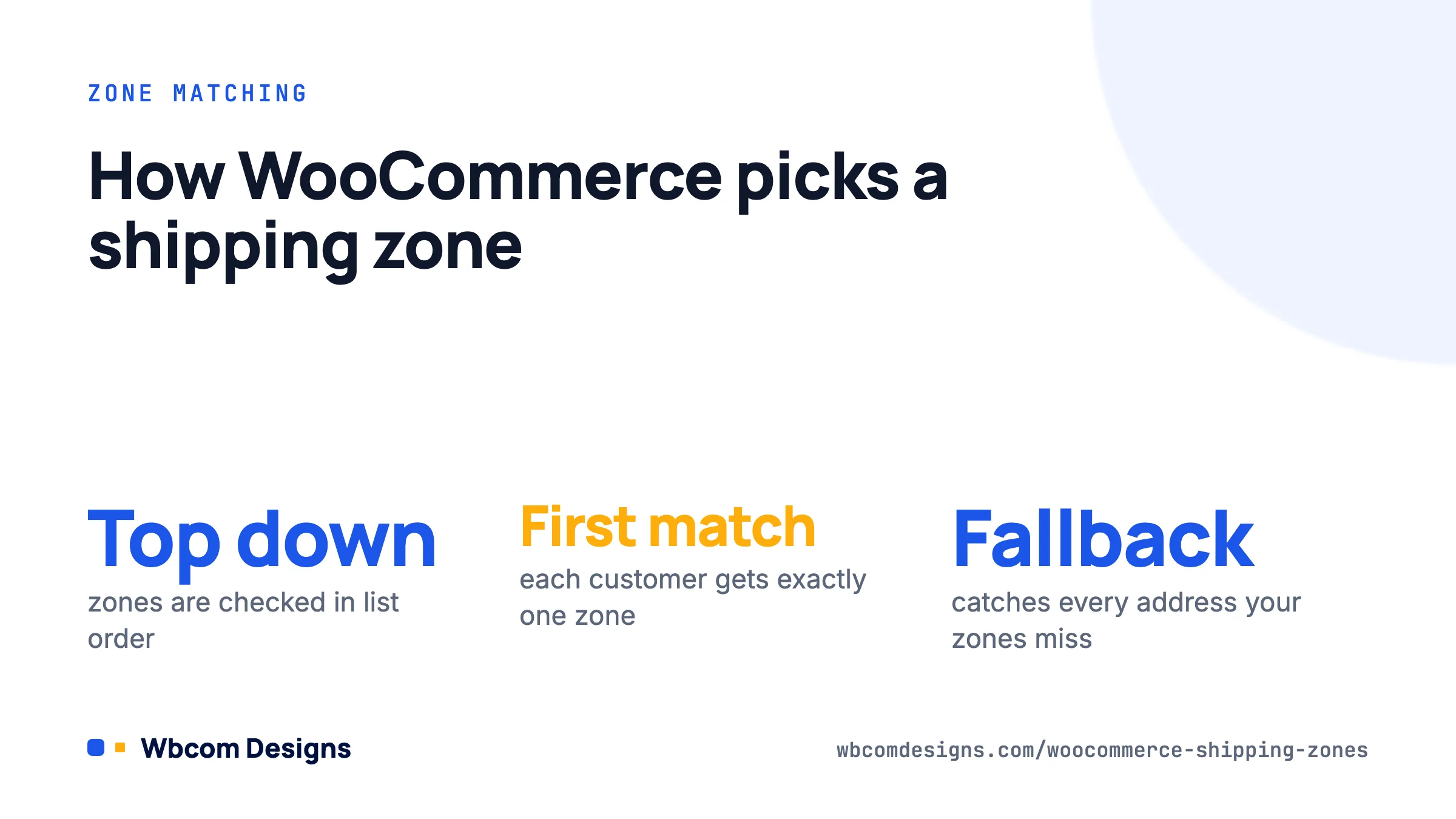
Go to WooCommerce → Settings → Shipping → Shipping zones. You will see your zones in a list, plus a fixed zone at the bottom called “Locations not covered by your other zones” (older versions called it “Rest of the world”). The WooCommerce shipping zones documentation spells out the rule: zones are matched top to bottom and the customer gets the first zone that matches. Each customer matches exactly one zone.
Three consequences follow, and they explain most “wrong shipping rate” tickets we see:
- Specific zones must sit above broad ones. A “London postcodes” zone below a “United Kingdom” zone will never match, because every London address already matched the UK zone.
- The fallback zone catches everything else. If it has no methods, customers outside your zones see “No shipping options were found” and cannot check out. That is sometimes what you want (you do not ship there), but make it deliberate.
- Methods are per zone. A free shipping rule in your domestic zone does nothing for international customers unless you add it there too.
Reorder zones by dragging the handle on the left of each row. The order is saved immediately.
Creating a shipping zone
- Click Add zone.
- Give it a name customers will never see but you will, such as “UK Mainland” or “EU”.
- In Zone regions, start typing and pick countries, states, provinces or whole continents. You can mix them: “Europe” as a continent plus “United Kingdom” as a country, for example.
- Optionally click Limit to specific ZIP/postcodes and enter one per line.
- Click Add shipping method, choose Flat rate, Free shipping or Local pickup, and configure it.
- Save.
Postcode rules
Postcode matching supports three forms, one per line:
- Exact:
SW1A 1AAor90210 - Numeric range:
90210...99000(three dots) - Wildcard:
902*matches 90210 and 90288-1234;EH*matches every Edinburgh postcode
Wildcards inside ranges (902*...990*) are not supported. For UK postcodes, match on the outward code with a wildcard (BT* for Northern Ireland, IV* for the Highlands), which is how most couriers define their surcharge areas anyway.
The three built-in methods
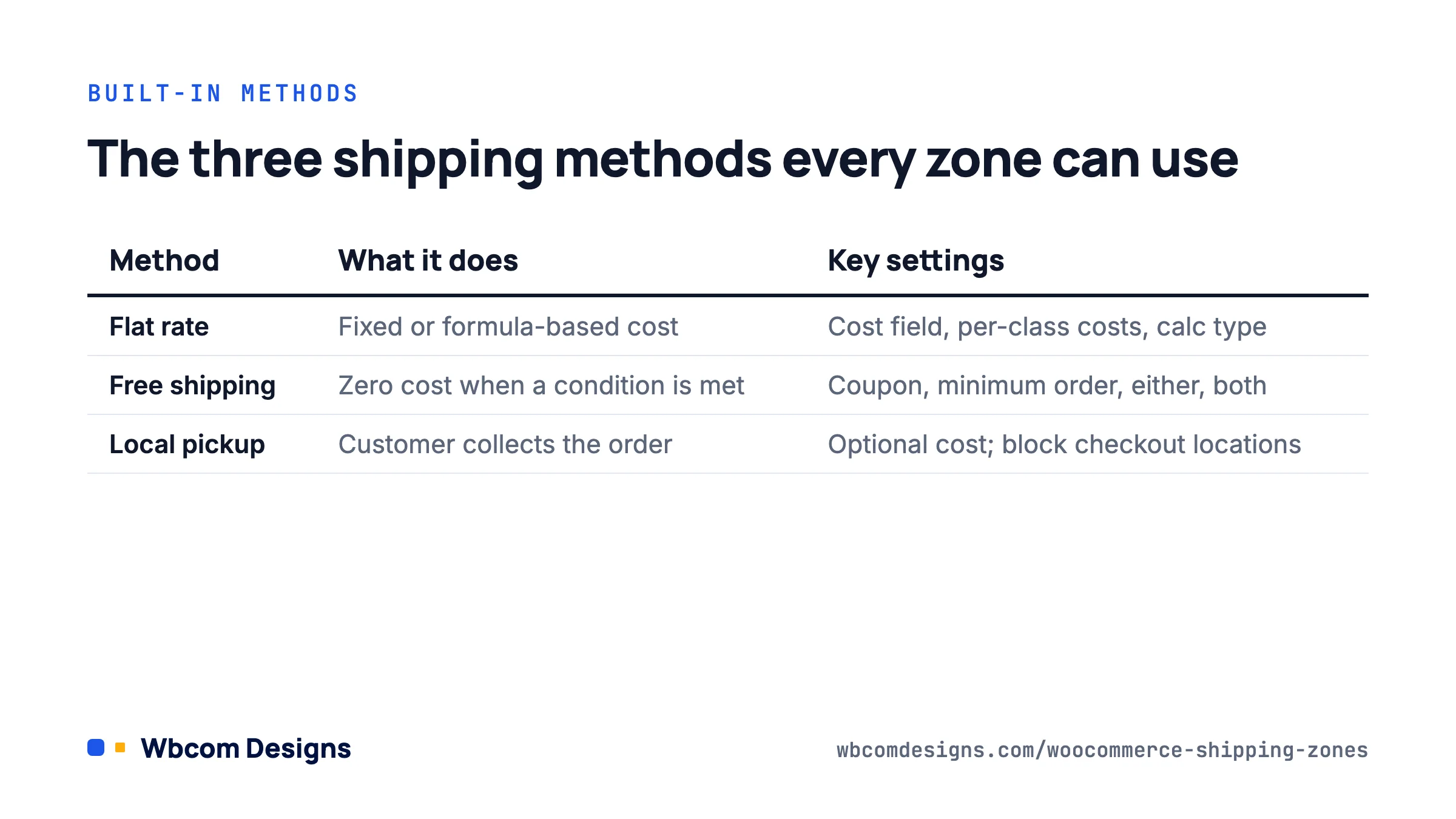
| Method | What it does | Key settings |
|---|---|---|
| Flat rate | Fixed or formula-based cost | Cost field, tax status, per-class costs, calculation type |
| Free shipping | Zero cost when a condition is met | Requires: none, a valid coupon, a minimum order amount, either, or both |
| Local pickup | Customer collects | Optional cost, tax status. In the block checkout, pickup locations are configured under Shipping → Local pickup instead |
You can add the same method more than once to a zone. Two flat rates called “Standard (3-5 days)” and “Express (next day)” with different costs is the normal pattern. The first enabled method in the list is pre-selected at checkout, so put the one you want most customers to choose at the top.
Carrier-calculated rates (live quotes from UPS, FedEx, Royal Mail, Australia Post) come from extensions. Each adds its own method type to the Add shipping method dialog, and it still lives inside a zone like the built-in ones.
Flat rate costs and the formula
The Cost field in Flat rate takes a number or a small formula, described in the flat rate shipping documentation. Three placeholders are available:
[qty]: number of items in the cart[cost]: cart subtotal for shippable items[fee percent="10" min_fee="2" max_fee="15"]: a percentage of the subtotal, clamped between min and max
Examples we actually use:
4.95                            base rate only
2.50 + ( 1.00 * [qty] )         £2.50 plus £1 per item
[fee percent="8" min_fee="3"]   8% of the order, never below £3
5 + [fee percent="5" max_fee="20"]   £5 base plus 5%, capped at £25 total
Do not use the formula for weight. It has no weight placeholder. For weight-based pricing, use shipping classes (below) or a table rate extension.
Shipping classes for heavy or awkward products
Shipping classes let one flat rate charge differently depending on what is in the cart. Create them at WooCommerce → Settings → Shipping → Classes (Add shipping class, give it a name and slug), then assign a class to each product on its Shipping tab. A product can have one class; variations can each have their own.
Back in any Flat rate method, a cost field appears per class plus a “No shipping class cost” field. These are added to the main Cost field, so set the main cost to 0 if you want class costs to stand alone. The Calculation type dropdown controls what happens when a cart contains several classes:
- Per class: charge each class’s cost and add them up.
- Per order: charge only the most expensive class present.
With Heavy at £10, Small at £1 and a base of £0, a cart holding one of each costs £11 under Per class and £10 under Per order. Per order is what customers expect; Per class is for stores where each class genuinely ships as a separate parcel.
A worked setup: UK store shipping worldwide
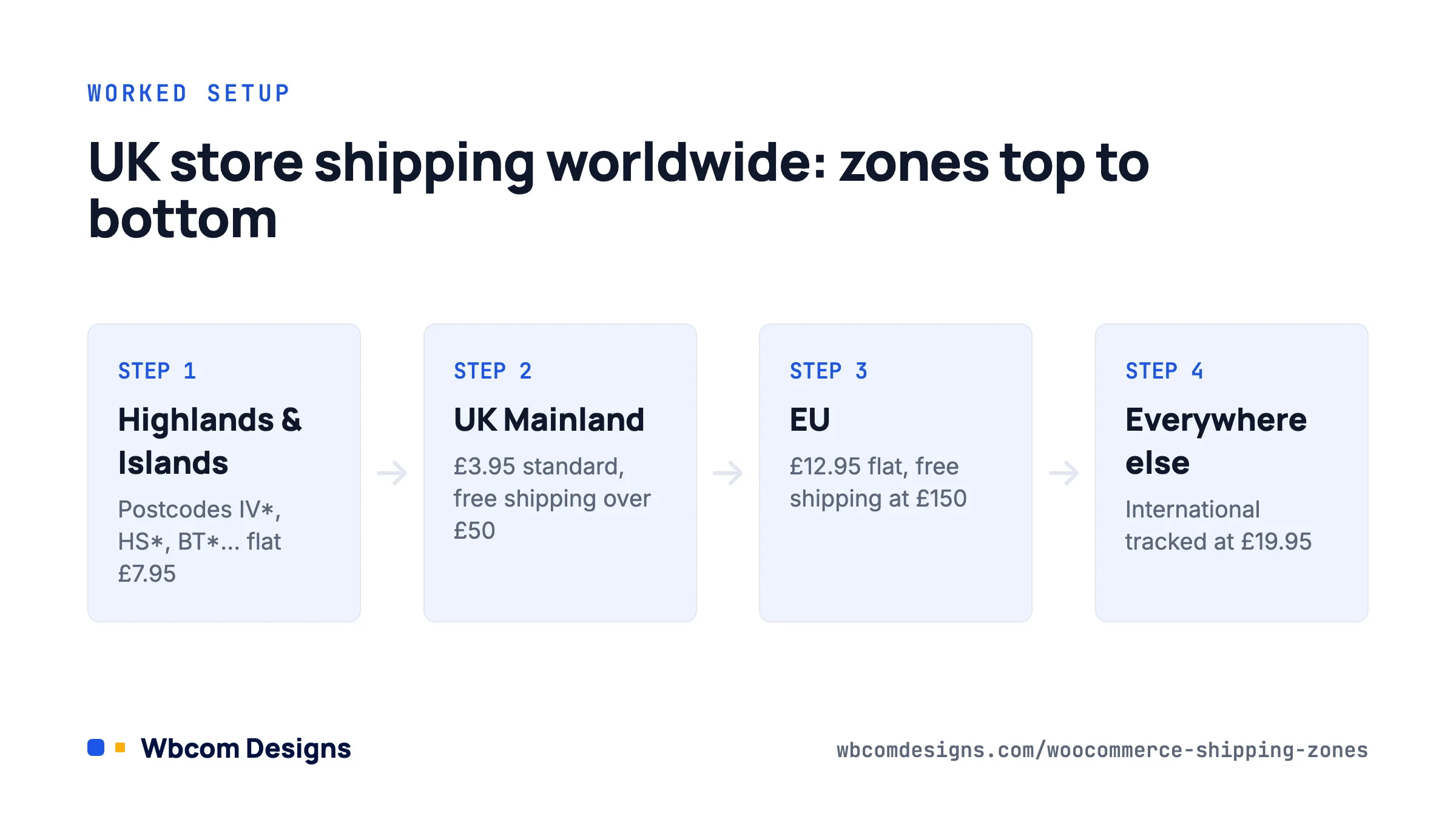
Here is the zone list we would build for a UK store selling clothing, with a few heavy homeware items, shipping to the UK, EU and everywhere else. Order matters, so it is listed top to bottom.
- UK Highlands and Islands (United Kingdom, postcodes
IV*,HS*,KW*,ZE*,BT*,IM*,JE*,GY*). Flat rate £7.95, Heavy class £15. No free shipping. - UK Mainland (United Kingdom). Flat rate “Standard” £3.95, Heavy class £9, Per order. Flat rate “Next day” £7.95. Free shipping with minimum order £50. Local pickup, free.
- EU (Europe continent). Flat rate £12.95, Heavy class £25. Free shipping at £150.
- Locations not covered by your other zones. Flat rate “International tracked” £19.95, Heavy class not offered (cost left blank and the heavy products excluded via a plugin or simply accepted as a loss leader; we usually add a note on the product page).
Two details. First, the Highlands zone sits above UK Mainland because it is the narrower match. Second, the free shipping threshold is set per zone, so the EU gets a higher threshold that reflects the real cost.
If you sell through a marketplace theme such as StoreMate Dokan, note that Dokan, WCFM and WC Vendors each let vendors define their own zones and rates inside the vendor dashboard, layered on top of the admin zones. Decide early whether shipping is set by you or by vendors; mixing the two confuses everyone.
Editing, testing and debugging zones
To edit a zone, hover its row and click Edit, or click the zone name. Methods can be toggled on and off with the switch in the Enabled column, which is handy for pausing next-day delivery over holidays without deleting it.
Test every change with the Shipping Calculator on the cart page (enable it under WooCommerce → Settings → Shipping → Shipping settings, “Enable the shipping calculator on the cart page”). Enter an address from each zone and check the rates. On the classic cart you can also enable “Hide shipping costs until an address is entered” so guests are not quoted the fallback zone’s rate before they type a postcode.
When a rate looks wrong:
- Wrong zone matched. Check order. Drag the narrower zone higher.
- Rate does not change after editing. Shipping rates are cached per session. Add something to the cart or log out and back in, and purge any object cache.
- “No shipping options were found”. The matched zone (often the fallback) has no enabled method, or the only method is Free shipping with an unmet minimum.
- Class cost ignored. The product has no class, or the method’s calculation type is Per order and a more expensive class is also in the cart.
- Free shipping shows alongside paid options. That is default behaviour. Hide the paid ones when free applies with a filter on
woocommerce_package_rates:
add_filter( 'woocommerce_package_rates', function ( $rates ) {
    $free = array();
    foreach ( $rates as $id => $rate ) {
        if ( 'free_shipping' === $rate->method_id ) {
            $free[ $id ] = $rate;
        }
    }
    return ! empty( $free ) ? $free : $rates;
}, 100 );
When zones are not enough
Zones plus classes cover most stores. You need an extension when pricing depends on total weight or dimensions, when you want different rates per cart total band (under £20, £20 to £50, over £50), or when you want live carrier quotes. Table Rate Shipping (official, from Woo) handles the first two; carrier extensions handle the third. Before buying, write your rate card out as a table; if it fits in zones and classes, save the money.
FAQ
Can a country be in two zones?
Yes, and it often should be, with postcode limits on the higher one. The top matching zone wins, so “UK Highlands” (postcodes) above “UK Mainland” (whole country) works exactly as intended.
Does the free shipping minimum include tax and discounts?
The minimum order amount is checked against the cart subtotal. Ticking “Apply minimum order rule before coupon discount” changes whether a coupon can drop a cart below the threshold. Tax inclusion follows your “Display prices in the shop” setting.
Do shipping zones work with the block checkout?
Yes. Zones and methods are identical. The only difference is Local pickup, which the block checkout manages through its own Pickup locations screen with named addresses and opening hours.
How do I charge per item instead of per order?
Use [qty] in the flat rate cost field, for example 1.50 * [qty], or give the product a shipping class and set that class cost with Per class calculation.
Where to start
Write down where you ship and what each destination costs you. Turn that into zones from narrowest to broadest, add a flat rate to each, put free shipping where the margin allows, and test with the cart calculator. Most stores are done in an hour. If your rates depend on weight bands, multiple warehouses or vendor-specific rules, that is where a WooCommerce developer earns their fee, and it is the kind of setup we do regularly for marketplace and B2B stores.
Related reading