
14 min read
WordPress Security Maintenance When Members Have Logins

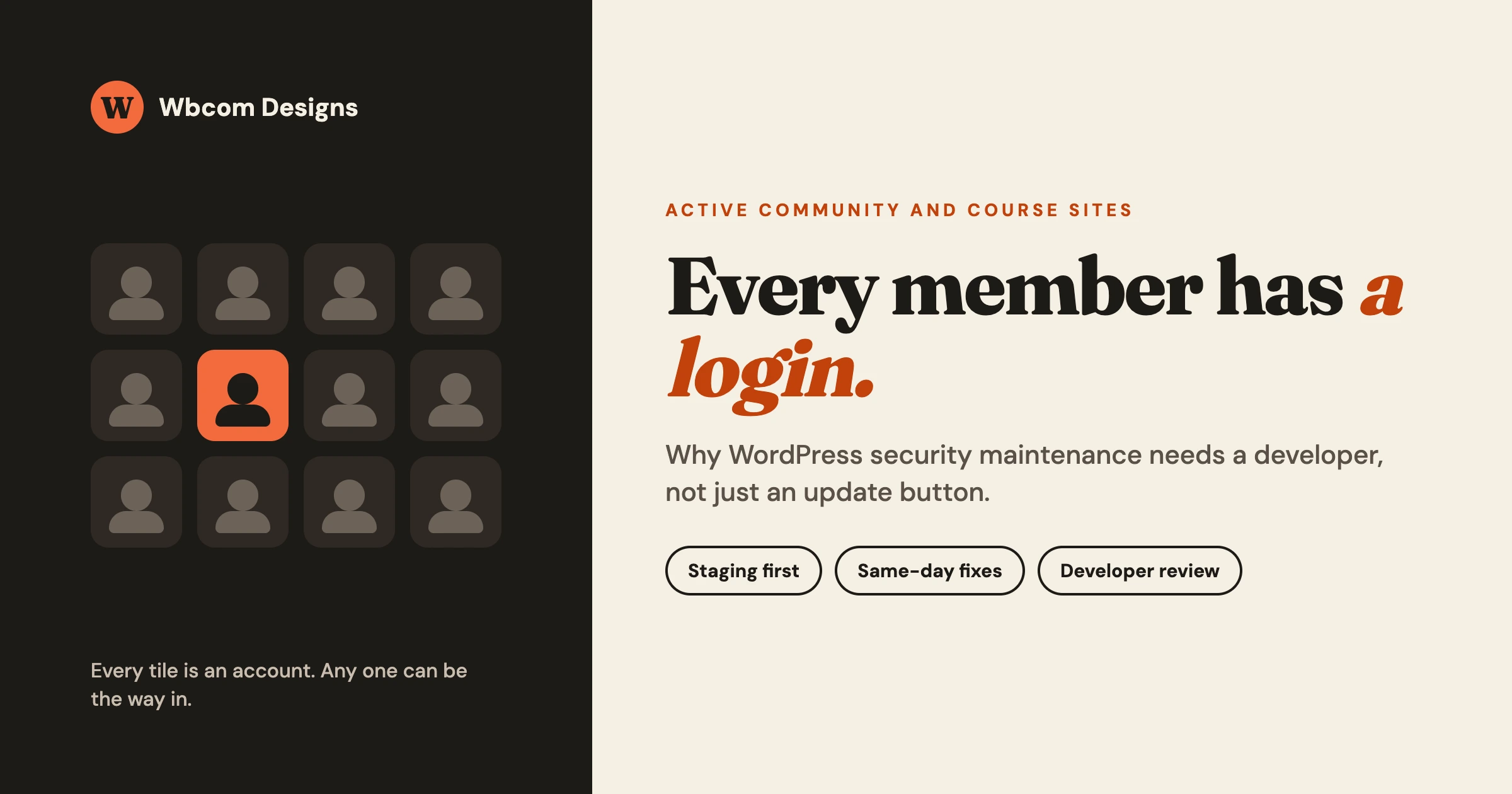
A brochure site and a community site both run on WordPress, but they do not carry the same risk. On a brochure site, almost nobody has an account. On a community, a course site or a membership site, every member has one. That single difference changes what WordPress security maintenance has to do.
For years the standard routine was simple. Update on the weekend, click one button, and let a vulnerability scanner email you if something looks wrong. For a quiet site that routine may be enough. For an active site with hundreds or thousands of logins, a lot of plugins and real members who expect it to work, we think it no longer protects you.
This article explains why WordPress security maintenance has to change, using facts we checked against the advisories themselves. It is written for owners of community, course, membership and marketplace sites. We are not trying to scare you. We want to give you a plain picture of what changed in 2026, what a developer does that the update button does not, and a short list you can run today.
Why “requires login” changes WordPress security maintenance
Security advisories have a habit of saying “requires an authenticated user”. On a brochure site that phrase is reassuring, because nobody can log in. On your site it means something else. If you let people register, the bar is one signup form.
What the WordPress 7.1.1 list actually says
WordPress 7.1.1 was a maintenance and security release with 17 core bug fixes, 19 block editor fixes and 11 security fixes. We read the full list of the eleven. Here is what the titles say about who can use each flaw:
- Five of the eleven name a logged-in role in their own description. They cover a Contributor-level post overwrite, a Contributor-level slug disclosure, an authenticated path traversal in the REST templates controller, a Site Administrator activating a network-only plugin, and comments that any authenticated user can move to a different parent.
- One names an unauthenticated visitor. It is a stored cross-site scripting issue in wpautop(), and it depends on comment approval.
- The rest do not state the account level in the title, so we make no claim about them.
We want to be exact here, because you may see a rounder number repeated elsewhere. The release notes do not say “ten of eleven”. What they do show is a pattern. Most of the listed flaws assume an attacker who already has some kind of account.
Think about what that means on a community. A Contributor-level account is not hard to get on a site that lets members publish. A subscriber account is what you hand to every new student. When the security team writes “Contributor+”, it is describing a large share of your user table.
The Tutor LMS case: any subscriber
The clearest example is in a course plugin. In September, Wordfence reported a PHP object injection flaw in Tutor LMS, tracked as CVE-2026-78175 with a CVSS score of 8.8. It affects Tutor LMS up to version 4.0.7, which is active on more than 100,000 sites. An attacker with subscriber-level access could use it to run code on the server.
Wordfence makes the key point itself. Tutor LMS is built around student enrollment, and most installs enable open registration by default. In their words, the authentication bar is effectively low for any visitor who can reach the site. The plugin author released a fixed version, 4.0.8, on September 10.
That is the whole argument in one case. On a course site, “needs a subscriber account” and “needs nothing” are close to the same thing, because you hand out subscriber accounts to everyone who signs up.
Click2Shell: one click from an admin
The third item is a different shape. Patchstack wrote up Click2Shell, a chain fixed in WordPress 7.1.1 that turned a single click into a remote shell. The chain needed a site administrator to load a crafted link while logged in. A regular viewer, or even an Editor or Author, could not trigger it. The full result also depended on the site having a vulnerable theme available to install.
Patchstack is careful to say this is not a drive-by attack. We agree, and we do not want to oversell it. But think about who holds an administrator login on an active site. Often it is not one person. It is the owner, a community manager, a developer who helped last year, and a contractor nobody remembers. Each one is a person who can be phished, and each one is a login.
Count the accounts on your own site
Here is a quick way to see your exposure. Open your users list and count by role.
| Role | Why it matters |
|---|---|
| Subscriber or member | Every one is a login on a flaw that “requires an account”. |
| Contributor or author | Several 7.1.1 fixes named this level. |
| Editor or moderator | Often has more reach than the owner realizes. |
| Administrator | Needs to be as few people as possible, each with two-factor. |
If the first row is in the thousands, the phrase “requires login” does not describe your risk. It describes your user count.
The pace is not weekly any more
The second change is about timing. The old rhythm assumed that a fix is published, and then you have days or weeks to apply it. In 2026 that window has gotten short.
A core fix, and attackers within hours
On September 22 the WordPress team released WordPress 7.1.2 to fix one critical issue, CVE-2026-87902. An unauthenticated attacker could, under certain conditions, make page template resolution include a chosen local PHP file from outside the active theme. If the conditions on the server and the theme are met, that can lead to remote code execution. The fix was backported to every branch still receiving security updates, back to 4.7.
To be fair to the facts, this one needs no login at all, so it is not a “members” story. We include it for its timeline. Wordfence rated it 9.2 on CVSS 4.0 and stressed that exploitation depends on the theme layout and a suitable file on the server. So not every site is exposed.
Here is what happened next. Patchstack recorded the first attacker activity at 11:49 UTC on September 22, the same day as the release. By the next day the traffic was more than ten times the first evening’s volume, and requests had moved from probing to attempts to write PHP files to disk. Patchstack’s update on September 23 called it urgent.
Notice what that does to the weekend routine. A site that updates on Saturday after a Tuesday release has spent four days in the window.
The July chain: ninety minutes
This was not a one-off. In July, Patchstack described a pair of flaws in WordPress core that, chained together, led an unauthenticated visitor to a new administrator and then remote code execution. In their write-up, ninety minutes of watching attackers weaponize the core RCE, they report that the first real exploitation attempts arrived roughly ninety minutes after the fixed release. In the days after, they blocked more than 65,000 attempts from over 1,500 different IP addresses.
Patchstack also makes a point we think is worth repeating, with the caveat that it is their own measurement from their own product. Their protection sits inside the application, so any network or server-level firewall in front of those sites had already let the request through. We are not claiming a hosting firewall is useless. We are saying it is one layer, and the evidence we can verify says it is not a replacement for the fix.
The free tier and the delay
Here is one more detail from the Wordfence notice on CVE-2026-87902. Paid Wordfence plans received a firewall rule on September 22, the day of disclosure. Free users receive the same protection 30 days later, on October 22. That is a normal, stated model for a free tier. It is also a clear example of why a scanner or firewall cannot be your only plan. For a month, free-tier protection for that flaw would not have been in place, and only the update would have closed it.
Faster discovery on both sides
The last piece is who finds the bugs. The Tutor LMS flaw was found by Wordfence Argus, which Wordfence describes as its AI research agent for complex vulnerability chains. Two of the eleven WordPress 7.1.1 fixes were credited to Anthropic as the reporter. We do not know the method behind each report, so we make no claim about it.
Our reading, and it is an opinion and not a measurement, is simple. When automated tools help defenders find chains faster, we should assume they help everyone else too. Patchstack’s ninety-minute figure points the same way. Do not plan around a long gap between a patch and a scanner pointed at the internet.
Alerts are not WordPress security maintenance
Tools like Patchstack and Wordfence are good, and they are one part of WordPress security maintenance. They tell you that a version is vulnerable. Some also add a rule that blocks known exploit attempts while you update. That is valuable. It is just not the same thing as a safe update.
What an alert does not do
An alert does not test the new version against the other plugins on your site. Active sites often run fifty or more plugins. We want to be careful with that number, because it is not a measured statistic. It is the typical shape of the sites we are asked to look after. A community might run a theme, a social layer, a forum, a course plugin, a payment gateway, a membership plugin, SEO, caching, forms, email, a backup tool and a dozen smaller pieces. Each one updates on its own schedule.
An alert does not tell you whether the update broke checkout. It does not roll the site back at 11 PM when a login form stops working. It does not check whether the members who arrive on Monday can sign in, post and pay. And it does not tell you whether someone already got in before you patched.
A fix that breaks the site is also an outage
There is a second risk, and it is the one that tempts people to delay. Updates sometimes break things. If a critical fix is applied blind and it knocks out the member area, you have traded a security risk for an outage. That is exactly why people delay, and delaying is how sites get compromised.
The way out is to make WordPress security maintenance safe and fast, not to update less. That takes a place to test, a way back, and someone who can read the result. It takes a developer.
The update button answers one question: is a newer version available? Maintenance answers a different one: is the site still working for every member after it?
WordPress security maintenance: what a developer does that the update button does not
Here is the WordPress security maintenance work, step by step. We list what each step is, and then we are straightforward about which parts our care plan states and which parts you should ask us about.
1. Test the update on staging first
A developer copies the live site to a staging site, applies the updates there, and looks at the result before anything touches production. This is the single biggest difference from the button, because it moves the failure from your members to a copy.
2. Check conflicts across the whole plugin stack
An update does not break a site in isolation. It breaks it in combination with something else. A developer looks at which plugins share hooks, templates or database tables, and watches those first. On a community site that usually means the theme, the social layer, the forum and the membership plugin.
3. Have a way back
Before any change, there should be a recent backup that can actually be restored, and a clear plan for what happens if the update goes wrong. A backup that has never been restored is a hope. A tested one is a plan.
4. Check the member journeys after the update
After an update, a developer walks through the paths your members really use. Sign up, log in, reset a password, post, enroll, pay, and open a private area. A green dashboard says the code loaded. It does not say a person can finish a task.
5. Review logs and admin accounts
After an incident, or on a regular schedule, a developer looks for what should not be there. An administrator account nobody created, a plugin nobody installed, a file that changed without a release. This is the step that catches a site that was already compromised before you patched.
What our care plan covers
You asked for a plain mapping, so here it is. We checked each claim against the WordPress care plan page and we only list what it states.
| What a developer does | What the care plan page states |
|---|---|
| Test updates on staging | Plugin, theme and core updates run on a staging clone first. If anything regresses, the update is held and a developer reviews it. Updates reach production after a visual and functional check. |
| Have a way back | Cloud backups with a 30-day retention window and restore to a point inside it. How often backups run depends on the plan. |
| Catch compromise | Patchstack and Sucuri scanning runs continuously, and malware cleanup is included on every plan. |
| Know when it is down | 24/7 uptime monitoring with independent probes. |
| Keep you informed | A weekly written status email covering what was updated, caught and monitored. |
| Real-time monitoring and emergency help | Ultimate and Care Pro plans add real-time security monitoring and emergency response for production-down issues. |
Two honest notes. First, the page describes a visual and functional check before updates ship, but it does not list a member-journey checklist for your particular site, and it does not list a review of admin accounts or logs as a named item. If those matter to you, and for an active community they should, talk to us about scope before you assume. We would rather agree on it up front than disappoint you later.
Second, plans start at $99 per site per month, and the page recommends the Care Pro plan for most community sites because it includes rolling developer hours. You can read the tiers and decide on what an hour of downtime would cost you. There is a 30-day money-back guarantee on every plan.
If you want to compare this with hiring someone yourself, our guide on how to hire a WordPress developer without getting burned covers what to ask and what to avoid.
A realistic WordPress security maintenance cadence
You do not have to do everything every day. Here is a WordPress security maintenance rhythm that matches the pace above.
Same day for critical fixes
When a core or plugin release is marked critical and your site meets the conditions, the update should go through staging and then to production within the same day. For CVE-2026-87902, the first attacker activity came the day of the release, so a same-day plan was the sensible one.
Weekly for everything else
Most releases are not emergencies. A weekly pass through staging, with a short written note of what changed, keeps the plugin stack from drifting. Skipping updates for months is how compounding plugin debt builds, and we have seen it make recovery far more expensive than the upkeep.
Monthly for a short audit
Once a month, review who has accounts and at what level. Remove people who have left. Check for plugins you no longer use. Look at what changed on the server. Confirm a backup restores.
Each quarter for a restore test
Pick a backup, restore it to a sandbox, and open the site. It is boring, and it is the only proof you have that the safety net holds.
A checklist you can run today
You can do the first pass of WordPress security maintenance in an afternoon, with or without us.
- Count your accounts by role. Note how many subscribers, contributors and administrators you have, and remove any that should not exist.
- Turn on two-factor for every administrator and editor. Phished admin links are the Click2Shell scenario.
- Check your core version. Confirm you are on 7.1.2 or the fixed release for your branch, and that the update really completed.
- Check your course and community plugins. If you run Tutor LMS, confirm it is on 4.0.8 or later.
- Look for open registration you do not need. If members must sign up, require email confirmation and consider approval for higher roles.
- Confirm a restorable backup exists off the server. Ask when it was last restored.
- Find out where updates are tested. If the answer is “on the live site”, you have found your gap.
- Write down who owns this. One name, one schedule, one place for a note.
- Review administrator accounts and recently installed plugins. Anything unknown is worth an hour.
If you want a wider view of the threat picture, our earlier article on the 2026 WordPress vulnerability wave and why maintenance is the product covers the broad case. This article is narrower on purpose, about sites where members hold accounts. And if you already suspect something is wrong, our free open-source malware cleanup tool is a good first step. For a worked example of what a bad day looks like at scale, a write-up from our own team on cleaning more than sixty WordPress installs on a fully infected server is worth reading.
One team for updates, security and fixes
The point of this article is not that WordPress is unsafe. It is that an active site is a different thing from a brochure site, and the old routine was built for the brochure. Members hold logins. Fixes arrive on a schedule you do not set. Attackers move within hours. And an alert, however good, tells you what is wrong without making the site right.
What an active site needs from WordPress security maintenance is a person who tests, reads the result, and acts the same day when it matters. That is the job a developer does and a button cannot.
We do WordPress security maintenance for community, course, membership and marketplace sites. Our WordPress maintenance service puts one team on updates, security and fixes, and our care plans turn that into a flat monthly price per site. If you are not sure what you need, tell us about the site and we will say plainly which plan fits, and whether you need one at all.
If you would like to talk it through first, you can also read about our maintenance service and send us a note from there.
Related reading