
18 min read
Leaving Wix or Squarespace: What Moves, What You Lose, and Who Does the Work

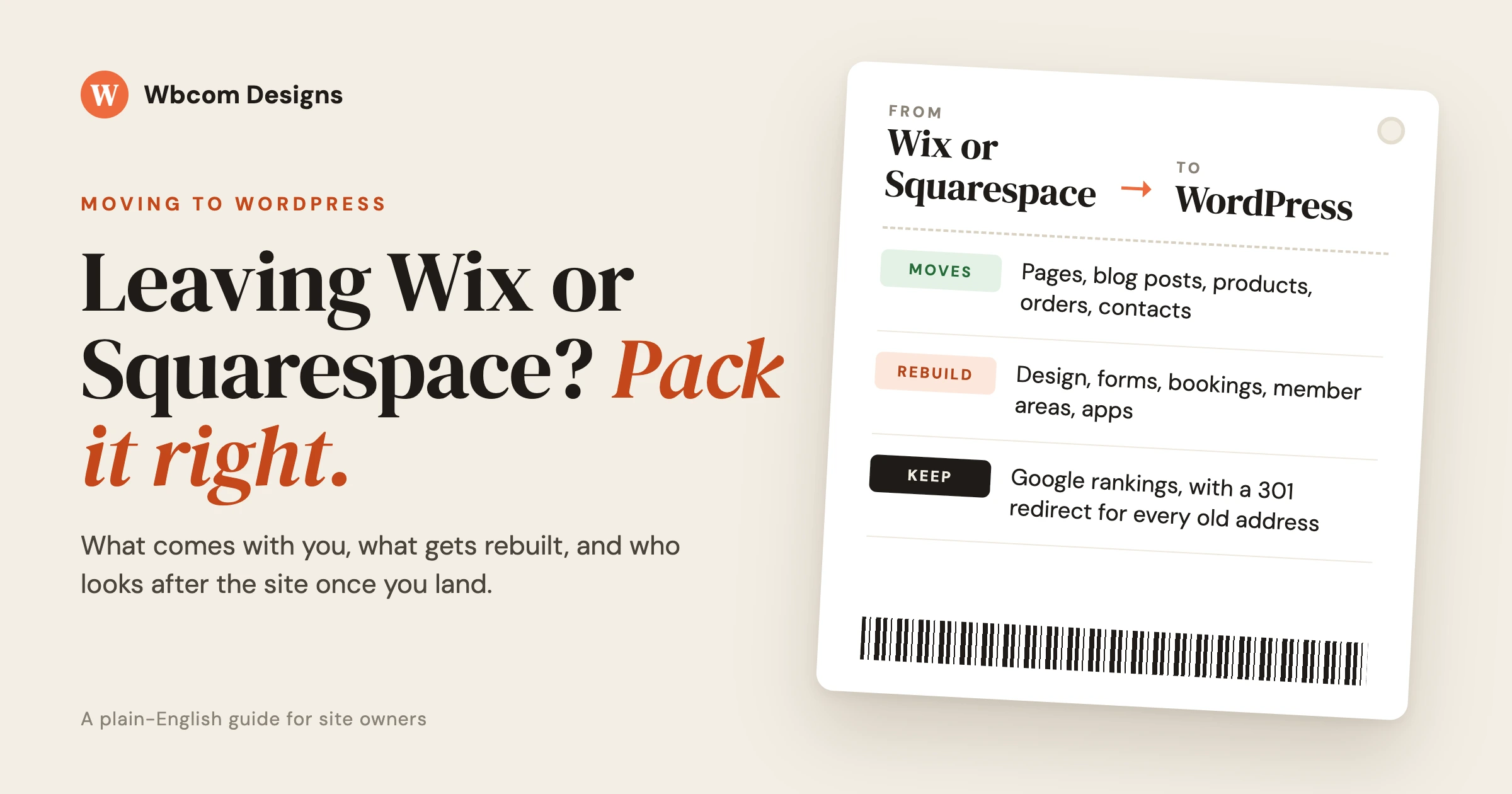
If your Wix or Squarespace site has started to hold your business back, moving it to WordPress is usually worth it, but only if you also decide who will look after the new site. Whether you are going from Wix or Squarespace to WordPress, your words, pictures and products can come with you. Your design, most add-on apps, forms and member areas have to be rebuilt. Your Google rankings can be kept if every old web address is pointed at its new home on the day you switch.
This guide is written for the owner, not the web developer. It also tells you when staying where you are is the better choice, because for some owners it is.
Should you leave Wix or Squarespace at all?
Stay if the site does its job, you update it yourself without stress, and you have not hit a wall. Move if you keep running into things the builder will not let you do, such as a feature your business needs, a store that has grown past its tools, or a membership or community you want to own outright. A move costs time and money, so it should solve a real problem.
Site builders are good products. One monthly fee covers the server, security patches and backups. For a small brochure site that changes twice a year, that is a fair deal, and many owners should keep it.
Here are the signs that you have outgrown the builder:
- You keep hearing “the platform does not allow that.” A booking rule, a pricing option, a members-only page, or a report your accountant wants.
- Your store has grown. More products, more variations, wholesale prices, or shipping rules the built-in store cannot handle.
- You want to own the whole thing. On a hosted builder, the site only runs on that company’s servers. You cannot take a copy and run it somewhere else.
- Your monthly bill keeps growing. Plan upgrades plus paid apps for each extra feature can add up to more than a WordPress site with the same features.
- You want a community, courses or a membership area that belongs to you, with your own rules about who sees what.
And here are the signs you should stay:
- The site is a simple brochure: who you are, what you do, how to reach you.
- Nobody in the business wants to think about the website, and you do not want to pay someone else to.
- Your search traffic is small, and you have no feature the builder is blocking.
- You are planning to close, sell or rebrand within a year. Move at that point, not twice.
The rest of this guide assumes you have decided a move is worth looking at, or at least worth pricing.
What actually moves from Squarespace to WordPress?
Squarespace has a built-in export, so a good share of your writing comes across in one file. Your basic pages, one blog with its posts and comments, and your text and image blocks are included. Store pages, extra blogs, video and audio blocks, drafts, and your design settings are not.
According to the Squarespace export help page, the export creates an .xml file (a structured text file) in a format WordPress can import. It includes:
- Layout pages (your ordinary pages).
- One blog page, with its posts and up to 1,000 comments per post. If you run more than one blog, you choose which one exports.
- Text blocks and image blocks.
- Text from embed and Instagram blocks, with very little formatting.
- Gallery pages, with some version limits.
The same page lists what does not export: album, cover, index, info, calendar, portfolio and store pages; content in page-specific headers, footers and sidebars; any extra blog pages; dropdowns, audio, video and product blocks; drafts; style settings; and custom code styling (custom CSS).
Two more details matter. First, your site must be published and public to export, and you cannot export from a trial site. Second, Squarespace warns that when you import into your own WordPress site, images may stay as links pointing back to Squarespace. Those links stop working when you cancel. Whoever does your move needs to copy every image across before the old account closes.
Your store and your customer list have their own exports. The Squarespace product export gives you a spreadsheet file (a .csv) of physical and service products, up to 10,000 products. It leaves out featured images, variant images, image descriptions (alt text), customer reviews and some extra product information, so product photos have to be moved separately. Squarespace also lets you export contacts to a .csv file, and export past orders the same way.
What actually moves from Wix to WordPress?
Much less moves automatically from Wix. Wix does not offer an export of your site or your blog, so pages and posts have to be rebuilt or copied across from the live site. Your products, orders and contacts can be downloaded as spreadsheets, which helps a lot for a store.
Wix is clear about this. Its help page on exporting a Wix site says the site must run on Wix’s own servers and that it does not support hosting the site anywhere else. A separate page on exporting blog posts says it is currently not possible to export blog posts to other platforms; it is listed as a feature request.
What you can take out of Wix:
- Products. The Wix Stores product export creates a .csv file, up to 5,000 rows per file. Digital products (downloads) are not supported.
- Orders. Past orders can be exported as a .csv from the Orders tab, either one row per order or one row per item.
- Contacts. The site owner can export up to 50,000 contacts at a time as a .csv file.
Everything else, including your page text, blog posts and images, comes across by copying it from the published site. A small site can be copied by hand. A larger one is usually moved with tools that read each published page and rebuild it in WordPress, followed by a person checking every page. Our older step-by-step article on how to convert Wix to WordPress shows the hands-on version if you want to try it yourself.
Here is the short version for both builders:
| Part of your site | From Squarespace | From Wix |
|---|---|---|
| Ordinary pages (text) | Exports in the .xml file | Copied from the live site |
| Blog posts | One blog exports, with comments | Copied from the live site |
| Images | Must be copied across before you cancel | Copied from the live site |
| Products | .csv export, photos moved separately | .csv export, no digital products |
| Past orders | .csv export | .csv export |
| Contacts and mailing lists | .csv export | .csv export |
| Design and layout | Rebuilt | Rebuilt |
| Forms, bookings, members, apps | Rebuilt with WordPress tools | Rebuilt with WordPress tools |
What do you lose, or have to rebuild, when you leave?
You lose the look of the site and every built-in or add-on feature. None of the exports carry design, and none of the builder’s apps run on WordPress. Each feature you use today needs a WordPress replacement, set up and tested before you switch.
Before anyone quotes you, walk through your site and write down everything a visitor can do on it. That list is the real size of the job.
Design
Your colours, fonts, page layouts and menus are rebuilt with a WordPress theme (the design layer of the site). If you want the site to look the same, say so at the start; matching an existing design closely takes more time than building a clean new one.
Forms
Contact forms, quote request forms and sign-up forms are rebuilt with a WordPress form tool. Old form entries do not move with the site, so download any you need to keep before the old account closes.
Bookings and appointments
If customers book time with you through a builder app, that app stays behind. WordPress has booking tools for most kinds of businesses, but your services, staff, opening hours and future bookings must be set up again. Plan the switch for a quiet week, and keep both systems running until every future booking has been carried over.
Member areas and logins
None of the export pages above mention member passwords, so plan for members to set a new password on the new site. Your member list can come across through the contacts export. Members-only pages and the rules about who sees what are rebuilt with a WordPress membership tool. Send members a short, friendly email before the switch so a password reset does not look like a scam.
The online store
Products come across through the .csv exports, but product photos, reviews and some details need extra work, as covered above. Payment settings, shipping rules, taxes and discount codes are set up again in the new store. Customer accounts and saved payment details do not come across in the exports listed, so returning customers create a new account.
Search settings
Page titles and descriptions that show in Google, image descriptions, and any custom web addresses you set should be copied page by page.
Will you lose your Google rankings?
You do not have to. Rankings are kept by making sure every old web address sends visitors, and Google, to the matching new page. This is done with permanent redirects (called 301 redirects), set up on the day you switch, plus a few checks in Google’s free Search Console tool afterwards.
A web address on a builder often looks different from the same page on WordPress. Wix blog posts sit under a “/post/” section by default, as shown on the Wix blog address help page. Squarespace blog post addresses always begin with the blog page’s own address, followed by a post address built from a format you can set, as the Squarespace URL help page explains. If your new WordPress site uses different addresses and nothing connects the two, every link Google knows about leads to a “page not found” error. That is how rankings get lost.
The fix is a redirect map: a simple list of every old address next to its new address. On switch day, the new site is told to send each old address to its new one. Visitors and Google both land on the right page.
The rule is simple: every page that ever got a visit from Google needs a home on the new site, or a redirect to the closest match.
Google publishes its own guidance on moving a site with address changes, and it is worth giving to whoever does the work. In practice, these steps protect your traffic:
- List every address before you start. Use the builder’s sitemap (the list of pages it gives search engines) and the pages Google shows for your site in Search Console.
- Keep the same addresses where you can. WordPress lets you choose the address of each page, so many can stay exactly the same.
- Redirect the rest. Each changed address gets a permanent redirect to its new page, not to the home page.
- Carry over page titles and descriptions. These are what people see in Google results.
- Test before switching. Every address on the list is checked against the new site.
- Watch Search Console for a month. Fix any “not found” errors it reports as soon as they appear.
Even a careful move can bring a short wobble in traffic while Google re-reads the site, but a move with a full redirect map usually settles. Our longer guide on moving to WordPress without losing search rankings goes deeper on this part.
What happens to your domain name and email?
Your domain name (your web address, like yourbusiness.com) stays yours. If you bought it through Wix or Squarespace, you can either move it to another company or keep it where it is and point it at the new site. Email needs its own check, because it often travels with the domain.
Both builders allow you to transfer a domain away. Wix explains the steps on its domain transfer page: you request a transfer, Wix emails an authorization code to the domain’s contact address, and you give that code to the new company. Squarespace describes a similar process on its transfer page. Under the industry rules both companies follow, a domain cannot usually be transferred within 60 days of being bought, transferred, or having its owner details changed.
You do not need to transfer the domain on the day you move the site. The simpler path for most owners is to keep the domain where it is, point it at the new site, and transfer it later when things are calm. Wix confirms you can keep a Wix domain and connect it to an outside provider.
Email is the part to check before you touch anything. If your business email runs through Google Workspace or Microsoft 365 and was connected through the builder, the email settings live in the same place as the domain settings. Whoever changes the domain must copy those email settings exactly, or your email stops arriving. Ask about this before switch day, not after.
What changes in day-to-day running after the move?
On a builder, the company runs the site for you. On WordPress, someone has to: pick hosting, apply updates, keep backups and watch security. That someone can be you, a helper you trust, or a company you pay monthly. Decide this before you move, not after.
Hosting
Hosting is the rented computer your website lives on. You pay a hosting company monthly or yearly. For a small business site, a typical range is roughly $10 to $50 a month, more for a busy store or community.
Updates
WordPress, the theme and each plugin (an add-on that gives the site a feature) release updates for fixes and security. These should be applied regularly, and ideally tried on a copy of the site first, because an update can now and then clash with another part of the site.
Backups
A backup is a full copy of the site you can go back to if something breaks. Many hosts take backups, but you want copies stored somewhere separate from the host too, and you want to know that restoring one actually works.
Security
WordPress powers a large share of the web, so automated attacks try every WordPress site they find. A site that is kept updated, has strong passwords and two-step login, and is watched for odd changes is rarely in trouble. A site left alone for two years often is.
A typical monthly picture for a small business after the move looks like this. These are typical ranges, not quotes, and your numbers depend on the size of the site:
| Item | Do it yourself | Paid care |
|---|---|---|
| Hosting | About $10 to $50 a month | Same, or included by some care providers |
| Paid plugins | From nothing to a few hundred dollars a year, by feature | Same |
| Updates, backups, security | About 1 to 3 hours of your time a month | A monthly care plan |
| When something breaks | Your time, or an hourly developer | Covered or prioritised under the plan |
Who should do the work, based on who looks after your site?
The right path depends less on which builder you are leaving and more on who will look after the new site. A solo owner who wants nothing to do with the website needs a different plan from a shop owner with a staff member who enjoys this kind of work. Find your row below.
| Who looks after the site | Best choice | Who does the move | Who runs it afterwards |
|---|---|---|---|
| Solo owner, simple brochure site, no website time to spare | Often stay on the builder | No move needed | The builder |
| Solo owner who has hit a builder limit but wants no tech work | Move, with care in place from day one | A migration service | A monthly care plan |
| Solo owner who enjoys learning the tools | Move, on a small site | You, with a guide; get help for redirects | You, with backups set up properly |
| Small shop, under a few hundred products | Move if the store is limiting sales | A migration service, timed for a quiet week | Care plan, or a staff member with backup support |
| Growing shop, many products and variations | Move; plan more time for testing | A migration service with store experience | A care plan with included development time |
| Membership, courses or community | Move if you want to own members and rules | A specialist who has moved members before | A care plan; communities need regular attention |
| Owner with a trusted in-house helper | Move | Helper plus a specialist for redirects and search checks | The helper, with an expert on call |
Be honest with yourself about the “afterwards” column. Most failed moves we see were not bad moves on the day; they were good moves followed by two years of nobody applying updates.
What does the move look like, step by step?
A good move follows the same order every time: list everything, build the new site out of sight, test it, switch on a quiet day, then watch closely for a month. The old site stays live and untouched until the new one is proven.
- Write down everything the site does. Every page, blog post, product, form, booking type, member area and app. This becomes the checklist for the whole project.
- Download everything you can. The Squarespace .xml file if you are on Squarespace, plus products, orders and contacts as .csv files from either builder. Save past form entries too.
- Save every web address. Take the full page list from the sitemap and from Google Search Console.
- Choose hosting and set up WordPress. The new site is built on a private address or staging copy (a test version visitors cannot see).
- Bring in the content. Import the Squarespace file or copy the Wix pages across, then move every image onto the new site.
- Rebuild the design and features. Theme, menus, forms, store settings, bookings, member areas.
- Write the redirect map. Every old address next to its new address.
- Test everything. Every page, every form, a real test order, a test booking, a test member login, on a phone and on a computer.
- Switch on a quiet day. Point the domain at the new site, turn on the redirects, check email still arrives.
- Watch for a month. Check Search Console, fix any “not found” errors, and keep the old builder account active for a few weeks as a safety net before cancelling.
How long does a move take, and what does it cost?
A small brochure site can move in a few days of focused work. A store, booking system or membership site takes weeks, because every feature needs rebuilding and testing. Cost follows the same pattern: it depends on how many pages, products and features you have, not on which builder you are leaving.
Some typical ranges, so you know what to expect. These are honest ballparks, not quotes:
- Brochure site, up to about 15 pages, done yourself: often a few weekends for a confident person, plus extra time for redirects and search checks.
- Brochure site done by a service: usually days to a couple of weeks from start to switch.
- Store, bookings or membership done by a service: usually several weeks, with most of the time spent rebuilding features and testing.
For our own WordPress migration service, the planning stage (listing everything and mapping addresses) takes one to two weeks, and the build and test stage takes two to six weeks depending on how much content there is. Pricing is fixed per project and sent within 48 hours of a free discovery call, so you know the full cost before work starts.
Watch for quotes that only price “moving the content.” The content is the easy part. The redirects, the feature rebuilds and the month of checks afterwards are where the value is, and where cheap moves cut corners.
How do we handle a Wix or Squarespace move?
We do the whole move for you, then look after the site afterwards so you are never left with a WordPress site and nobody to call. You tell us what the site needs to do; we handle the exports, the rebuild, the redirects and the switch.
Our migration service covers Wix and Squarespace among other platforms. In practice that means:
- A full list of your pages, products, forms and features before any work starts.
- A redirect map covering every old address, tested against your old sitemap before switch day.
- Page titles, descriptions and other search settings carried across.
- The new site built and tested on a private copy, with a clear go or hold decision before switching.
- Thirty days of Search Console monitoring after the switch, with any issues Google flags in that time fixed as part of the move, not billed as extra.
After the move, our WordPress maintenance plans take over the day-to-day work: updates tested on a copy of the site first, off-site backups, security monitoring and a plain-English monthly report. The plans and their monthly prices are listed on that page.
If you are comparing providers, our roundup of the top WordPress migration services covers what to look for in any of them. When you are ready, tell us about your site and we will reply with a clear plan and a fixed price.
Frequently Asked Questions
Can I move my Wix site to WordPress automatically?
Not completely. Wix states that sites must run on its own servers and that blog posts cannot currently be exported to other platforms. Products, orders and contacts can be downloaded as spreadsheets, but pages, posts and images are copied from the live site and the design is rebuilt.
Does the Squarespace export include my whole site?
No. It includes ordinary pages, one blog with its comments, and text and image blocks. Store pages, extra blogs, video and audio blocks, drafts and design settings are left out. Products and contacts have their own spreadsheet exports, and images must be copied across before you cancel your plan.
Will my website go offline during the move?
It should not. The new site is built and tested out of sight while the old one keeps running. On switch day, the domain is pointed at the new site. Some visitors may see the old site for a few hours while the change spreads across the internet, but there should be no gap where the site is down.
Do I have to move my domain name too?
No. You can keep the domain with Wix or Squarespace and point it at the new site, then transfer it later if you want. Domains usually cannot be transferred within 60 days of purchase, a previous transfer, or a change to the owner details, so pointing it is often the easier first step.
Is WordPress harder to run than Wix or Squarespace?
It needs more looking after. A builder handles updates, backups and security for you. On WordPress, someone has to do those jobs regularly. If you do not want that work, a monthly care plan handles it, and you keep the freedom WordPress gives you without the upkeep.
When should I stay on my site builder instead?
Stay if your site is a simple brochure that does its job, nobody wants to look after a website, and the builder is not blocking anything your business needs. A move is worth it when it solves a real problem, not just because WordPress can do more.
Related reading