
15 min read
Asset CleanUp Review: Best WordPress Performance Plugin?


Asset CleanUp is a free WordPress plugin that lets you stop specific CSS and JavaScript files from loading on pages that do not need them. Used well, it removes more front-end weight than any caching plugin can, because caching only speeds up delivery of the same bloated page. The free version covers posts, pages and custom post types; the Pro version (from $49 a year) adds archive pages, async and defer attributes, hardcoded assets and a few other things. For most sites it is worth installing alongside a caching plugin, not instead of one.
We have used Asset CleanUp on client sites for years, including WooCommerce stores and BuddyPress communities running on our own themes. This review covers what it does, how to set it up without breaking anything, current pricing, and how it compares with Perfmatters, WP Rocket, LiteSpeed Cache and Autoptimize as of August 2026.

What is Asset CleanUp?
Asset CleanUp: Page Speed Booster is a WordPress performance plugin by Gabe Livan. Its core job is simple: show you every stylesheet and script a page loads, and let you switch off the ones that page does not use. A contact form plugin loads its CSS and JS on every page of your site by default. With Asset CleanUp you unload it everywhere except the contact page.
The plugin is listed on WordPress.org with more than 1,500 reviews averaging 4.9 out of 5. At the time of writing the current version is 1.4.0.4, released in May 2026, and it is marked as tested up to WordPress 6.9. It runs on PHP 5.6 and above, although you should be on PHP 8.x for speed reasons regardless of this plugin.
Asset CleanUp does more than unloading. It also minifies and combines the files you keep, strips unused tags from the HTML head (RSD links, shortlinks, generator tags, emoji scripts), lets you disable jQuery Migrate and XML-RPC, and manages Google Fonts loading. It does not cache pages, optimise images or touch your database. That is deliberate, and it is why the plugin pairs well with tools that do those jobs.
Why Use Asset CleanUp?
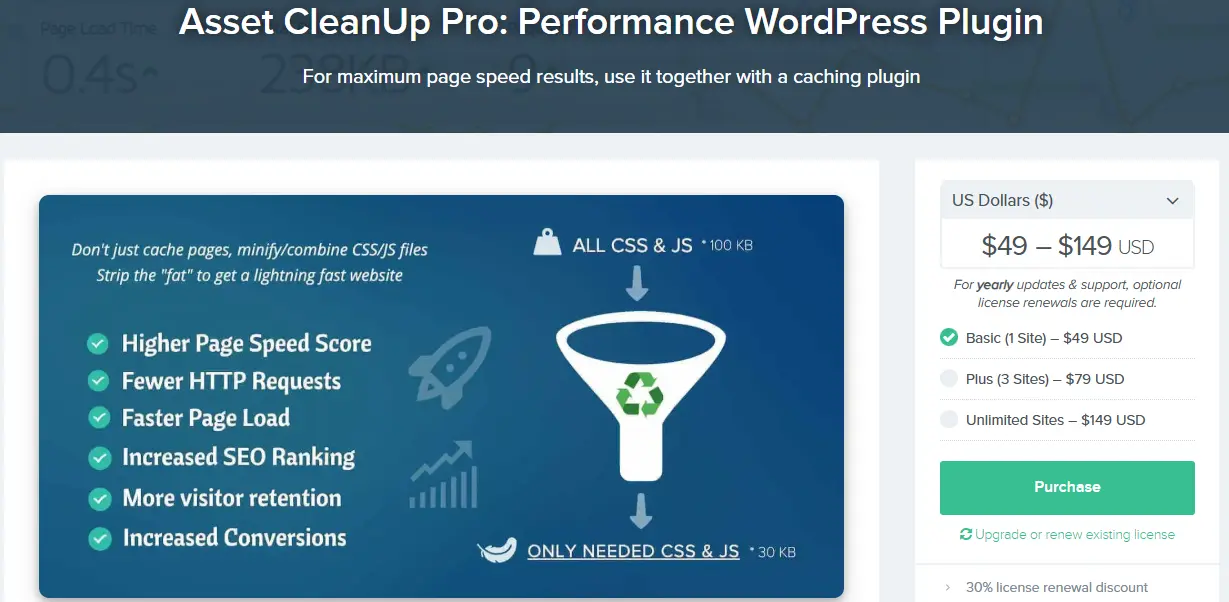
The average WordPress site we audit loads 25 to 40 CSS and JS files on the homepage. Roughly a third of them are not used on that page at all. Sliders on pages with no slider, WooCommerce cart scripts on blog posts, page builder libraries on pages built with the block editor. Each unused file costs a request, bytes, and often render-blocking time.
A caching plugin serves that bloated page faster. Asset CleanUp makes the page smaller before it is cached. The practical result is fewer render-blocking resources, a lower Total Blocking Time and a better Largest Contentful Paint, which are the numbers Google reads from Core Web Vitals. On a typical WooCommerce store we see 8 to 15 fewer requests per page after an hour of careful unloading.
It complements caching and image optimization plugins rather than competing with them. Our usual stack is a caching layer, an image plugin, and Asset CleanUp for the code. If you only want one plugin, this is not it; if you want to fix the root cause of slow pages, it is the one that does the work.
Key Features of Asset CleanUp
Here is what you get, split by free and Pro where it matters. The free version is more capable than most people expect, so check the Lite column before paying.
1. Selective Script and Style Loading
The headline feature. On each post, page or custom post type you see the full list of enqueued CSS and JS, grouped by the plugin or theme that loads them, and you tick the ones to unload. You can unload on that page only, on the whole post type, or site-wide with exceptions. Bulk unload rules mean you set a rule once rather than repeating it per page. Free.
2. Minification and Combination
The files you keep can be minified and combined into fewer requests, separately for the head and body. Exceptions can be added for files that break when combined. With HTTP/2 and HTTP/3, combining matters less than it used to, so we usually enable minify and leave combine off unless testing shows a gain. Free.
3. Deferred and Async Loading
Applying async or defer attributes to JavaScript, deferring CSS loaded in the body, and moving files from the head to the body (or the other way round) are Pro features. This is the one gap in the free version that affects Core Web Vitals scores directly, and it is the main reason to upgrade.
4. Test Mode
Test Mode applies your unload rules only for logged-in administrators, so you can check that a page still works before visitors see the change. It is available in the free version and we would not optimise a live site without it. Turn it on, make changes, click through the pages as an admin, then switch it off.
5. Integration with Popular Plugins and Themes
The plugin works with WooCommerce, Elementor, the block editor, Easy Digital Downloads and most caching plugins. It knows about WooCommerce specifics such as product pages and the shop page. Pro adds management on category, tag, taxonomy, author, date, search and 404 pages, which matters a lot on stores where category pages are the busiest URLs.
6. Hardcoded and Inline CSS and JS Handling
Not every script is enqueued properly. Some are pasted into a theme header, a widget, or added by a header-and-footer plugin. Pro can detect and unload those hardcoded tags, and can inline small CSS and JS files to save requests. Free users can still strip the HTML head of unused meta links and disable emojis, jQuery Migrate and XML-RPC.
7. Performance Reports and Metrics
The plugin does not run its own speed tests, so do not expect a dashboard with Lighthouse scores. What it gives you is a clear overview page listing which rules apply where, plus the front-end manager that shows every asset loaded on the page you are looking at. Measure before-and-after results with PageSpeed Insights or GTmetrix.
How to Set Up Asset CleanUp (Step-by-Step Guide)
The setup takes ten minutes. The unloading work takes longer, and it should, because unloading the wrong file breaks a page. Take a backup or use a staging site first, and keep Test Mode on until you have checked everything.
Step 1: Install and Activate the Plugin
- Go to Plugins → Add New in your WordPress dashboard.
- Search for Asset CleanUp: Page Speed Booster.
- Click Install Now, then Activate.
A new Asset CleanUp menu appears in the sidebar with Settings, CSS and JS Manager, Bulk Changes, Tools and an Overview page.
Step 2: Configure Global Settings
Go to Asset CleanUp → Settings and work through the tabs:
- Under Test Mode, switch it on.
- Under Optimize CSS and Optimize JavaScript, enable minification. Leave combining off for now.
- Under Site-Wide Common Unloads, disable emojis, jQuery Migrate (test this one) and the comment reply script if you do not use comments.
- Under HTML Source CleanUp, remove the RSD, WLW, shortlink and generator tags.
Step 3: Optimize Individual Pages or Posts
Start with your five most visited pages. For each one:
- Edit the page and scroll to the Asset CleanUp meta box below the editor.
- Look at the list of loaded CSS and JS, grouped by plugin.
- Unload anything from a plugin that clearly has nothing to do with this page (forms, sliders, maps, galleries, WooCommerce on non-shop pages).
- Where a plugin is only needed on one or two pages, use “Unload site-wide” and add those pages as exceptions.
Step 4: Handle Critical CSS and Custom Scripts
- If you are on Pro, apply defer to scripts that are not needed for the first paint, and move non-critical CSS to the body.
- Do not defer jQuery unless you have confirmed no inline script depends on it.
- Critical CSS generation is not built in; if you need it, your caching plugin or a dedicated tool handles it.
Step 5: Test and Monitor Performance
- With Test Mode still on, open the pages you changed as an administrator and check forms, sliders, menus and checkout.
- Switch Test Mode off, clear your cache, and run Google PageSpeed Insights or GTmetrix on the same URLs you tested before.
- If anything is broken for visitors, open the page in the CSS and JS Manager and re-enable the last file you unloaded.
If you would rather have someone do this for you, our WordPress performance optimization service does exactly this kind of asset audit as part of a larger speed pass.
Asset CleanUp Pricing
Pricing is straightforward and has not changed much in years. All Pro licences are yearly, renewals get a 30% discount, there is a 30-day refund policy, and staging or local sites do not count against the activation limit. The plugin keeps working if you let a licence lapse; you lose updates and support.
1. Free Core Plugin
- Available on WordPress.org.
- Includes per-page and site-wide unloading on posts, pages and custom post types, bulk unload rules, minify and combine, head cleanup, Test Mode, and the common unloads (emojis, jQuery Migrate, XML-RPC).
- Enough for most blogs and small business sites.
2. Pro Version
- Basic licence: $49 per year for 1 site.
- Adds async and defer attributes, head-to-body moves, deferred body CSS, inline CSS/JS, device-based loading (skip a file on mobile), hardcoded asset management, archive/taxonomy/search/404 page management, and priority support.
- The right choice for WooCommerce stores and any site where archive pages get serious traffic.
3. Multiple Site Licenses
- Plus licence: $79 per year for 3 sites.
- Unlimited licence: $149 per year for any number of sites.
- Agencies will find the Unlimited tier cheaper than almost any competitor at the same site count.
Value Comparison
- WP Rocket starts at $59 a year for one site and $119 for three; Asset CleanUp Pro undercuts both tiers and does a different job, so many sites end up running both.
- Perfmatters has no free version at all. Asset CleanUp’s free tier alone covers the unloading feature most people buy Perfmatters for.
Pros and Cons of Asset CleanUp
Pros
- Granular control over scripts and styles. Per-page, per-post-type and site-wide rules with exceptions. Nothing else in this price range is as precise.
- Lightweight. The plugin adds almost nothing to front-end load itself; its work happens when the page is generated and the output is then cached.
- Test Mode in the free version. Being able to trial unloads as an admin only is the feature that makes the plugin safe for non-developers.
- Compatibility. Works with every major caching plugin, page builder and CDN we have tried, and is actively maintained with regular releases.
- Fair pricing. A capable free tier, $49 for Pro, and an Unlimited licence at $149.
Cons
- Learning curve. You need to understand, or be willing to test, which files a page actually needs. Unload the wrong one and a slider or checkout stops working.
- Async and defer are Pro only. Those two attributes have the biggest impact on render-blocking scores, and free users do not get them.
- No caching, image optimisation or critical CSS. By design, but it means you still need other plugins.
- Busy interface. The settings screens have grown over the years and can feel cluttered the first time you open them.
Asset CleanUp vs Competitors
The table summarises the four plugins people usually weigh against Asset CleanUp. Prices are the published single-site rates as of August 2026. Perfmatters pricing is not listed because their site blocks automated checks; it is a paid-only plugin with yearly tiers by site count.
| Plugin | Free version | Per-page unloading | Page caching | Async/defer JS | Single-site price |
|---|---|---|---|---|---|
| Asset CleanUp | Yes, full unloading | Yes | No | Pro | $49/yr |
| Perfmatters | No | Yes (Script Manager) | No | Yes | Paid, yearly |
| WP Rocket | No | No | Yes | Yes | $59/yr |
| LiteSpeed Cache | Yes, fully free | No | Yes (LiteSpeed servers) | Yes | Free |
| Autoptimize | Yes, fully free | No | No | Yes | Free |
1. Asset CleanUp vs Perfmatters
Perfmatters is the closest competitor. Its Script Manager does the same per-page unloading, and it bundles extras such as disabling WooCommerce scripts on non-shop pages, DNS prefetch, lazy loading and database cleanup. It is a cleaner interface and a nicer experience for beginners. Asset CleanUp gives you more control over how unloading rules are scoped, has a free version, and its Unlimited licence is cheaper for agencies. If budget is zero, Asset CleanUp wins by default. If you are paying anyway, it comes down to interface preference.
2. Asset CleanUp vs WP Rocket
WP Rocket is a caching plugin first, with minification, delayed JavaScript, lazy loading and remove-unused-CSS features layered on. It does not let you unload a specific file on a specific page. The two are complementary: unload with Asset CleanUp, then cache and deliver with WP Rocket. WP Rocket’s single licence is $59 a year, Plus is $119 for three sites, and the Multi tier starts at $299.
3. Asset CleanUp vs LiteSpeed Cache
LiteSpeed Cache (version 7.9, updated August 2026) is free and very capable, but its best features need a LiteSpeed or OpenLiteSpeed server. It handles caching, image optimisation via QUIC.cloud, CSS and JS minification, and critical CSS. It cannot unload a single file on a single page. On LiteSpeed hosting we run both: LiteSpeed Cache for delivery, Asset CleanUp for unloading.
4. Asset CleanUp vs Autoptimize
Autoptimize (version 3.1.15, updated August 2026) aggregates, minifies and defers CSS, JS and HTML, and is still free. It treats the page as a whole; it has no concept of “this file is not needed here”. If your problem is file size, Autoptimize is enough. If your problem is file count and unused code, you need Asset CleanUp. Running both is common and works fine as long as you only minify in one of them.
Who Should Use Asset CleanUp?
Asset CleanUp suits anyone who wants control over what loads on each page and is prepared to test. It is a poor fit for someone who wants a one-click speed plugin.
1. Bloggers and Content Creators
Blogs tend to accumulate plugins over the years, and each one leaves scripts on every post. The free version is enough here: unload forms, social sharing and gallery assets from the posts that do not use them, and you will usually cut a dozen requests per page.
2. E-commerce Store Owners
WooCommerce loads cart fragments, block styles and payment scripts on every page by default. Removing them from blog posts and static pages, and managing category pages with Pro, is one of the quickest wins available for a store. Test checkout thoroughly after every change.
3. Developers and Web Agencies
The Unlimited licence at $149 a year is the cheapest agency-level unloading tool we know of. Bulk rules and the export/import of settings make it practical to apply a standard configuration across client sites.
4. Medium to Large Websites
Membership sites, community platforms and LMS sites running BuddyPress, LearnDash or similar carry a lot of front-end code. Per-post-type unloading is what keeps the marketing pages light while the logged-in areas keep everything they need.
5. Beginners Seeking Efficiency
Beginners can use it, but only with Test Mode on and a willingness to unload one file at a time. If that sounds like too much, start with the site-wide common unloads and the HTML cleanup, which are safe, and leave per-page work for later.

Your Next Steps with Asset CleanUp
Install the free version, switch on Test Mode, and spend an hour on your five busiest pages. Measure with PageSpeed Insights before and after. That alone tells you whether the plugin is worth more of your time on your particular site.
Upgrade to Pro when you hit one of three walls: you need async or defer on scripts, you need to manage category or archive pages, or a theme is hardcoding scripts you cannot otherwise touch. At $49 a year the upgrade pays for itself the first time it saves you from a custom code fix.
Keep a caching plugin, an image optimisation plugin and a CDN in place. Asset CleanUp fixes the code; those handle delivery. Together they cover the whole front-end performance picture, which no single plugin does on its own.
Frequently asked questions
What is Asset CleanUp and how does it improve WordPress performance?
Asset CleanUp is a WordPress plugin that lets you unload specific CSS and JavaScript files on pages that do not use them, and minify the ones that remain. Fewer and smaller files mean fewer render-blocking resources and better Core Web Vitals.
Is Asset CleanUp suitable for beginners?
Yes, with care. The free version includes Test Mode, which applies changes only for logged-in administrators so you can check a page still works before visitors see it. Unload one file at a time and check the page after each change.
Can Asset CleanUp be used with other caching plugins?
Yes. It works alongside WP Rocket, LiteSpeed Cache, WP Super Cache, W3 Total Cache and most others. Unload and minify with Asset CleanUp, then let the caching plugin store and serve the lighter page. Only enable minification in one of the two.
What are the main differences between the free and Pro versions?
Free covers per-page and site-wide unloading on posts, pages and custom post types, minify and combine, HTML head cleanup and Test Mode. Pro ($49 a year for one site) adds async and defer attributes, archive and taxonomy page management, hardcoded asset unloading, inline CSS/JS, device-based loading and priority support.
Will Asset CleanUp break my website if I unload assets?
It can if you unload a file a page depends on. That is why Test Mode exists. Keep it on while you work, test forms, sliders and checkout as an administrator, and only switch it off once everything behaves. If something breaks later, re-enable the last file you unloaded.
Interesting Reads:
CleanTalk Anti-Spam Review: Is It the Best Spam Protection Plugin for WordPress?
A Guide to Cleaning Up Your WordPress Uploads Folder
The Events Calendar Review: Is It the Best WordPress Event Plugin?
Related reading