
6 min read
How to Enable Free Shipping Over a Set Amount in WooCommerce


Offering free shipping once customers spend a certain amount is one of the most effective strategies to encourage larger orders and boost your online store’s revenue. Studies show that free shipping is a top factor influencing customer purchase decisions, and setting a minimum spend threshold helps protect your margins while motivating shoppers to add more products to their carts.
If you run a WooCommerce store, you’ll be pleased to know that the platform includes a powerful built-in free shipping method that you can configure quickly without installing any extra plugins. This feature gives you full control over when and how free shipping is offered - a key ingredient for smart eCommerce growth.

Understanding WooCommerce Free Shipping
Before diving into the setup, it’s important to understand exactly what the WooCommerce free shipping method offers and how it works.
By default, WooCommerce allows you to offer free shipping in one of three ways:
- Free shipping without conditions: This option lets you give free shipping on all orders to selected shipping zones. While simple, it can erode profits if used without a minimum spend.
- Free shipping based on a minimum order amount: This is the most common approach - free shipping is triggered only after the customer’s cart reaches a specified value. For example, free shipping for orders over $50.
- Free shipping requires a valid coupon: This method lets you tie free shipping to a coupon code, so customers must enter a promo code to qualify.
The main advantage of linking free shipping to a minimum order amount is that it encourages customers to buy more to unlock the benefit, effectively increasing your average transaction value without losing money on small, low-margin orders.
Also Read: How to Control Shipping and Payment Methods in WooCommerce
Why not just offer free shipping on everything?
While it’s tempting to offer free shipping on all orders as a simple marketing message, this approach can be costly, especially for small or low-margin products. Shipping and fulfillment expenses add up quickly, so giving away shipping on tiny orders may reduce your overall profitability.
By setting a spending threshold, you ensure that free shipping is offered only when it makes business sense, while still giving customers a clear incentive to add extra items to their carts.
Step-by-Step Guide to Enable Free Shipping Over a Set Amount
Step 1: Access WooCommerce Shipping Settings
First, log in to your WordPress dashboard. From the sidebar menu, navigate to WooCommerce → Settings, then click on the Shipping tab at the top.
This is your hub for all shipping-related configurations. WooCommerce uses Shipping Zones to control shipping methods based on customer location, so everything starts here.
Step 2: Create or Edit a Shipping Zone

Shipping zones are geographic regions where you define shipping rules. For example, you may want different shipping options for customers in India versus those in the USA or Europe.
If you don’t already have zones set up, click Add shipping zone and enter a name for the zone, such as “United States” or “Local Delivery.” You then specify the regions or postal codes this zone covers.
If you already have zones, select the relevant one where you want to offer free shipping. For example, if you want free shipping only within India, select your India zone.
Setting up shipping zones correctly ensures your free shipping method appears only for eligible customers, avoiding confusion and mischarged shipping.
Step 3: Add the Free Shipping Method
Once you’re inside the desired shipping zone, you’ll see existing shipping methods. To add free shipping:
- Click the Add shipping method button.
- From the dropdown, select Free Shipping.
- Click Add shipping method again to confirm.
You should now see Free Shipping listed as one of the available methods for that zone.
Step 4: Configure Free Shipping Conditions
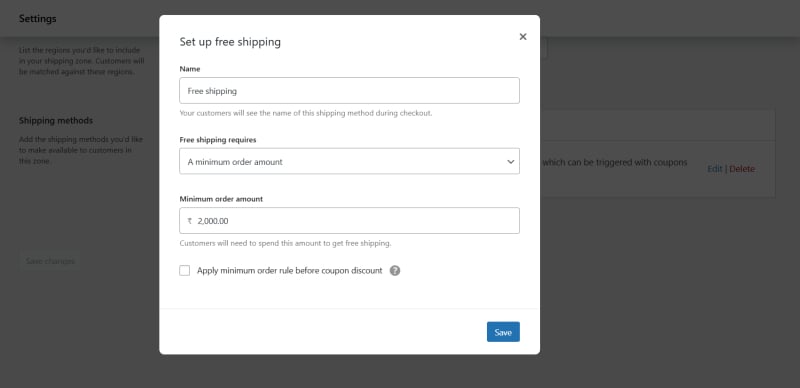
Next, click Edit next to the newly added Free Shipping method.
Here, WooCommerce offers several options under Free Shipping Requires…
Choose A minimum order amount from the dropdown.
A new field will appear where you can enter the minimum cart total required to unlock free shipping - for example, ₹2000, $50, or €40, depending on your currency.
You can also decide if you want to require a free shipping coupon as an additional condition or exclude coupons altogether.
This flexibility allows you to tailor free shipping rules exactly to your business needs.
Step 5: Save Changes
Don’t forget to click the Save changes button at the bottom to activate your free shipping settings.
Once saved, your WooCommerce store will automatically apply free shipping at checkout when customers meet or exceed the specified minimum order amount in the configured shipping zones.
Testing Your Free Shipping Setup
After enabling free shipping, thorough testing is critical to ensure everything works as expected.
- Add products to your cart and check whether free shipping appears only when your minimum order threshold is reached.
- If you manage multiple shipping zones, test the free shipping availability in each zone by using different shipping addresses.
- Make sure other shipping methods do not interfere with or hide the free shipping option.
- Test with different devices and browsers for a seamless customer experience.
Remember, any misconfiguration could lead to lost sales or customer confusion, so testing helps you catch problems early.
Pro Tips to Maximise the Benefit
- Show dynamic cart messages: Use a plugin like WooCommerce Cart Notices to display messages such as “Add ₹500 more to qualify for free shipping!” This creates urgency and nudges customers to add more items.
- Combine with promotions: Pair free shipping with discounts, seasonal sales, or bundle offers to increase conversions and average order value even further.
- Leverage marketing plugins: Use WooCommerce marketing tools to highlight free shipping benefits on product pages, checkout, and email campaigns.
- Analyze and optimize thresholds: Regularly review sales data and experiment with different minimum amounts to find the sweet spot that maximizes revenue without deterring customers.
Also Read: Best WooCommerce Cart Messages Plugins 2025
Common Issues and Fixes
If free shipping is not showing, first double-check that your shipping zones correctly cover the customer’s shipping address and that free shipping is enabled for that particular zone. Sometimes, other shipping methods can overshadow free shipping, so ensure that your shipping method priorities don’t place free shipping below others, or adjust settings so free shipping is always visible when eligible.
Additionally, confirm that the minimum order amount is entered using the correct currency symbol and decimal format according to your store’s settings. Lastly, if your site uses caching plugins, remember to clear caches after making any changes to shipping configurations to ensure your updates take effect immediately.

Why Enabling Free Shipping Over a Set Amount Works
Enabling free shipping over a set amount in WooCommerce is a straightforward yet highly effective tactic to boost your average order value and enhance customer satisfaction. WooCommerce’s built-in free shipping method requires no extra plugins and gives you flexible control over how and when to offer this valuable perk.
Remember to test your setup thoroughly and use smart messaging and promotions to get the most out of your free shipping offer. By experimenting with different minimum spend thresholds and leveraging upselling techniques, you can turn free shipping from a cost center into a powerful sales driver.
Interesting Reads
Mobile-First WordPress Design Strategies for 2025
Related reading