
8 min read
Can Directory Indexing be Turned Off on WordPress?


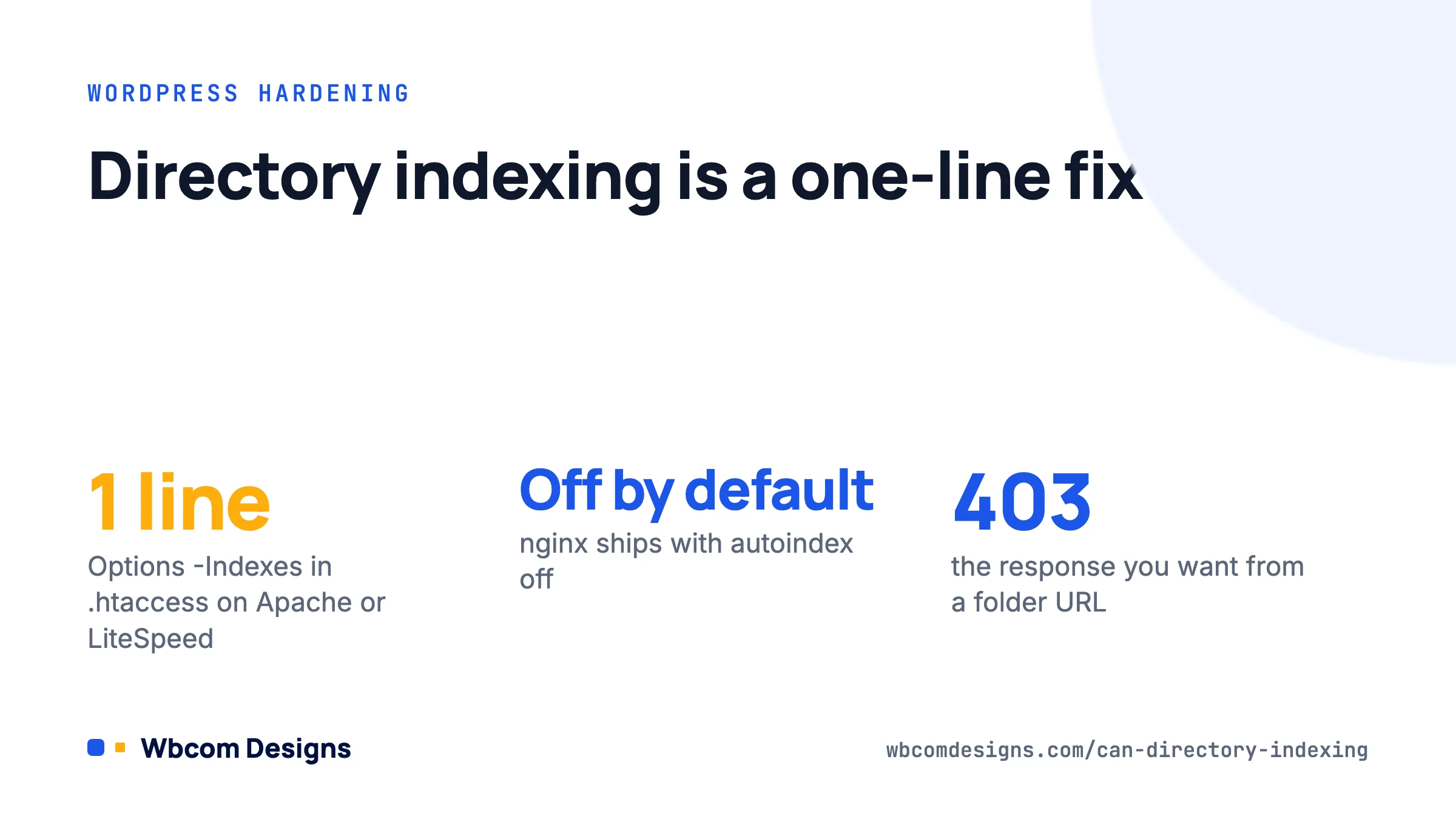
Yes, directory indexing can be turned off on WordPress, and it takes one line on Apache or LiteSpeed (Options -Indexes in .htaccess) or one directive on nginx (autoindex off;). WordPress itself cannot switch it off from the dashboard because it is a web server setting, not a WordPress one. This guide explains what directory indexing exposes, how to check whether your site is affected, and how to fix it on every common hosting setup.
What directory indexing actually exposes
When a browser requests a folder rather than a file, the web server looks for an index file (index.php, index.html). If none exists and indexing is enabled, the server generates a plain HTML page listing every file and subfolder in that directory. That is directory indexing, also called directory browsing or directory listing.
On a WordPress site the folders that matter are /wp-content/uploads/, /wp-content/plugins/, /wp-content/themes/ and /wp-includes/. WordPress ships an empty index.php in most of its own folders, but not in every plugin folder, not in year and month subfolders of uploads, and not in folders that plugins or themes create themselves (cache, backup and log directories are the usual offenders).
What an attacker gets from an open listing:
- A plugin inventory with version numbers. A listing of
/wp-content/plugins/plus a readme.txt in each folder gives an exact list of installed plugins and versions. That is the first step in matching your site against known vulnerabilities. - Private uploads. PDFs sold through WooCommerce or Easy Digital Downloads, member-only files, invoices, CSV exports left behind by a migration plugin. If a human can list the folder, so can a crawler.
- Backups and logs. Backup plugins that write to
/wp-content/uploads/backups/or similar. A listed database dump is a full compromise. - Search engine indexing. Google will index listing pages like any other URL. We have seen “Index of /wp-content/uploads/2024/03” pages ranking for a client’s own brand name.
Disabling indexing is not a substitute for proper access control, but it removes the cheapest reconnaissance an attacker has. The OWASP guidance on information exposure treats directory listing as a misconfiguration to fix, not an acceptable default.
Check whether your site is affected

Before changing anything, confirm the current state. Open a private browser window (so you are logged out and not served a cached page) and visit these URLs on your own domain:
https://example.com/wp-content/uploads/https://example.com/wp-content/plugins/https://example.com/wp-content/uploads/2025/(any year folder)https://example.com/wp-includes/js/
A safe response is a 403 Forbidden page, a blank white page, or a redirect to your home page. An unsafe response is a page titled “Index of /wp-content/uploads” with a table of filenames. Check at least one deep folder, because a top-level index.php placed by WordPress can make the root look safe while year and month subfolders are wide open.
From the command line:
curl -sI https://example.com/wp-content/uploads/2025/ | head -1A 200 OK combined with a body containing “Index of” means indexing is on. A 403 means you are already covered.
Disable indexing on Apache and LiteSpeed
Most shared hosting (cPanel, Plesk, SiteGround, Bluehost, Hostinger, A2) runs Apache or LiteSpeed, and both read .htaccess files. LiteSpeed supports the same Options directive.
- Connect to your site with SFTP or your host’s file manager and open the WordPress root folder (the one containing
wp-adminandwp-content). - Show hidden files. In FileZilla that is Server → Force showing hidden files; in cPanel File Manager it is under Settings → Show Hidden Files.
- Open
.htaccess. If it does not exist, go to Settings → Permalinks in WordPress and click Save; WordPress will create it if the folder is writable. - Add this line above the
# BEGIN WordPressmarker, never inside the WordPress block (WordPress rewrites that block on permalink saves):
Options -IndexesSave the file and re-test the URLs from the previous section. The change is immediate; no restart is needed. A complete minimal .htaccess looks like this:
Options -Indexes

# BEGIN WordPress
RewriteEngine On
RewriteBase /
RewriteRule ^index\.php$ - [L]
RewriteCond %{REQUEST_FILENAME} !-f
RewriteCond %{REQUEST_FILENAME} !-d
RewriteRule . /index.php [L]
# END WordPress
If you get a 500 error after adding the line
Your host has disabled the Options directive with AllowOverride. Remove the line to restore the site, then either open a ticket asking the host to set Options -Indexes in the virtual host configuration, or fall back to the index file method described below. Some hosts accept IndexIgnore * as an alternative, which hides every file from the listing rather than disabling the listing itself.
Disable indexing on nginx
nginx does not read .htaccess at all, so adding Options -Indexes does nothing there. The good news is that nginx ships with directory listing off by default; the autoindex directive defaults to off. You only have a problem if someone turned it on.
If you manage the server yourself (a VPS on DigitalOcean, Vultr, Hetzner, or a Cloudways-style panel with SSH access):
- Open your site’s server block, usually in
/etc/nginx/sites-available/example.comor/etc/nginx/conf.d/. - Search for
autoindex. If it readsautoindex on;, change it toautoindex off;or delete the line. If it is absent, you are already protected. - Test and reload:
sudo nginx -t && sudo systemctl reload nginxOn managed WordPress hosts that run nginx (Kinsta, WP Engine, Pressable, Flywheel, Pantheon) you have no access to the server block. Indexing is off on all of those by default; if your test shows a listing, open a support ticket and they will fix it in minutes.
The fallback: index files in every folder
If you cannot change the server configuration (locked-down host, no support response, a Windows IIS box), the old-school method still works: put an empty index.php in each folder you want to protect. When the server finds an index file it serves that instead of generating a listing.
WordPress already does this for its core folders. The file contents are just:
<?php
// Silence is golden.
Creating them by hand for every uploads subfolder is tedious, so use a one-liner over SSH from the WordPress root:
find wp-content -type d -exec sh -c '[ -f "$1/index.php" ] || printf "<?php\n// Silence is golden.\n" > "$1/index.php"' _ {} \;The drawback is maintenance. Every new month creates a new uploads folder, every new plugin creates new directories, and none of them get an index file unless you re-run the command. Treat this as a stopgap, not the fix. The server-level directive covers future folders automatically.
Comparing the methods

| Method | Works on | Covers new folders | Needs server access | Our verdict |
|---|---|---|---|---|
Options -Indexes in .htaccess | Apache, LiteSpeed | Yes | No, SFTP is enough | Use this on shared hosting |
autoindex off; | nginx | Yes | Yes (root or sudo) | Usually already set; verify |
Empty index.php per folder | Any server | No | No | Stopgap only |
| Security plugin toggle | Apache, LiteSpeed | Yes | No | Fine if you already run the plugin |
| Host support ticket | Managed hosts | Yes | No | The only option on Kinsta, WP Engine, etc. |
On the plugin row: Solid Security (formerly iThemes Security) has a “Disable Directory Browsing” toggle under Security → Settings → Advanced → System Tweaks, and All-In-One Security has one under WP Security → Filesystem Security. Both write the same Options -Indexes line to .htaccess. We would not install a security plugin only for this; editing one file is less overhead than a plugin that loads on every request. If you already run one of them, the toggle is a convenient way to make sure the line survives .htaccess regeneration.
What this does not protect
Turning off listings stops people from discovering filenames. It does not stop them from downloading a file whose URL they already know or can guess. If you sell downloadable products, protect the files properly: WooCommerce’s Products → Settings → Downloadable products setting should be “Force downloads” or “X-Accel-Redirect/X-Sendfile”, never “Redirect only”, and the uploads folder for those files should have its own deny rule. For member-only media on a community site, the same logic applies; directory indexing is the lock on the filing cabinet, not on the individual drawers.
Two related hardening steps that take the same five minutes:
- Block PHP execution inside uploads. Create
/wp-content/uploads/.htaccesscontaining<FilesMatch "\.php$"> Require all denied </FilesMatch>(Apache 2.4 syntax). On nginx, add alocation ~* /uploads/.*\.php$ { deny all; }block. - Deny access to readme.txt and license files so plugin versions cannot be read even when the folder name is known. A WAF rule or a
<FilesMatch "^(readme|license|changelog)\.(txt|html|md)$">block handles that.
If you want a wider review than these three items, our maintenance plans include a hardening pass and monthly checks, which is cheaper than the cleanup after a file leak.
Frequently asked questions
Is directory browsing enabled by default on WordPress?
WordPress has no setting for it either way. Apache’s default configuration on many distributions enables Indexes, so on a fresh shared host it often is on. nginx defaults to off. Always test rather than assume.
Will disabling directory indexing break anything?
No. Visitors never need to see a folder listing; every real URL on a WordPress site points at a file or is routed through index.php. Plugins that serve files do so by path, not by listing.
Why does Options -Indexes cause a 500 error on my host?
Because the host’s Apache configuration does not allow .htaccess to override Options. Remove the line and ask the host to apply it server-side, or use the index.php method.
Do I need to do this on WordPress Multisite?
Yes, once. The .htaccess or nginx directive applies to the whole install, including every sub-site’s uploads folder under /wp-content/uploads/sites/.
How do I check that Google has not indexed my listings?
Search for site:example.com "Index of". If results appear, fix the listing, then request removal through Search Console’s Removals tool. The pages will drop out on their own once they return 403, but the removal request speeds it up.
What we’d do
Test the four URLs above in a private window. If you see a listing and you are on Apache or LiteSpeed, add Options -Indexes at the top of .htaccess and test again. If you are on nginx or a managed host, open a ticket. Then spend the remaining few minutes blocking PHP execution in uploads. The whole job is shorter than reading this post, and it closes off the first thing every automated scanner checks.
Related reading