
15 min read
The Plugin-Update Testing Workflow Community-Site Agencies Use to Catch Breakage Before Clients See It

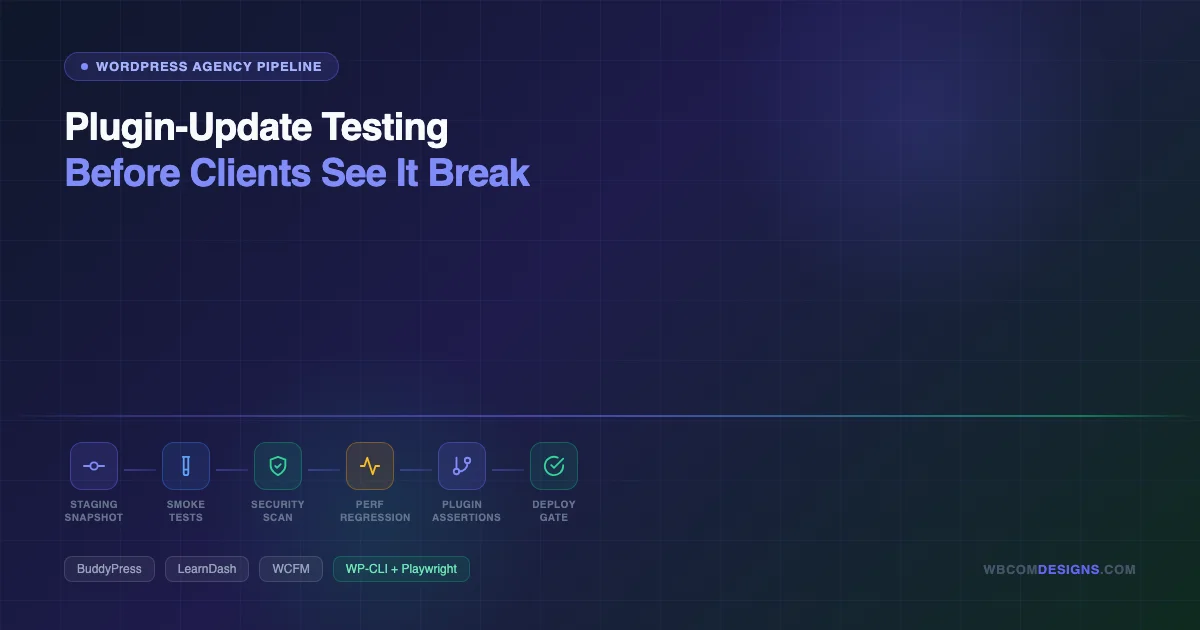
A plugin update rolled out on a Tuesday afternoon. By Wednesday morning, a community site owner had three support tickets: vendor payouts had stopped processing, new member registrations were silently failing, and course completion certificates were not sending. The update itself showed no errors. The WordPress admin said everything was fine. Nothing looked broken until clients started asking questions.
This exact scenario played out in a r/ProWordPress thread that drew 28 comments, most of them variations on the same theme: agencies discovering that their current “update and pray” workflow was one plugin release away from a client emergency. The thread exposed a real gap between how updates get applied and what actually validates them.
Community sites, membership platforms, and marketplace builds carry more update risk than a simple blog or brochure site. They have interconnected plugin stacks - BuddyPress handling activity and groups, LearnDash managing course progression, WooCommerce or WCFM running vendor payouts - where a single dependency change can produce silent failures across all of them at once. The failure is rarely a fatal error. It is a broken registration hook, a payout that completes but books to the wrong account, a course quiz that saves responses but never marks completion.
Detection vs Prevention: Why You Need Both
There are two distinct problems in keeping a complex WordPress site healthy after updates. One is finding what already broke. The other is stopping breakage from reaching production in the first place. Both matter, and they work at different moments in the site lifecycle.
Detection catches what slipped through - the gradual drift, the quiet failure that happened six weeks ago and nobody noticed until a user complained. If you have not run that kind of audit on your community stack recently, The Silent-Failure Audit Every WordPress Community Site Needs covers 12 specific checks for BuddyPress, LearnDash, and WCFM stacks that are easy to miss in routine reviews.
Prevention - the subject of this piece - is what runs before an update touches production. It answers the question: how do you know it is safe to apply an update before your clients find out it was not? The answer is a repeatable pipeline, not a manual check.
The 6-Stage Prevention Pipeline
What follows is the actual workflow community-site agencies run before applying updates to production. Not a checklist of things to eyeball - a pipeline with concrete tools, threshold values, and decision gates. You can automate most of it. The stages are ordered: each one gates the next.
Stage 1 - Staging Snapshot Strategy
Before any update runs, staging must reflect production. This sounds obvious; it is regularly skipped. A staging environment that is two weeks out of date - different content, different user accounts, different plugin configurations - produces false test results. A course completion that works on staging against a cloned database might fail on production because the production database has a different table prefix, a cached option that was reset during migration, or a different value in the wp_options table for a plugin’s license state.
The snapshot process is two parts: files and database, taken together within minutes of each other. For managed WordPress hosts (Cloudways, Kinsta, WP Engine, Flywheel), a staging sync or snapshot tool handles this via the dashboard. For self-managed servers, WP-CLI combined with rsync covers it:
# Pull a timestamped database export
wp db export /backups/$(date +%Y%m%d-%H%M%S)-pre-update.sql --add-drop-table

# Rsync the uploads directory to staging
rsync -avz --delete /var/www/html/wp-content/uploads/ \
  staging-user@staging-server:/var/www/staging/wp-content/uploads/

# Push the database to staging (after search-replace for domain)
wp db import /backups/pre-update.sql --path=/var/www/staging
wp search-replace 'https://productionsite.com' 'https://staging.productionsite.com' \
  --path=/var/www/staging --skip-columns=guid
The snapshot needs to happen on a schedule that keeps staging within 24 hours of production for active community sites. On platforms where Cron is available, a nightly sync job that runs the export, rsync, and import sequence is the floor standard. On managed hosts, use the built-in sync feature and set a calendar reminder if automatic sync is not available.
One detail that often causes failed tests: deactivate email sending on staging. Use a plugin like WP Mail SMTP set to a testing SMTP (Mailtrap or a local log adapter). Real user addresses in a cloned database plus a live SMTP account is a support incident waiting to happen.
Stage 2 - Playwright Smoke Testing on Critical Flows
Manual testing every update is not realistic at scale. The alternative is a headless Playwright smoke suite targeting the flows that break silently on community stacks. These are not comprehensive end-to-end tests - they are smoke checks for the paths that produce client support tickets when they fail.
For a BuddyPress + LearnDash + WooCommerce stack, the minimum smoke suite covers:
- Registration: New user registers, receives confirmation email, can log in, appears in the members directory.
- Activity stream: Logged-in user posts an activity update, update appears in the stream, the @mention notification fires.
- Group operations: Create a group, join a group, post to group activity, group appears in the groups directory.
- Course enrollment: User purchases or enrolls in a course, course appears in their dashboard, first lesson is accessible.
- Course progression: Complete a lesson, mark quiz as passed, course completion triggers the completion email.
- WooCommerce checkout: Add product to cart, complete checkout with a test payment method, order appears in WooCommerce orders.
- Vendor dashboard (WCFM/Dokan): Vendor logs in, can view their orders, payout balance is readable, no JavaScript errors in console.
A basic Playwright spec for the registration flow looks like this:
import { test, expect } from '@playwright/test';

test('new user registration completes', async ({ page }) => {
  await page.goto('https://staging.yoursite.com/register/');
  await page.fill('input[name="user_login"]', 'testuser_' + Date.now());
  await page.fill('input[name="user_email"]', 'test+smoke@youragency.com');
  await page.fill('input[name="user_pass"]', 'SecureTestPass123!');
  await page.fill('input[name="user_pass-confirm"]', 'SecureTestPass123!');
  await page.click('input[type="submit"]');
  await expect(page.locator('.bp-feedback.registration-complete')).toBeVisible();
});

test('course enrollment records correctly', async ({ page }) => {
  // Log in as test student
  await page.goto('https://staging.yoursite.com/wp-login.php');
  await page.fill('#user_login', 'test_student');
  await page.fill('#user_pass', 'test_student_pass');
  await page.click('#wp-submit');

  // Navigate to course and enroll
  await page.goto('https://staging.yoursite.com/courses/test-smoke-course/');
  await page.click('.learndash-enroll-button.course-enroll-button');
  await expect(page.locator('.learndash-course-content')).toBeVisible();
});
The suite runs against staging after the snapshot sync and before any update is applied. Run it again after the update. A diff in which tests pass versus fail tells you exactly what the update broke, with a specific selector and page URL to point to when filing a bug report with the plugin developer.
Keep a dedicated test user account on staging for each role: subscriber, member, course student, vendor, group admin. These accounts stay on staging permanently. Their credentials are stored in a shared .env file checked into the agency’s internal repository, not hardcoded in test files.
Stage 3 - Security Scan Post-Update
Every plugin update is a new codebase entering your stack. Most updates are security patches; some introduce new vulnerabilities. Running a scan after applying the update to staging catches known CVEs before they reach production.
Two tools cover this well in combination. WPScan checks the plugin against its vulnerability database using the plugin’s slug and version:
# Scan staging site for known vulnerabilities
wpscan --url https://staging.yoursite.com \
  --api-token YOUR_WPSCAN_API_TOKEN \
  --enumerate vp \
  --plugins-detection aggressive \
  --output /reports/wpscan-$(date +%Y%m%d).json \
  --format json

# Check specific plugin version
wpscan --url https://staging.yoursite.com \
  --api-token YOUR_WPSCAN_API_TOKEN \
  --enumerate p \
  --plugins-version-detection aggressive
Wordfence CLI (the standalone version, separate from the plugin) runs a local file scan that does not require the plugin to be active on the site and produces output you can parse in CI:
# Wordfence CLI scan of the plugin directory
wordfence malware-scan /var/www/staging/wp-content/plugins/buddypress/ \
  --output-format=json > /reports/wordfence-buddypress-$(date +%Y%m%d).json
The gate condition for this stage is simple: no high-severity CVEs in the updated plugin. Medium-severity findings get documented and reviewed. Low-severity findings go in the ticket backlog. A high-severity finding - an authenticated XSS, a privilege escalation, a SQL injection - is an immediate hold: the update does not proceed until the vulnerability is resolved or the plugin developer releases a patch.
For teams that want ongoing monitoring rather than only pre-update scans, the WordPress Vulnerabilities Patch Checklist covers how to integrate CVE monitoring into a maintenance workflow.
Stage 4 - Performance Regression Check
Plugin updates frequently introduce performance regressions. A new version adds an extra database query per page load, or changes how assets are enqueued, or introduces a synchronous external API call on a critical path. On a community site with thousands of monthly active users, a 200ms TTFB regression compounds across sessions.
The check here is a delta comparison, not an absolute score. You need a baseline measurement from staging before the update, then the same measurement after. The tools that work well for this in a CI context are Lighthouse CI and the WebPageTest API.
For Lighthouse CI, a budget file sets the thresholds:
// lighthouserc.js
module.exports = {
  ci: {
    collect: {
      url: [
        'https://staging.yoursite.com/',
        'https://staging.yoursite.com/members/',
        'https://staging.yoursite.com/courses/',
        'https://staging.yoursite.com/groups/',
      ],
      numberOfRuns: 3,
    },
    assert: {
      assertions: {
        'first-contentful-paint': ['warn', { maxNumericValue: 3000 }],
        'largest-contentful-paint': ['error', { maxNumericValue: 4500 }],
        'total-blocking-time': ['warn', { maxNumericValue: 600 }],
        'cumulative-layout-shift': ['error', { maxNumericValue: 0.15 }],
        'interactive': ['warn', { maxNumericValue: 5000 }],
      },
    },
  },
};

// Run baseline before update, save report
lhci collect --config=lighthouserc.js
lhci upload --config=lighthouserc.js --target=filesystem --outputDir=/reports/lhci-pre

// Apply update, then run again
lhci collect --config=lighthouserc.js
lhci upload --config=lighthouserc.js --target=filesystem --outputDir=/reports/lhci-post
The practical thresholds for community site pages: LCP below 4.5 seconds on a standard connection, CLS below 0.15, and a TTFB delta of no more than +300ms compared to the pre-update baseline. These are not targets for a new build - they are regression gates for an existing production site. If an update pushes a page past these thresholds, that is not a reason to immediately roll back, but it is a reason to investigate before the update goes live.
The most common cause of plugin-update performance regressions on community stacks is a new background process or Action Scheduler job that runs too frequently on a large site. Check the Action Scheduler queue in /wp-admin/tools.php?page=action-scheduler after applying the update to staging. If new recurring actions appear with intervals under 5 minutes, or if the pending queue grows without resolving, investigate the scheduling logic before deploying.
Stage 5 - Plugin-Specific Assertions for Community Stacks
General smoke tests and Lighthouse scores catch broad regressions. Plugin-specific assertions catch the silent breakage that only shows in particular flows. These are the checks that the r/ProWordPress thread was really about - the things that pass every general test but fail at the exact moment a real user tries to do a specific thing.
BuddyPress:
- Verify
bp_notifications_get_notifications_for_user()returns expected counts after an activity comment. If this returns 0 after an update when it should return 1, the notification hook registration changed. - Check that
bp_core_get_user_domain()returns a valid URL for a test user. If it returns an empty string, the rewrite rule registration was affected by the update. - Confirm xProfile field visibility rules are still applying correctly. Update the test user’s profile field to “Friends Only” and verify it is not visible to a non-friend.
- Test group invitation emails arrive. Create a group, invite a test member, check that the email arrives in the test inbox (Mailtrap or similar).
LearnDash:
- Verify quiz result saving. Submit a quiz as the test student, check
wp_usermetafor the_sfwd-quizzeskey - it should contain the new submission. - Confirm course completion triggers. Mark all lessons complete for a test course, check that the completion hook fires and the user’s course status updates in the database.
- Test drip scheduling. If courses use drip content, verify that lesson access is correctly gated based on enrollment date, not unlocked early.
- Check the gradebook. If the site uses assignments or graded quizzes, verify the gradebook table in
/wp-admin/admin.php?page=ldAdvQuiz&module=gradedQuizstill loads without errors.
WCFM / WooCommerce Multivendor:
- Confirm vendor commission calculation. Place a test order as a customer, check that the vendor’s earnings are recorded correctly in
wp_wcfm_marketplace_orderswith the correct commission split. - Test vendor withdrawal requests. Initiate a withdrawal request as the test vendor, verify the request appears in the admin withdrawal dashboard.
- Check product publish permissions. A vendor-role user should be able to submit a product for review; it should appear in the admin pending products queue, not auto-publish.
- Verify store page loads. The vendor’s store page (usually at
/store/vendor-name/) should load without PHP notices in debug mode.
These assertions can be added to the Playwright smoke suite as dedicated spec files or run as WP-CLI commands against the staging database. The WP-CLI approach is faster to write for database state checks:
# Verify LearnDash course completion status in database
wp db query "SELECT user_id, meta_value FROM wp_usermeta
  WHERE meta_key = 'course_completed_1'
  AND user_id = 42" --path=/var/www/staging

# Check WCFM commission records for test order
wp db query "SELECT vendor_id, total_commission, commission_status
  FROM wp_wcfm_marketplace_orders
  WHERE ID = 999" --path=/var/www/staging

# Confirm BuddyPress activity table has recent entries
wp db query "SELECT COUNT(*) as count FROM wp_bp_activity
  WHERE date_recorded > DATE_SUB(NOW(), INTERVAL 1 HOUR)" --path=/var/www/staging
Stage 6 - Decision Rules and Rollback Path
Every update that passes Stages 1-5 gets deployed. Every update that fails one or more stages goes through the decision tree. The decision tree is not a judgment call - it is a documented policy that tells every person on the agency what to do next.
The rollback path for a staged update is straightforward because the snapshot from Stage 1 is intact. On WP-CLI:
# Roll back a specific plugin to the previous version
wp plugin install buddypress --version=12.3.2 --force --path=/var/www/staging

# Restore the database snapshot if the update modified database tables
wp db import /backups/2026-05-19-pre-update.sql --path=/var/www/staging
On managed hosts, the staging snapshot restore is a single click. The important thing is having the snapshot before the update - which is why Stage 1 cannot be skipped even when the pipeline is running under time pressure.
For production rollbacks (when an update that passed staging testing still causes a production issue), the pre-update snapshot from the production backup is the restore point. Most managed hosts retain daily backups with point-in-time restore. On self-managed stacks, this means the nightly database export and the pre-update export from Stage 1 are both retained for at least 30 days.
Auto-Update vs Gate vs Delay: The Decision Matrix
Not every plugin update carries the same risk. Treating them all identically wastes time on low-risk updates and underinvests in high-risk ones. The agencies that handle this well use a tiered policy based on the plugin’s role in critical flows.
| Update Type | Plugin Category | Policy | Rationale |
|---|---|---|---|
| Security patch (any severity) | Any | Gate: run pipeline within 24 hours, deploy same day if passes | Security patches have time pressure; pipeline still runs but on accelerated schedule |
| Minor version (x.y.Z) | Critical path (BuddyPress, LearnDash, WooCommerce, WCFM, payment plugins) | Gate: full pipeline before deployment | Minor versions can include schema changes, hook signature changes, or dependency updates that break integrations |
| Minor version (x.y.Z) | Non-critical (SEO, forms, analytics, caching) | Auto-update with post-deploy smoke check | Lower integration risk; smoke check catches regressions within minutes of deploy |
| Major version (X.0.0) | Any | Gate: full pipeline plus extended staging period (3-7 days) | Major versions carry breaking changes; community plugins often require coordinated updates across dependent plugins |
| Patch version (x.y.Z where Z < previous) | Any | Delay: investigate before applying | Downward patch versions sometimes indicate a bad release being quietly pulled; wait for developer confirmation |
The “critical path” classification - the plugins that flow directly through user-facing transactions - is the key input to this matrix. Every site should have a documented list of its critical-path plugins. For a BuddyPress + LearnDash + WooCommerce stack, that list typically includes: BuddyPress, BuddyPress dependent plugins, LearnDash, LearnDash add-ons, WooCommerce, WooCommerce payment gateway plugins, WCFM or Dokan, and any custom plugin that hooks into any of these.
Plugins outside the critical path - an SEO plugin, an analytics integration, a cookie consent plugin, a redirect manager - carry a lower risk of breaking user flows. They can be auto-updated with a post-deploy smoke check as the validation step rather than a full pre-deploy pipeline.
What Changes for Client Retention
The argument for building this pipeline is not technical correctness. It is what happens to client relationships when an update breaks something on a live site versus when the same issue is caught on staging.
When a production issue reaches clients, the conversation is reactive: damage control, investigation under pressure, a post-mortem, and a question about whether the maintenance retainer is worth renewing. When the same issue is caught in staging, the conversation is proactive: “We caught a compatibility problem with the latest BuddyPress release before it touched your site - we are holding the update until the developer releases a fix.” One conversation erodes trust. The other builds it.
Agencies that run this pipeline also accumulate something valuable over time: a history of exactly which updates caused which issues, with the test output to prove it. This makes it significantly easier to communicate with plugin developers when filing bug reports, because you have a reproducible test case, a specific failure point in the smoke suite, and a before/after comparison for security scans and performance metrics.
The time investment in building the initial Playwright suite and the snapshot automation is typically 6-10 hours for a standard community stack. After that, each pipeline run is largely automated - the manual steps are reviewing the output, making the deployment decision, and communicating the result to the client. Agencies that bill for maintenance retainers can also point to this pipeline as a concrete deliverable that justifies the fee, rather than describing maintenance as “keeping things updated.”
The detection side - finding what already broke in production - is a separate practice that complements this pipeline. Prevention catches the update-induced breakage you can anticipate and test for. Detection catches the drift and silent failures that accumulate over time regardless of update practices. Both belong in a maintenance workflow for any community site with meaningful user activity.
Building This Pipeline Into Your Maintenance Retainer
If you are managing a community site yourself, the pipeline above is buildable with open-source tools.
For organizations that require custom functionality, automated testing workflows, or integration between multiple plugins, investing in professional WordPress plugin development can help reduce update-related risks and ensure long-term stability. Explore our WordPress Plugin Development Services to learn how we build scalable, secure, and maintainable plugin solutions
If you are evaluating whether to bring in an agency for WordPress maintenance, the right question to ask is not “do you update plugins?” - the answer is always yes. The right question is “what does your staging pipeline look like before an update goes live?” An agency that can describe their snapshot strategy, their smoke test coverage, their security scan tooling, and their decision criteria is an agency running a process, not just clicking “update all.”
Wbcom Designs manages maintenance for community sites, membership platforms, and marketplace builds. If you want to talk through what the pipeline looks like for your specific stack - BuddyPress, LearnDash, WCFM, or a custom combination - book a call and we can review your current setup together. Or if you are ready to hand off maintenance entirely, the WordPress maintenance services page covers what is included.
Interesting Reads
Kirki Privilege Escalation Hits 500,000 Sites: What WordPress Site Owners Should Do Now
12 Best WordPress Job Board Plugins in 2026
Best WordPress Scheduler Plugins for Booking, Content & Automation
Related reading