
7 min read
What is BuddyPress Private Community Pro Plugin


If you’re managing a BuddyPress community, you know how important it is to control who sees what. That’s where the BuddyPress Private Community Plugin, also known as Community Pro, comes into play. This powerful plugin gives you complete control over your community’s privacy, allowing you to restrict BuddyPress components, WordPress pages, and custom content types so that only the members you approve can access them.
Whether you want to protect sensitive discussions, enforce profile completion, or offer premium content to specific user roles, Community Pro provides the tools to make your BuddyPress site both secure and highly engaging. From locking activity streams and member directories to setting profile visibility and messaging limits, this plugin gives site administrators the flexibility to tailor the community experience exactly as needed.

What is the BuddyPress Private Community Plugin (Community Pro)?
The BuddyPress Private Community Plugin (Community Pro) is an extension for BuddyPress that gives site administrators granular privacy and restriction controls across their social community. It is designed to restrict BuddyPress components such as Activity, Groups, Members, and Messages to logged-in users, lock WordPress Pages and Custom Post Types (CPTs) for guest visitors, enforce profile privacy and completion rules to encourage richer member profiles, and apply role-based limits, for example, preventing subscribers from joining groups or sending messages.
The plugin also provides customizable notices and redirects for restricted actions. In short, if you want to transition an open BuddyPress community into a members-only experience or apply tiered access rules, Community Pro gives you the controls you need.
Why You Might Need This Plugin
Think of BuddyPress as the social layer on top of WordPress. Out of the box, BuddyPress is social and discoverable, great for open communities, not so great when you want exclusivity or gated content.
Use the BuddyPress Private Community Plugin when you want to:
- Protect member-only content (forums, groups, private posts).
- Encourage real profiles by enforcing completion (better interactions, less spam).
- Control which roles can do what (limit messaging, posting, group joining).
- Offer premium or paid community access without custom coding.
- Improve security and compliance by preventing public access to private conversations or member data.
If you run a membership site, alumni network, private forum, or professional community, this plugin helps turn your BuddyPress site into a true private community.
Key Features Explained (With Real Examples)
Below are the plugin’s most important features, explained with practical examples so you can visualize how each setting affects your site.
1. BuddyPress Component Privacy
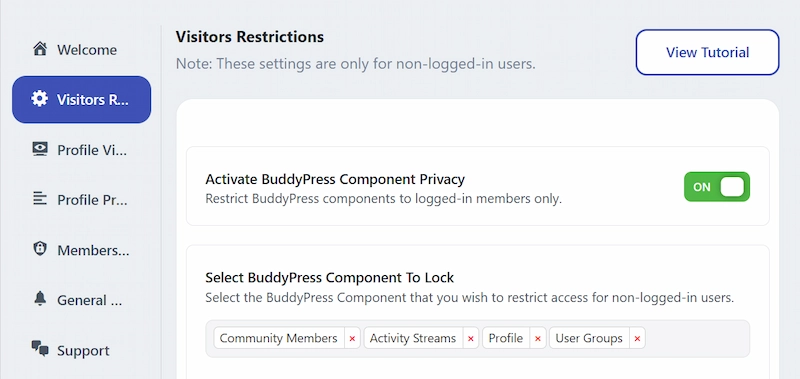
You can restrict entire BuddyPress components to only logged-in users. That means pages like Activity, Members Directory, Groups, and Messages can be hidden from guests.
Example: A university alumni site hides the member directory and activity feed so only verified alumni can see it. Guests hitting those URLs will see a customizable notice or get redirected to a login/landing page.
2. Custom Content Type (CPT) Access

If you use custom post types (events, portfolios, products, courses), you can lock them down too.
Example: Your coaching site offers free blog posts to the public but keeps workshop recordings (a custom post type) for members only. Enable custom content restriction and select the CPT from the plugin dropdown.
3. Page Privacy Settings
Lock individual WordPress pages for logged-out visitors, ideal for pricing pages, private docs, or member resources.
Example: Lock the “Resource Library” page so guests are prompted to register to access files and guides.
4. Profile Visibility Controls

Users can choose how visible their profiles are (Only Me, Friends, Members). Admins can also set default visibility and customize the “profile private” message guests see.
Example: A user sets their profile to “Only Me” so only they can view contact details, anyone else sees a notice that the profile is private.
5. Profile Progress and Forced Completion

Community Pro features a visual profile completion progress bar and can enforce completion rules. Admins define required fields (profile photo, cover, certain fields) and can prevent users from navigating away from their profile until they finish.
Example: New users must upload a profile picture and complete key education/work fields before they can browse the community. This increases member authenticity and reduces ghost accounts.
You can also explore a detailed overview of profile completion in online communities to understand how widely this feature is used across modern platforms.
6. Membership & Role-Based Restrictions

Control which user roles can access which components or perform which actions (posting, messaging, friending).
Example: Subscribers can view content but cannot create groups or send messages. Paid members get full functionality.
7. Feature-Specific Restrictions
Disable specific BuddyPress features for certain roles, for example, friendship requests, private messaging, or activity posting.
Example: Prevent subscribers from initiating private messages but allow them to reply to messages from friends.
8. Group Participation Limits

Set rules around group visibility and participation: hide public groups for specific roles, prevent joining or leaving, and set limits on how many groups a role can create or join.
Example: Limit free users to joining three groups; premium users can join unlimited groups.
9. Messaging Limits & Constraints
Control messaging behavior, restrict starting new conversations, prevent group messages, or cap messages per hour/day/month.
Example: To reduce spam, limit new users to 5 messages per day and block messaging to users who aren’t friends.
10. Custom Notices & Redirects

When a user tries to access a restricted area, show a custom notice or redirect them (to your login page, a sales page, or a plugin template). Admins can edit these messages to match the site’s voice and policy.
Also Read: Secure Your Private Community Website By Adding Privacy Features
Step-by-Step Guide to Using BuddyPress Private Community Plugin
Here’s how you can get started with the BuddyPress Private Community Pro plugin.
Step 1: Access the Plugin
- Visit Wbcom Designs BuddyPress Private Community Pro.
- Check the Try Demo button to test features in a sandbox environment.
- Enter your name and email, and click Launch to access the demo for 2 hours.
Step 2: Configure BuddyPress Component Privacy

- Go to your WordPress dashboard.
- Navigate to WB Plugins >> Community Pro.
- Enable BuddyPress component privacy to restrict:
- Activity Streams
- Member Directories
- Groups
- Messages
- Select which components you want to restrict for logged-out users.
Step 3: Restrict Custom Content Types
- Enable the Custom Content Type Restriction option.
- Select custom post types from the dropdown, e.g., products, events, or portfolios.
- Save settings to restrict these content types to logged-in members only.
Step 4: Lock WordPress Pages
- Enable Page Privacy Settings.
- Select pages you want to restrict for logged-out users.
- Save changes. These pages are now accessible only to registered members.
Step 5: Configure Login and Registration
- Choose either the plugin’s built-in login form or use a third-party shortcode.
- You can redirect users to a specific page after login.
- Ensure your login and registration forms are accessible and user-friendly.
Step 6: Profile Visibility and Privacy
- Enable Profile Visibility Control.
- Users can set their profile visibility to:
- Only Me
- Friends
- All Members
- Admins can customize the message displayed for private profiles.
Step 7: Profile Progress and Forced Completion
- Enable Profile Progress and set completion criteria (e.g., profile photo, cover image).
- Users must complete required fields to unlock full site access.
- Monitor profile completion progress from the admin dashboard.
Step 8: Set Role-Based Restrictions
- Assign restrictions based on user roles (e.g., subscriber, contributor).
- Limit abilities such as:
- Joining groups
- Posting activities
- Sending messages
- Adding friends
- Customize actions and redirects for restricted roles.
Step 9: Configure Activity, Messaging, and Group Limits
- Restrict group participation (public, private, hidden) based on user role.
- Limit message sending capabilities (hourly, daily, monthly).
- Set minimum activity or friendship criteria for content creation or group joining.
Step 10: Customize Notifications
- Set custom messages for restricted actions.
- Redirect users when they encounter restricted features.
- Ensure clarity in communication to maintain trust and engagement.
Benefits of Using BuddyPress Private Community Pro
- Enhanced Privacy: Restrict access to sensitive content and community features.
- Improved Engagement: Encourage users to log in and complete profiles.
- Role-Based Control: Tailor permissions based on membership level.
- Professional Community Management: Reduce spam, maintain security, and improve the user experience.
With BuddyPress Private Community Plugin, you can turn your website into a safe, members-only environment while keeping engagement high.

Build a Secure and Engaging BuddyPress Community
Creating an online community isn’t just about adding features; it’s about effectively managing access, privacy, and member engagement. BuddyPress Private Community Pro provides the tools you need to protect sensitive content, control member interactions, encourage complete and active profiles, and tailor the experience based on user roles. If you’re just starting out, the Private Community for BuddyPress: Free members-only lock plugin is a great free starting point that handles basic site-wide locking, while the BuddyPress Private Community Pro: Gate by membership level gives you the full tiered access control your growing community will eventually need.
Whether you’re building a membership site, a premium community, or a professional network, this plugin ensures your BuddyPress-powered community remains secure, well-organized, and highly engaging for all members.
Check out the BuddyPress Private Community Pro plugin today and start building a safe, members-only community.
Interesting Read:
Best Auto Post WordPress Plugins
Improve Your Site Search With These Best WordPress Search Plugins
Related reading