
15 min read
How to Easily Add Ads to WordPress (Beginner-Friendly Guide)

If you’ve ever wondered whether your WordPress site could earn money while you sleep, the answer is: absolutely yes. Adding ads is one of the easiest ways to monetise a blog, niche website, online magazine, portfolio, or just about any site with regular visitors. And thankfully, you don’t need to be a web developer or marketing wizard to get started.
Ads are everywhere: banners, pop-ups, sticky bars, product recommendations, newsletter promos, and your site can use them too. You can promote your own products, display affiliate offers, or serve ads from networks like Google AdSense. The beauty of WordPress is that it gives you countless ways to blend ads into your layout without ruining the reading experience.

Your First WordPress Ad Made Simple
Let’s skip the theory and help you put your first ad on your site right now. You can always optimise later, the goal here is to get something live so you understand the basics.
What you need before starting
- Access to your WordPress dashboard
- An image banner OR ad network code snippet
- A link (affiliate URL, product page, or landing page)
- A few minutes of quiet time
Your 5-minute setup plan
Step 1: Prepare your ad
- If you’re using an image ad, upload your banner or download it from an affiliate program.
- If you’re using an ad network like Google AdSense, copy the code they gave you.
Step 2: Add it to WordPress
You have three main options:
- A block editor widget (like Image, Custom HTML, or Shortcode)
- A theme-provided header/footer widget
- A dedicated ad management plugin (we’ll cover this later)
Paste the ad code or upload the image.
Step 3: Choose a simple placement
Beginner-friendly placements:
- After your blog post content
- Inside the sidebar
These placements are easy, non-intrusive, and work on most themes.
Step 4: Save & test
Open a blog post → refresh → check if the ad appears.
Test on:
- Desktop
- Mobile
- Incognito mode
Boom. First ad = done.
A Friendly Guide to the Types of Ads You Can Add
Before you go wild placing ads everywhere, it’s important to understand the three main ad types you’ll use on WordPress. Each serves a different purpose depending on your goals and audience.
1. Image Ads
These are traditional banner ads, simple, clean, and easy.
Best for:
- Affiliate products
- Sponsored promotions
- Announcements
- Brand awareness
Popular sizes:
- 300×250- top-performing sidebar size
- 728×90- horizontal banner for header/before content
- 320×50- perfect for mobile screens
Pros:
- Easy to upload
- Lightweight and fast
- Great for affiliate marketing
Cons:
- Requires an appealing design
- Not personalised or dynamic
2. Rich Content Ads
Think of these as mini promotional boxes you design yourself.
Best for:
- Ebook promotions
- Newsletter sign-ups
- Special offers
- “Recommended product” blocks
You can add:
- Headings
- Images
- Buttons
- Highlighted text
- Testimonials
Rich content ads blend into your blog more naturally and often receive better engagement because they appear to be part of the content.
3. Code Ads
These are powered by third-party networks.
Examples include:
- Google AdSense
- Media.net
- Amazon Native Ads
- Ezoic/Mediavine networks
You simply paste a snippet of HTML/JavaScript into a Custom HTML block, and the ad appears automatically.
Pros:
- Scales well
- Automatically optimized
- Can increase earnings over time
Cons:
- Loading scripts may affect page speed
- Requires an approved account (AdSense)
| Goal | Best Ad Type |
|---|---|
| Promote affiliate products | Image or Rich Content |
| Earn passive display income | Code Ads |
| Promote your own services | Rich Content |
| Add ads quickly without approval | Image Ads |
Finding the Best Spots to Place Your Ads
Once you understand ad formats, the next big question is where to put them. Placement plays a huge role in both user experience and earnings. Select the wrong spot and your ad might get ignored; pick the right one, and you’ll see clicks without disrupting your visitors.
Popular Ad Placements
- After blog posts: A natural, non-intrusive position where readers finish consuming content and are open to recommendations.
- Inside the sidebar: Great for 300×250 banners, affiliate offers, or small promos.
- Within the content (after paragraph 2 or 3): Highly visible without being too aggressive.
- Before the content: Useful for large banners, but should be used sparingly.
- Sticky bars or floating bottom ads: Eye-catching, especially for promotions or limited-time offers.
- Between posts on archive pages: Helps monetise category pages or blog index pages.
- Light popups or slide-ins: Effective for newsletter signup or special deals if used gently.
Tips for Choosing the Right Spot
- Don’t place ads too early in the content.
- Ensure ads don’t push important elements too far down.
- Mobile test, small screens behave differently.
- Keep your reading experience clean and distraction-free.
Step-by-Step Ways to Add Ads to Your Site
Let’s walk through practical examples that show you how to add different types of ads depending on your goals. Each method is beginner-friendly and works for most themes or setups.
Adding Google AdSense to Your WordPress Site
If you’re using AdSense or another ad network, you’ll be pasting a code snippet they provide.
Steps:
- Copy the ad code from your AdSense dashboard.
- Go to your WordPress post, widget area, or a Custom HTML block.
- Paste the code exactly as provided.
- Save and refresh your page to see the ad load.
- Give the network a few minutes; some ads take time to appear.
Extra Tip:
Don’t overload your site with too many code-based ads, as they can slow down your page.
Adding an Affiliate Banner to the Sidebar
Affiliate banners are one of the easiest ways to start monetising.
Steps:
- Download your affiliate banner image (e.g., 300×250).
- Upload it through a WordPress Image block or Image widget.
- Add your affiliate link to the image.
- Save and check how it looks in your sidebar.
- Optional: Add UTM tags to track which banners perform best.
Why this works:
Sidebars remain visible during part of the reading experience, increasing exposure without disrupting content.
Creating a Simple Announcement Bar
A top bar is perfect for promoting sales, new content, or your own products.
To set it up:
- Add a text or HTML block at the top of your page template.
- Include a short, compelling message (e.g., “50% off for 24 hours!”).
- Style it with a background colour to make it stand out.
- Add a button or link pointing to your promo.
Using a Popup for Newsletter Signups
Pop-ups are effective when used wisely, especially those triggered by scrolling or time delay.
When to use a pop-up:
- When promoting a lead magnet (ebook, checklist, guide)
- When building an email list
- When offering a discount
Best practices:
- Trigger the pop-up after 40 - 60% scroll.
- Show once per session to avoid annoying visitors.
- Add a clear and friendly close button.
Showing the Right Ads to the Right People
Targeting helps you deliver ads only to visitors who are most likely to respond. This improves engagement and prevents your site from feeling cluttered.
Ways to Target Ads
- By content type: Show certain ads only on blog posts, not on pages.
- By category or tag: For example, show camera affiliate ads only on “Photography” posts.
- By device:
- Desktop ads for wider banners
- Mobile ads for smaller, responsive designs
- By visitor status:
- Hide ads for logged-in users
- Show ads only to casual visitors
- By location:
- Country-specific deals
- Region-specific offers (e.g., shipping discounts)
Why Targeting Matters
- Creates a more personalised user experience.
- Prevents irrelevant ads from appearing.
- Increases click-through rates.
- Gives advertisers more value.
Using Time-Based Controls to Schedule or Rotate Ads
Sometimes your ads shouldn’t run all the time. Scheduling helps you show the right promotion at the perfect moment.
Simple Scheduling Options
- Set a start date for when the ad should appear.
- Set an end date to automatically stop it.
Useful for:
- Holiday deals
- Product launches
- Event promotions
Advanced Scheduling Ideas
- Show ads only on weekends.
- Display lunch-hour promos from 11 AM to 2 PM.
- Run rotating banner campaigns every month.
Quick Tip
Always double-check your WordPress timezone settings; scheduling depends on it being correct.
Placing Ads Using Widgets and Shortcodes
Sometimes you want an ad in a very specific spot, maybe inside a sidebar, footer, or even within a custom layout. This is where WordPress widgets and shortcodes come in handy. Widgets are ideal for fixed locations because they appear consistently across your site. If your theme supports sidebar or footer areas, you can simply drag an Image, Text, or Custom HTML widget into place and insert your ad. This is especially useful for banners and small affiliate boxes that fit comfortably in narrow spaces.
Shortcodes give even more flexibility. They let you place ads exactly where you want them inside your content, inside a blog post, beneath a heading, or even in a landing page built with Elementor, Divi, or Block Editor. This method is perfect when an ad is tied to a specific topic or needs to appear in only one article rather than everywhere on the site.
When to Use Widgets
- Sidebar promotions
- Footer ads
- Category-specific banners
- Contact page call-to-action ads
When to Use Shortcodes
- Inside content blocks
- In landing pages
- Within page builder templates
- For A/B testing in specific posts
Shortcodes and widgets give you precise placement control, which is often more reliable than automatic ad insertion.
Using a Dedicated Ad Management Tool
Manually inserting ads into your WordPress site can get messy fast, especially when you’re juggling multiple placements, different ad formats, seasonal promotions, or audience-specific targeting. That’s exactly why many site owners rely on a dedicated ad management plugin. It keeps everything organised, lets you control where ads appear, and helps you avoid editing theme files or pasting code in random places.
One example of such a tool is WB Ad Manager, which comes in both a free version and a more advanced Pro version. Both versions help you display ads more easily, but the Pro upgrade unlocks additional features like analytics, advertiser accounts, campaign systems, and classified listings, making it useful even for multi-advertiser sites.
What the Free Version Helps You Do
The free version of WB Ad Manager is perfect for beginners who simply want a smarter way to manage and display ads without coding.
Core features you get in the Free version:
1. Support for all major ad formats
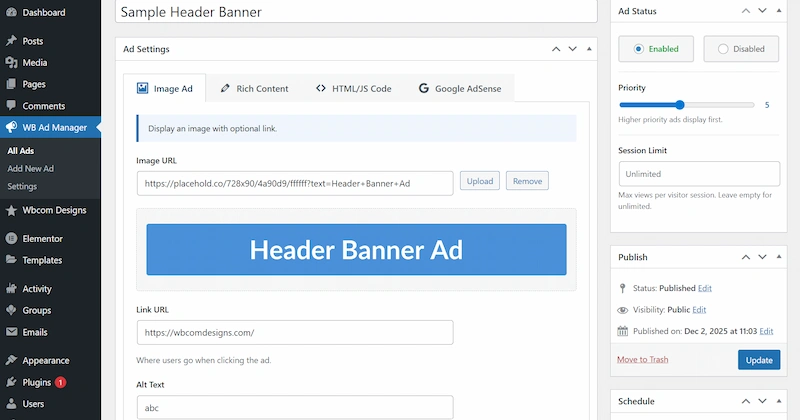
- Image ads
- Rich content ads
- Code/AdSense ads
2. Flexible placement options

- Before or after the content
- After a specific paragraph
- Inside the sidebar, using widgets
- Between posts on archive pages
- Sticky header or footer bars
- Popups and floating boxes
3. Targeting basics
- Show ads only on posts or pages
- Target categories, tags, or specific post types
- Device-based display (desktop/tablet/mobile)
- Logged-in vs logged-out users
- Basic user-role targeting
4. Scheduling controls
- Start and end dates for timed promotions
- Day-level scheduling (seasonal campaigns, holiday sales)
5. Shortcodes and widgets

- Insert ads anywhere using a shortcode
- Add ads to sidebars or footers with built-in widgets
6. Advanced Targeting

- Geo-targeting (country-specific ads)
- More detailed user-role and visitor conditions
- Combined targeting rules for precision ads
These features alone are enough for most blogs, content creators, and small business websites looking to add ads to WordPress in a clean, organised way.
What the Pro Version Adds (Advanced Tools for Serious Monetisation)
If you ever plan to work with advertisers, run paid campaigns, track impressions, or sell ad space, the WB Ad Manager Pro version introduces a complete advertising system on top of the free features.
Pro features that expand your capabilities:
1. Analytics & Reporting

The plugin provides a complete analytics and reporting system to help you understand ad performance. It tracks impressions and clicks for every ad, allowing you to monitor engagement and effectiveness. You can also view CTR (click-through rate), analyse per-ad statistics, and review visual charts for better insights.
Additional tools include CSV data export, daily performance breakdowns, and device- or location-based analytics. This feature is essential for identifying which ads perform best and optimising your overall advertising strategy.
To make those analytics pay off, check this practical guide to improve conversion rates.
2. Advertiser Accounts (Frontend Dashboard)

Advertisers can register on the website and manage their own profiles directly from the frontend dashboard. They can submit new ads for approval, edit existing campaigns, and monitor performance data in real time.
The dashboard also allows advertisers to manage their wallet balance, purchase ad packages, and keep track of all transactions. This feature is perfect for websites that want to sell ad spaces directly and offer a smooth, self-service advertising experience.
3. Payments & Wallet System

The built-in wallet and payment system allow advertisers to top up their balance easily. Payments can be processed through WooCommerce or Stripe, ensuring secure and flexible transactions.
Once a payment is completed, wallet crediting happens automatically, and all transactions are logged for transparency. This makes the website operate like a fully functional ad marketplace where advertisers can pay for impressions, packages, or upgrades.
For step-by-step guidance on implementing fast, wallet-style payments in WooCommerce, see wallet-style payments in WooCommerce.
4. Ad Packages
The plugin supports multiple types of ad packages, including impression-based and time-based options. Administrators can create customised packages that advertisers can purchase from their dashboard.
Once a package is activated, the system automatically assigns it to the advertiser’s campaigns and tracks usage in real time. Campaigns are automatically paused when the purchased budget is exhausted, ensuring accurate billing and fair usage.
5. Classified Listings System

In addition to ads, the plugin includes a complete classified listings system. Advertisers can submit classified ads through the frontend, which then go through an admin approval workflow. Approved listings appear in a browsable directory with categorisation and search options.
The system also supports enquiries, listing expiration dates, and upgrade features to enhance visibility. This makes it ideal for websites offering classified ads alongside traditional advertising.
6. BuddyPress & bbPress Integrations
The plugin integrates seamlessly with BuddyPress and bbPress, making it suitable for community-driven websites. With BuddyPress, advertisers get profile tabs for managing ads and classifieds, and new ad approvals can automatically appear in the activity feed.
For bbPress, ads can be displayed in strategic locations such as before topics, after replies, and within forum threads. These integrations help maximise visibility while keeping ad placement relevant to community content.
Why a Dedicated Ad Manager Is Worth Using
Whether you stay with the free version or upgrade to Pro, using an ad manager gives you real advantages:
- Everything lives in one central dashboard
No more pasting code into template files or forgetting where an ad is placed. - You get cleaner, more precise placements
Place ads exactly after the 2nd paragraph, at the top of a page, or between posts, all with a click. - Targeting options prevent irrelevant ads
Show the right ad to the right visitor instead of cluttering every page. - Scheduling lets you run seasonal or timed campaigns
Perfect for Black Friday, new product launches, or temporary announcements. - Shortcodes and widgets give you full freedom
Add ads anywhere: posts, pages, builders, or sidebars. - Pro unlocks business-level functionality
If you sell advertising space, analytics, payments, and advertiser dashboards, simplify everything.
In Simple Words…
A plugin like WB Ad Manager centralises your entire ad strategy.
The free version is perfect for beginners who want to easily add ads to WordPress, while the Pro version is ideal for websites that want to:
- Sell ads
- Track performance
- Run campaigns
- Offer advertiser accounts
Site-Wide Settings to Keep Your Ads Clean and Optimised
Even if your ads look great, poor settings can ruin the experience or reduce earnings. A few global adjustments can make a huge difference in speed, visibility, and user trust.
Key Settings Worth Checking
- Show or hide ads for logged-in users: Many creators prefer an ad-free experience for paying members or subscribers.
- Set a minimum content length: Prevents ads from appearing in very short posts where they would look awkward.
- Display labels (“Advertisement”, “Sponsored”): This keeps your site compliant with guidelines and builds reader trust.
- Add container classes for custom CSS: Allows you to style ads without touching theme files.
- Enable lazy loading: Ads load only when users scroll near them, boosting site speed.
- Limit total ads per page: Prevents the site from becoming cluttered or slow.
Where Ads Belong Inside Forums and Social Sections
If your WordPress site includes interactive areas like forums or community feeds, you have even more opportunities to place ads. These areas mimic social platforms, which means users actively scroll, comment, and browse, making them ideal for subtle, well-timed promotions.
Smart Ad Spots for Community Sections
- Activity feeds: Insert small image or text ads after a few posts.
- Member or group directories: Add banners above or below the list.
- Forum topic pages: Place ads before or after the discussion.
- Between replies: Works well for long conversations or Q&A-style topics.
These placements feel natural and don’t disrupt conversations. Just avoid showing ads too frequently; community spaces should stay welcoming and user-first.
Best Practices to Keep Your Site User-Friendly and Profitable
A good ad strategy balances earnings with experience. Too many banners can frustrate readers; too few can leave money on the table. Following a few best practices ensures your site stays fast, clean, and appealing.
What You Should Do
- Start with a few well-placed ads and add more slowly.
- Match ads to the content (fitness ads on fitness pages, tech ads on tech pages).
- Test everything on mobile, as over 50% of visitors browse on phones.
- Use lazy loading to improve page speed.
- Clearly label sponsored or affiliate content for transparency.
- Compress images before uploading to reduce load time.
What to Avoid
- Don’t show too many ads at the top of the page.
- Avoid more than one pop-up; readers dislike aggressive interruptions.
- Don’t let ads push important content too far down the page.
- Avoid mixing competing offers in the same area.
- Don’t ignore analytics; performance data helps you optimise.
These simple habits can dramatically improve both user satisfaction and revenue.
Quick Fixes When Ads Don’t Show Up Correctly
Even the best setups occasionally hit a snag. Fortunately, most ad issues boil down to a handful of common problems that are easy to diagnose.
If an ad doesn’t appear:
- Check if the ad is published and saved.
- Make sure your page meets the placement rules (e.g., paragraph count).
- Confirm the ad isn’t hidden from your device or user role.
- Review your schedule; the ad might be set for future dates.
- Clear your caching plugin and browser cache.
- Disable any custom CSS that might conflict.
If the ad displays in the wrong place:
- Review your placement settings.
- Look for duplicate ads with overlapping rules.
- Temporarily switch to a default theme to rule out layout conflicts.
If the ad looks broken:
- Resize the image to the correct dimensions.
- Make sure your code snippet (AdSense, etc.) is complete.
- Check if JavaScript errors are preventing the ad from loading.
Most issues resolve quickly once you pinpoint the cause.
A Fast Checklist to Add Ads to WordPress Today
- Choose the type of ad (image, rich content, or code).
- Decide where it should appear.
- Add it using a widget, block, or plugin.
- Set targeting and visibility rules if needed.
- Publish and test on desktop + mobile.
- Track performance and make small adjustments.

A Quick Wrap-Up Before You Start Monetising
Adding ads to your WordPress site is far easier than it looks. Start with a simple banner or code snippet, choose a clean placement, and test how it appears across your pages. As you learn what works, you can experiment with new formats, smarter targeting, and seasonal promotions.
The goal isn’t to crowd your site with ads, it’s to find a balanced setup that earns money without interrupting your visitors. Keep things light, mobile-friendly, and relevant, and your site will start generating steady revenue over time.
Interesting Reads
10 Best AI Headshot & Portrait Generators for Professionals in 2026
Is AI Website Building Easier Than Using Old Page Builders?
10 Best Affiliate Marketing Tools for eCommerce Brands in 2026
Related reading