

Are you in search of an elegant, timeless, and well-organised discussion board? bbPress is simple to integrate, easy to use, and designed to grow with your expanding community. bbPress is deliberately simple, yet infinitely powerful forum software developed by WordPress contributors.

Getting Started with bbPress
bbPress is a well-known Forum management software for WordPress. It’s relatively easy to install and use. If you’re unfamiliar with the WordPress installation process, it can seem a bit intimidating. This article is an overview of bbPress. It will walk you through the installation process for bbPress on your WordPress-based site.
By the end of this article, you’ll be able to comprehend the bbPress system and have learned:
- The definition of bbPress is what its background is and the reason it’s very popular.
- The requirements for installing it – what you should be able to display on your site before installing the bbPress.
- How to install bbPress?
- How to log in to the administration area of bbPress?
What is bbPress?
bbPress is an underlying template-driven forum management tool developed to work with WordPress. It is designed to function as a lightweight, but with additional features developed through extensions that are called plugins, should you need more functions.
Forums have existed since the beginning of the Internet and can be a fantastic way for people with similar interests to communicate online. Examples of websites that benefit from a forum are:
- Local community websites, such as news portals, where members can discuss current issues.
- The software on the computer needs a support area.
- Clubs, like youth clubs or sports clubs.
- Educational websites that help students with their extracurricular activities.
Forums require an immense task to start, but they can ultimately be a feature for your site and, often, bring a large amount of traffic to your site. In addition, forums can be a valuable tool for your online presence, fostering communities around your products and services.
Benefits of using bbPress
Numerous software packages manage forums, so why choose bbPress? There are many reasons; however, here are some of the main reasons
- It’s completely free, and you do not need to shell out a dime to download the program.
Open-source means that the entire code that is associated with the program is available for download and editing. - A community-based project, rather than having only a few developers working on it, could involve many people, from professional developers to hobbyist programmers.
- It’s very light. At first, it is evident it’s lacking features, but it’s got a lot of code to run the forum, making it more efficient and secure than most of its competitors.
- Flexible, there are more than 100 dedicated bbPress plugins that are currently available, which add functionality to your website. Additionally, numerous WordPress plugins can also be used with bbPress.
- After installing bbPress, it generates all the pages you need, and you can start your forum right away. If, however, you decide you’re not interested in running any forum with bbPress and delete the plugin, it will not affect the other elements of your website.
- It is based on WordPress, so if you make use of WordPress to manage your site, the site will be able to have a familiar appearance, as code templates and plugins within bbPress are quite similar.
If you’d like to look at some examples of the kinds of forums you could make with bbPress, bbPress keeps examples of active, high-quality forums running on the software they offer on their website.
Also Read: bbPress Vs BuddyPress – Which one is better?
Have you decided to go with bbPress? It’s great! Let’s get started!
bbPress Key Features
bbPress offers basic features and numerous extensions that will take your forum to the next level.
- The capability to establish multiple forums for discussion.
- It is easy to manage forums, topics, and comments with tags and categories.
- A wide range of widgets and shortcodes that show forums in different areas of your site.
- The ability to limit discussions and responses to ONLY registered users or allow anyone to view the topics.
- The option to send newsletters to forum members.
- Import forum data from a range of websites.
bbPress Extensions
In addition to the core capabilities, many useful extensions can further enhance the functionality of the application.
- Moderation by bbPress: Modifies the status of topics, responds to “pending,” and then shows them as ‘awaiting moderation until an administrator approves them.
- bbPress Report Content: The feature allows your forum members to report inappropriate or spam content in topics and replies. It includes a report admin link to topics and replies, and shows the post status as “a user reported” after a registered user clicks it.
- bbPress Notify (No Spam): Sends notifications via email whenever new topics or replies are added on any forum. It is fully configurable within the bbPress settings.
- bbPress ReCaptcha: lets you include a reCaptcha feature to your new topic and reply forums to stop spam submissions. It’s a breeze to use and is activated in just a few minutes.
- Google Docs bbPress Attachments: This allows you to manage attachments to forum topics and replies via your WordPress media library. It also lets you manage file size in your main plugin settings and also individually for each forum.
- PeepSo bbPress Addon: PeepSo bbPress Addon allows site administrators to create custom attributes for activities with an easy configuration option that does not require any programming. Members can also set up and deactivate sync for their forum activities using PeepSo Activities. This will allow you to ensure that all options and links are available from one place on their profile. A new update to PeepSo bbPress add-ons lets you link bbPress forums to PeepSo Groups. It will create tabs within the linked group for existing topics and for creating new issues. The new topic’s activity will be synced with the group’s activity.
You can also try Reign PeepSo WordPress Social Network Theme. With this theme, you can create a forum or community website built on WordPress. Ideal to use for Intranet, Dating, Social Learning, and Social Marketplace.
Installing bbPress
Because bbPress is a WordPress plugin, we’ll need to install it like an extension. These are in the following manner:
Download and install the plugin from the WordPress repository.
These are the steps that must be taken when getting and installing the plug-in from the repository for WordPress:
- In your WordPress installation, visit your login page, which will look similar to http://www.yourwordpressdomain.com/wp-admin/. Log in using an account username and password, and you’ll be directed to your WordPress Dashboard.
In the dashboard screen, on the left-hand side, you will find a menu called plugins. If you select the Plugins category, the pop-up menu will appear, and one of the options is Add New. Click this option.
You’ll be directed to a screen with a search option. This will let you search the WordPress plugin repository to find any plugins available there. Since bbPress is a WordPress plugin, it is possible to discover bbPress using this technique. Enter the word bbPress and then click the Search Plugins button.
From here, you’ll find a list of the plugins that are returned when you search for bbPress. One of them is the official bbPress plugin. It’s fairly apparent, however, that it is similar to the image below:

- If the name of the plugin refers to bbPress and its creator is the bbPress community, you have come to the right plugin! Click the Install Now button beneath the plugin’s name, and the plugin will install.
- If the installation goes well, you will be presented with two choices: Activate Plugin and Return to the Plugin Installer.
Activate Plugin
- Then click “Activate Plugin” to activate the plugin. It is activated.
- If you choose to click Return to the Plugin Installer in the menu, you’ll be brought back into the Installation Screen. From there, click Plugins on the left-hand menu. Search for the bbPress plugin in the search results and then click Activate to enable bbPress.
Congratulations! You’ve completed the first step towards activating the functionality of your bbPress forum. At this point, you should know the advantages of using bbPress to manage your forum. It is also important to be proficient in implementing bbPress for all WordPress installations. It can be a bit confusing for first-time users, but the more installs you complete, the simpler it becomes. You will also be able to identify frequent issues that may affect your website.
Create a Forum using bbPress in WordPress

When installed, bbPress can add Forums, Topics, and Replies menu items to your WordPress administrator. To begin, select Forums > Add New link in the menu. You will be taken to a similar screen as the WordPress post edit page.

Give a name to your forum, and then write an introductory description of the forum. After that, press the button to publish. You can make as many forums as you require for various discussions and topics.
Displaying the bbPress Forum on the Front End of WordPress
Once you’ve set up forums on your site, it’s time to show these forums on the front of your WordPress website. Create a brand new WordPress page. Name this page that is similar to Forum, Community, Support Forums, etc.
After that, you can simply copy and insert the following shortcode on your webpage:
[bbp-forum-index]
Make sure to hit the publish button to save your modifications and make your forum’s page accessible on your website. Now you can go to the website using a browser to glimpse at your forum.

The next step is to make it easier for users to find your forum on your website. For that, we’ll include a link to your forum’s webpage at the top of the menu navigation.
Go to Appearance > Menus and then add Forum pages to your menu of navigation.

Forum Attributes
- Type in the initial dropdown, then select whether you would like to create a brand-new category and a Forum.
- It is essential to use categories to organise a variety of related forums. Consider the forum category in the same way you do the categories on your website. They’re meant to help you manage your forums in a rational, well-organised manner.
- Status: In this section, you can select the Open or closed option. Because you’re creating a brand new forum, it’s best to make it accessible so users can post their replies freely.
- Visibility Within this area, you can decide who can access your forum. If you select the option of Public for your forum, it will be accessible to all users on your website. If you make the forum private, it can only be seen by registered members. To hide the forum from all but administrators and moderators, select the option.
- After you’ve set all your forum settings, press the publish button.
Integrating bbPress with your WordPress Theme
In the majority of instances, you’ll like opening your website to new registrations. To do this, you must make your website available for registrations.
Go into Settings > General Check the box on the right side of “Any who wants to register” to let registrations be accepted on your site.

Make sure to save your page settings. When your site is available for registration, the first thing your forum members will be looking for is a sign-up page.
Also Read: Widely Used Plugins To Create Social Network Website With WordPress
Creating a Registration Page
Let’s create one. Create a WordPress page and give it a name, e.g. Sign up. Include the shortcode [bbp-register] and then publish the page.
Back-end Look

Front-end Look
You can look at this page. It will display the user registration form to any non-logged-in user.

Creating a Lost Password Page
Another page users will need is the password recovery page. This is the page where they can recover the passwords they lost.
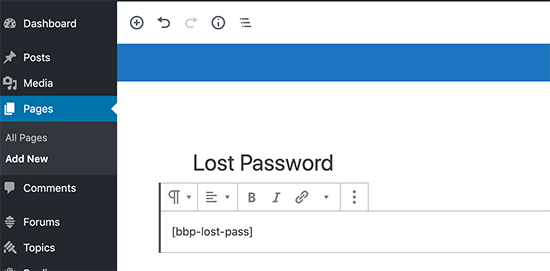
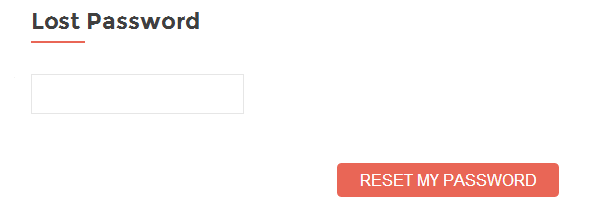
Create a new WordPress site and then give it an appropriate name, e.g. Lost Password. After that, you can add the shortcode [bbp-lost-pass] and then publish the page.
Back-end Look
Front-end Look
Then, you should include a registration form on your site so forum members can log in effortlessly from any location. bbPress includes a range of widgets, including a login widget.
Click on Appearance > Widgets, then drag and drop the Login Widget onto your sidebar or another widget area.
It will ask you for the URLs of the lost and registration pages that you have created previously. After you have entered them, you will click the Save button to save the settings of your widget.

Now, a login form that links to registration links and password recovery pages will be displayed in your sidebar. Logged-in users will be able to see their usernames as well as an option to log out instead of the registration form.

Managing bbPress Forum Settings
Unlike other popular forum software such as bbPress, it has a simple page to configure. To manage settings for your forum on bbPress visit the Forums > Settings page.

The default choices on this page will work on all forums. We’ll look over each one, just in case you’d like to alter something.
The first option you’ll find here is to ‘Automatically grant registered visitors the role of forum participant’. You can choose the user’s role or uncheck the option to assign roles manually to every user once they sign up.
The other option will add 10 seconds of delay between the next post on the forum to stop floods and spam. You can change the duration or length of the time delay here.
The Editing option permits members to make edits to their forum entries five minutes after publishing their posts. It is possible to disable this option, but it will hinder your forum users from correcting spelling mistakes or making edits to their posts in case they miss something.
Following that, you’ll come across forum features. Here, you’ll be able to switch forum features on and off.

Below, you’ll find forums display options. From there, you’ll be able to choose a bbPress theme and the number of posts and the topics that you want to show on the forum’s pages as well as within forums via the RSS feed.

You’ll also have the option to choose URL Slugs for various sections and forums. Slugs are SEO-friendly URL names utilized by WordPress.

These default URLs are relevant and SEO-friendly right in the default settings; however, should you want to alter the URL slugs, you can do that here.
Do not forget to click the button “Save changes” to save your forum settings.
Also Read: Best BuddyPress Paid Membership Plugins To Create Powerful Community on WordPress
User Roles in bbPress
WordPress has its system of managing user roles that lets you assign roles to users with different rights.
bbPress expands its WordPress user roles by introducing its own predefined five roles for users with various capabilities.
- Keymaster: The owner of the website, as well as the WordPress administrator, automatically gets the role of Keymaster once they install bbPress. Keymasters can remove and create forums, and can also create, edit, or delete any topic, post, or forum.
- Moderators: Users who have moderator roles are granted access to moderator tools that they can use to moderate topics, forums, and even posts.
- Participants: This is the standard user role. Participants can create and edit their posts and topics. They can also favourite and follow topics.
- Spectators: They are granted access only to read-only forum posts and topics.
- Blocked: If users are blocked, all their options are blocked. They are still able to read publicly accessible topics and articles however they are not able to be a part of the forums.
bbPress Shortcode List
- [bbp-forum-index]: This shortcode will similarly display all forums like the page index.
- [bbp-forum-form]: This shortcode displays the New Forum form on your website.
- [bbp-single-forum id=$forum_id]: This shortcode displays one forum and topics that have the ID of $forum_id.
- [bbp-topic-index]: This shortcode shows your most recent 15 topics, including pagination, if needed.
- [bbp-topic-form]: This shortcode will display a new Topic form that has an option to assign it to a specific forum.
- [bbp-single-topic id=$topic_id]: This shortcode shows the topic and responds with the ID $topic_id.
- [bbp-reply-form]: This shortcode displays the New Reply form on the website.
- [bbp-single-reply id=$reply_id]: This shortcode shows a single response with the ID “$reply_id”.
- [bbp-topic-tags]: This shortcode shows an array of all tags present on your site.
- [bbp-single-tag id=$tag_id]: This shortcode lists topics that belong to the tag the ID.
- [bbp-single-view]: This shortcode displays all the topics that are associated with one view.
- [bbp-search]: This shortcode shows the template for the search input form.
- [bbp-search-form]: This shortcode shows the search template for the form.
- [bbp-login]: This shortcode shows templates for login forms.
- [bbp-stats]: This shortcode shows the forum statistics of the forum.

Conclusion

In this article, integrating Forum functionality into your WordPress site is a quick and straightforward procedure. Should you wish to include features for your forum, you’ll be able to pick from a range of bbPress extensions that are available for purchase. Furthermore, you can easily alter its appearance with CSS if it doesn’t look amazing on your site right from the start.
Do you have questions about adding a bbPress forum to your WordPress website? Please post a comment below, and we’ll try to assist you.
Interesting Reads:
