
18 min read
WordPress 7.0: What I Noticed After Testing the New Update


I’ve been using WordPress for years, and I’ll admit every time a major version drops, I do the same thing. I clear my schedule, spin up a staging site, and spend the next few hours poking at everything. WordPress 7.0 “Armstrong” landed on May 20, 2026, and this time felt different from the moment I logged in.
Named after jazz legend Louis Armstrong, this is the first release that made me feel like WordPress is genuinely stepping into a new era. Not because of one big flashy feature, but because of how many things felt more complete, more considered, and more modern all at once. The admin looked different. The editor behaved differently. Even the small interactions had been quietly polished.
I tested it across a few sites before writing this, ranging from a simple blog to a more complex setup with custom patterns and a WooCommerce store. What I found was a release that rewards the people who actually use WordPress day to day, not just developers or power users.
In this post, I am going to walk you through every notable change I spotted, section by section, so you know exactly what to expect when you update.

The Refreshed Admin Experience
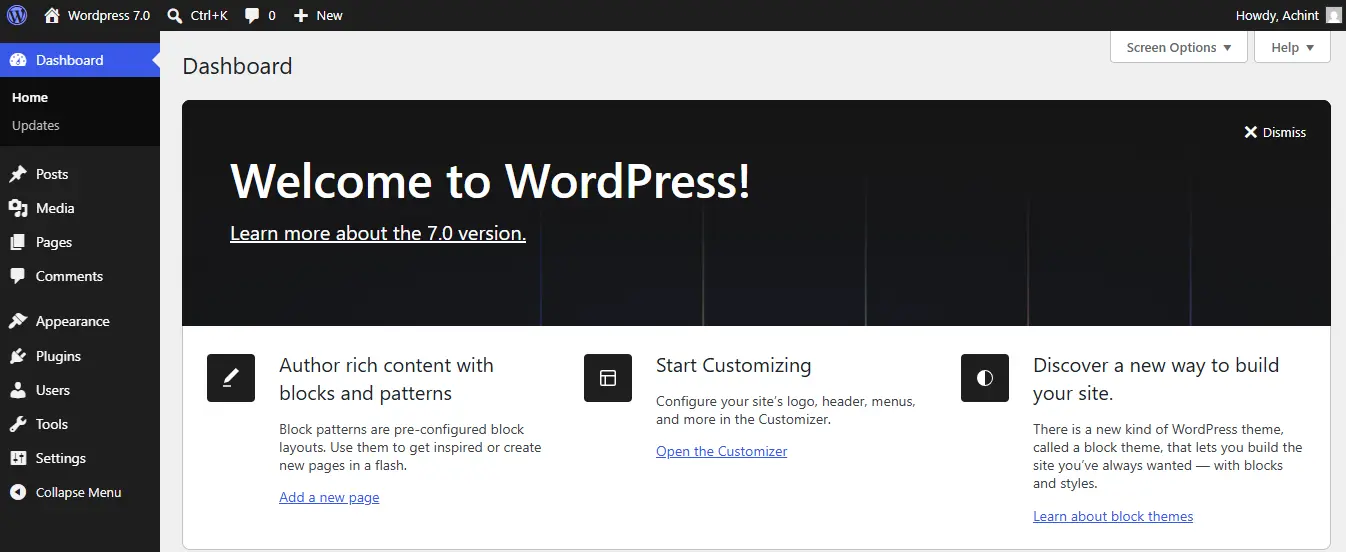
The moment I logged in after updating, I noticed something felt different. The admin was quieter. Cleaner. More modern.
It is not a complete redesign, but the changes are hard to miss. Fresh default color scheme, updated buttons and input fields, and pages that now fade between each other instead of that jarring jump I had gotten used to for years. That transition alone made the dashboard feel like a proper web app.
The feature I kept coming back to was the font library, which now works across all themes, not just block themes. Before this, if you were running a classic theme, you needed a plugin just to manage fonts. Now you can browse, install, and manage them directly from the editor, whatever theme you are using.
Make small changes individually. Together, they make the admin feel like it finally belongs in 2026.
Navigation Overlay: Finally Full Control Over My Mobile Menu
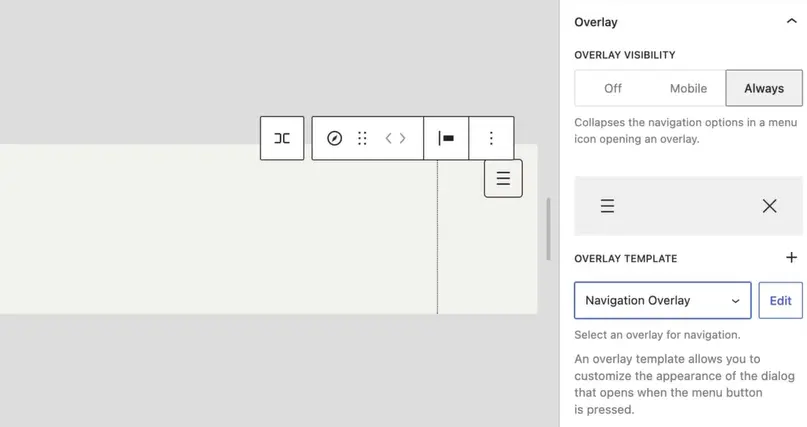
Mobile navigation has always been one of those things in WordPress where you either accepted whatever your theme gave you or installed a plugin and hoped for the best.
That changes in 7.0.
You can now build your navigation overlay directly inside the Site Editor using blocks and patterns. Your hamburger menu is no longer a black box. You can add columns, change backgrounds, drop in a logo, increase font sizes, and arrange everything exactly how you want it.
WordPress 7.0 even ships with built-in overlay patterns to get you started fast, including centered navigation, accent backgrounds, and black backgrounds. I picked one as a base and had a fully custom mobile menu ready in about ten minutes. Before this update, that would have taken me an hour and a plugin.
A few things I found particularly useful:
- Navigation Overlay Close Block lets you place and style your close button anywhere inside the overlay instead of being stuck with a default position.
- In-place sidebar preview shows you exactly how your overlay looks without jumping between screens.
- Theme developers can now register a dedicated navigation overlay template part area, giving users even more control directly from the Site Editor.
For anyone managing client sites, this feature alone is going to save a lot of back and forth on mobile menu revisions.
AI Foundations: Connectors Hub, WP AI Client, and Abilities API
I want to spend a little extra time here because “AI in WordPress core” is the kind of phrase that makes some people nervous. So let me explain what is actually here.
First, the most important thing to know: nothing is automatic, and nothing is forced. You opt in by connecting to a provider. If you do nothing, nothing changes on your site.
The Connectors Screen
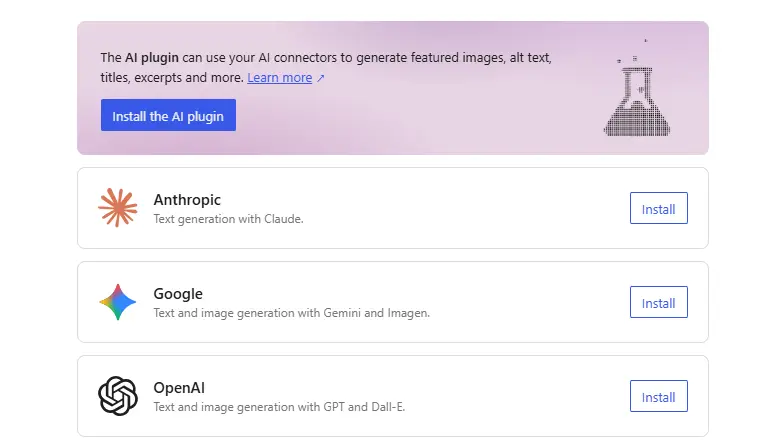
This is the new hub inside your admin where you manage all external service integrations, including AI providers. Before this, connecting any outside service meant digging through scattered plugin settings. Now everything lives in one standardized place. Any plugin that needs an external connection can plug into this same system.
The WP AI Client
Once you link your preferred AI provider through the Connectors screen, the WP AI Client puts it to work across your site. The optional AI plugin that builds on top of this adds tools directly into the editor, like generating titles and excerpts, editing and generating images, and suggesting alt text.
The Abilities API
This is the piece I find most interesting. It lets developers register what their plugins and themes are actually capable of, so AI tools know exactly what they can work with. Think of it as giving AI a map of your site’s functionality rather than having it guess blindly.
For the average blogger, nothing changes unless they want it to. For developers and agencies, this is a genuinely exciting new layer of tooling that simply did not exist before.
Visual Revisions: Scrubbing Through History
This is one of those features that sounds simple until you actually use it, and then you wonder how you ever lived without it.
WordPress 7.0 introduces a timeline slider for your revision history. Instead of clicking through revisions one by one and trying to spot what changed, you can now scrub through every version of your page or post visually, seeing exactly what changed block by block with visual markers.
Found the version you want? Restore it in one click.
I tested this on a landing page I had been iterating on heavily. I made a change I did not like, went back into revisions, scrubbed to the version before it, and restored it in about fifteen seconds. That same task used to involve squinting at two side-by-side text comparisons, trying to figure out what was different.
It is also genuinely useful for client work. When a client says, “Can we go back to how it looked last Tuesday?” you no longer have to guess. You scrub it, show them, and restore it right there in front of them.
A small but meaningful upgrade to a feature that has been in WordPress for years, but never felt this usable.
Patterns as Single Blocks
If you have ever dropped a pattern onto a page and then spent five minutes hunting through nested blocks just to change a single line of text, you will appreciate this update immediately.
In 7.0, patterns now behave like a single block by default. Drop one onto your page, and it presents clean, grouped fields showing just what you need to edit. Swap the text, swap the images, adjust styles from the inspector, and keep moving. No more archaeology through nested block structures.
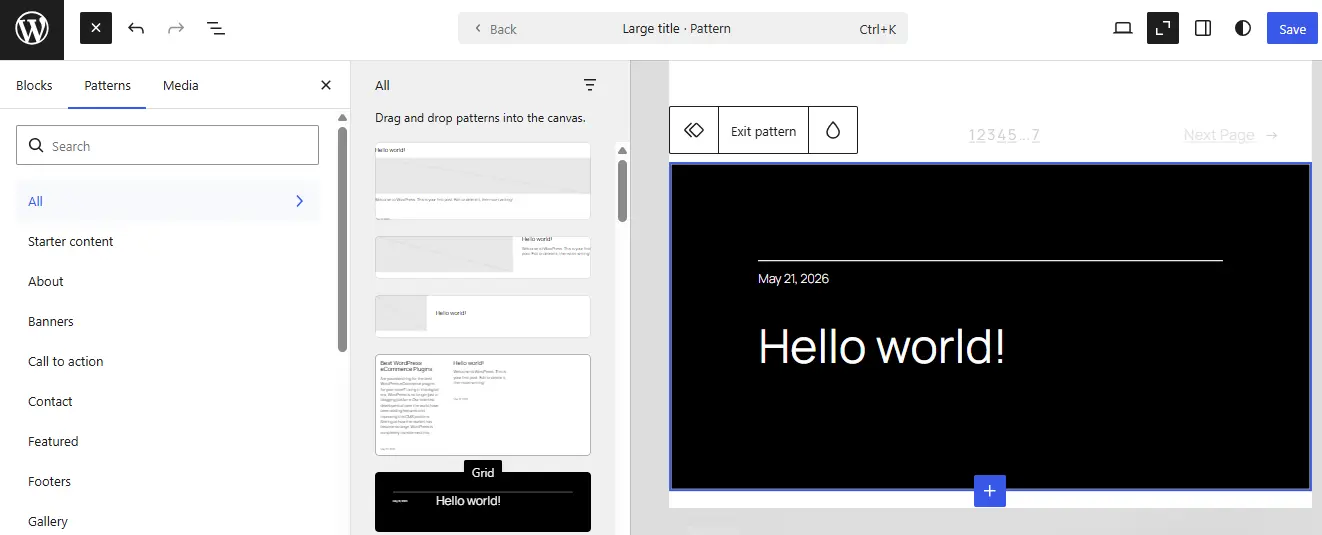
For advanced edits, a single click to “edit pattern” gives you access to all the tools as usual. You get simplicity by default and full control when you need it.
A few other pattern improvements worth knowing about:
- Spotlight Mode lets you focus on a single piece of content inside a pattern, highlighting it while everything else fades back. Useful when you are working on a complex layout and need to concentrate on one element.
- Isolated Editor lets you modify synced patterns and template parts without the rest of the page getting in the way.
- Pattern Overrides now work with custom dynamic blocks through the expanded Block Bindings API. This is big for developers building custom blocks that need to live inside reusable patterns.
Patterns have always been one of my favourite things about the modern WordPress editor. This update makes them significantly more pleasant to actually work with day to day.
Responsive Editing: Show and Hide Blocks by Screen Size
This is one of those features that makes you ask, “Why did it take this long?” and then immediately get to work using it.
In 7.0, you can now control which blocks appear on desktop, tablet, and mobile independently. Show a block on desktop and hide it on mobile. Show a different version of the same content on mobile only. Mix and match your layout needs. No custom CSS. No plugin. Just a toggle.
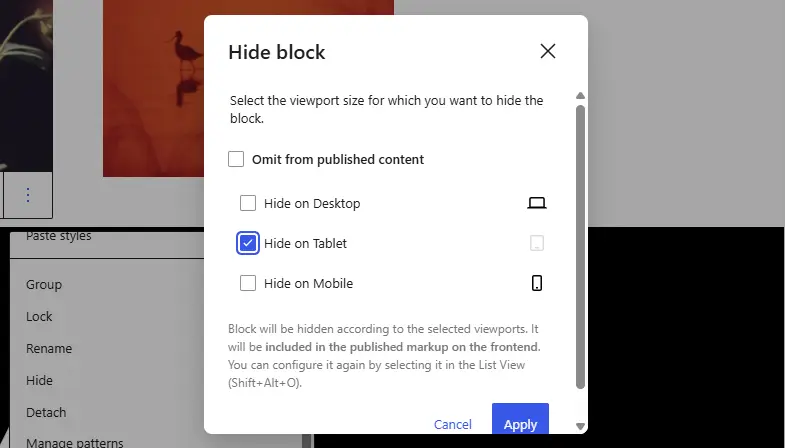
Before this, I was either writing CSS classes by hand or relying on a third-party plugin to handle responsive visibility. Neither felt like a clean solution. This does.
The Grid Block got a major upgrade, too.
It is now fully responsive out of the box. Set your maximum columns, and the layout adapts intelligently across screen sizes without you manually overriding breakpoints. For anyone building content-heavy pages with grid layouts, this is going to save a significant amount of time.
Breakpoint controls have also been expanded across the board, meaning you can apply different styling at different screen sizes from within the normal editing workflow. This used to be a developer-only layer. Now it is part of the everyday publishing experience.
If you manage sites for clients who are always asking why something looks different on their phone, this update gives you much cleaner tools to actually fix it properly.
New and Upgraded Blocks
WordPress 7.0 ships with several new blocks and meaningful upgrades to existing ones. Here is everything I found.
Brand New Blocks
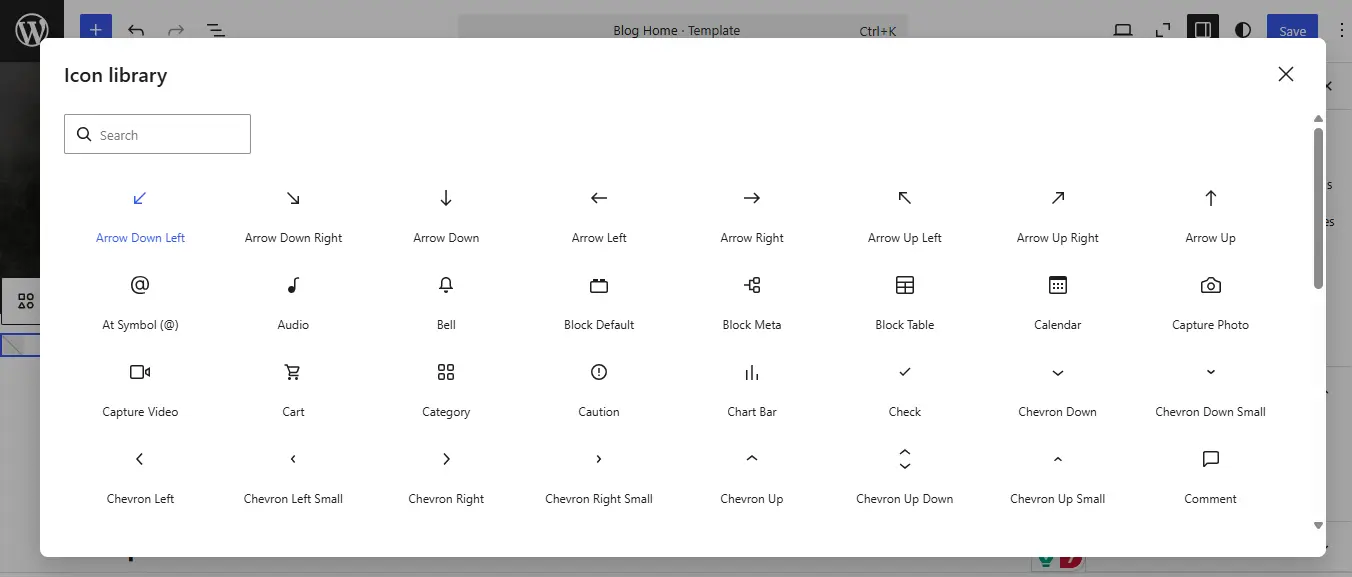
- Icons Block lets you add scalable, accessible icons anywhere on your page from a built-in library. No plugin, no custom HTML, just pick an icon and style it to match your design.
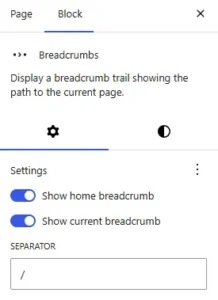
- Breadcrumbs Block adds structured navigation paths to posts and pages. It is schema-ready out of the box, which means it also helps with SEO without any extra setup.
Upgraded Blocks
- Cover Block now supports video embeds as background content. Dynamic hero sections and banner designs that previously required custom code or a page builder plugin can now be built natively.
- Gallery Block now has built-in lightbox support. Visitors can click through images in a clean, focused overlay without leaving the page. Another plugin I can finally uninstall.
- Navigation Block received a significant upgrade beyond just the overlay work covered in the earlier section. It now includes flexible submenus, customizable overlay behavior, and a mobile layout preview directly in the sidebar.
- Grid Block is now fully responsive, as covered in the previous section, but it is worth mentioning here too because it is genuinely one of the most useful block upgrades in this release.
- Navigation Link Block now supports dynamic URLs that adapt based on context, like automatically pointing to the current user’s profile page or a filtered archive, instead of being manually hardcoded.
- Heading Block now shows different heading levels H1 through H6 as block variations, so you can insert a Heading 3 directly from the block inserter with its default attributes already set.
A lot of these feel like features I have been requesting for years. Good to finally see them in core.
New Design Controls
Beyond the new blocks, 7.0 quietly added a solid set of design controls that give you more precision inside the editor without touching a single line of code.
Text Indentation
You can now indent text directly from the block toolbar. Small addition, but one I have wanted for a long time, especially when formatting long-form content or creating structured layouts.
Text Columns
Multi-column text layouts are now a native control. Before this, I was either using a Columns block and splitting content manually or writing custom CSS. Now it is just a setting.
Aspect Ratio Controls
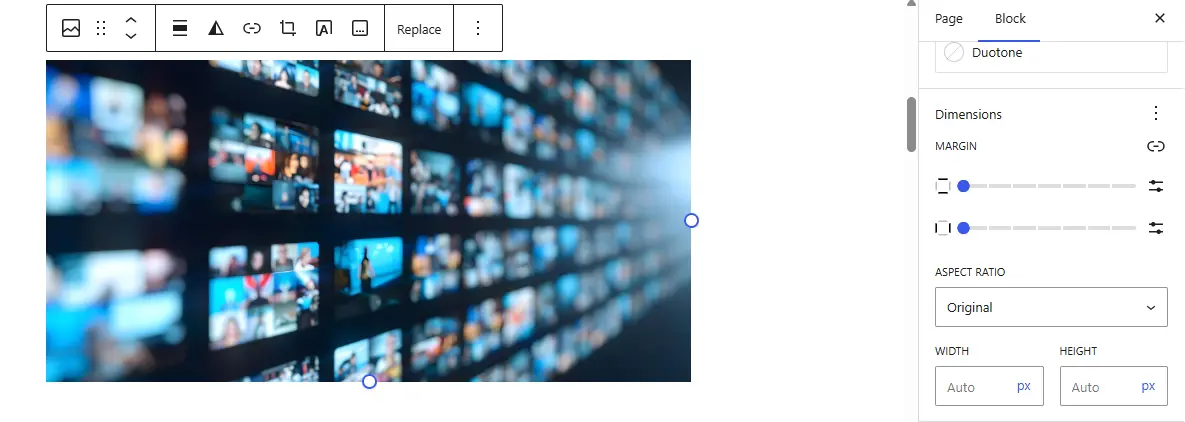 Wide and full-width images now have aspect ratio controls built in. You can lock an image to a specific ratio, and it stays consistent across screen sizes without any extra work.
Dimension Presets
Spacing and sizing now have preset options you can choose from instead of typing in pixel values every time. Great for maintaining consistency across a site, especially on larger builds.
Block Level Custom CSS
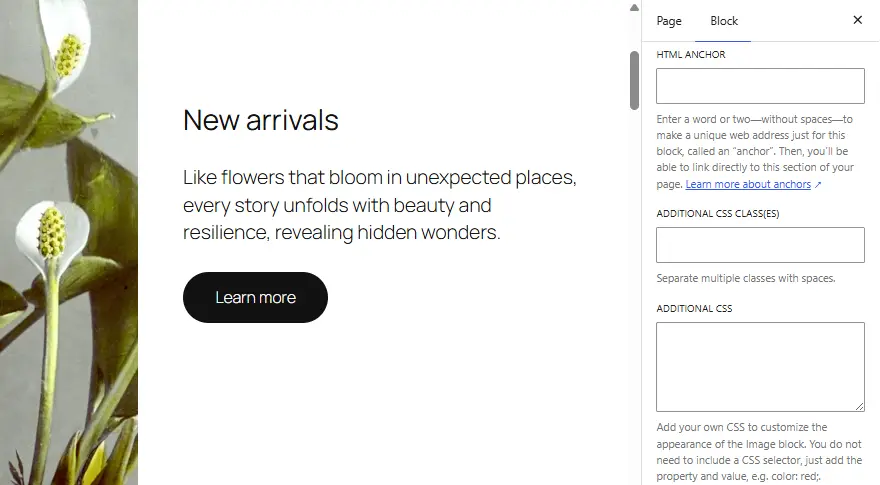
This one is big. Instead of applying custom CSS only at the theme or site level, you can now target individual blocks from inside the editor. I used this immediately on a project where I needed a one-off style tweak on a single block without touching the theme stylesheet.
Heading Block Variations
Different heading levels now show up as distinct block variations in the inserter. Instead of dropping in a generic Heading block and changing the level manually, you can insert an H2 or H3 directly with its default styles already applied.
Taken together, these additions significantly reduce the number of situations where I find myself reaching for custom code or a plugin just to handle a basic design need.
Performance and Accessibility
These are the improvements that do not show up in screenshots but matter enormously in practice. WordPress 7.0 made meaningful progress in both areas.
Performance
- Image loading prioritization has been made more accurate. Previously, hidden images inside navigation overlays or interactive blocks could interfere with the loading of critical above-the-fold resources. That has been fixed, meaning your most important content loads faster without being held back by offscreen images.
- On-demand block stylesheet loading in classic themes is now more reliable. Stylesheets only load when the blocks that need them are actually on the page, which keeps page weight down.
- Script modules can now declare dependencies on other script modules, which reduces render-blocking scripts. Less render blocking means faster perceived load times, which matters both for user experience and search rankings.
Accessibility
WordPress 7.0 continues the ongoing work to meet accessibility standards across core and the editor. The specific improvements in this release include better media management for assistive technologies, improved usability for voice control users, and better color contrast across the new admin color scheme.
The editor also received improvements to navigation and interaction for keyboard users, and the new blocks that shipped with 7.0 were built with accessibility in mind from the start.
These are not glamorous features to write about, but they are the kind of improvements that make WordPress better for everyone, including the visitors on your site.
What Didn’t Ship: Real Time Collaboration
I would be leaving something important out if I did not mention this. Real-time co-editing was the single most anticipated feature on the WordPress 7.0 roadmap. The idea was Google Docs-style simultaneous editing built directly into the block editor. Multiple people working on the same post or page at the same time, seeing each other’s changes live.
It did not make it into this release.
During the extended testing phase, the core team ran into significant architectural issues around database stability. Rather than ship something that could cause problems on production sites, they made the call to pull it entirely and get it right before releasing it.
I think that was the right decision.
Shipping unstable infrastructure in a major release affects millions of sites. The WordPress core team chose quality over hitting a deadline,e and I respect that. A half-working collaboration feature would have been worse than no collaboration feature at all.
The good news is that everything else in the 7.0 feature set was ready and stable. Real-time collaboration is expected to arrive in a future release, with 7.1 being the most likely target based on what the core team has indicated.
When it does land, it will be built on a much more solid foundation because of the extra time taken now. That is worth the wait.
Before You Update: My Checklist
I have made the mistake of updating a live site without preparation exactly once. Never again. Here is what I check every major WordPress update before.
1. Check Your PHP Version
WordPress 7.0 recommends PHP 8.3 or higher. If you are running PHP 7.2 or 7.3, your site will stay on the WordPress 6.9 security branch after updating,g and you will not get any of the new features at all. Log in to your hosting panel, check your PHP version, and upgrade it before you do anything else.
2. Back Up Everything
Full site backup before touching the update button. Database, files, everything. Even the most stable major releases can surface plugin or theme conflicts you did not see coming. A backup takes five minutes and has saved me hours of panic more than once.
3. Test on Staging First
If your site has custom theme work, a heavy plugin stack, WooCommerce, or any kind of custom code, please test the update on a staging environment before pushing it to production. The new AI Client, Abilities API, and responsive block controls are new interfaces,ces and some plugins will need time to catch up.
4. Give the Plugin Ecosystem a Week
The WordPress plugin ecosystem is huge, and not every developer ships compatibility updates on day one. For personal sites, I updated them immediately. For the client, sites, I am waiting about a week to let things settle before rolling it out.
5. Check Your Theme
Block themes will benefit most from 7.0, but classic themes should work fine too. The font library expansion and admin changes apply everywhere. Still worth a quick review on staging to make sure nothing looks off after the update.

Final Verdict
WordPress 7.0 “Armstrong” is not the release that delivers one single headline feature that everyone talks about for months. Real-time collaboration is still coming. But honestly, that does not matter as much as I thought it would once I spent real time with everything that did ship.
The admin feels modern for the first time in years. The navigation overlay finally gives designers proper control over mobile menus. Patterns are genuinely pleasant to work with now. Responsive editing is built in. The AI foundations are thoughtful, opt-in, and built for the long term. And a dozen smaller improvements across blocks, design controls, performance, and accessibility add up to a release that makes everyday WordPress work noticeably better.
Who should update right now?
Personal sites and blogs, go ahead. The release is stable, and the improvements are worth it immediately.
Who should wait a week or two?
Anyone running WooCommerce, heavy plugin stacks, or client sites with custom code. Give the ecosystem a little time to catch up and test on staging first.
The bigger picture
What excites me most about 7.0 is what it sets up. The AI infrastructure, the Abilities API, a nd the Connectors Hub are foundations. The features built on top of them over the next year are going to be interesting to watch.
WordPress has been around for over two decades, and it is still evolving in ways that genuinely surprise me. 7.0 is a good reminder of that.
If you have questions about the update process or want to share what you found after testing it yourself, drop a comment below.
Frequently Asked Questions
Is WordPress 7.0 safe to update to right now?
Yes, it is a stable release that went through an extended testing phase. That said, always test on a staging environment first if your site has custom code, WooCommerce, or a heavy plugin stack.
What PHP version do I need for WordPress 7.0?
PHP 8.3 or higher is recommended. If you are running anything below PHP 7.4, you will not receive the new features at all. Check your hosting panel and upgrade before hitting the update button.
Will my existing plugins still work after updating?
Most established plugins will work fine. However,r some may need compatibility updates for the new AI interfaces. I recommend giving the ecosystem about a week to settle before updating critical or client sites.
Do I need to use the AI features in WordPress 7.0?
Not at all. Everything AI-related is completely opt-in. Nothing gets connected or activated unless you set it up yourself through the Connectors screen. If you do nothing, nothing changes.
Do I need a block theme to benefit from 7.0?
No, but block theme users will get the most out of it. The font library expansion, admin improvements, and visual revisions work across all themes. Navigation overlays and responsive block controls work best with block themes.
What happened to real-time collaboration?
It was pulled from 7.0 during testing due to database stability issues. The core team chose quality over deadlines, which was the right call. It is expected to arrive in a future release, most likely 7.1.
Will WordPress 7.0 slow down my site?
No, actually the opposite. The release includes performance improvements around image loading, stylesheet loading, and reduced render-blocking scripts. Most sites should see a small improvement after updating.
Is the navigation overlay feature available for all themes?
It works best with block themes since it lives inside the Site Editor. If you are on a classic theme, your mobile menu is still controlled by your theme. Switching to a block theme is the best way to take full advantage of it.
Interesting Reads:
Organizing Community Content at Scale on WordPress
13 Best WordPress eCommerce Plugins in 2026 (Tested and Reviewed)
Related reading