

Online learning has evolved beyond just a trend; it’s a revolution in how knowledge is shared and skills are developed. Platforms like LearnPress and BuddyPress are leading the way, offering tools that go beyond course delivery. When combined through LearnPress BuddyPress Integration, they create dynamic social learning communities where students not only learn but also connect, collaborate, and grow together.
When combined through LearnPress-BuddyPress Integration, these plugins do more than just host courses; they create dynamic social learning communities. Students can discuss lessons, collaborate on projects, track their progress, and earn certificates, all within a single platform. This integration bridges the gap between eLearning and social interaction, fostering a sense of belonging and motivation that keeps learners engaged.

Whether you’re an instructor aiming to deliver structured courses or an admin looking to build a thriving online education hub, leveraging the power of LearnPress with BuddyPress can transform your WordPress site into a vibrant social learning ecosystem.
What is LearnPress?
LearnPress is a powerful WordPress plugin designed to help you create, manage, and sell online courses with ease. It provides a full-featured learning management system (LMS) directly on your WordPress website, allowing instructors to build courses, add lessons, quizzes, and assignments, and even manage student progress without needing any coding skills.
With LearnPress, you can offer free or paid courses, set up membership or subscription plans, and integrate payment gateways like PayPal or WooCommerce. Its flexibility is further enhanced through add-ons for certificates, co-instructors, content dripping, and more.
Whether you’re an educator, trainer, or business owner, LearnPress makes it simple to deliver a professional and engaging eLearning experience, while also supporting a social and interactive learning environment when combined with BuddyPress.
How LearnPress Integrates with BuddyPress
LearnPress integrates with BuddyPress to combine course management with social networking features. While LearnPress handles courses, lessons, and quizzes, BuddyPress adds community interaction through profiles, activity streams, messaging, and group discussions.
Students can track progress, share insights, ask questions, and collaborate in study groups, making learning more engaging. Gamification elements like badges and certificates further motivate learners, turning a standard eLearning site into an interactive social learning community.
System Requirements for LearnPress Integration
Before diving into the installation process, it’s crucial to ensure your website meets the system requirements. Proper configuration avoids headaches later on and ensures smooth course management.
Minimum requirements:
- WordPress version: latest recommended
- PHP version: 7.0 or higher
- MySQL version: 5.7 or higher
Recommended PHP configuration limits:
- upload_max_filesize = 32M
- post_max_size = 32M
- max_execution_time = 300
- max_input_time = 300
- memory_limit = 256M
Meeting these requirements ensures your site can handle course content, media uploads, quizzes, and more without glitches. Think of it as laying a solid foundation for a skyscraper—your courses and community engagement will thrive only if the basics are in place.
Setting Up Your Social Learning Platform
Setting up your social learning platform involves carefully combining course management with community features to create an engaging environment for learners. By integrating tools like BuddyPress and LearnPress, you can ensure students not only access courses but also connect, collaborate, and stay motivated throughout their learning journey.
1. Install BuddyPress Plugin

- Log in to your WordPress dashboard.
- Navigate to Plugins → Add New.
- In the search bar, type BuddyPress.
- Click Install Now next to the BuddyPress plugin.
- After installation, click Activate to enable the plugin.
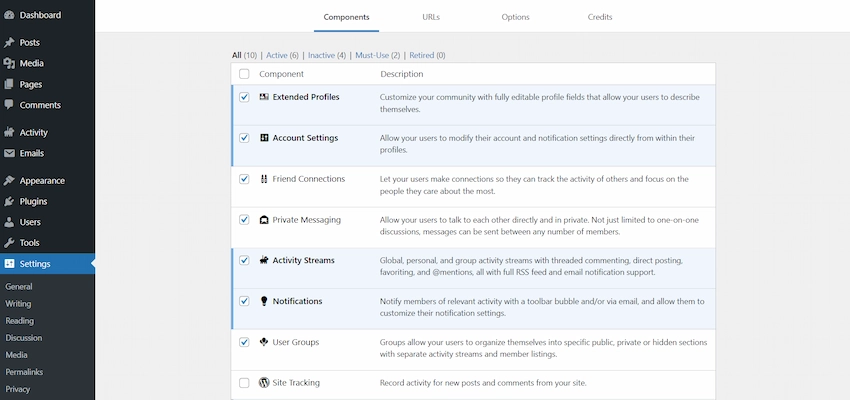
- Go to Settings → BuddyPress to configure components like member profiles, activity streams, groups, and private messaging.
2. Install BuddyX Pro Theme
After installing and activating the BuddyPress plugin to enable social networking features, the next step is to add your theme.
- Navigate to Appearance → Themes → Add New → Upload Theme.
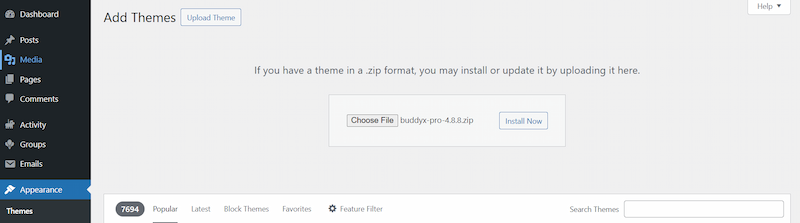
- Click Choose File and select the zip file from your computer. You can get the BuddyX Pro theme from the Official Site.
- Click Install Now to upload the theme.
- After the installation is complete, click Activate to apply the theme to your site.
- Install required plugins to ensure full functionality.
- After activating the BuddyX Pro theme and installing the required plugins, the next step is to import the demo content to quickly set up your social learning platform.
- Navigate to Appearance → Import Demo Data in your WordPress dashboard.
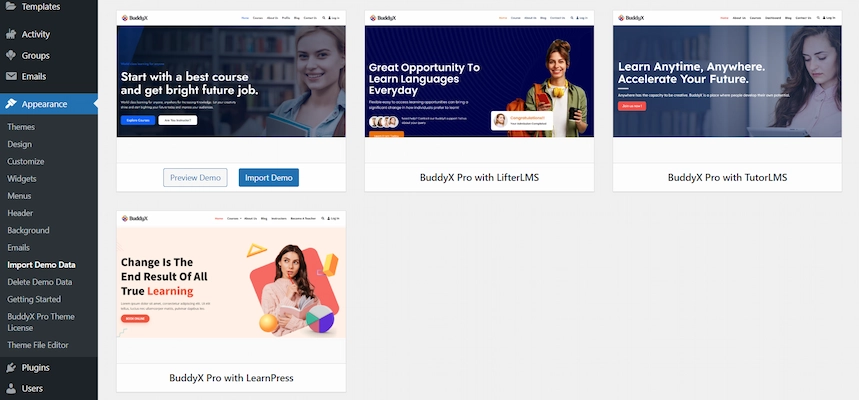
- Choose a demo that includes LearnPress course layouts and BuddyPress community features. Click Import to automatically set up pages, menus, widgets, and sample courses, groups, and profiles. This allows you to see exactly how your site will look and function, making it easier to customize content and start building your social learning community.
3. Install LearnPress
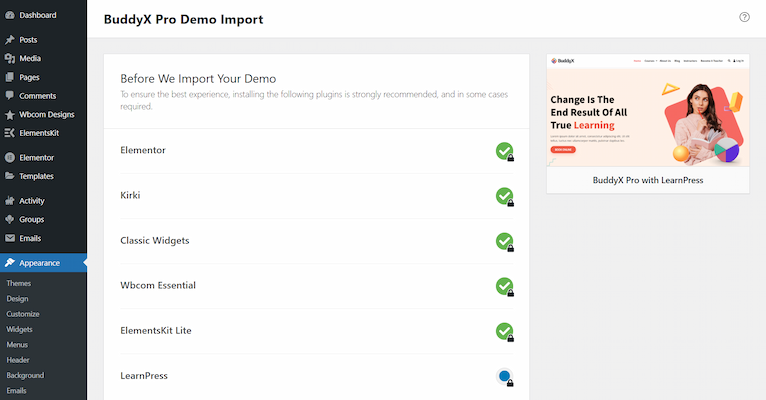
The LearnPress plugin is automatically installed during the demo import process, as it is one of the required plugins for the BuddyX Pro with LearnPress demo.
LearnPress Course Creation for Social Learning Community
Creating courses is at the heart of your social learning platform. Let’s break down the process:
Creating a Course
- Navigate to Dashboard → LearnPress → Courses → Add New.
- Fill out the Course Overview section.
- Fill out the Curriculum section.
- Fill out the Course Settings section.
Course Settings Explained
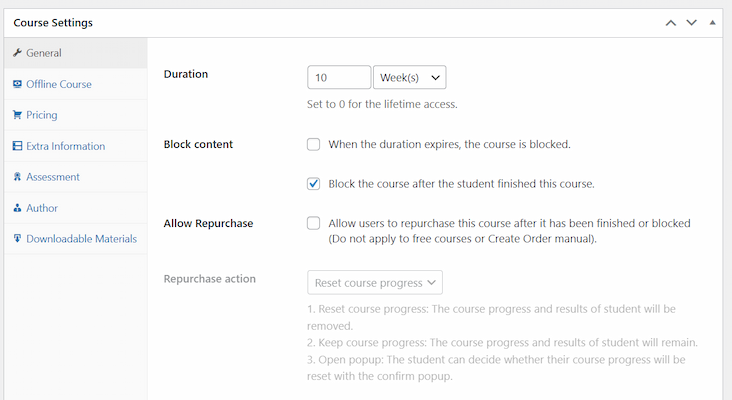
- General Settings: Configure course duration, repurchase options, content blocks, levels, fake students, and max student count.
- Offline Courses: Disable certain features if courses are offline.
- Pricing: Set regular and sale prices, enrollment options, and paid memberships.
- Extra Info & Assessment: Define passing grades, assessment types, and quiz options.
- Author Assignment: Assign a single instructor or multiple co-instructors with the add-on.
- Downloadable Materials: Upload files, select visibility, and define acceptable file types.
Course Overview and Curriculum
Set the course name, description, categories, and featured image. Preview courses before publishing to ensure everything looks perfect. Add lessons, quizzes, and other curriculum items to provide a complete learning experience.
Lessons in LearnPress
Creating Lessons
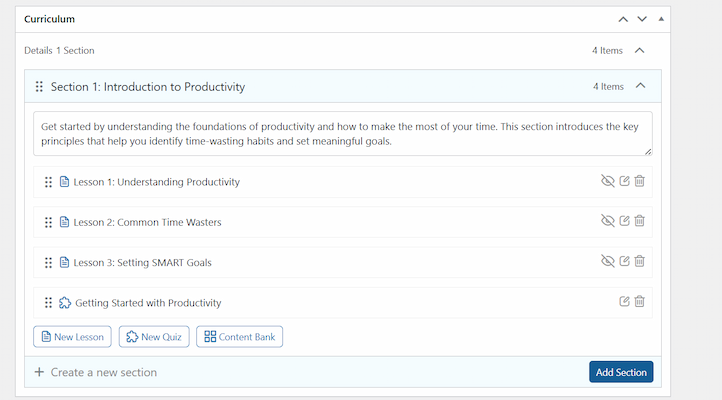
Lessons can be created standalone or during course creation. Each lesson includes:
Title & Content:
- Go to your WordPress dashboard and navigate to LearnPress → Lessons → Add New.
- Give your lesson a clear and descriptive title.
- In the content editor, add text, images, videos, and other multimedia elements to make the lesson engaging.
- Use headings, bullet points, and images to organize information clearly.
- Embed videos from platforms like YouTube or Vimeo to provide interactive content.
Lesson Settings:
- Scroll down to the Lesson Settings section after adding the content.
- Configure the duration of the lesson so students know how much time to allocate.
- Enable or disable preview options to allow non-enrolled users to see a portion of the lesson.
- Set up discussion settings to allow students to comment or ask questions directly on the lesson page.
- Attach files such as PDFs, slides, or other resources.
- Integrate media to enrich the learning experience.
Assignment:
Once your lesson is ready, link it to the appropriate course in the Assignment section. Select the course(s) to which this lesson belongs so it appears in the correct curriculum. This ensures that students enrolled in that course can access the lesson in the correct order and follow the structured learning path. Save or publish the lesson to make it available to students.
Quizzes in LearnPress
Creating a Quiz
- Go to Dashboard → LearnPress → Quizzes → Add New.
- Assign the quiz to a course.
- Configure quiz settings, including:
- Duration
- Passing grade
- Correct answer display
- Negative marking
- Retake options
Supported Quiz Types: True/False, Single Choice, Multiple Choice, Fill in the Blank. Quizzes provide valuable feedback and help build an interactive social learning environment.
Using Shortcodes in LearnPress
Shortcodes simplify course display and enhance community interactivity. Some useful shortcodes include:
- Become a Teacher Form: [learn_press_become_teacher_form]
- Purchase/Enroll Buttons: [learn_press_button_course]
- Checkout Page: [learn_press_checkout]
- Course Curriculum: [learn_press_course_curriculum]
- Login/Register Forms: [learn_press_login_form], [learn_press_register_form]
- Profile Page: [learn_press_profile]
- Featured/Recent/Popular Courses: [learn_press_featured_courses], [learn_press_recent_courses], [learn_press_popular_courses]
- Student List: [learn_press_students_list course_id=1234]
- Course Filters: [learn_press_filter_course]
Adding Functionality with LearnPress Add-ons
1. Payment Options
Integrate PayPal, WooCommerce, or other gateways for paid courses. Subscription-based access can be enabled using Paid Membership Pro. Multiple payment methods ensure smooth enrollment and allow for promotions, discounts, or seasonal offers.
2. Instructor & Co-Instructor Add-ons
Multiple instructors can collaborate on courses, offering diverse expertise to your community. Co-instructors can support each other in moderating discussions and responding to student queries, strengthening community interaction.
3. Certificates
Awarding certificates boosts engagement and encourages students to share achievements on social media. Certificates provide motivation and enhance your platform’s credibility.
4. Content Drip Add-on
Schedule lessons over time, keeping students engaged and motivated. Dripped content prevents information overload and encourages regular platform visits, boosting engagement and discussion.
5. Membership & Subscription Plans
Charge per course or monthly subscriptions, giving flexibility in pricing and access. Subscription plans encourage long-term learning and loyalty while offering exclusive content to members.
Admin Tools in LearnPress
1. Course Data Tools
LearnPress offers Course Data Tools that let admins install sample data and reset course, user, or item progress. This ensures courses stay organized, up-to-date, and ready for a smooth learning experience.
2. Assign/Unassign Courses
Admins can manually assign or remove students from courses. Proper use keeps student records accurate and learning paths clear.
3. Database Tools
Database Tools in LearnPress help maintain site performance by creating indexes and cleaning unused data. Regular database maintenance prevents technical issues and supports a seamless social learning experience.
Instructor Guide
Instructors are central to any social learning community. Step-by-step workflow:
- Create courses, lessons, and quizzes.
- Use page builders like Elementor or WP Bakery to design engaging course pages.
- Decide publishing workflow: Submit for admin review or direct publishing.
- Configure assessment, pricing, lessons, quizzes, and frontend editing options.
Student Guide
1. Free Courses
Enroll in free courses through course pages and access all lesson materials and quizzes.
2. Paid Courses
Payment via WooCommerce or Membership plugins. Follow the checkout process for smooth enrollment.
3. Student Profiles
View courses, orders, quiz results, and settings. Wishlist favorite courses. Profiles enhance social interaction and community engagement.
How LearnPress BuddyPress Integration Enhances Social Learning
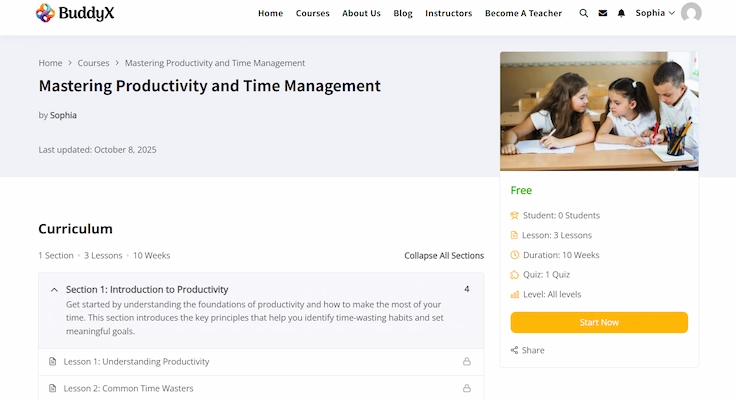
The real magic happens when LearnPress and BuddyPress work together, transforming a standard eLearning platform into a vibrant social learning community. Courses become fully integrated with community features, allowing students to discuss lessons, ask questions, and share insights in real time.
Gamification elements, such as points, badges, and certificates, further enhance motivation and encourage students to stay engaged throughout the course. Features like student lists and group discussions promote peer-to-peer learning, enabling learners to collaborate, provide feedback, and support each other.
Real-world examples show that platforms with this integration experience higher engagement, improved course completion rates, and stronger community bonds, making learning not only more effective but also more enjoyable.
Tips for Managing a Social Learning Community
Managing a thriving social learning community requires consistent effort. Encourage participation in discussions and forums, regularly update courses and lessons, use analytics to track engagement and progress, and promote top courses and instructors to increase visibility.
Additionally, recognize and reward active members to motivate participation and foster a positive learning environment. Host live Q&A sessions or webinars to deepen engagement and create opportunities for real-time interaction among students and instructors.

Common Challenges and Solutions
Even the best platforms face challenges:
- Course progress resets: Backup data before reassigning courses.
- Multiple instructors’ management: Use co-instructor add-ons to prevent conflicts.
- Quiz or lesson display issues: Clear caches and check plugin conflicts.
- Payment gateway issues: Test gateways and ensure SSL configuration.
Proper troubleshooting keeps the user experience smooth.
Building Collaborative Learning Spaces Online
The LearnPress BuddyPress Integration is a powerful combination that transforms a WordPress site into a vibrant social learning community. It doesn’t just provide courses; it fosters engagement, collaboration, and interaction. By leveraging LearnPress for course management and BuddyPress for community features, admins and instructors can create a truly immersive learning experience.
Start building your own social learning platform today, and watch your community thrive as students learn, interact, and grow together.
Interesting Reads
How to Create a Portfolio for Each Member in BuddyPress
Asset CleanUp Review 2025: Is It the Best WordPress Performance Plugin?
