

More than 76% of internet users participate in online communities, from learning platforms and hobby groups to professional networks. These spaces don’t just connect people, they boost engagement, foster collaboration, and drive business growth. Brands with strong communities also see higher customer loyalty and retention. If you’re planning to build a community on WordPress, exploring a BuddyPress Demo is the perfect place to start.
With WordPress and BuddyPress, you can transform a standard website into an interactive hub where members create profiles, join groups, post updates in activity streams, and exchange private messages. WordPress powers over 43% of all websites worldwide, and BuddyPress extends its functionality with social networking features—all without needing custom code.
In this guide, we’ll walk you through a complete BuddyPress Demo, step by step, so you can see how easily a simple WordPress site can evolve into a vibrant, thriving online community.

What is BuddyPress?
BuddyPress is a free, open-source plugin for WordPress that transforms a regular website into a fully functional online community. Think of it as a social networking layer that adds interactive features such as user profiles, activity streams, private messaging, groups, and friend connections — all directly inside WordPress.
At its core, BuddyPress works by extending WordPress’s native user management system. Instead of having static pages and blog posts alone, you can create a space where members interact, share updates, and build relationships. This makes it a popular choice for membership sites, learning platforms, professional networks, and hobby communities.
One of the biggest advantages of BuddyPress is flexibility. Since it’s modular, you can activate only the components you need, whether it’s groups, notifications, or messaging. Plus, it integrates seamlessly with thousands of themes and plugins, giving you endless options to customize your community site.
In short, BuddyPress turns WordPress into more than just a publishing platform — it transforms it into a dynamic hub where people connect and engage.
Key Features of BuddyPress
If you want to build a community on WordPress, BuddyPress provides all the essential tools to turn a standard website into a dynamic social network. This WordPress community plugin is modular, meaning you can enable only the components that match your site’s purpose — whether it’s a membership community, eLearning platform, or social networking hub. Below are the most important BuddyPress features:
1. Member Profiles
BuddyPress allows every member to create a personalized profile. You can add custom fields, profile pictures, and bios to make each profile unique. This gives your community a human touch and makes interactions more meaningful.
2. Activity Streams
Just like Facebook or LinkedIn, BuddyPress provides real-time activity streams. Members can post updates, comment, and engage with others. This feature keeps your WordPress social network active and engaging.
3. Private Messaging
The private messaging system enables one-on-one or group conversations. This helps build stronger connections inside your online community while encouraging collaboration.
4. Groups and Forums
Groups let members connect based on shared interests. They can be public, private, or hidden, giving you flexibility. When combined with bbPress forums, groups turn into powerful discussion spaces for your WordPress community site.
5. Friend Connections
BuddyPress allows members to connect, follow updates, and build networks. This feature is vital if you’re aiming to build a community on WordPress that mimics popular social networking platforms.
6. Notifications & Alerts
With instant notifications, users stay informed about new messages, friend requests, and group activities. This keeps members engaged and returning to your site.
7. Extensibility & Integrations
BuddyPress seamlessly integrates with plugins for gamification, WooCommerce, events, and WordPress LMS solutions like LearnDash or LifterLMS. This makes it perfect for creating eLearning networks or membership-based communities.
How Does BuddyPress Work?
BuddyPress works by adding a social networking layer on top of WordPress. Once you install and activate this community plugin, it transforms your regular website into a feature-rich online community platform. Instead of just publishing blog posts or static pages, your site becomes a place where members can interact, collaborate, and connect.
At its core, BuddyPress uses modular components that you can enable or disable based on your needs. For example, you can turn on user profiles, private messaging, groups, or activity streams. This flexibility makes it easy to build a community on WordPress that matches your exact vision — whether it’s a membership site, an eLearning platform, or a niche social network.
Here’s how the workflow looks in action:
- User Registration & Profiles – Members sign up and create detailed profiles.
- Community Interactions – Users post updates, comment, and engage in activity streams.
- Group Collaboration – Members join public or private groups for focused discussions.
- Messaging & Notifications – Real-time alerts keep everyone connected and engaged.
Additionally, BuddyPress integrates seamlessly with themes and plugins. Pairing it with solutions like WooCommerce, LearnDash, or gamification tools extends its functionality even further. This means you can create anything from a WordPress social network to a membership-based community site without custom coding.
Why Choose BuddyPress for Your Community Site?
When you want to build a community on WordPress, choosing the right platform is essential. BuddyPress stands out as one of the most trusted and versatile solutions for creating an online community. Here’s why it remains the go-to WordPress community plugin:
1. Open-Source and Free
BuddyPress is completely free to use and open-source, which means you can start building your WordPress social network without upfront costs. You also benefit from ongoing contributions by a large developer community that keeps the plugin updated and secure.
2. Flexibility and Scalability
Whether you’re building a small niche forum or a large-scale membership site, BuddyPress grows with you. Its modular design allows you to enable only the features you need—such as activity streams, groups, or private messaging—making it easy to scale as your community expands.
3. Integrations with Popular Plugins
One of BuddyPress’s biggest strengths is its compatibility with popular WordPress plugins. You can integrate it with:
- LMS plugins like LearnDash and LifterLMS to create social learning platforms.
- Membership plugins like Paid Memberships Pro to monetize access.
- WooCommerce for social eCommerce communities.
- bbPress for forums and discussion boards.
This flexibility ensures you can tailor BuddyPress to different use cases, from eLearning networks to membership communities.
4. Huge Theme and Plugin Support
BuddyPress works seamlessly with thousands of WordPress themes and add-ons. Themes like BuddyX Pro and Reign come with ready-made demos and deep BuddyPress integration, allowing you to launch a professional-looking community site quickly. Plus, with countless BuddyPress extensions, you can enhance your site with gamification, events, media sharing, and more.
How to Use BuddyPress with WordPress (Step-by-Step Setup)
Setting up BuddyPress is simple, but each step lays the foundation for your online community. Here’s how you can quickly build a community on WordPress using BuddyPress:
Step 1: Install and Activate BuddyPress
First, you need to add BuddyPress to your WordPress site.
- Go to your WordPress dashboard → Plugins > Add New.
- Search for BuddyPress.

- Click Install Now and then Activate.

Once active, BuddyPress automatically brings in community features like profiles, activity feeds, and groups.
Step 2: Configure BuddyPress Settings
After activation, it’s time to adjust some settings. Go to Settings > BuddyPress where you can:
- Manage registration and account options.
- Set privacy and profile preferences.
- Control how users interact on your site.
These initial settings ensure your community experience matches your goals.
Step 3: Enable BuddyPress Components
BuddyPress is modular, which means you only enable what you need. Under the Components tab, you’ll find options such as:
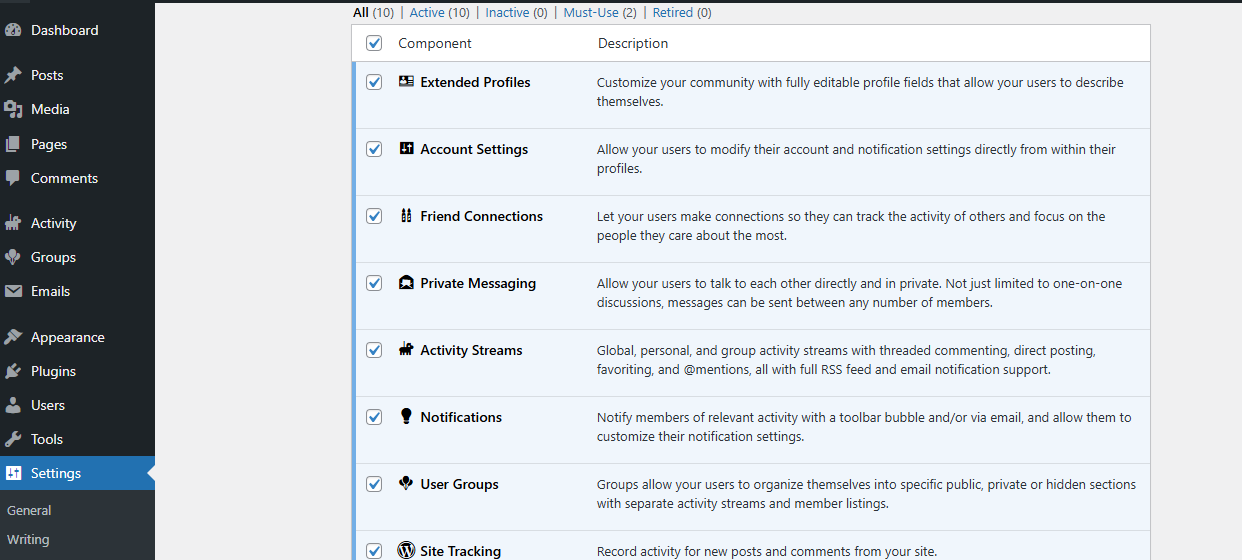
- Extended Profiles – Customizable member profiles.
- Activity Streams – A newsfeed-style space for updates.
- Friend Connections – Add friends and build networks.
- Private Messaging – Allow direct, private communication.
- Groups – Create public or private spaces for focused discussions.
Activating the right components helps shape the kind of WordPress social network you want to build.
Step 4: Set Up BuddyPress Pages
Finally, BuddyPress needs a few key pages to function. By default, it creates them automatically, but you should double-check:
- Members Page – Displays all registered members.
- Activity Page – Shows updates from the community.
- Groups Page – Lists all available groups.
- Registration/Login Pages – Allows new members to join.
Go to Settings > BuddyPress > Pages and assign each page correctly so users can navigate your community with ease.
Why You Need a Powerful BuddyPress Theme
While BuddyPress provides the community features, the design, user experience, and performance of your site largely depend on the theme you choose. A powerful BuddyPress-compatible theme ensures that your community is not only functional but also visually engaging and easy to use. If you want to build a community on WordPress that stands out, themes like BuddyX Pro and Reign are excellent choices.
BuddyX Pro: Packed with Ready-to-Use Demos
BuddyX Pro is a lightweight yet powerful WordPress theme designed specifically for BuddyPress and BuddyBoss. One of its biggest advantages is the collection of seven ready-made demos that cover different use cases — from membership communities and eLearning platforms to social networking sites. With just a few clicks, you can import a demo and instantly launch a professional-looking community.
Beyond demos, BuddyX Pro offers:
- Deep integration with LMS plugins like LearnDash and LifterLMS.
- Seamless compatibility with membership solutions such as Paid Memberships Pro.
- Built-in support for WooCommerce, making social eCommerce possible.
- Advanced customization options to match your brand identity.
Reign Theme: Flexible and Multi-Purpose
Reign is another premium BuddyPress theme known for its versatility. Whether you’re building a social community, membership site, or online learning platform, Reign adapts easily. It comes with a variety of layout options, Elementor support, and integrations for popular plugins.
With BuddyX Pro’s ready-to-use demos and Reign’s flexibility, you have everything you need to transform BuddyPress into a feature-rich community site tailored to your audience.
Set Up a Community Site Using BuddyPress and BuddyX Pro Demo Import
BuddyX Pro is more than just a theme — it’s a complete solution for building modern community websites. Its built-in demo importer allows you to launch a fully functional BuddyPress demo site in just a few clicks. Here’s how to set it up and explore its features:
Step 1: Install and Activate BuddyX Pro
- Purchase and download BuddyX Pro from Wbcom Designs.
- In your WordPress dashboard, go to Appearance > Themes > Add New.
- Upload the BuddyX Pro ZIP file → Click Install Now → Activate.

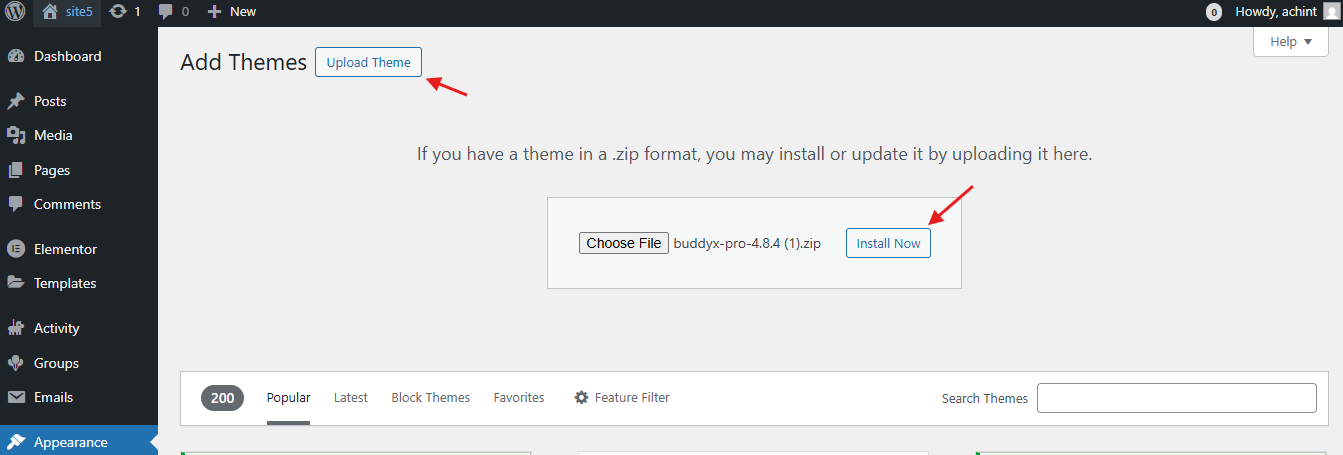
Once active, your site will be ready to integrate seamlessly with BuddyPress.
Step 2: Install Required Plugins
After activating the theme, head over to the Appearance section in your dashboard. You’ll see an option called Install Plugins.
- Select all the recommended plugins (these ensure BuddyX Pro works with BuddyPress features).

- Click Install, and once finished, activate them.
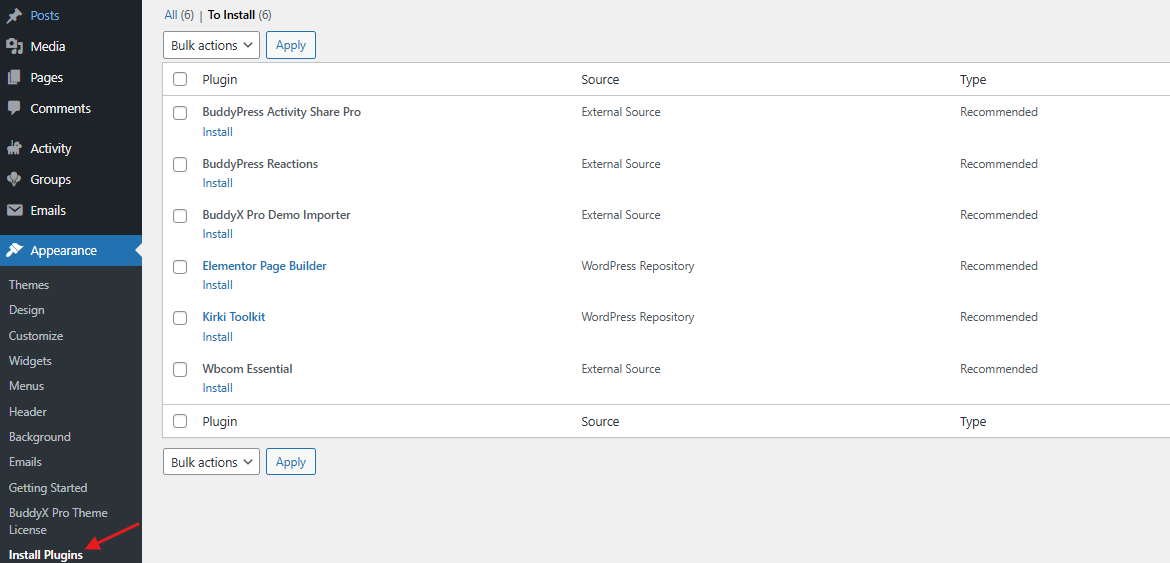
This step makes sure your theme and BuddyPress are fully equipped with the right tools before importing demo content.
Step 3: Access the Demo Importer
- Go to Appearance > Import Demo Data in your WordPress dashboard.

- Select your preferred demo and click Preview Demo (optional).
- Click Import Demo to install pages, sample members, groups, and activity streams.

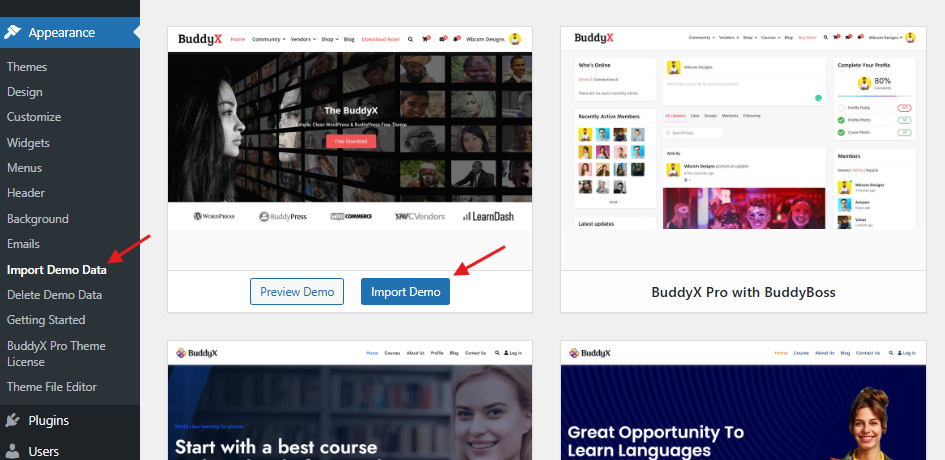
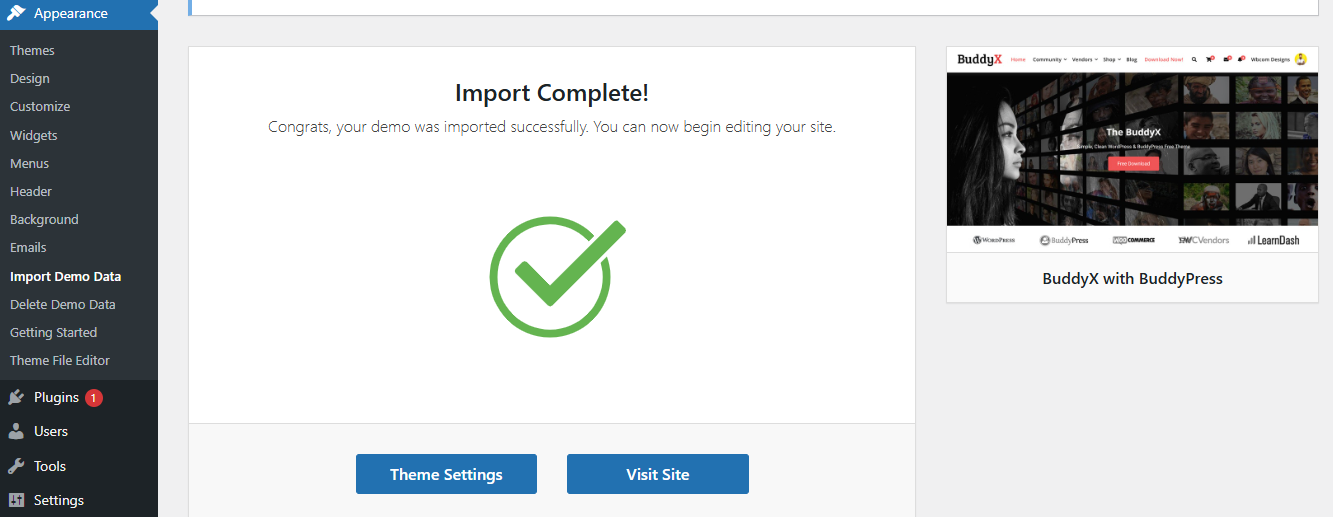
This feature saves hours of manual work and gives you a complete pre-designed community site instantly.
Step 4: Explore Pre-Built Community Pages
After importing the demo, you’ll see BuddyX Pro comes with ready-made pages, including:
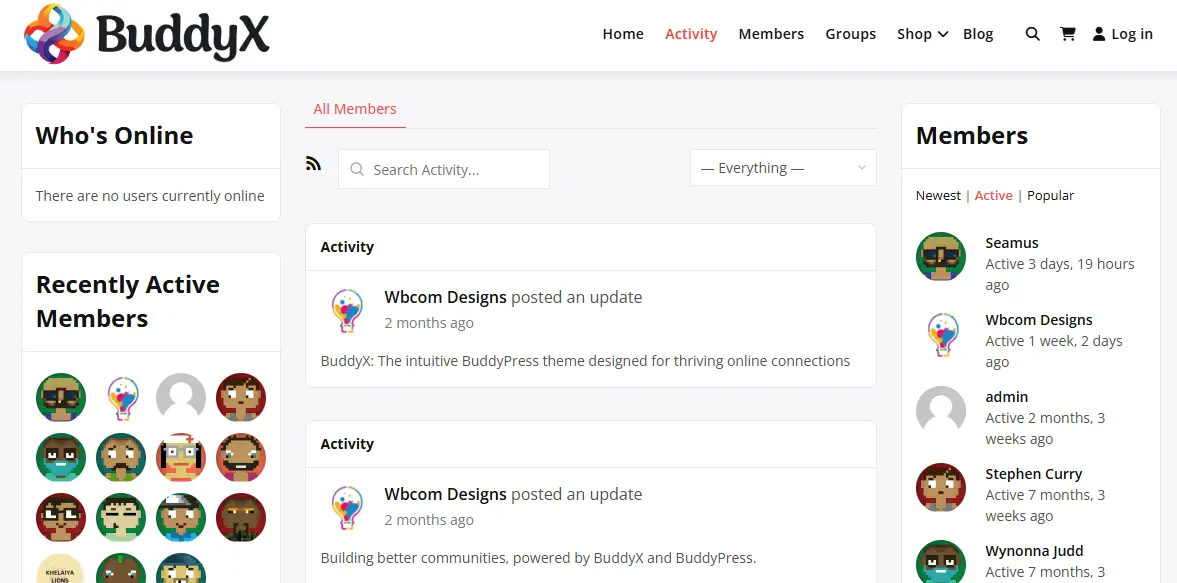
- Members Page – Showcases all registered members with profile fields.
- Activity Page – Functions like a social feed with posts, likes, and comments.
- Groups Page – Lists all available groups (public and private).
- Register/Login Pages – Smooth onboarding process for new users.
These pages are already styled, so you don’t have to design them from scratch.
Step 5: Check Out Demo Content (Members, Groups, Activity)
The BuddyX Pro demo doesn’t leave you with blank pages — it fills your site with sample community data:
- Demo members with profile images.
- Groups preloaded with discussions.

- Activity feeds with sample updates.

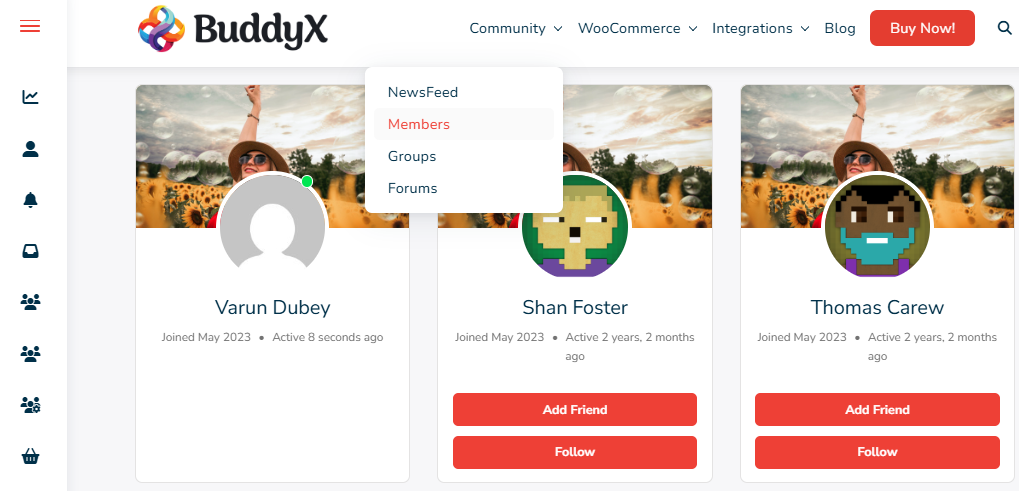
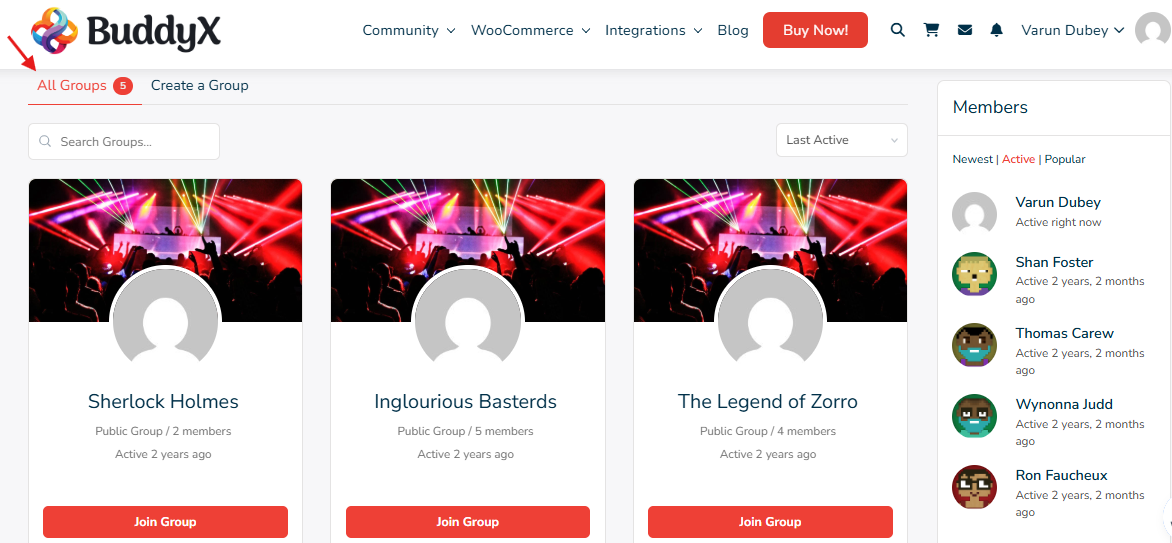

This makes your demo site feel alive, just like a real WordPress social network.
Step 6: Experience BuddyX Pro’s Customization Options
BuddyX Pro gives you full control over your design and layout:
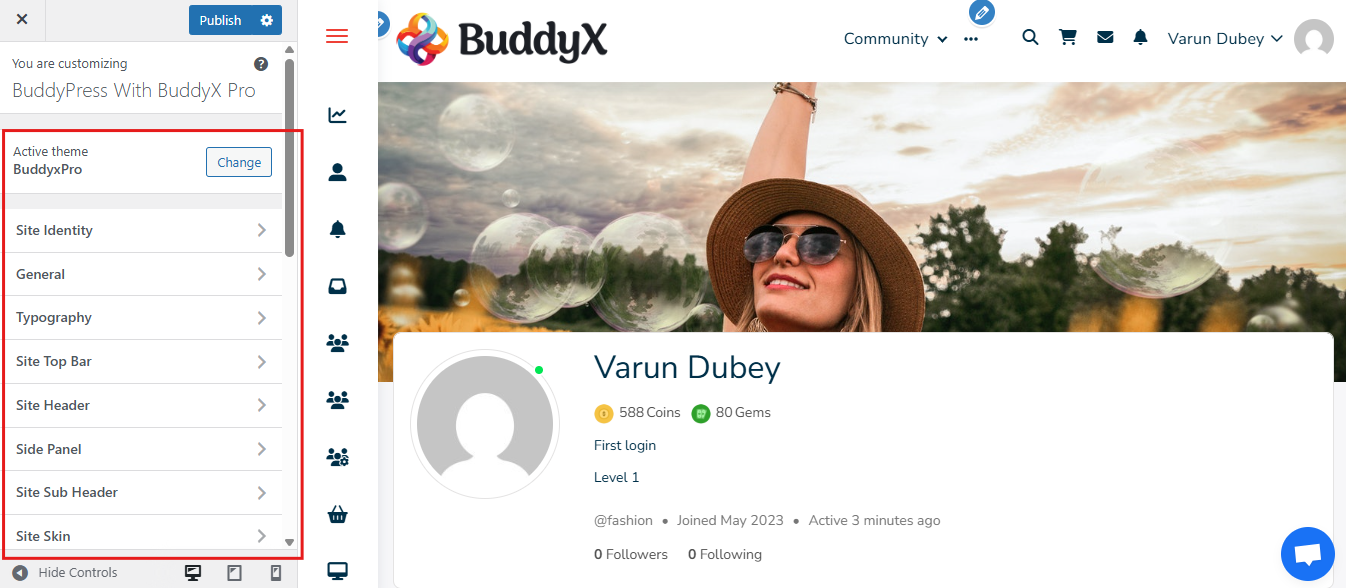
- Elementor & Gutenberg support – Edit with drag-and-drop builders.
- Color & typography options – Match your brand identity.
- Multiple layouts – Choose grid, list, or modern community layouts.
- Mobile-first design – Ensure your community looks great on all devices.
Step 7: Explore Advanced Integrations in the Demo
BuddyX Pro also showcases integrations that make your BuddyPress community more powerful:
- LMS Integration – LearnDash or LifterLMS for social eLearning.
- Membership Plugins – Paid Memberships Pro for gated access.
- WooCommerce – Build a social eCommerce community.
- Gamification – Use GamiPress to add badges, points, and rewards.
Step 8: Preview the Complete Community Experience
Finally, explore your site as if you were a member:
- Create a new account and set up a profile.
- Post updates in the activity stream.
- Join groups, send messages, and test notifications.
This hands-on preview lets you experience how BuddyPress and BuddyX Pro work together to build a community on WordPress that’s both engaging and professional.
Tips for Running a Successful BuddyPress Community
Setting up BuddyPress with a theme like BuddyX Pro is just the beginning. To truly build a community on WordPress that thrives, you need to focus on long-term engagement and management. Here are some proven tips:
- Focus on User Experience: Make your community easy to navigate. Use a BuddyPress-friendly theme, keep menus simple, and ensure pages like Activity, Members, and Groups are easy to access.
- Encourage Member Engagement: Communities grow when members interact. Start discussions, post updates, and encourage users to join groups. Use polls, Q&A threads, or events to spark conversations.
- Use Gamification to Motivate Participation: Integrate plugins like GamiPress to reward members with points, badges, and ranks. This keeps users active and gives them a reason to return.
- Moderate Content and Members: Set clear community guidelines and use moderation tools to prevent spam, fake accounts, or toxic behavior. A safe space encourages real engagement.
- Integrate with Membership or LMS Plugins: For added value, combine BuddyPress with membership plugins or LMS plugins. This allows you to build membership communities or social learning platforms.
- Keep Your Site Fast and Mobile-Friendly: Performance matters. Use caching plugins, optimize images, and choose a theme like BuddyX Pro that’s built for speed and mobile responsiveness.
- Listen to Your Community: Pay attention to feedback. If members want more features—like events, media sharing, or private groups—consider adding plugins that meet their needs.
Also Read: Why Your E-learning Website Needs An Online Community?
Create a Social Learning Platform with BuddyPress and BuddyX Pro + LearnDash Demo
If you’re looking to build a community on WordPress that combines online courses with social networking, BuddyX Pro with LearnDash is a perfect choice. LearnDash provides advanced course creation tools, while BuddyPress adds the community layer that makes learning interactive, engaging, and collaborative. With the BuddyX Pro LearnDash demo, you can see how this integration works in action.
Step 1: Install and Activate LearnDash
- Purchase LearnDash from its official website.
- Go to Plugins > Add New > Upload Plugin in your WordPress dashboard.

- Upload the plugin file, install it, and click Activate.
Once activated, LearnDash adds course-building features like:
- Course and lesson creation
- Quizzes and assignments
- Certificates and progress tracking
- Student management tools
This transforms your site into a WordPress LMS.
Step 2: Install BuddyX Pro and Import the LearnDash Demo
- Make sure BuddyX Pro is installed and active.
- Go to Appearance > Demo Installation.
- Select the BuddyX Pro + LearnDash demo and click Import Demo.


This will automatically set up:
- A homepage designed for eLearning communities
- Course pages styled to match BuddyX Pro’s clean layout
- Social pages like Members, Activity, and Groups
Step 4: Explore Courses and Community Features
Now that the demo is live, test the learning and social features:
- Courses – Students can view lessons, take quizzes, and track progress.

- Groups – Learners can join course-specific groups to discuss topics.

- Activity Streams – A social feed for updates, questions, and collaboration.
- Messaging & Friendships – Direct communication between students and instructors.

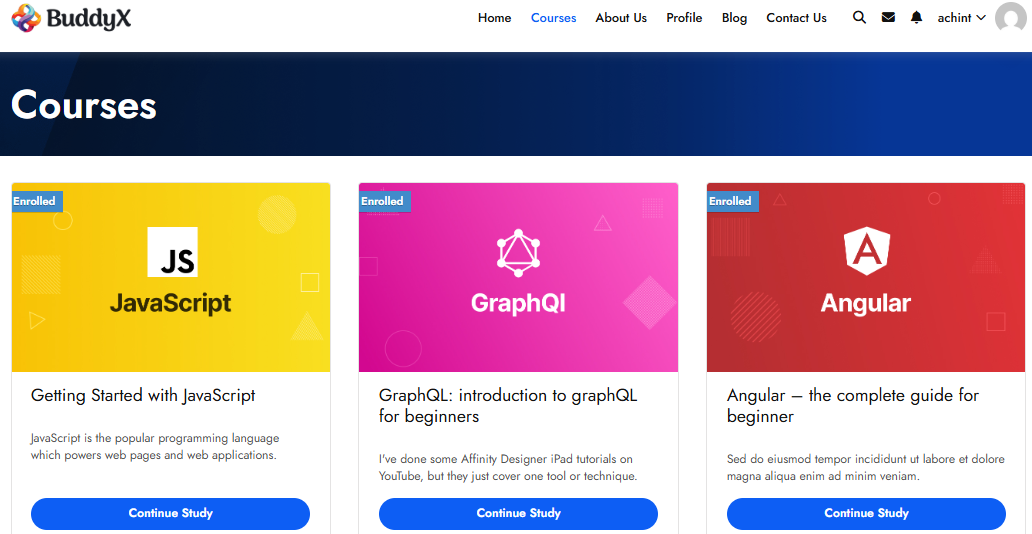
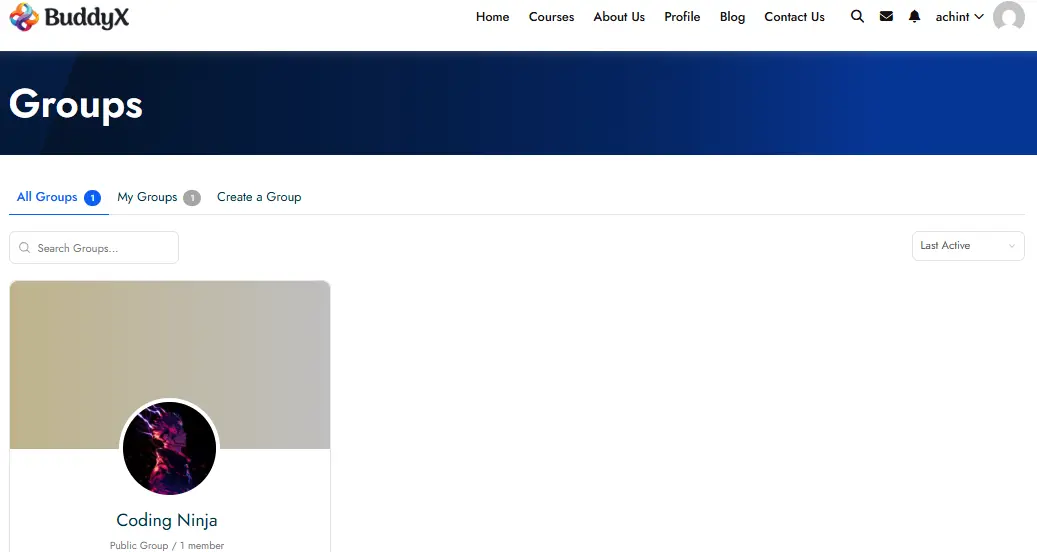

This combination turns your LMS into a social learning community rather than just a course site.
Step 5: Customize and Extend the Platform
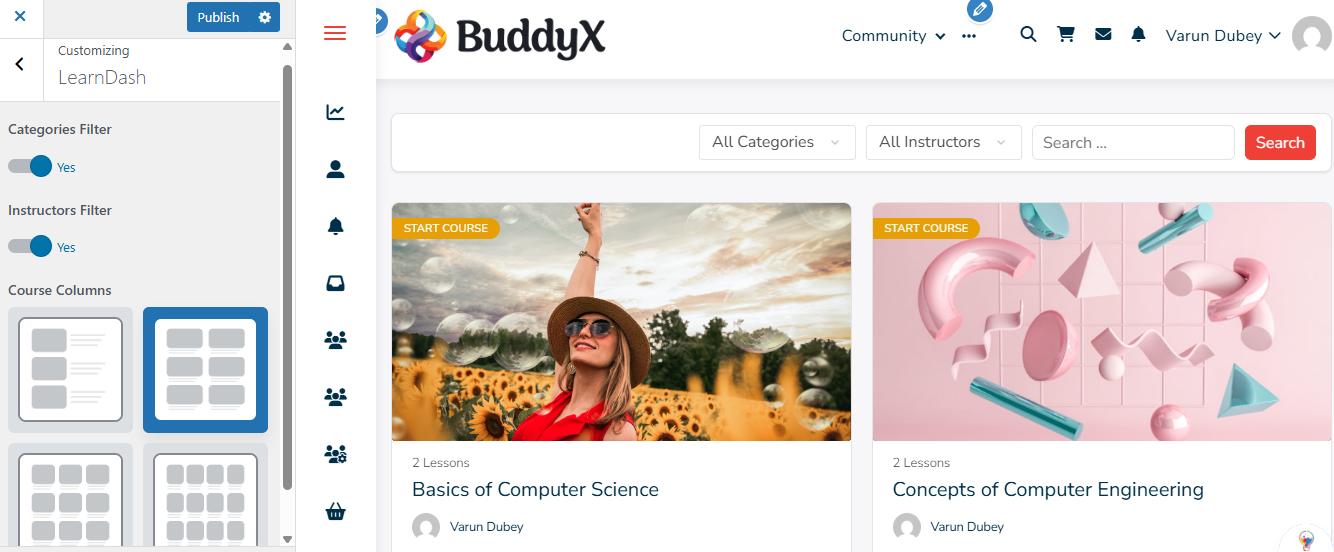
BuddyX Pro makes customization simple with Elementor and Gutenberg. You can:
- Adjust layouts, fonts, and colors.
- Choose between list or grid views for course archives.

- Ensure a responsive design for mobile learning.
You can also add extra functionality with integrations:
- WooCommerce to sell courses.
- Paid Memberships Pro to manage gated content.
- GamiPress for gamified learning experiences with badges and points.
Design an Interactive Education Hub with BuddyPress and BuddyX Pro + TutorLMS Demo
If you want to build a community on WordPress where learning and interaction go hand in hand, BuddyX Pro with TutorLMS is a perfect choice. TutorLMS gives you robust eLearning tools, while BuddyPress adds the social networking features that transform your site into an interactive education hub.
Step 1: Install TutorLMS
- Download and install TutorLMS (free or Pro version) from the WordPress repository.
- Activate it to enable course creation, lessons, quizzes, assignments, and reporting tools.
This sets up the foundation of your LMS.
Step 2: Import the BuddyX Pro + TutorLMS Demo
- Make sure BuddyX Pro is active.
- Go to Appearance > Demo Installation.
- Select the TutorLMS demo and click Import.


The demo instantly sets up a site with BuddyPress-powered community features, giving you not just courses, but also social interaction through members, activity feeds, and groups.
Step 3: Explore Pre-Built TutorLMS and Community Pages
After importing the demo, you’ll find pages already designed for learning and collaboration:
- Courses Page – Displays all available courses with clean layouts.

- Single Course Pages – Show lessons, instructors, quizzes, and progress tracking.

- Student & Instructor Dashboards – Manage enrollments, course progress, and reports.

- Community Pages (Members, Groups, Activity) – Allow learners to connect, join study groups, and share updates in real time.
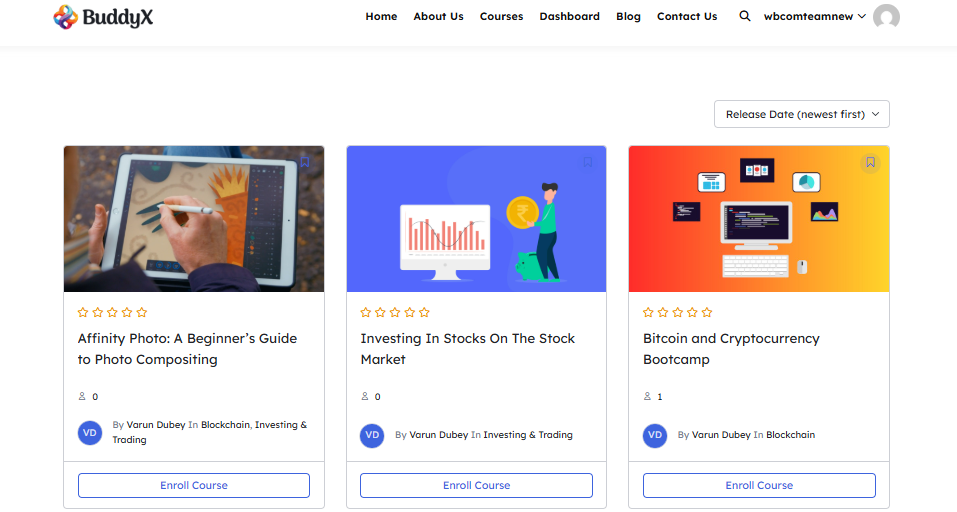
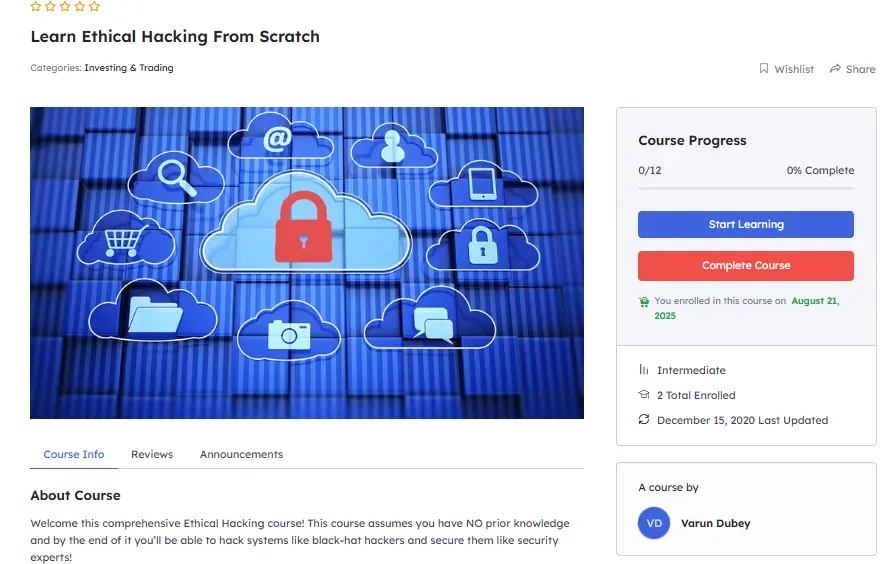
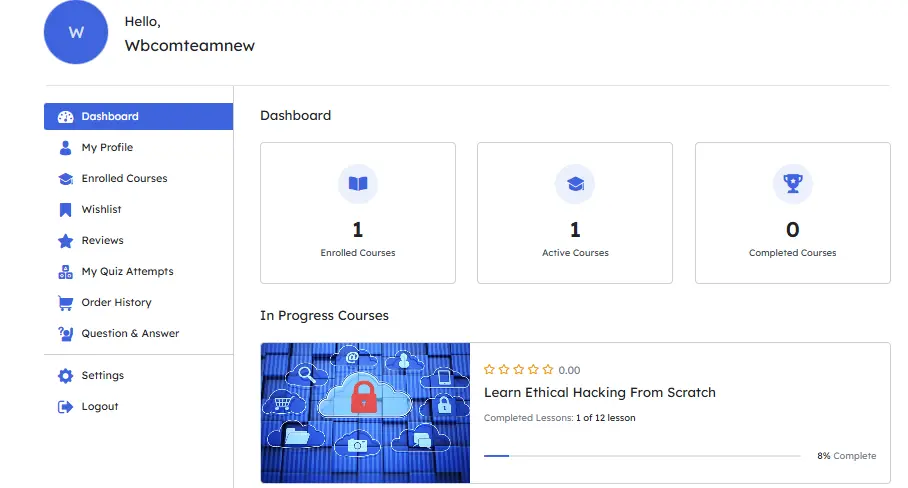
By combining TutorLMS with BuddyPress, your LMS doesn’t just deliver courses – it encourages student engagement and peer-to-peer learning.
Step 4: Customize Your Education Hub
With BuddyX Pro, you can easily adjust your design and features:
- Add or edit courses and lessons.

- Create dedicated groups for specific subjects or classes.

- Use Elementor and Gutenberg to customize layouts.
- Add gamification tools like GamiPress to reward learners with badges and points.
- Integrate memberships or WooCommerce to monetize courses.

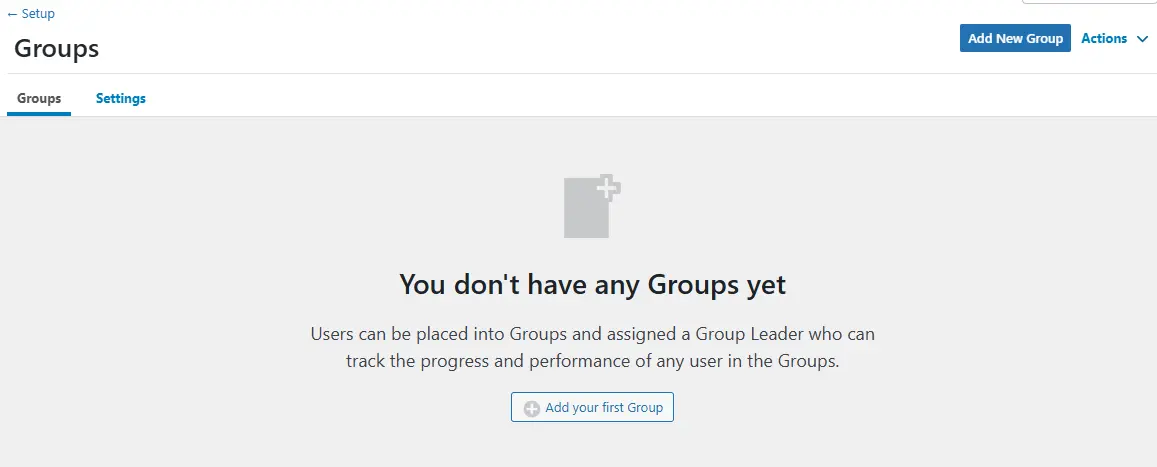
Launch an eLearning Community with BuddyPress and BuddyX Pro + LifterLMS Demo
If your goal is to build a community on WordPress where online learning feels engaging and collaborative, combining BuddyX Pro, LifterLMS, and BuddyPress is an excellent choice. LifterLMS brings powerful course-building features, while BuddyPress adds social networking tools that make learning interactive and community-driven.
Step 1: Install LifterLMS
- Download and install LifterLMS from its official site or the WordPress plugin repository.
- Activate it to unlock features such as course and lesson creation, quizzes and certificates, memberships and access control, and student progress tracking.
This equips your site with the foundation of an LMS.
Step 2: Import the BuddyX Pro + LifterLMS Demo
- Ensure BuddyX Pro is installed and active.
- Go to Appearance > Demo Installation.
- Choose the LifterLMS demo and click Import Demo.


The demo automatically sets up pre-designed course layouts along with BuddyPress-powered community features like members, groups, and activity streams. This gives your site both structure and interactivity from the start.
Step 3: Explore Pre-Built LifterLMS and Community Pages
- Courses Page – Showcases all available courses with clear navigation.

- Single Course Pages – Present lessons, quizzes, instructors, and progress tracking.

- Membership Pages – Allow you to restrict courses or create premium content.
- Community Pages (Members, Groups, Activity) – Let learners interact socially, join course-based groups, and post updates.
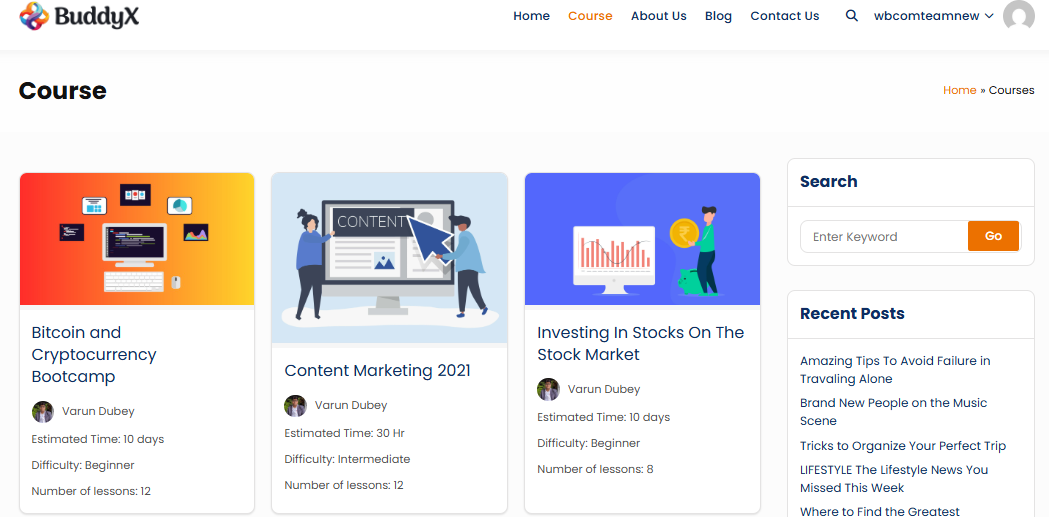

Instead of a static LMS, your site now feels like an active learning community where students connect and collaborate.
Step 4: Customize Your eLearning Community
- Personalize course layouts with Elementor or Gutenberg.
- Create subject-specific groups to encourage discussions.
- Add gamification with GamiPress to reward achievements.
- Integrate payment gateways or WooCommerce to monetize courses.
- Use memberships to create free, paid, or tiered learning communities.
By using BuddyX Pro + LifterLMS + BuddyPress, you’re not just delivering courses – you’re launching a complete eLearning community where students learn, engage, and grow together in a social environment.
Also Read: Best BuddyPress Themes and Plugins 2025
Develop a Learning Community Website with BuddyX Pro + LearnPress Demo
If you want to create an affordable yet powerful learning community website, combining BuddyPress, BuddyX Pro, and LearnPress is a great choice. LearnPress is a free WordPress LMS plugin that makes it easy to build and manage online courses. Paired with BuddyX Pro, you get community features like profiles, groups, and messaging—all wrapped in a modern design. With the BuddyX Pro + LearnPress demo, you can set everything up in just a few steps.
Step 1: Install the LearnPress Plugin
- Go to Plugins > Add New in your WordPress dashboard.
- Search for LearnPress.
- Click Install Now and then Activate.
LearnPress provides course management, lessons, quizzes, and payment options—all free to start.
Step 2: Install BuddyX Pro and Required Plugins
Install and activate the BuddyX Pro theme. After activation, go to Appearance > Install Plugins and install all recommended plugins. These include BuddyPress and add-ons that integrate with LearnPress, giving your site both course features and community engagement.
Step 3: Import the BuddyX Pro + LearnPress Demo
- Navigate to Appearance > Demo Installation.
- Select the LearnPress Demo and click Import Demo.
- The importer will create course pages, member directories, groups, and activity streams automatically.
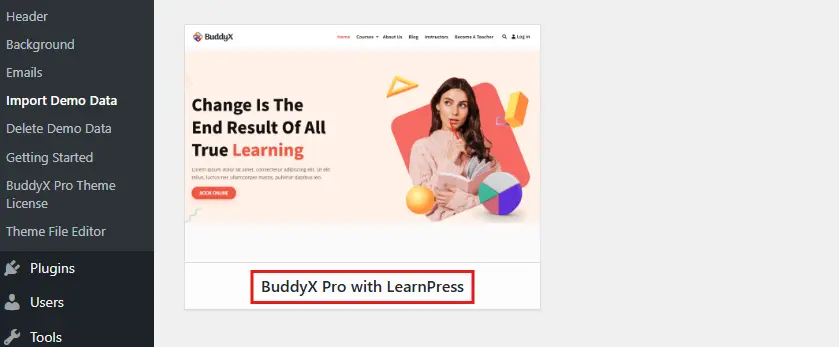
Within minutes, your WordPress site will look like a fully functional BuddyPress demo website tailored for education.
Step 4: Explore Courses and Community Features
- Course Pages – Structured layouts for courses, lessons, and quizzes.

- Student Dashboards – Learners can track their enrolled courses and progress.
- BuddyPress Groups – Students join groups for peer discussions and support.
- Activity Feeds & Messaging – Members can share updates, ask questions, and connect privately.
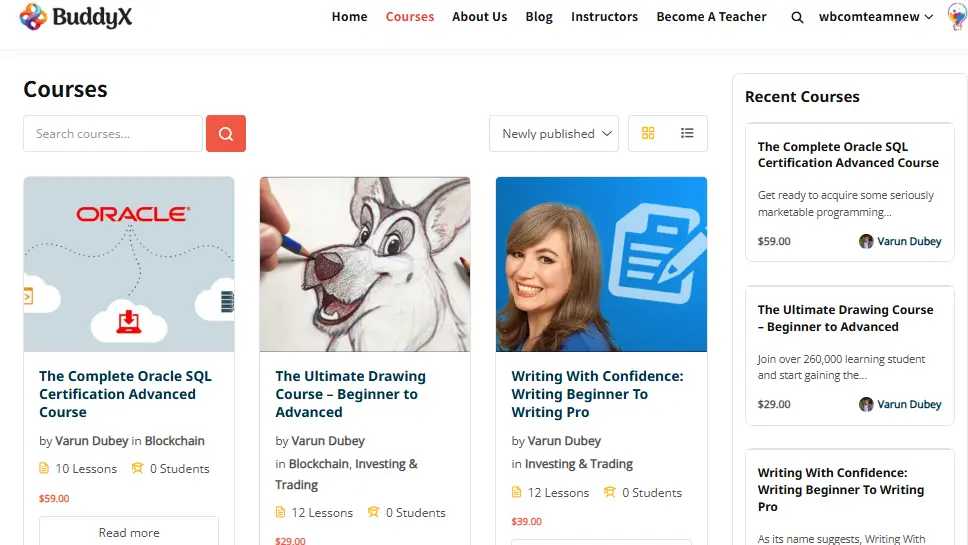
This transforms a simple LMS into an interactive learning community website.
Step 5: Customize and Extend the Platform
- Use Elementor or Gutenberg to adjust layouts and content.
- Change colors, typography, and branding settings in the WordPress Customizer.
- Add extensions for LearnPress (like Certificates, Assignments, or WooCommerce integration).
- Enhance engagement with GamiPress for gamification or Paid Memberships Pro for monetization.
With BuddyX Pro + LearnPress, you can quickly develop a learning community website that combines eLearning with social interaction. It’s an excellent choice for schools, coaching centers, or online educators who want to build a community on WordPress without high costs.
Gamification in BuddyPress: How to Keep Your Community Engaged
Building a community is one thing—but keeping it alive and thriving is another. One of the most effective ways to keep your community engaged is by introducing gamification. In BuddyPress, gamification means rewarding members for their activity with points, badges, ranks, or other recognition. These game-like mechanics tap into human psychology, encouraging people to participate more actively.
Why Gamification Matters in Online Communities
- Motivation Through Rewards: Members are more likely to contribute when their actions are rewarded.
- Friendly Competition: Leaderboards and ranks inspire members to interact more to climb higher.
- Sense of Progression: Badges and levels show members they’re moving forward, creating long-term engagement.
- Increased Retention: Communities that use gamification report higher user return rates and activity levels.
Research from Badgeville shows that gamification can boost user engagement by up to 50%, making it a must-have feature for any online community.
Gamification Features You Can Add to BuddyPress
With BuddyPress alone, you get social networking basics: profiles, groups, messaging, and activity feeds. But when you integrate GamiPress, you unlock advanced gamification features:
- Points: Award points for actions like posting updates, joining groups, or completing lessons in an LMS.
- Badges: Celebrate milestones such as “First Post,” “Top Contributor,” or “Completed First Course.”
- Ranks: Assign levels (Beginner, Intermediate, Expert) based on engagement.
- Leaderboards: Highlight the most active members to foster healthy competition.
- Achievements: Create event-based rewards, like attending a webinar or contributing to a forum.
How Gamification Works with BuddyPress and BuddyX Pro
The BuddyX Pro theme integrates smoothly with GamiPress, ensuring that points, badges, and achievements appear across your community. For example:
- A badge earned by a user shows up on their BuddyPress profile.
- Points are displayed in the activity stream, motivating others to take similar actions.
- Leaderboards can be added to group pages or sidebars, showcasing top contributors.
This visibility turns gamification into a community-wide motivator.
Examples of Gamification in Action
Imagine running a social learning platform with LearnDash + BuddyPress:
- Students earn points for completing lessons.
- They receive badges for finishing entire courses.
- A leaderboard highlights the most active learners each week.
- Members who hit milestones get special ranks like “Gold Member.”
In a membership community, you could:
- Reward members with discount coupons for reaching engagement milestones.
- Assign badges for long-term membership anniversaries.
- Create exclusive ranks for premium members, boosting retention.
Benefits of Gamification for Your BuddyPress Community
- Stronger engagement: Members post more, comment more, and join groups more actively.
- Higher retention rates: People return often to maintain their rank or earn the next badge.
- User-generated content growth: More discussions, posts, and collaborations keep the community vibrant.
- Sense of belonging: Members feel recognized and valued for their contributions.
Pro Tip: Balance Fun with Value
While gamification drives activity, it’s important to align rewards with meaningful community actions. For example, rewarding spammy posts just for earning points could backfire. Instead, focus on rewarding actions that add value—like posting helpful content, completing courses, or engaging in group discussions.
Step-by-Step: Add Gamification to BuddyPress with GamiPress
To bring gamification into your BuddyPress community, the best tool is the GamiPress plugin. It integrates seamlessly with BuddyPress and BuddyX Pro, allowing you to award points, badges, ranks, and achievements based on user activity. Here’s how you can set it up and showcase gamification in your demo site.
Step 1: Install and Activate GamiPress
- Go to Plugins > Add New in your WordPress dashboard.
- Search for GamiPress.
- Click Install Now → Activate.
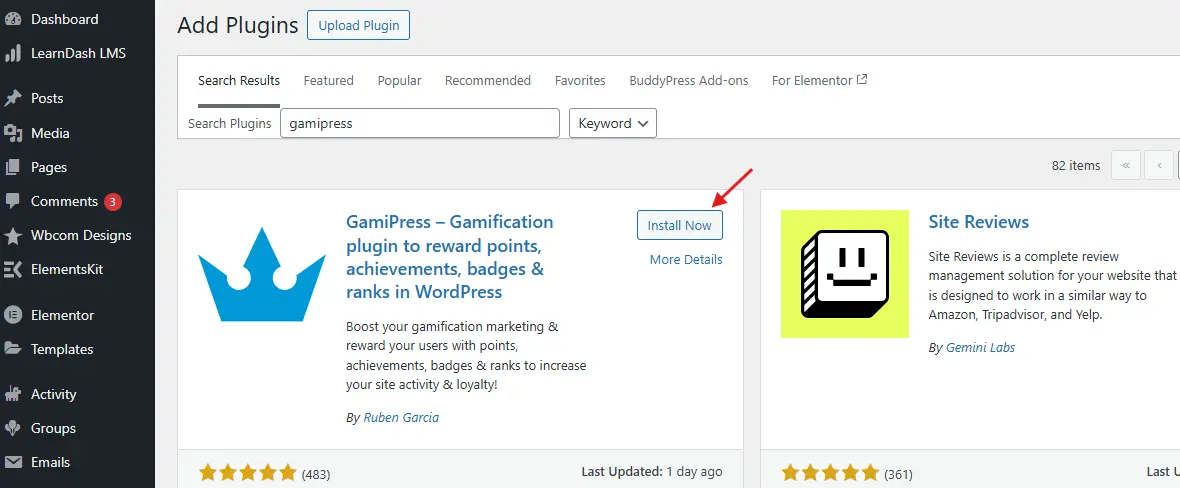
Once activated, a new GamiPress menu will appear in your dashboard with options for points, achievements, and ranks.
Step 2: Configure Points Types
Points are the foundation of gamification. You can create different types of points (like coins, credits, or stars) and award them for community actions.
- Navigate to GamiPress > Points Types > Add New.

- Give your points a name (e.g., “Community Points”).
- Set how points are earned (posting updates, commenting, joining groups, etc.).

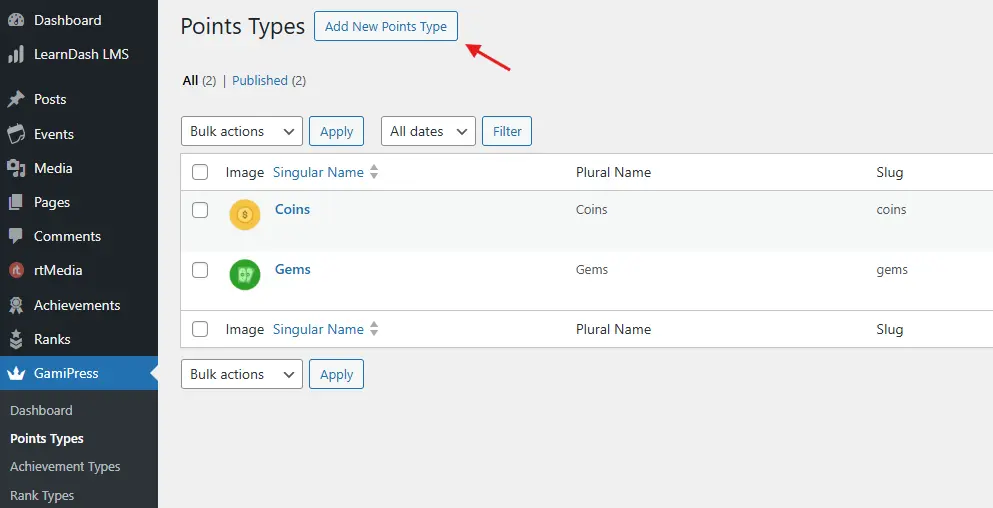
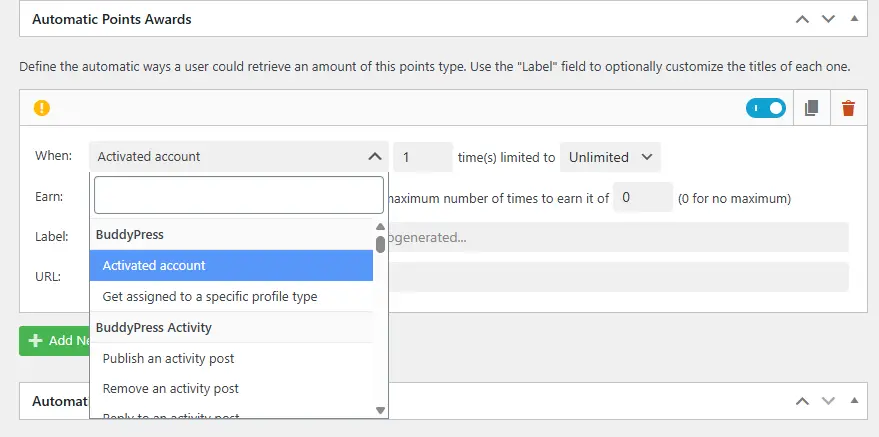
Example: Award 10 points for posting an activity update, 5 points for commenting, and 20 points for joining a group.
Step 3: Add Badges and Achievements
Badges make milestones visible and fun.
- Go to GamiPress > Achievements > Add New.
- Create a badge (e.g., “Top Contributor” or “Course Completer”).
- Assign the earning requirements (e.g., “Earn 100 points” or “Post 10 updates”).
- Upload a badge icon so it looks visually appealing.
Badges will appear on user profiles in BuddyPress, motivating others to earn them too.
Step 4: Create Ranks and Levels
Ranks show progression and status within the community.
- Navigate to GamiPress > Ranks > Add New.
- Define rank names such as Beginner, Intermediate, and Expert.
- Set requirements (e.g., reach 500 points to unlock “Intermediate”).
Ranks appear in member profiles and group listings, showcasing active contributors.
Step 5: Showcase Gamification on Your Community Site
Now that your gamification system is ready, it’s time to display it across your BuddyPress site.
- Add a Points Widget to your sidebar or profile page.
- Use Leaderboards (via a GamiPress add-on) to highlight the most active members.
- Display badges on BuddyPress member profiles.
- Show ranks inside groups and forums for quick recognition.
In BuddyX Pro, these elements integrate smoothly into the design, so achievements and points look polished and professional.
Step 6: Test the Gamification System

Before going live, test it with demo accounts:
- Post updates, comments, and join groups to see if points are awarded correctly.
- Complete achievements and confirm badges display on profiles.
- Check if ranks update as users earn more points.
This ensures everything works as expected and provides a seamless experience for your members.
With these steps, you’ll have a gamified BuddyPress community that rewards interaction, motivates members, and keeps your community engaged. Combined with BuddyX Pro, gamification elements blend perfectly into your site’s design – making engagement fun, competitive, and rewarding.
Build a Multi-Vendor Marketplace with BuddyPress and BuddyX Pro + Dokan Demo
E-commerce is no longer just about buying and selling – it’s about creating communities where vendors and customers interact. By combining BuddyPress, BuddyX Pro, and Dokan, you can create a multi-vendor marketplace where sellers manage their stores, customers shop, and community members connect socially. The BuddyX Pro + Dokan demo makes this process simple, giving you a ready-to-use design for a vibrant social marketplace community.
Step 1: Install the Dokan Plugin
To start, you’ll need Dokan, the most popular WordPress multi-vendor marketplace plugin.
- Go to Plugins > Add New in your WordPress dashboard.
- Search for Dokan.
- Click Install Now and then Activate.
Dokan enables vendors to register, create their own shops, and manage products while you, as the site owner, oversee the marketplace.
Step 2: Install BuddyX Pro and Required Plugins
Once you’ve activated Dokan, install and activate the BuddyX Pro theme.
- Go to Appearance > Install Plugins.
- Select and install all recommended plugins, including BuddyPress.
BuddyX Pro ensures that your marketplace not only works but also looks modern and integrates perfectly with BuddyPress community features like groups, profiles, and activity streams.
Step 3: Import the BuddyX Pro + Dokan Demo
Instead of designing everything manually, BuddyX Pro provides a pre-built Dokan Demo.
- Navigate to Appearance > Demo Installation.
- Choose the BuddyX Pro with Dokan Demo.

- Click Import Demo and let BuddyX Pro set up vendor shops, community pages, and layouts.

The importer will automatically create sample stores, products, and BuddyPress community pages—giving you a fully functional BuddyPress demo website tailored for eCommerce.
Step 4: Explore Marketplace and Community Features
After the demo import, explore how seamlessly eCommerce and community features work together:
- Vendor Stores – Each vendor gets their own store page with products.

- Product Listings – Customers can browse through categorized products.

- Member Profiles – Vendors and customers both have BuddyPress profiles.
- Groups & Activity Streams – Community members can discuss products, leave reviews, and share updates.
- Private Messaging – Buyers can message vendors directly through BuddyPress.
- Vendor Dashboards – Vendors have an easy-to-use dashboard to manage products, track sales, and handle orders—all from the front end, without needing backend access.

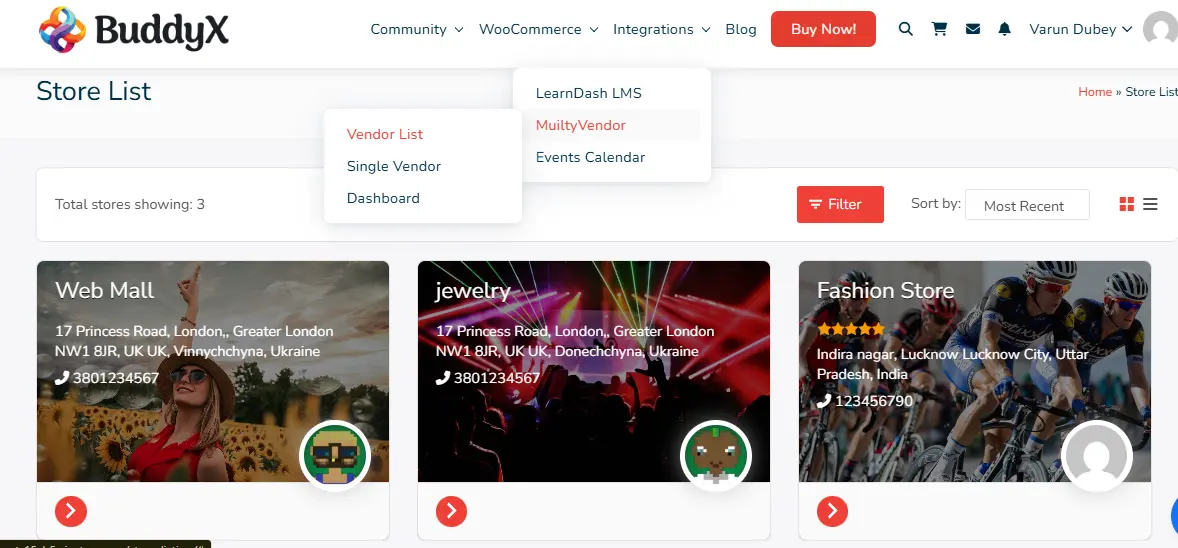
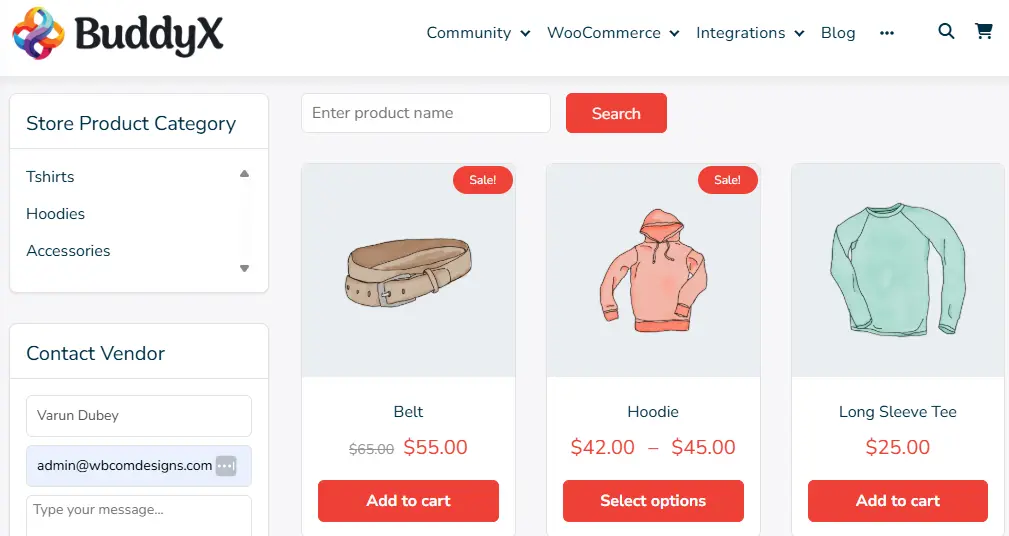

This integration creates a unique social shopping experience, unlike traditional marketplaces.
Step 5: Customize and Expand Your Marketplace
BuddyX Pro makes it easy to fine-tune the demo with Elementor or Gutenberg. You can:
- Adjust layouts for product and vendor pages.
- Customize colors, fonts, and branding.
- Add widgets like “Top Vendors” or “Featured Products.”
You can also extend your marketplace by:
- Adding WooCommerce payment gateways.
- Using GamiPress for gamification—reward members for purchases, reviews, or referrals.
- Offering membership tiers with Paid Memberships Pro for premium vendor benefits.
With BuddyX Pro + Dokan, you don’t just create a marketplace—you build a community-powered eCommerce platform where shopping, selling, and social interaction happen in one place. This demo is perfect for entrepreneurs who want to build a community on WordPress while monetizing through vendor commissions.
Exploring Reign Theme for WordPress Communities
While BuddyX Pro offers lightweight and fast community setups, the Reign Theme is another powerful option designed to help you build a community on WordPress with BuddyPress. Reign is flexible, feature-rich, and comes with demo imports tailored for different types of communities—whether you want to create a membership site, an online learning platform, or a social marketplace. Its seamless integrations with popular plugins like LearnDash, LifterLMS, TutorLMS, Dokan, WooCommerce, and Paid Memberships Pro make it a versatile choice for growing communities of any size.
Set Up a Community Site Using BuddyPress and Reign Theme Demo Import
The Reign Theme pairs beautifully with BuddyPress to help you build a community on WordPress—fast. With Reign’s one-click Demo Import, you can spin up a polished community prototype (pages, menus, sample members, groups, and activity) and then tailor it to your brand.
Step 1: Install & Activate the Reign Theme
First, add Reign to your WordPress install.
- Download the Reign theme package from Wbcom Designs.
- In your WP dashboard, go to Appearance → Themes → Add New → Upload Theme.
- Upload the ZIP, click Install Now, then Activate.

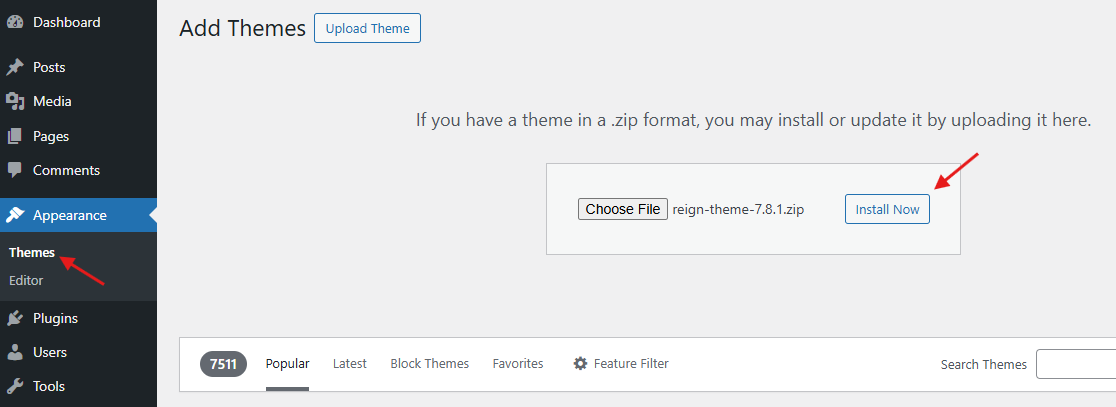
Why this matters: Reign ships with BuddyPress-ready templates (Members directory, Groups, Activity) and page parts built for social UX—cards, avatars, meta blocks, and action menus.
Step 2: Install the Recommended Plugins (One Click)
Right after activation, you’ll see a notice to install required/recommended plugins.
- Go to Appearance → Install Plugins.
- Select All → Install, then Activate.
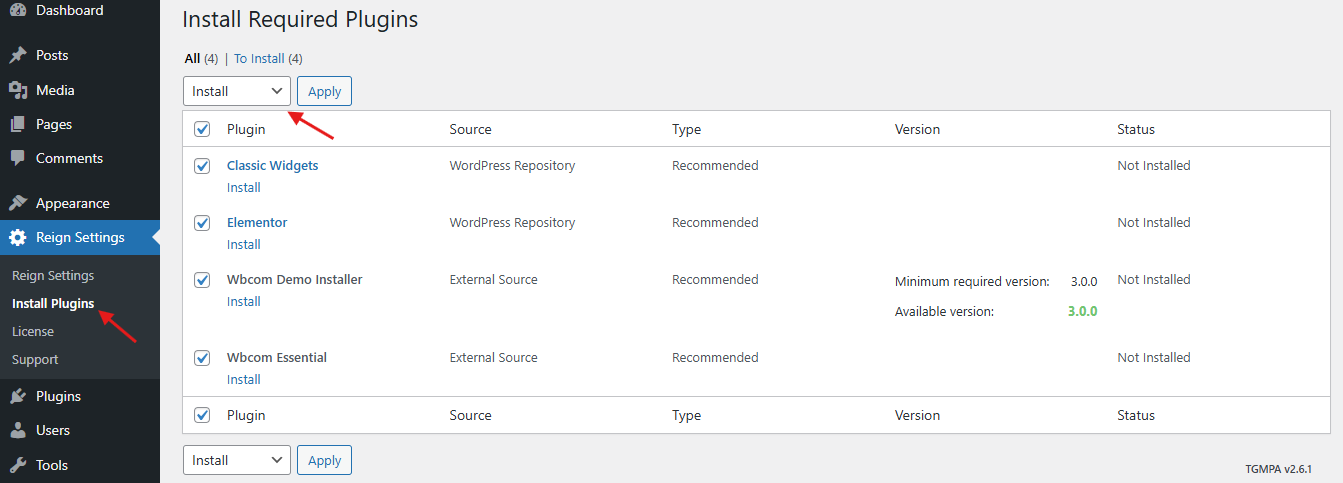
Tip: Installing everything now avoids missing features during demo import (menus, widgets, and blocks often rely on these plugins).
Step 3: Prepare Core WordPress & BuddyPress Settings
A quick pre-flight before importing the demo makes things smooth:
- Enable user signups: Settings → General → Membership → check “Anyone can register.”

- Permalinks: Settings → Permalinks → choose Post name.
- BuddyPress pages (placeholder check): Settings → BuddyPress → Pages — you’ll finalize these after import, but confirming the screen exists is helpful.
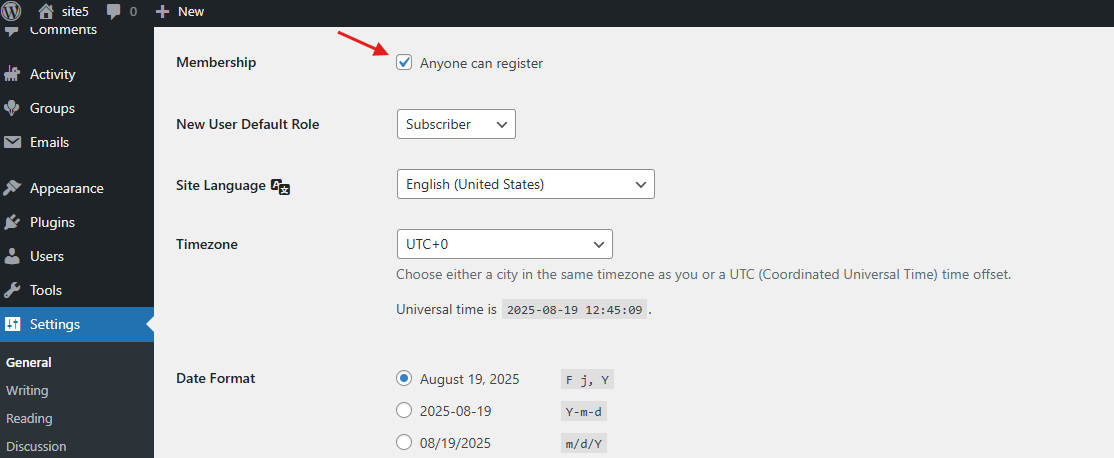
Why this matters: Your community needs public directories and a clean URL structure before content lands.
Step 4: Run the Reign Demo Importer (One-Click Setup)
Now the fun part—importing a complete community starter.
- Go to Theme Installer → BuddyPress.
- Browse the Reign demos (e.g., generic BuddyPress community, membership, learning, marketplace).
- Select your preferred Reign BuddyPress community demo.

- Click Import Demo and confirm importing:
- Content (pages, posts)
- Widgets
- Customizer settings
- (Optional) Demo images
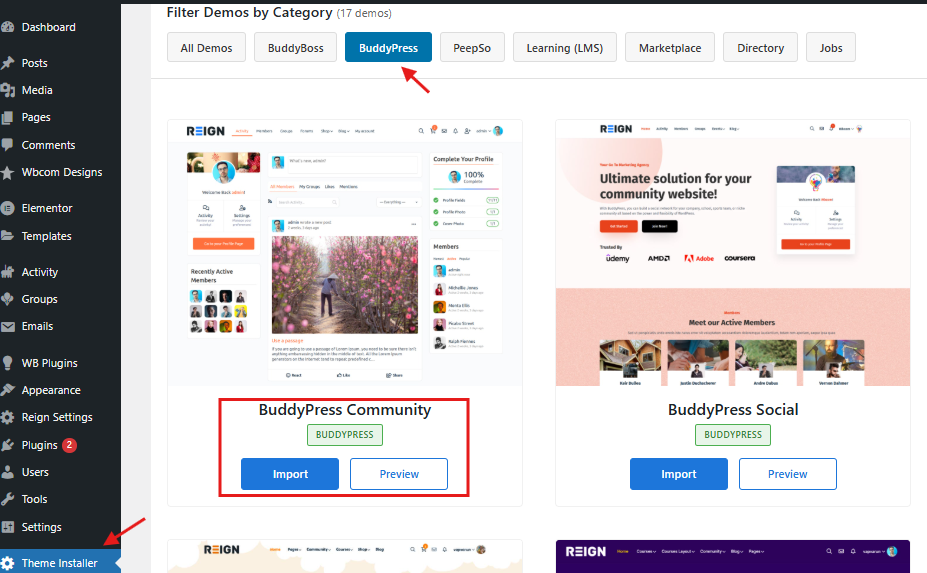
What gets created automatically:
- Home page, About/Contact (varies by demo)
- Activity, Members, Groups, Register/Login
- Sample menus, widgets, and headers
- Basic styling and typography from the Customizer
Note: Let the importer finish without navigating away. On shared hosting, this can take a couple of minutes.
Step 5: Explore Reign’s Pre-Built Community Pages
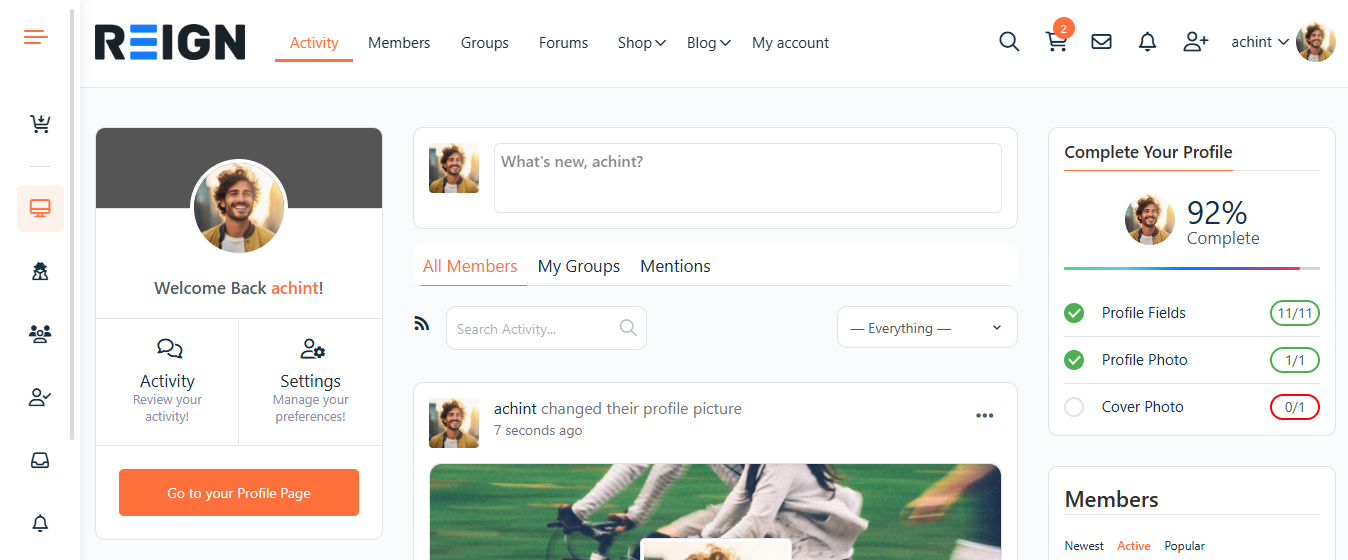
Once you import a Reign demo, you’ll notice it comes packed with essential community-ready pages right out of the box. These include:
- Members Directory – Browse all registered members with profile details and avatars.

- Activity Stream – A central feed where members can share updates, like, and comment.
- Groups Directory – Discover or join public and private groups with their own discussions.

- Register/Login Pages – User-friendly onboarding with stylish forms.
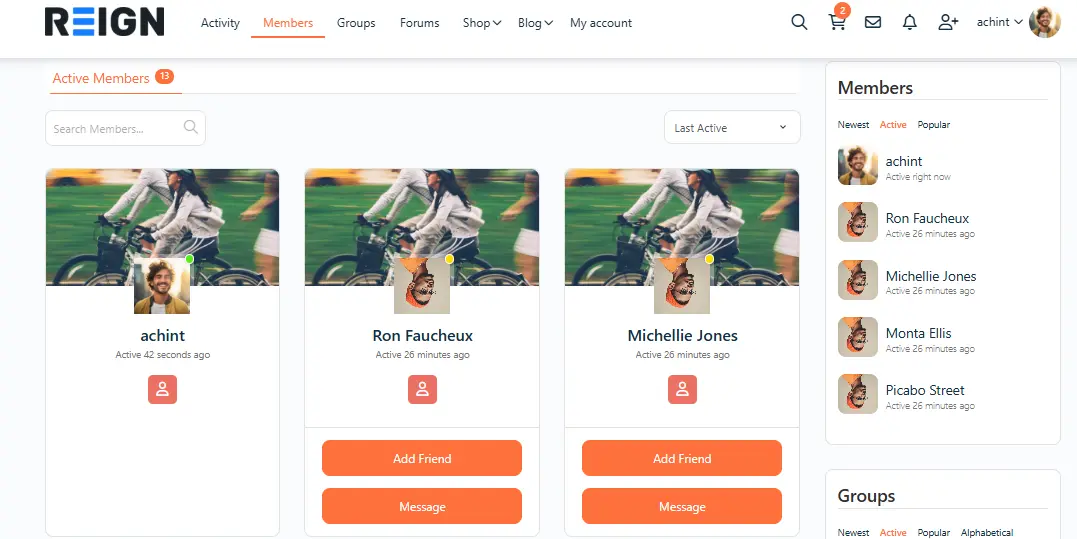
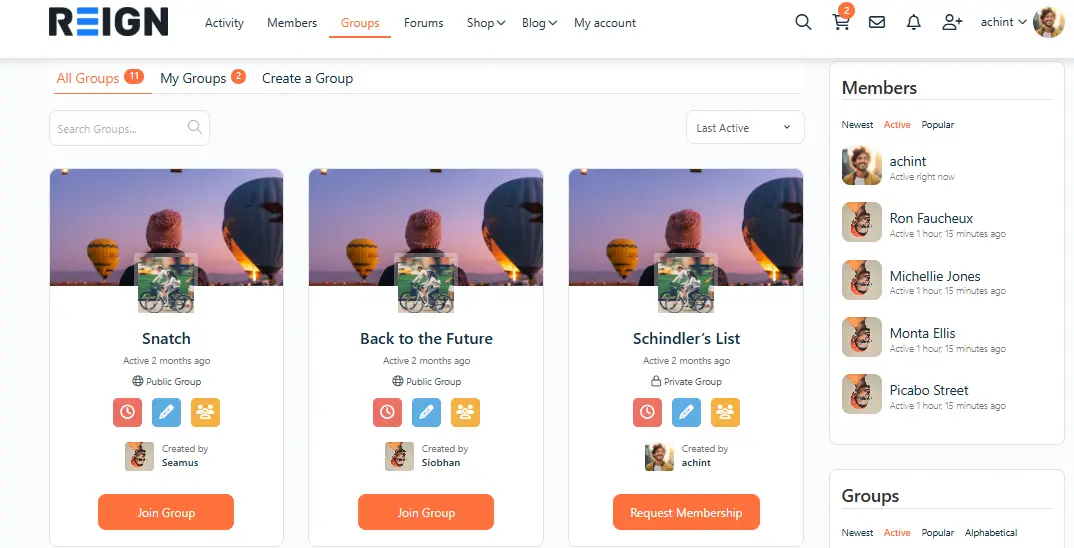
Since these pages are already styled with Reign’s layouts, you don’t need to build them manually—they’re ready for immediate use.
Step 6: Review Demo Community Content
Reign doesn’t just give you empty shells; it adds sample community data so you can visualize how a real network would feel. You’ll find:
- Demo members complete with avatars and profile fields.
- Groups preloaded with sample conversations.
- Activity streams filled with updates, comments, and likes.
This makes your WordPress site feel active and social right after installation.
Step 7: Customize the Look with Reign Options
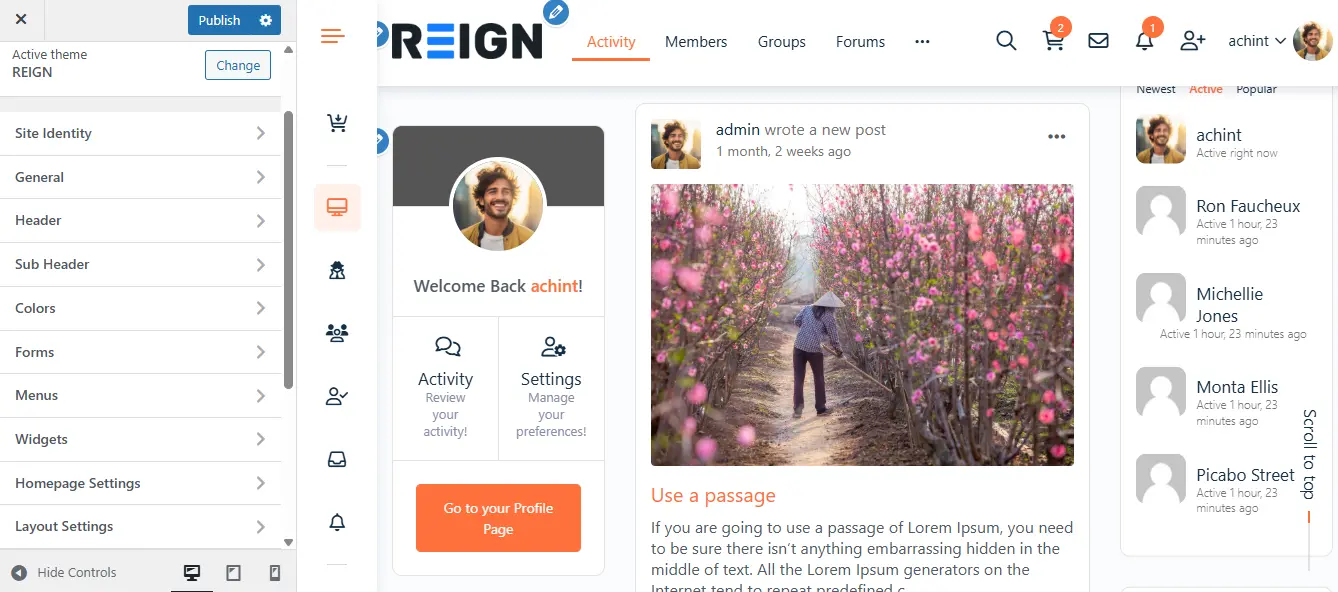
Reign gives you powerful customization tools to shape your community site:
- Elementor & Gutenberg support → Easily edit and personalize page layouts.
- Color schemes & typography → Match your branding with flexible design settings.
- Multiple directory layouts → Switch between card, grid, or list views for members and groups.
- Mobile-ready design → Ensure a flawless experience on smartphones and tablets.
These options make it simple to align the demo with your unique vision.
Step 8: Explore Reign’s Built-in Integrations
One of Reign’s biggest advantages is how well it integrates with third-party plugins. In the demo, you’ll see:
- LMS plugins like LearnDash and TutorLMS for eLearning communities.
- Membership tools such as Paid Memberships Pro for subscription-based sites.
- WooCommerce integration to launch a social-powered store.
- GamiPress supports adding badges, ranks, and points.
This makes Reign a flexible foundation for any type of BuddyPress community.
Step 9: Test the Full Community Experience
Finally, explore the site as if you were a new member:
- Register a test account and complete your profile.
- Post updates and reply to comments in the activity feed.
- Join demo groups, send private messages, and test notifications.
This walkthrough helps you understand how BuddyPress and Reign work together to deliver a professional, user-friendly community experience.
Also Read: 5 Best Engagement Plugins for BuddyPress and BuddyBoss Platform
Set Up a Social Learning Platform with Reign Theme, BuddyPress, and LearnDash
Step 1: Install the LearnDash Plugin
Purchase LearnDash from its official website and download the plugin ZIP.
Go to Plugins → Add New → Upload Plugin in your WordPress dashboard.
Upload the ZIP file, click Install Now, and then Activate.
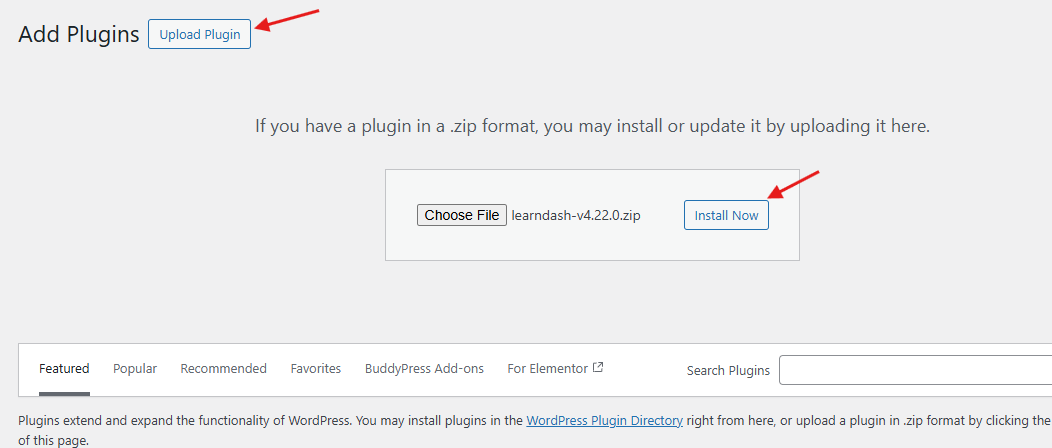
This unlocks powerful LMS features like courses, lessons, quizzes, certificates, and reporting.
Step 2: Install the LearnDash + BuddyPress Demo with Reign Theme
Reign includes its own Theme Installer for one-click demos.
Go to Theme Installer → BuddyPress.
From the available options, select LearnDash + BuddyPress Demo.


- Pre-built course pages and archives
- Student dashboard layouts
- BuddyPress-powered pages like Members, Activity, and Groups
- Styled login and registration forms
Now, your site instantly looks like a social learning platform.
Step 3: Explore the Learning & Community Features
After importing the demo, test the core experiences:
- Course Archives – Browse courses in clean grid or list layouts.

- Single Course Pages – Show structured curriculum, progress tracking, and enrollment options.

- Student Dashboards – Give learners access to enrolled courses, completion status, and certificates.
- Community Integration – Students can join groups, share insights in the activity feed, and send private messages.

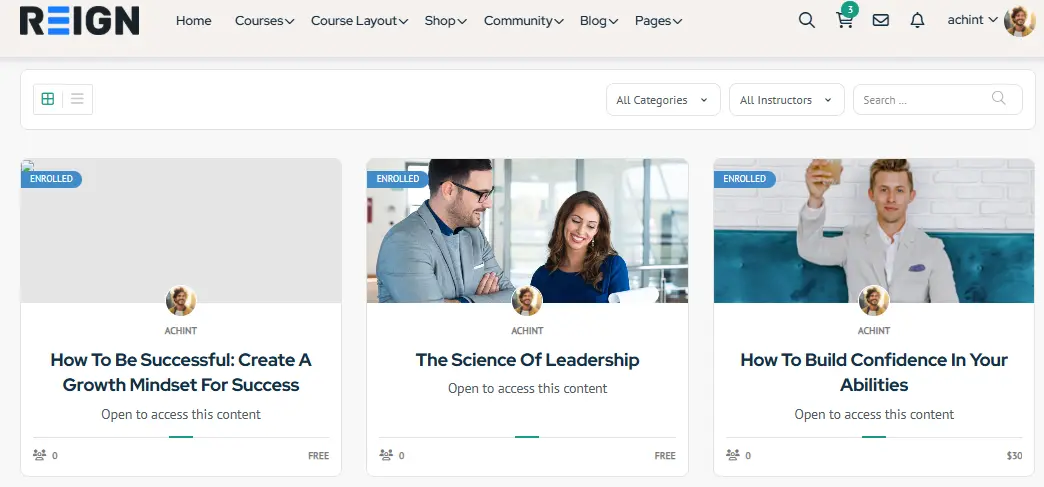

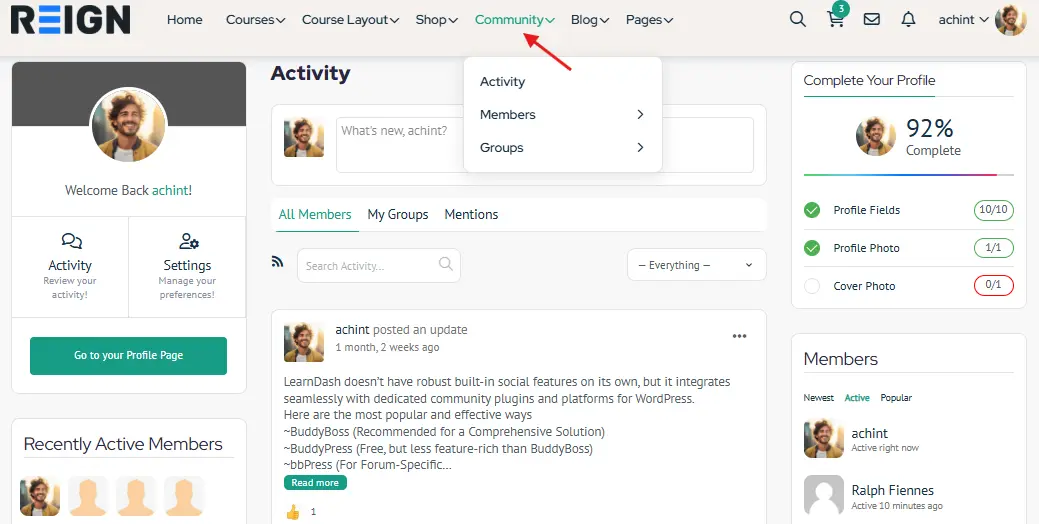
This setup transforms traditional eLearning into an interactive social learning hub.
Step 4: Customize Your Learning Community
With Reign’s customization tools, you can easily personalize the demo:

- Course Layouts – Switch between grid or list styles.
- Brand Styling – Adjust colors, fonts, and typography to match your identity.
- Elementor Editing – Redesign the homepage, course landing pages, and CTAs without coding.
- Mobile-First Design – Guarantee smooth learning on phones and tablets.
You can also extend functionality by:
- Adding WooCommerce or Paid Memberships Pro to sell courses.
- Using GamiPress to reward course completions with points and badges.
- Enabling certificates to recognize student achievements.
Reign LearnDash Addon for Advanced Customization
To take your LearnDash + BuddyPress site even further, we specially offer a Reign LearnDash Addon. This premium add-on is designed exclusively for the Reign theme and adds advanced styling and customization options for LearnDash pages.
With the Reign LearnDash Addon, you can:
- Enhance the design of course grids and single course layouts.
- Improve student dashboards with cleaner, modern UI.
- Add theme-ready widgets and shortcodes for better course presentation.
- Ensure deeper integration between BuddyPress profiles and LearnDash progress.
The addon is available for purchase from Wbcom Designs, making it a perfect upgrade if you want your LearnDash community to look professional and fully aligned with the Reign Theme’s design system.
Set Up a Learning Community with Reign Theme, TutorLMS, and BuddyPress
Step 1: Install the TutorLMS Plugin
Go to Plugins → Add New in your WordPress dashboard.
Search for TutorLMS.
Click Install Now, then Activate.
TutorLMS adds a full learning management system, including courses, lessons, assignments, quizzes, certificates, and reporting.
Step 2: Install the TutorLMS + BuddyPress Demo with Reign Theme
Reign makes setup simple through its demo installer:
Go to Theme Installer → BuddyPress.
Select the TutorLMS + BuddyPress Demo.
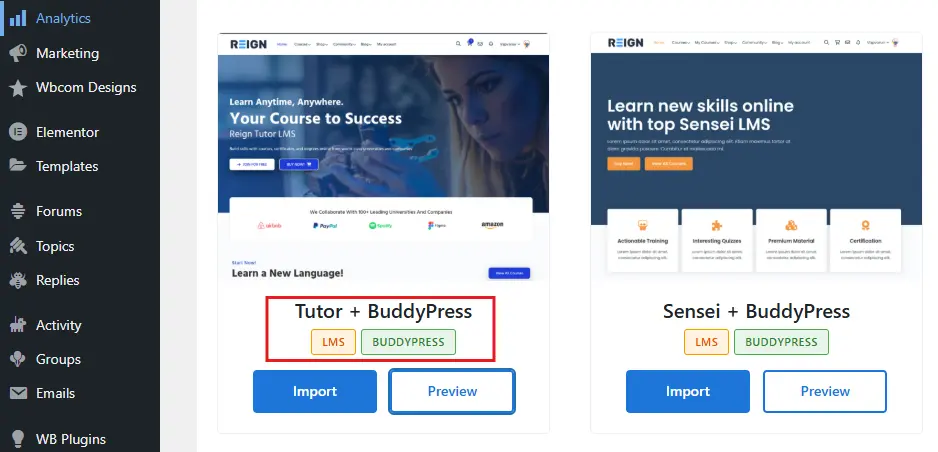
Click Install Demo and wait while Reign automatically sets up everything.
This demo includes:

- Styled course pages and archives
- Instructor and student dashboards
- BuddyPress community pages (Members, Groups, Activity)
- Login and registration forms
In just minutes, your WordPress site looks like a social eLearning platform.
Step 3: Explore the Learning & Community Features
After the demo import, check out what’s included:
- Course Archives – Modern grid or list layouts for browsing courses.

- Single Course Pages – Curriculum, enrollment, instructor info, and reviews.

- Instructor Dashboards – Manage courses, assignments, and students.
- Student Dashboards – Track enrolled courses, progress, and certificates.
- BuddyPress Features – Students join groups, participate in discussions, and interact in the activity stream.


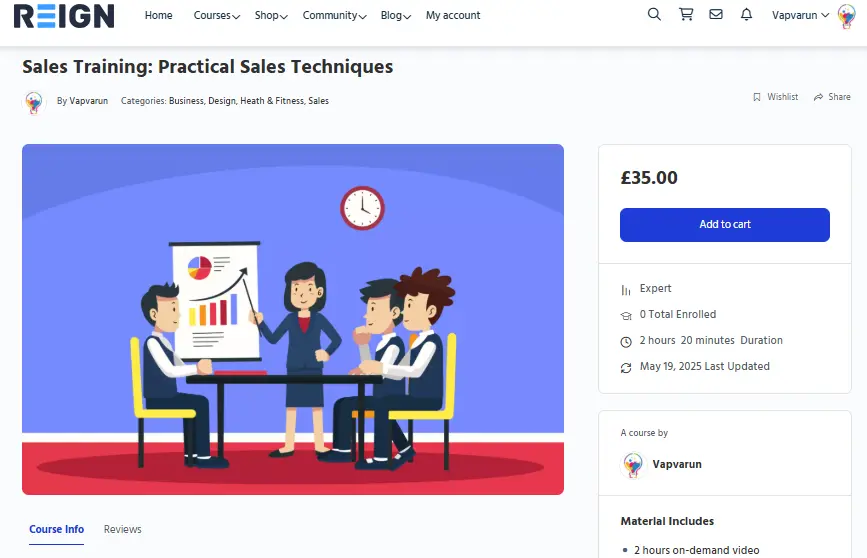

This setup creates a more collaborative learning environment.
Step 4: Customize Your Learning Community
Reign gives you full control over how your site looks:
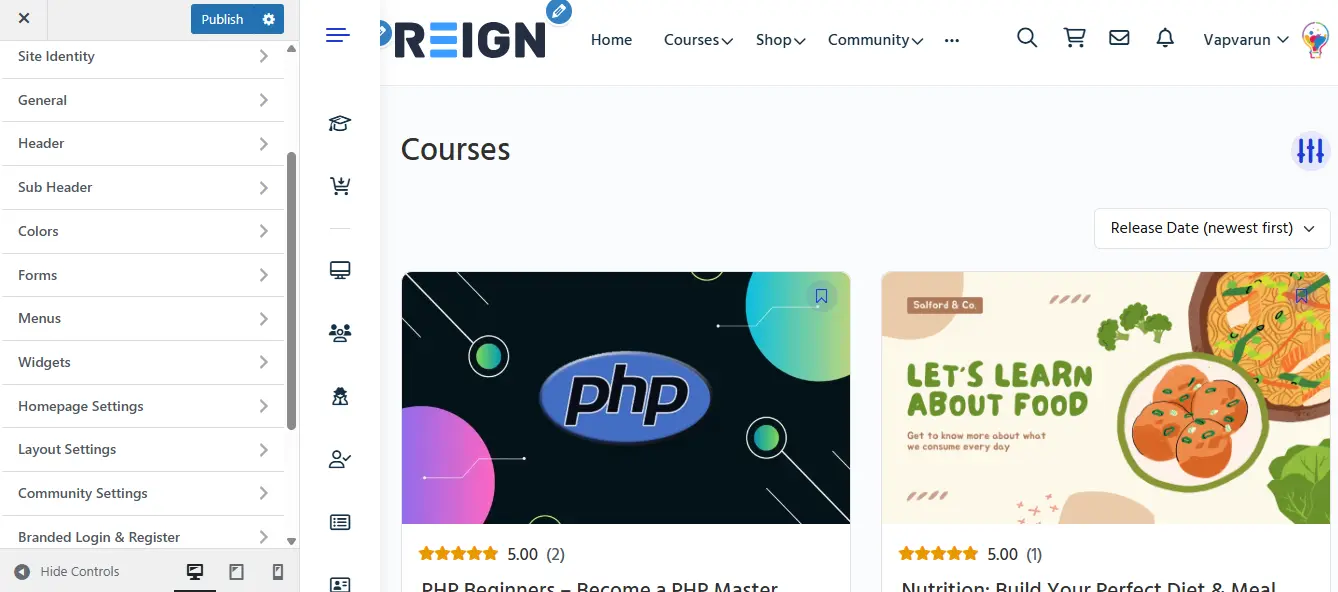
- Course Layouts – Switch between list or grid views.
- Branding Options – Customize colors, fonts, and typography.
- Elementor Editing – Tweak the homepage, course listings, and call-to-action blocks.
- Mobile-Responsive Design – Ensure a smooth experience on all devices.
You can also extend functionality with:
- WooCommerce integration – Sell courses or bundles.
- Membership plugins – Restrict content or create subscription plans.
- GamiPress – Add gamification with badges, ranks, and points.
Step 5: Reign TutorLMS Addon for Advanced Styling
To make your TutorLMS site even more powerful, we offer a Reign TutorLMS Addon. This premium extension is built exclusively for the Reign Theme and provides enhanced layouts, styling, and features for TutorLMS pages.
With the Reign TutorLMS Addon, you can:
- Upgrade the look of course grids and single course pages.
- Provide students with a cleaner, modern dashboard.
- Add theme-ready widgets and shortcodes for course listings.
- Ensure seamless design integration between TutorLMS content and BuddyPress profiles.
The addon is available from Wbcom Designs, making it a must-have if you want your TutorLMS community to look polished and fully optimized for user engagement.
Set Up a Learning Community with Reign Theme, Sensei LMS, and BuddyPress
Step 1: Install the Sensei LMS Plugin
Go to Plugins → Add New in your WordPress dashboard.
Search for Sensei LMS.
Click Install Now and then Activate.
Sensei LMS adds course creation, lessons, quizzes, and student progress tracking directly to WordPress, making it a great choice for straightforward eLearning communities.
Step 2: Install the Sensei LMS + BuddyPress Demo with Reign Theme
Reign makes setup quick with its Theme Installer:
Navigate to Theme Installer → BuddyPress.
Select the Sensei LMS + BuddyPress Demo.
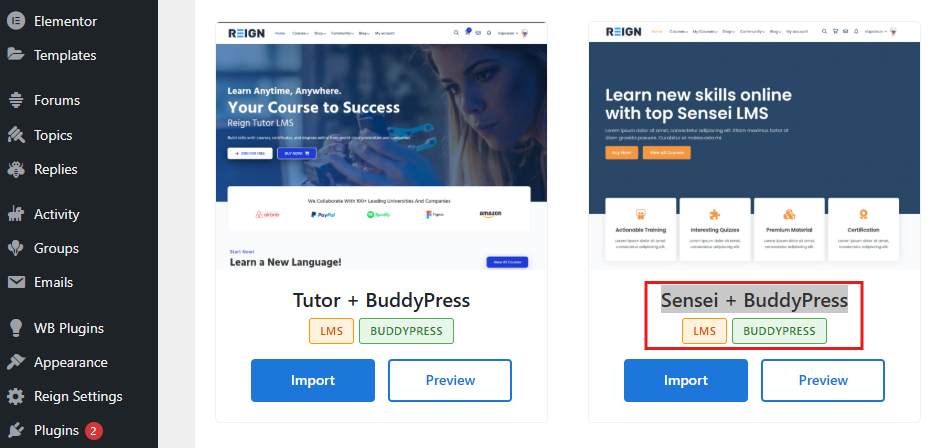
Click Install Demo and let Reign automatically configure everything.
The demo includes:
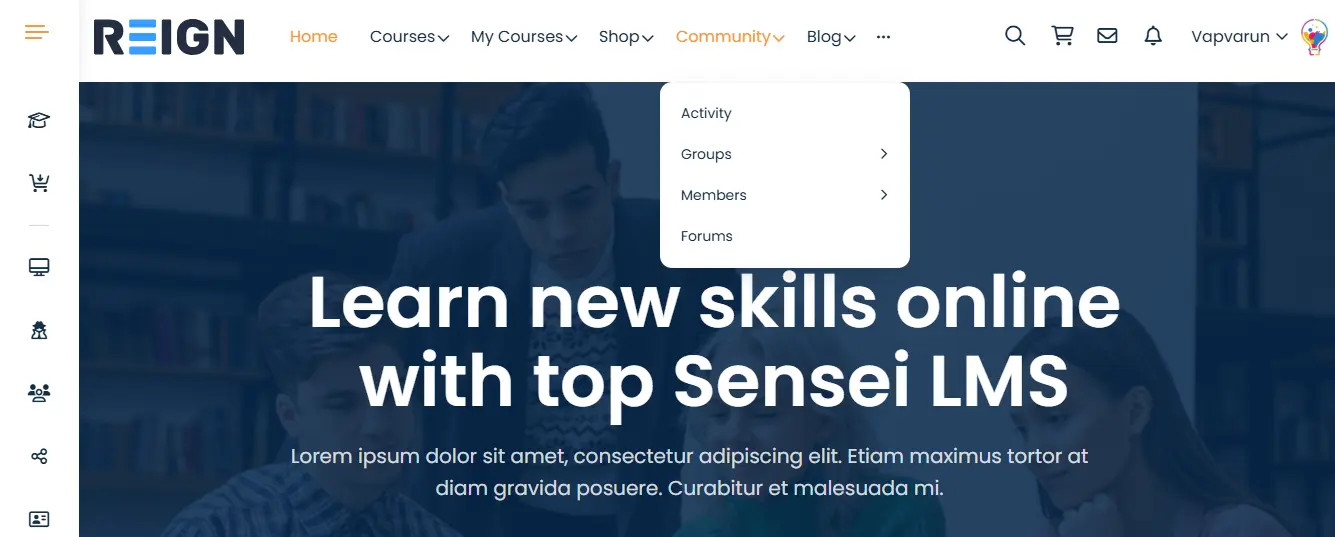
- Pre-styled course pages and archives
- Instructor and student dashboard layouts
- BuddyPress community pages like Members, Groups, and Activity
- Register/login pages for smooth onboarding
Step 3: Explore Learning and Community Features
After the demo import, test the learning and social functions:
- Course Archives — Clean layouts for browsing all available courses.

- Single Course Pages — Curriculum display with lessons and quizzes.
- Student Dashboards — Track enrolled courses and completion progress.
- Instructor Options — Create and manage courses directly from WordPress.
- BuddyPress Integration — Students join groups, discuss lessons, and interact in the activity feed.


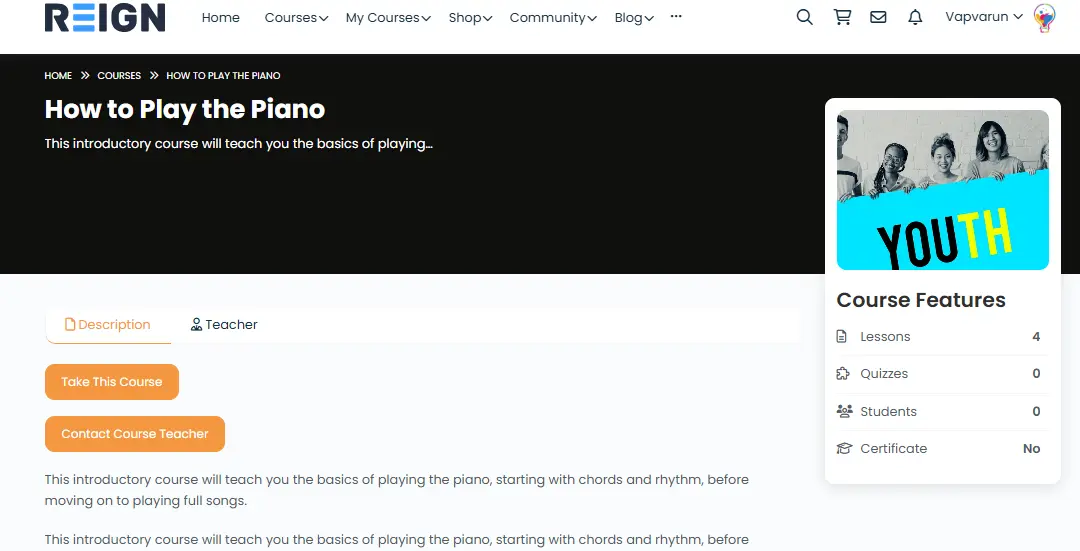
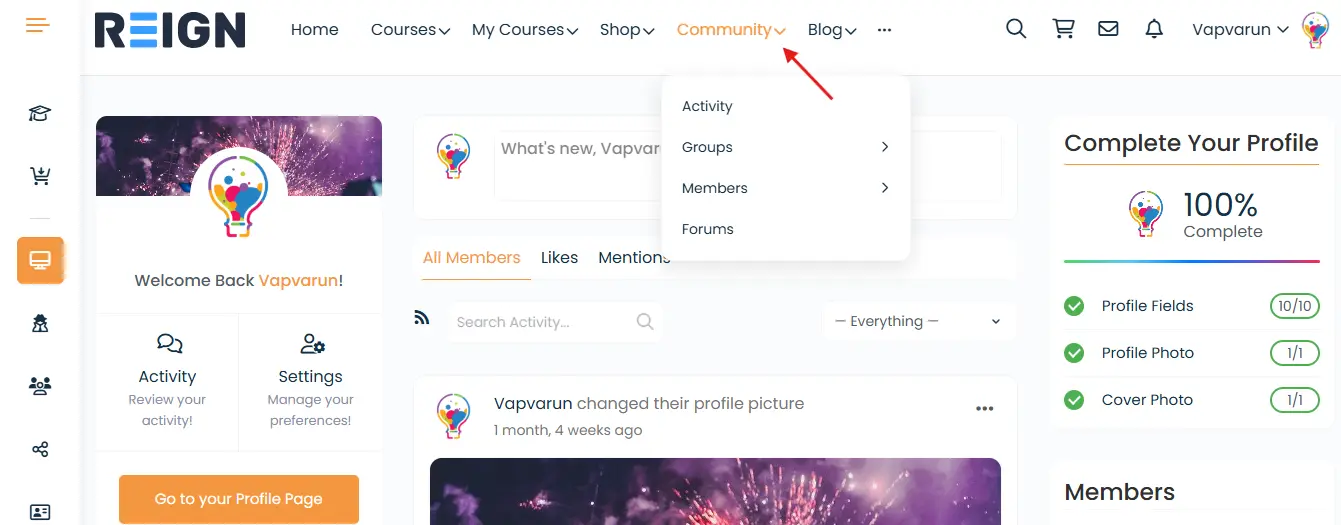
This combination ensures that your eLearning platform feels more interactive and community-driven than a standalone LMS.
Step 4: Customize Your Learning Platform
Reign gives you complete design flexibility:
- Layouts — Choose between list or grid styles for course listings.
- Brand Customization — Change colors, fonts, and typography to match your identity.
- Elementor Editing — Modify the homepage, landing pages, and calls-to-action.
- Responsive Design — Make sure students enjoy a smooth learning experience on mobile and desktop devices.
You can extend functionality further with:
- WooCommerce — Sell courses directly.
- Membership plugins — Restrict content or build subscription-based access.
- GamiPress — Add gamification with points, ranks, and achievements.
Step 5: Reign Sensei LMS Addon for Enhanced Design
To maximize the potential of Sensei LMS with Reign, we also offer a Reign Sensei LMS Addon. This premium extension is built specifically for the Reign Theme, providing advanced layouts and better integration with BuddyPress.
With the Reign Sensei LMS Addon, you can:
- Improve course grid and single course designs.
- Provide learners with a modern, user-friendly dashboard.
- Add theme-optimized widgets and shortcodes.
- Ensure seamless integration between Sensei course progress and BuddyPress profiles.
Available from Wbcom Designs, this addon helps your Sensei-powered learning community look polished, professional, and more engaging.
Also Read: Toxic People In Your Online Community? Here’s How To Fix It
Set Up a Learning Community with Reign Theme, LifterLMS, and BuddyPress
Step 1: Install the LifterLMS Plugin
Go to Plugins → Add New in your WordPress dashboard.
Search for LifterLMS.
Click Install Now and then Activate.
Unique Features of LifterLMS Courses:
- Engagement triggers (send emails, unlock rewards, or issue certificates automatically)
- Course prerequisites to control learning paths
- Multi-tier courses (lessons, sections, quizzes, assignments)
- Built-in memberships to package courses into bundles or learning paths
- Certification and achievement badges to reward learners
Step 2: Install the LifterLMS + BuddyPress Demo with Reign Theme
Navigate to Theme Installer → BuddyPress.
Select the LifterLMS + BuddyPress Demo.
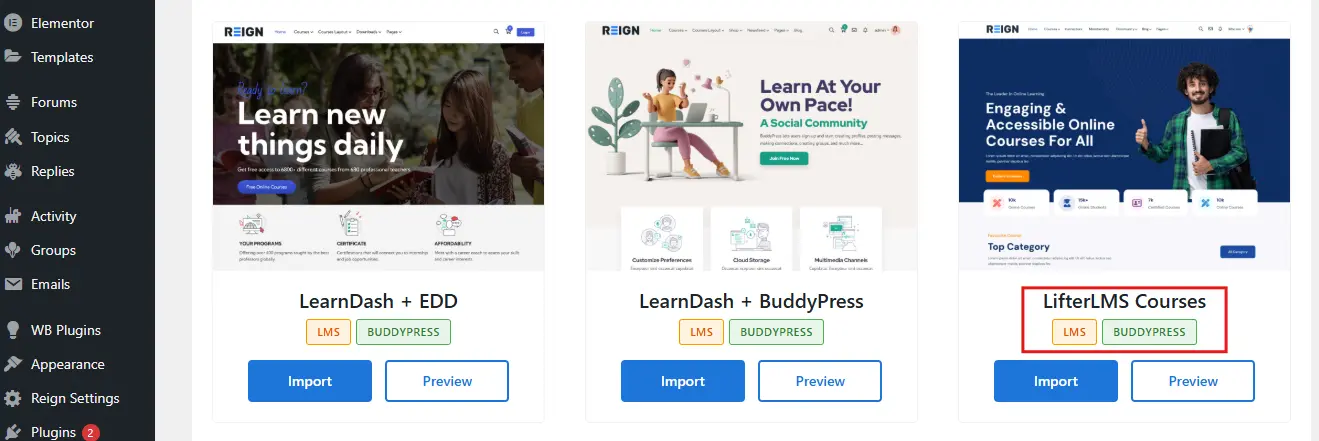
Click Install Demo and let Reign import everything automatically.
The demo includes:
- Pre-designed course archives and single course templates
- Student and instructor dashboards
- BuddyPress community pages (Members, Groups, Activity)
- Registration and login forms optimized for eLearning communities
Step 3: Explore the Course and Community Features
- Browse the Course Archives to see available courses in styled grid or list layouts.

- Open a Single Course Page to view structured lessons, quizzes, and progress tracking.

- Test the Student Dashboard, where learners can monitor enrollments, course completions, and achievements.
- Explore Instructor Tools for creating multi-tier courses with prerequisites.

- Check BuddyPress integration where learners join study groups, post updates, and connect socially.
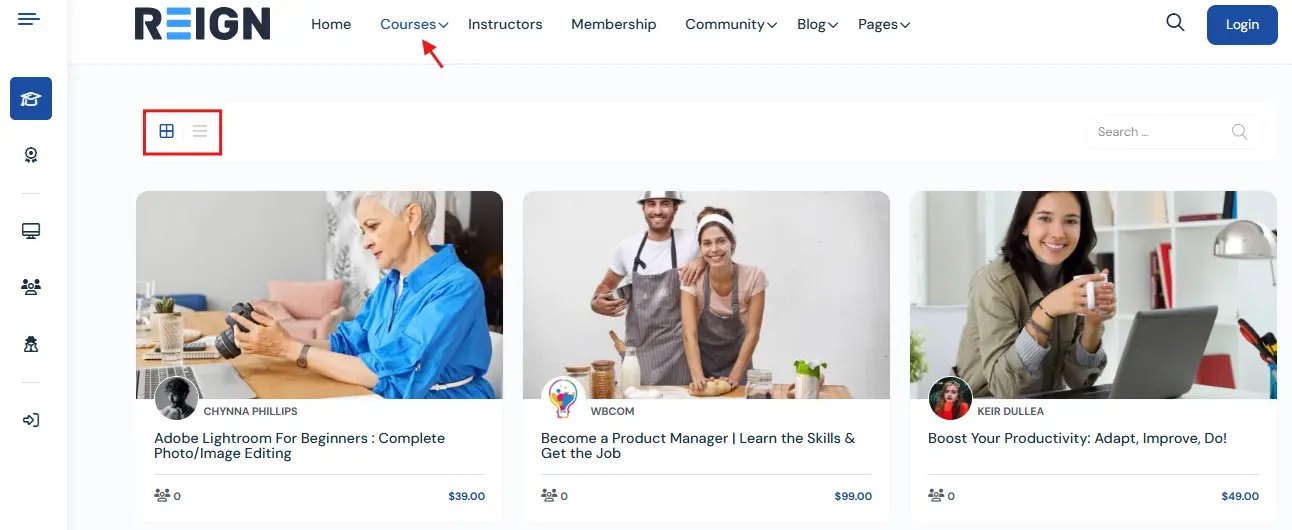
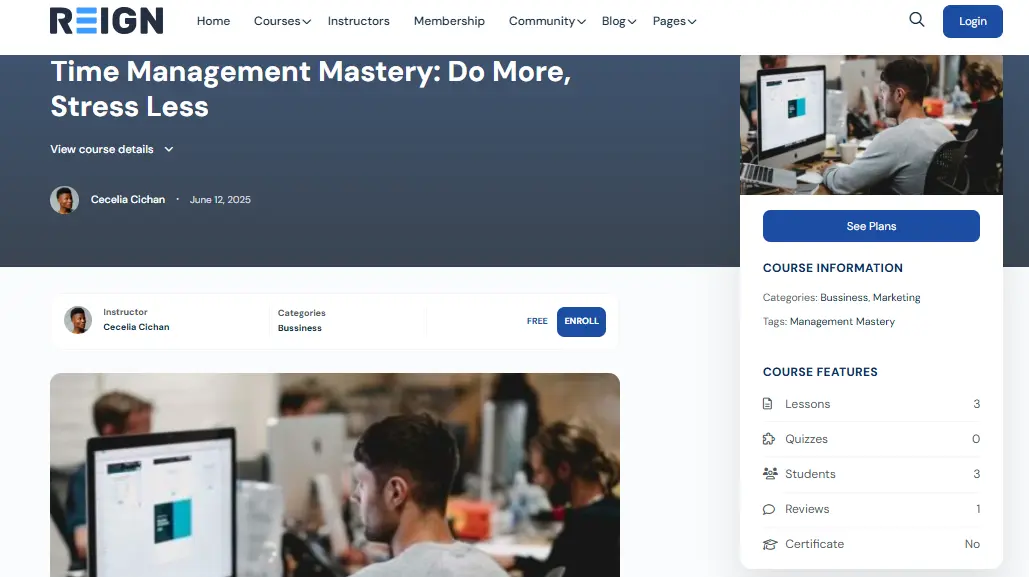
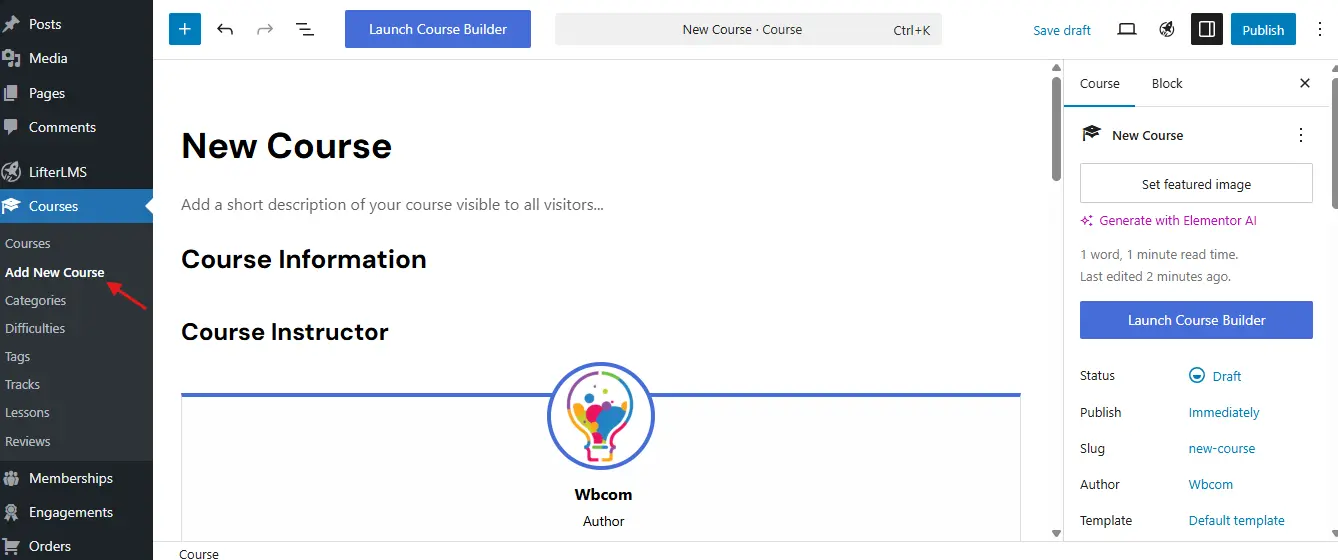

Unlike TutorLMS or Sensei, LifterLMS stands out with its built-in engagement automations and memberships, making it ideal for complex eLearning platforms.
Step 4: Customize Your LifterLMS Community
- Adjust layouts for course archives (list or grid).
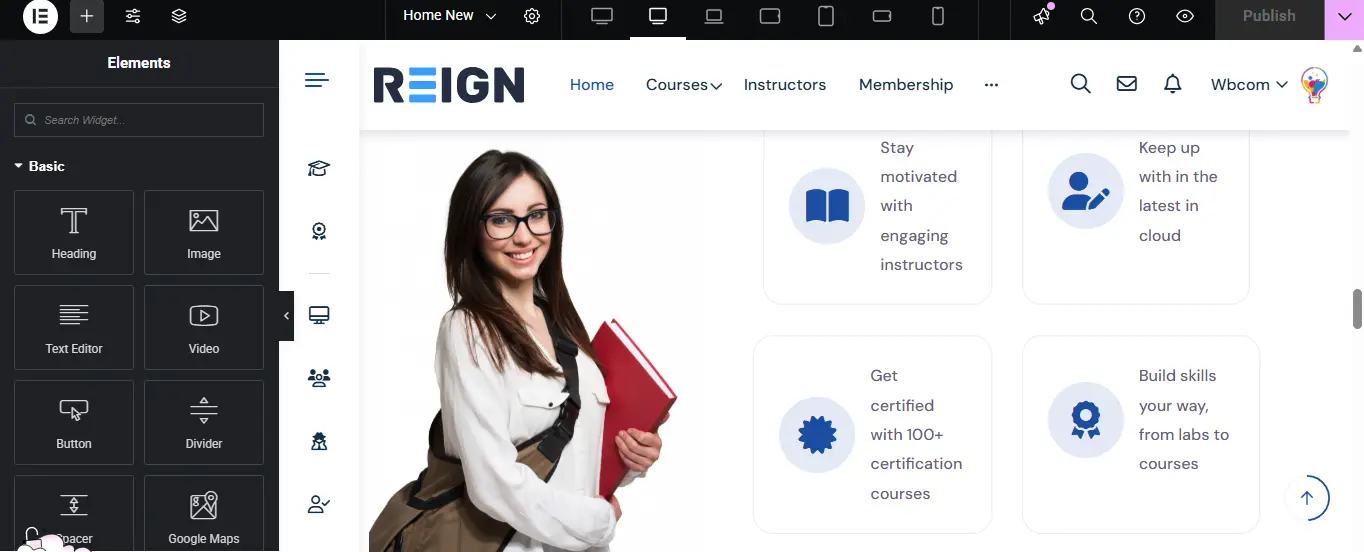
- Personalize colors, fonts, and typography with the Reign Customizer.
- Use Elementor to edit landing pages, homepages, and calls-to-action.

- Ensure a smooth mobile learning experience for students.
For added functionality, you can:
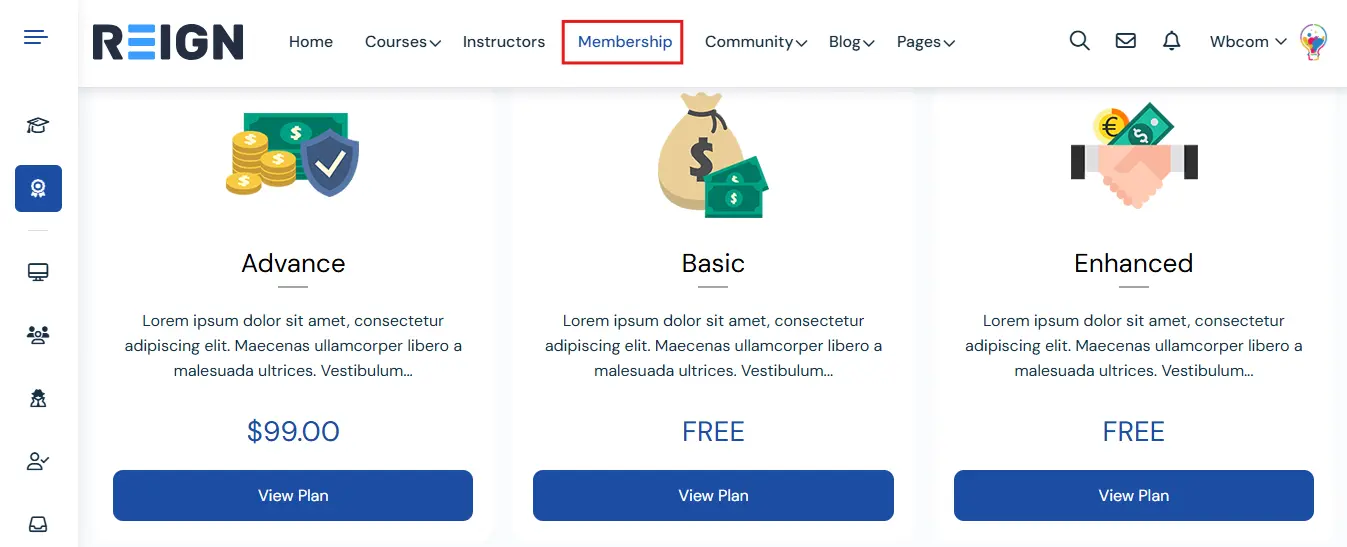
- Sell courses or memberships with WooCommerce, Stripe, or PayPal.
- Create subscription models using LifterLMS memberships.

- Add gamification with GamiPress to reward learners.
Step 5: Reign LifterLMS Addon for Enhanced Styling
We also offer a Reign LifterLMS Addon, built specifically for the Reign Theme. This addon adds advanced design and layout options for your courses and integrates more deeply with BuddyPress.
With the addon, you get:
- Beautiful course grids and single course designs
- Enhanced student dashboards with modern UI
- Extra widgets and shortcodes for showcasing courses
- Tighter integration between BuddyPress profiles and LifterLMS course progress
This addon helps you deliver a professional-grade social learning platform with powerful engagement and monetization tools.
Build a Multi-Vendor Marketplace with Reign Theme, Dokan, and BuddyPress
Dokan is a popular multi-vendor marketplace plugin built on WooCommerce. Combined with BuddyPress and the Reign Theme, you can launch a social marketplace where vendors run stores and customers engage through profiles, groups, and activity streams. Use Reign’s demo installer to get started in minutes.
Step 1: Install the Dokan Plugin
In your WordPress dashboard:
- Go to Plugins → Add New.
- Search for Dokan.
- Click Install Now and then Activate.
Unique Features of Dokan Marketplace
- Frontend vendor dashboards so sellers manage products and orders without backend access.
- Commission control with flexible earning models for marketplace owners.
- Store management tools including shipping, tax, and coupons.
- Scalability with Pro features like subscriptions, live chat, booking, and auctions.
Step 2: Install the Dokan + BuddyPress Demo with Reign Theme
Reign’s demo importer automates setup:
- Go to Theme Installer → BuddyPress in the Reign options.
- Select the Dokan + BuddyPress Demo.
- Click Install Demo and allow the importer to run.
The demo typically includes:
- Vendor store pages and product listings.
- Styled marketplace homepage layouts.
- BuddyPress community pages (Members, Groups, Activity).
- Register/Login pages for vendors and customers.
Step 3: Explore Marketplace and Community Features
- Vendor Stores — each seller gets a shop page.

- Product Listings — clean grid layouts for browsing.

- Vendor Dashboard — front-end tools for inventory, orders, earnings.
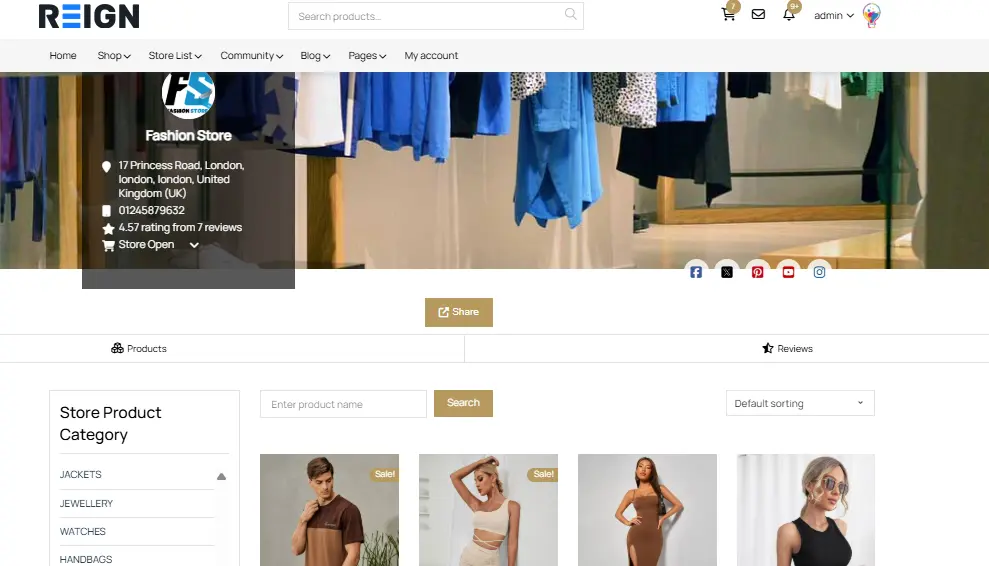
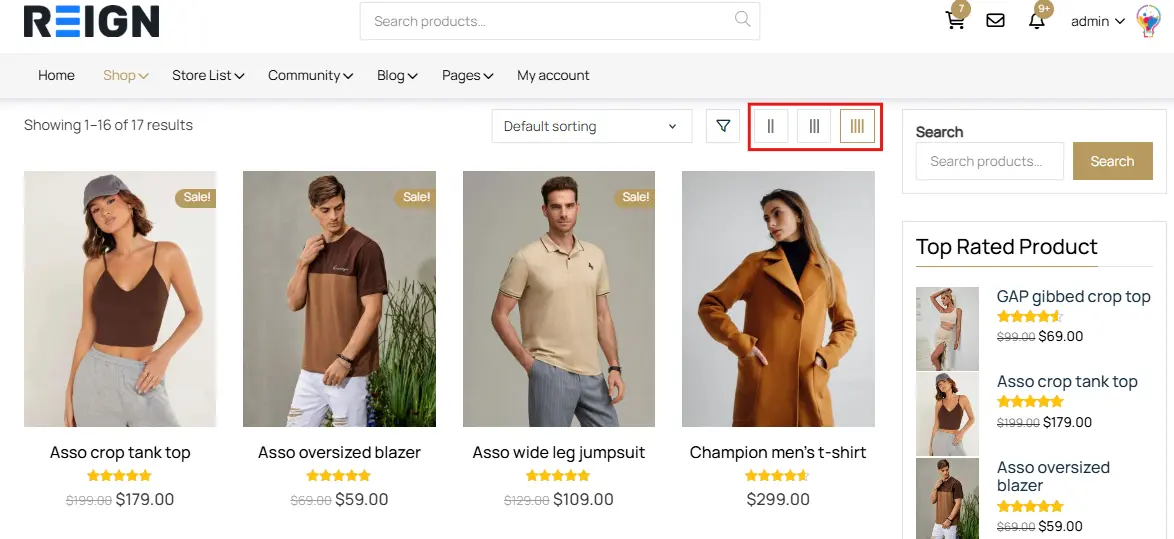
- BuddyPress Integration — vendors and buyers use profiles, groups, and messaging.

- Activity Streams — vendor news and product updates appear socially.

Why Dokan stands out: its dedicated vendor dashboard empowers sellers to run independent shops inside your community marketplace—minimizing your support overhead while improving seller autonomy.
Step 4: Customize Your Marketplace
- Adjust layouts for store pages, product archives, and shop grids.
- Customize colors, fonts, and branding using the Reign Customizer.

- Use Elementor to edit the marketplace homepage and promotional banners.
- Ensure mobile optimization so vendors and customers can manage and shop on any device.

Extend functionality:
- Integrate WooCommerce payment gateways for secure checkout.
- Offer vendor subscriptions or premium access using Paid Memberships Pro.
- Add GamiPress for gamification—reward vendors for milestones and buyers for purchases.
Step 5: Reign Dokan Addon for Advanced Marketplace Design
For a more polished Dokan experience inside Reign, consider the Reign Dokan Addon. It improves styling and integration.
- Enhanced vendor store designs for better presentation.
- Custom store widgets to highlight featured vendors and products.
- A more polished vendor dashboard interface.
- Seamless integration of BuddyPress profiles with vendor activities.
This addon helps transform your marketplace into a modern, social-driven eCommerce hub.
Create a Social Marketplace with Reign Theme, WCFM Marketplace, and BuddyPress
If you prefer alternative multi-vendor tools, WCFM Marketplace (WooCommerce Frontend Manager) is another excellent choice. It emphasizes flexible vendor memberships, advanced service options, and a robust frontend dashboard.
Step 1: Install the WCFM Marketplace Plugin
From the dashboard, go to Plugins → Add New, search for WCFM Marketplace, install and activate.
WCFM Highlights
- Advanced vendor dashboard with intuitive UI.
- Flexible commission rules and membership levels for vendors.
- Support for bookings, subscriptions, and service-based marketplaces.
- Built-in analytics so vendors can track performance.
Step 2: Install the WCFM Marketplace + BuddyPress Demo with Reign Theme
Use Reign’s demo installer: Theme Installer → BuddyPress, then choose the WCFM Marketplace + BuddyPress Demo and click Install Demo.
The demo will create vendor store layouts, marketplace product archives, and BuddyPress pages (Members, Groups, Activity).
Step 3: Explore WCFM Marketplace and Community Features
- Vendor stores and product listings with filters and categories.

- Vendor dashboard for product management and earnings tracking.

- BuddyPress integration so vendors and buyers can join groups, post in activity feeds, and message each other.

- Membership tiers to control vendor access and premium features.

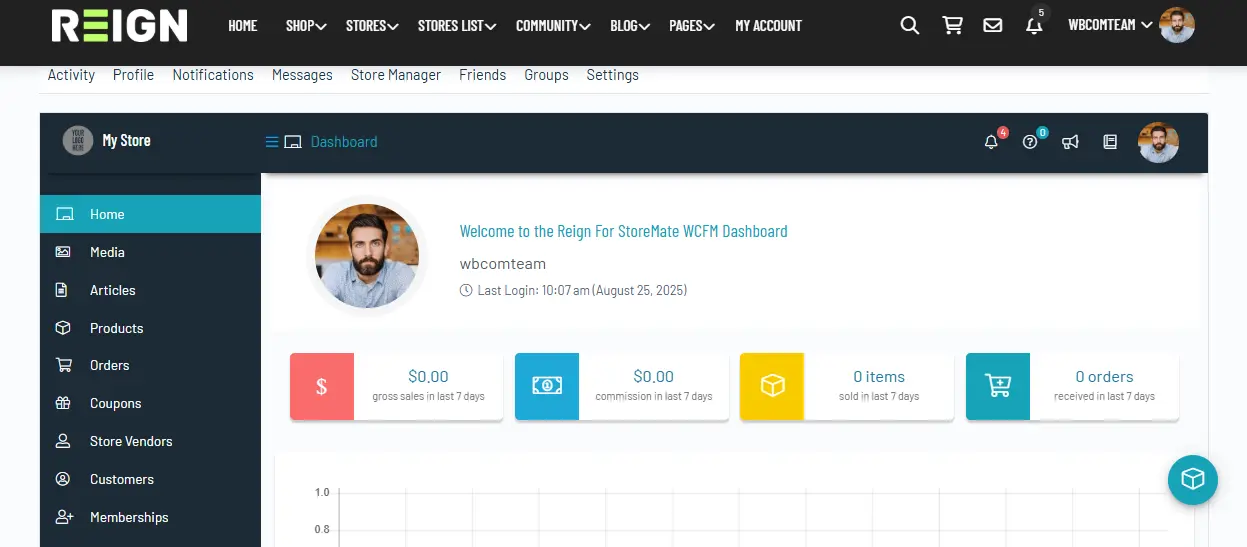

WCFM is ideal for marketplaces that need flexible vendor memberships and service listings (bookings, appointments, subscriptions).
Step 4: Customize Your Marketplace with Reign
- Edit store and product archive layouts with the Reign Customizer.

- Use Elementor to design featured vendor sections and promotional banners.
- Ensure responsive design and performance for mobile users.
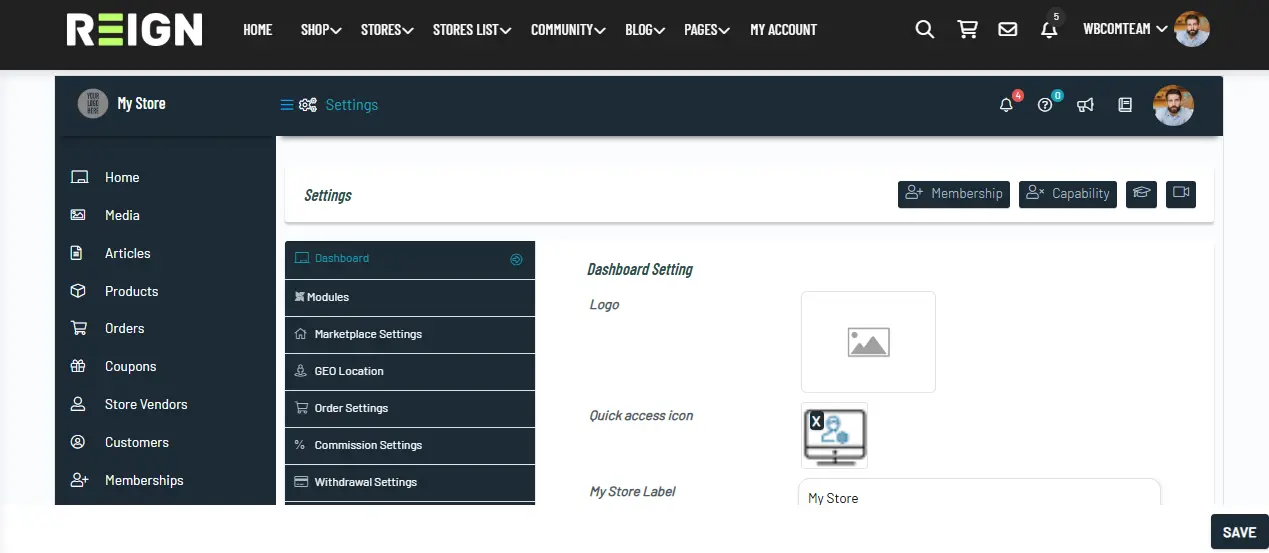
Advanced options:
- Add WooCommerce gateways for payments.

- Introduce gamification via GamiPress to incentivize sales and engagement.
- Offer premium vendor tiers using Paid Memberships Pro.

Step 5: Reign WCFM Addon for Enhanced Integration
For deeper polish, consider the Reign WCFM Addon. It provides:
- Enhanced store designs and widgets for top vendors and featured products.
- Improved vendor dashboard styling consistent with Reign.
- BuddyPress-linked vendor activities to boost social engagement.
With this addon, WCFM marketplaces look and feel integrated into your community UX.
Build a Career Hub with Reign Theme, BuddyPress, and WP Job Manager
Step 1: Install the WP Job Manager Plugin
Go to Plugins → Add New in your WordPress dashboard.
Search for WP Job Manager.
Click Install Now and then Activate.
Unique Features of WP Job Manager for Career Communities:
- Lightweight and developer-friendly job board plugin.
- Employers can submit and manage job listings.
- Candidates can apply directly through the platform.
- Search and filter system for finding jobs easily.
- Extendable with paid add-ons like resumes, applications, and paid listings.
Step 2: Install the Career Hub + BuddyPress Demo with Reign Theme
Navigate to Theme Installer → BuddyPress.
Select the Career Hub + BuddyPress Demo.
Click Install Demo and let Reign import everything automatically.
The demo includes:
- Pre-built job listings and submission pages.
- Candidate and employer dashboard pages.
- BuddyPress-powered Members, Groups, and Activity pages.
- Styled login and registration forms for professionals.
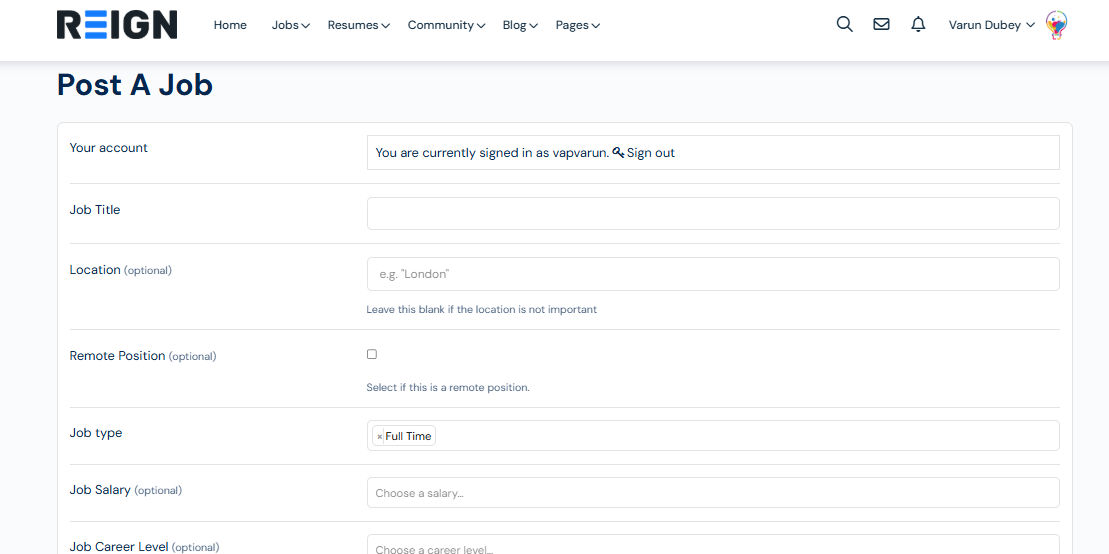
Step 3: Explore Career and Community Features
- Visit the Job Listings page to see job opportunities displayed in styled layouts.

- Use search and filter options to refine job results.
- Test the Employer Dashboard where recruiters can post and manage job listings.
- Try the Candidate Dashboard to apply for jobs and track applications.

- Explore BuddyPress integration, where professionals can join groups, post in activity streams, and connect with peers.
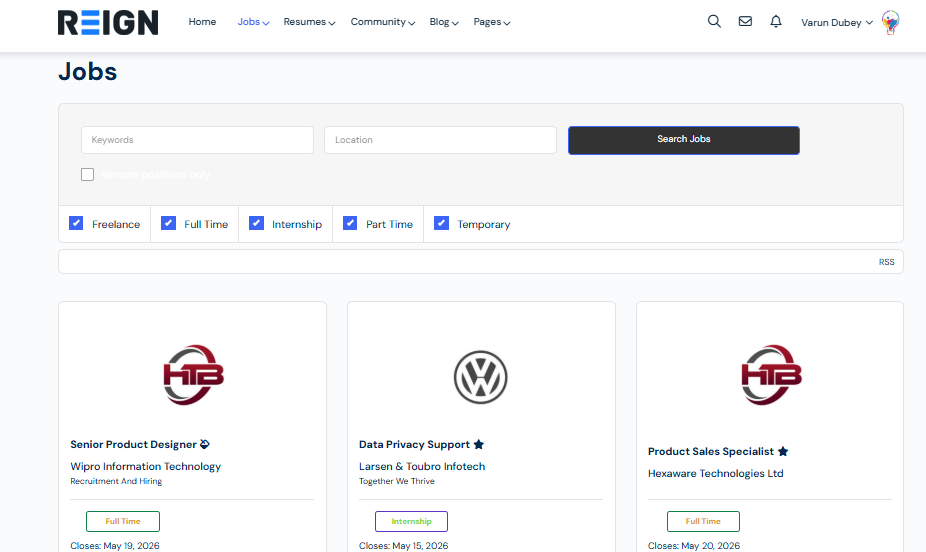

This setup makes your platform more than just a job board—it becomes a professional networking community.
Step 4: Customize Your Career Hub with Reign
- Adjust job listing layouts for better readability.
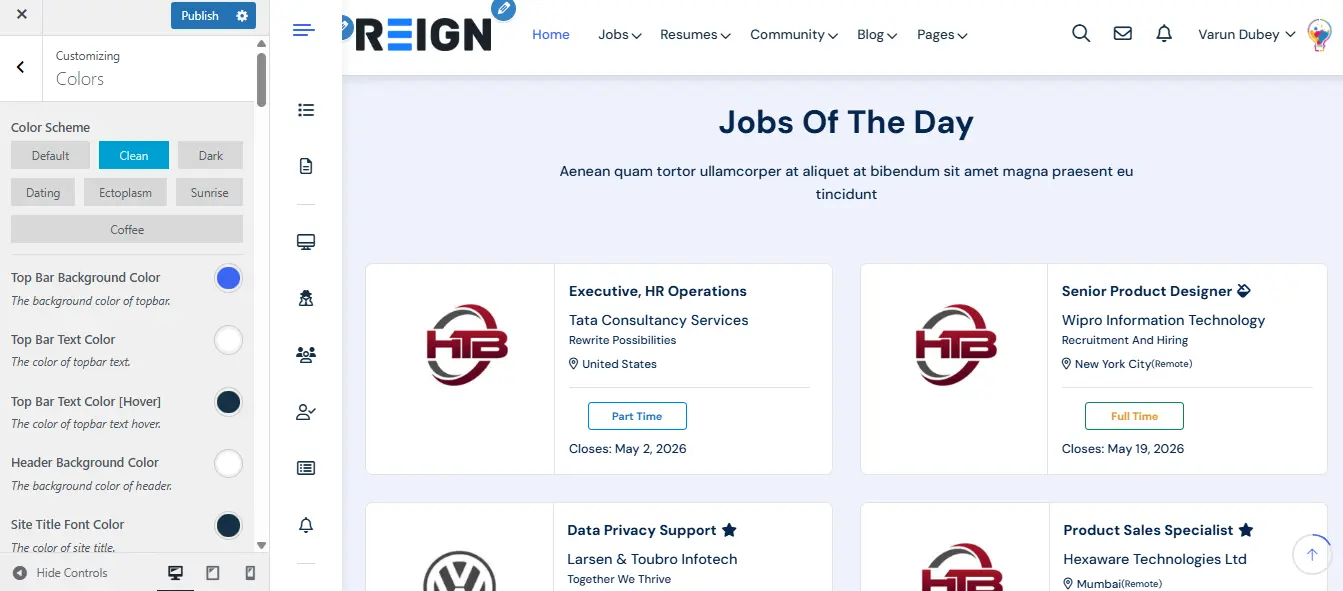
- Update branding with your own fonts, colors, and styles using the Reign Customizer.

- Use Elementor to edit the homepage and highlight featured jobs or top employers.
- Ensure your site is mobile-ready, allowing candidates to search and apply from any device.
For advanced setups, you can:
- Add Paid Listings to monetize job postings.
- Use Resume Manager to let candidates upload resumes.
- Integrate with WooCommerce for handling job listing payments.
Step 5: Reign WP Job Manager Addon for Enhanced Job Portals
To take your career hub further, we offer the Reign WP Job Manager Addon, designed to enhance WP Job Manager integration with the Reign Theme.
With this addon, you get:
- Improved job listing and single job page layouts.
- Enhanced candidate and employer dashboards with a modern, user-friendly interface.
- Extra widgets and shortcodes to showcase featured jobs or top employers.
- Deeper integration of BuddyPress profiles with job-seeking or recruiting activities.
This addon ensures your career hub is not only functional but also visually polished, community-driven, and ready to attract both employers and job seekers.
BuddyPress Monetization: How to Earn with Memberships and Marketplaces
1. Monetize with Membership Subscriptions
Memberships are the most popular way to monetize a community site. Using plugins like Paid Memberships Pro or Restrict Content Pro, you can:
- Offer free and paid tiers, giving basic access to free members while locking premium groups, courses, or features behind paid plans.
- Charge recurring subscriptions (monthly or yearly) to ensure consistent revenue.
- Create exclusive groups or forums only available to premium members.
- Bundle memberships with other benefits, such as downloadable resources or coaching sessions.
Example: A professional networking community could offer a free tier for basic profiles and a premium tier that unlocks private mastermind groups and live events.
2. Monetize with eLearning Courses
If your community is knowledge-based, pairing BuddyPress with an LMS plugin (like LearnDash, LifterLMS, TutorLMS, or Sensei) allows you to sell courses directly.
- Sell individual courses or course bundles.
- Offer certifications and charge extra for accredited badges.
- Create subscription-based learning memberships with recurring payments.
- Add a community layer (BuddyPress groups + activity feeds) to make learning interactive.
Example: An online coding community could sell premium courses in Python or JavaScript while providing free discussion groups for peer-to-peer support.
3. Monetize with Marketplaces
With plugins like Dokan, WCFM Marketplace, or WC Vendors, you can turn your BuddyPress site into a multi-vendor social marketplace.
- Allow vendors to set up their own shops.
- Earn commissions on every sale.
- Offer vendor subscriptions with monthly fees for store owners.
- Use BuddyPress profiles and groups to create a social shopping experience.
Example: A fitness community could let coaches sell meal plans, workout gear, or digital training programs, with commissions going to the site owner.
4. Monetize with Job Boards and Career Hubs
If your community is career-focused, you can integrate plugins like WP Job Manager with BuddyPress to create a job board.
- Charge employers for job postings.
- Offer featured job listings for premium exposure.
- Provide resume uploads and candidate access as a paid add-on.
- Use BuddyPress activity and groups to help job seekers connect with recruiters.
Example: A healthcare community could let hospitals post job opportunities while offering premium visibility packages to recruiters.
5. Monetize with Community Advertising and Sponsorships
- Sell banner ads or sidebar placements in your community pages.
- Offer sponsored groups or forums where companies can engage members.
- Run affiliate marketing campaigns, recommending products to your niche audience.
- Charge for email blasts or promoted posts in your BuddyPress activity stream.
Example: A photography community could allow camera brands to sponsor groups or feature their latest gear in promoted activity posts.
6. Gamification and Microtransactions
By adding GamiPress or MyCred, you can introduce a points and rewards system inside BuddyPress. You can then:
- Let members purchase points for real money.
- Exchange points for perks, discounts, or digital goods.
- Charge for unlocking badges, exclusive groups, or premium gamified content.
Example: In a language learning community, users could buy tokens to unlock advanced lessons or get premium practice sessions.
7. Hybrid Models for Maximum Revenue
Many communities combine multiple monetization models. For example:
- A membership site with premium access to courses.
- A marketplace with membership tiers for vendors.
- A career hub offering job listings + premium community networking.
By layering multiple income streams, you can maximize your community’s earning potential while offering more value to members.
Best Plugins for Extending BuddyPress Communities
1. Paid Memberships Pro (Membership Management)
If you want to create a membership-based community, Paid Memberships Pro (PMPro) is the go-to plugin.
- Restrict access to BuddyPress groups, forums, or activity feeds by membership level.
- Offer free, premium, or tiered subscription models.
- Accept recurring payments through gateways like Stripe, PayPal, and Authorize.net.
- Generate reports to track members and revenue.
Best for: Creating membership communities with tiered access.
2. LearnDash, LifterLMS, TutorLMS, and Sensei (Learning Management Systems)
eLearning is one of the most popular BuddyPress integrations. Pairing BuddyPress with an LMS plugin allows you to build social learning communities where members not only take courses but also collaborate.
- LearnDash: Enterprise-level LMS with drip content, advanced quizzes, and certifications.
- LifterLMS: Includes memberships, engagement triggers, and built-in course bundles.
- TutorLMS: A beginner-friendly LMS with a free version and intuitive UI.
- Sensei LMS: Lightweight LMS by Automattic, perfect for WooCommerce-based course sales.
Best for: Online schools, coaching communities, or eLearning platforms.
3. Dokan, WCFM Marketplace, WC Vendors (Marketplaces)
Turn your BuddyPress site into a multi-vendor marketplace by combining it with WooCommerce and one of these plugins:
- Dokan: Frontend vendor dashboards and scalable marketplace features.
- WCFM Marketplace: Flexible vendor memberships and service-based marketplaces.
- WC Vendors: Lightweight but powerful vendor store management.
With BuddyPress integration, vendors and buyers can connect socially, leave reviews, and interact in groups.
Best for: Social marketplaces with vendor-to-customer interactions.
4. GamiPress (Gamification)
GamiPress adds a fun, rewarding layer to your BuddyPress community.
- Award points for actions like posting updates, joining groups, or completing courses.
- Unlock badges and ranks for milestones.
- Add leaderboards to inspire competition.
- Monetize points through WooCommerce or microtransactions.
Best for: Driving engagement and retention through gamification.
5. WP Job Manager (Career Communities)
If you want to create a career hub or job board, WP Job Manager integrates beautifully with BuddyPress.
- Employers can post job listings.
- Candidates can apply and upload resumes.
- Job seekers and recruiters can connect through BuddyPress groups and activity feeds.
- Monetize by charging for listings or premium placement.
Best for: Career-focused communities like tech hubs, alumni networks, or niche job boards.
6. bbPress (Forums)
While BuddyPress provides groups and activity streams, bbPress adds a forum system for structured discussions.
- Create forums for groups, topics, and Q&A.
- Integrates directly into BuddyPress groups.
- Lightweight and scalable.
Best for: Communities that need organized, threaded discussions.
7. BuddyBoss Platform (Enhanced BuddyPress)
For those who want more out-of-the-box features, the BuddyBoss Platform extends BuddyPress with additional functionality.
- Advanced member profiles and social features.
- Private communities with better moderation tools.
- Native mobile app support when paired with BuddyBoss App.
Best for: Site owners who want enterprise-level BuddyPress features without piecing together too many plugins.
8. Wbcom Designs BuddyPress Addons
Finally, for fine-tuning your community, Wbcom Designs offers a suite of BuddyPress addons that integrate seamlessly with Reign and BuddyX Pro themes.
- BuddyPress Moderation Pro – For better control over community activity.
- BuddyPress Member Reviews – Let members rate and review each other.
- BuddyPress Polls – Run polls and surveys inside groups and activity feeds.
- BuddyPress Private Community Pro – Restrict access to members-only areas.
Best for: Anyone using Reign or BuddyX Pro who wants plug-and-play enhancements.
How Much Does BuddyPress Cost?
When people discover that BuddyPress is free, they’re often surprised. Yes, the core BuddyPress plugin doesn’t cost anything to download or use – it’s completely open-source and available in the WordPress.org plugin directory. That makes it one of the most accessible tools for building an online community.
But while BuddyPress itself doesn’t require an upfront payment, running a real-world, scalable online community usually involves other expenses. Think of it this way: BuddyPress gives you the engine, but you’ll still need fuel (hosting), a chassis (theme), accessories (plugins), and sometimes a mechanic (developer) to keep it running smoothly.
Here’s a detailed breakdown of potential costs associated with a BuddyPress-powered community.
1. BuddyPress Plugin (Free)
The foundation of your community is the BuddyPress plugin itself.
- Cost: $0
- Features Included:
- Member profiles with custom fields.
- Activity streams that work like a social timeline.
- Private messaging and friend connections.
- Groups (public, private, hidden).
- Notifications for interactions.
Because BuddyPress is free, you can start experimenting with it immediately without financial risk. Many small communities, hobby sites, or niche groups launch using only the free plugin.
Example: A small alumni network could set up BuddyPress with zero cost, using a free theme and free plugins, to test community interest before investing more.
2. Hosting Costs
While BuddyPress is free, your hosting provider isn’t. Communities require more server resources than blogs because users constantly interact – posting updates, commenting, sending messages, or joining groups.
- Shared Hosting: $10 – $15 per month. Suitable for very small communities (under 500 members).
- VPS Hosting: $25 – $50 per month. Provides more resources and stability for medium-sized communities (500 – 5,000 members).
- Managed WordPress Hosting: $30 – $100+ per month. Ideal for growing or enterprise-level communities that need speed, backups, and security handled.
Tip: If you expect rapid growth, plan for scalable hosting from the beginning. A sluggish community site can kill engagement before it even begins.
3. Themes for BuddyPress – Free vs Premium
BuddyPress works with many WordPress themes, but BuddyPress-optimized themes save you time and effort by providing pre-built layouts, demo imports, and built-in styling for BuddyPress pages.
- Free Themes: You can use a generic free theme, but it may lack polished styling for community pages.
- Premium Themes: Options like Reign and BuddyX Pro are purpose-built for BuddyPress. They come with demo sites tailored for communities, marketplaces, eLearning, or membership hubs.
- Typical Price Range: $49 – $99 (one-time or yearly renewal).
Example: Using the Reign theme with demo import, you could set up a BuddyPress + LearnDash learning community in under an hour – compared to days of manual design work if you used a generic theme.
4. Add-ons and Extensions
While BuddyPress provides the basics, many communities require specialized features. This is where add-ons come in. Some are free, but many advanced plugins require a license fee.
- Memberships:
- Paid Memberships Pro, Restrict Content Pro – cost: $99 – $199/year.
- Learning Management Systems (LMS):
- LearnDash: $199 – $399/year.
- LifterLMS: Free core + premium add-ons ($99 – $299 each).
- TutorLMS: Free core + Pro ($199/year).
- Sensei: Free core + WooCommerce add-ons for payments.
- Marketplaces:
- Dokan Pro: $149 – $499/year.
- WCFM Marketplace: Free core + premium add-ons ($59 – $199/year).
- WC Vendors: $199/year.
- Gamification: GamiPress – free core + premium extensions $49 – $199.
- Job Boards: WP Job Manager – free core + $39 – $199 per add-on.
Example: If you’re building a membership + course community, your costs might include PMPro ($199/year) + LearnDash ($199/year) + BuddyPress (free) + premium theme ($69). Total: around $500/year before hosting.
5. Custom Development Costs
For many site owners, off-the-shelf plugins and themes are enough. But if you want custom workflows, branding, or integrations, you may need a developer.
- Freelancers: $30 – $75/hour (basic customizations).
- Agencies: $1,000 – $10,000+ (custom platforms, integrations, or large-scale builds).
Example: A corporate client might pay an agency $5,000+ to build a BuddyPress-powered employee training portal with LMS, gamification, and SSO integration.
6. Maintenance and Hidden Costs
Beyond the initial setup, communities require ongoing maintenance:
- Plugin and theme renewals: $100 – $500 per year.
- Security and backups: $50 – $200 per year (if not included with hosting).
- Performance optimization: Caching plugins ($49+) or CDN services ($10 – $20/month).
These aren’t always obvious upfront, but they’re essential to keep your BuddyPress site secure and fast.
Practical Scenarios – How Much Could You Spend?
- Hobby Community: BuddyPress (free) + free theme + shared hosting = ~ $120/year.
- Professional Membership Site: BuddyPress (free) + PMPro ($199) + premium theme ($69) + hosting ($300/year) = ~ $600/year.
- Full eLearning Platform: BuddyPress (free) + LearnDash ($199) + premium theme ($69) + gamification plugin ($99) + hosting ($600/year) = ~ $1,000/year.
- Marketplace Community: BuddyPress (free) + Dokan Pro ($199) + premium theme ($69) + hosting ($500/year) = ~ $800/year.
How to Improve Speed and Performance of BuddyPress Sites
BuddyPress communities are dynamic by nature. Unlike a static blog where most content is cached, a BuddyPress site constantly generates new activity – profile updates, group discussions, private messages, and notifications. All of this can slow down your site if you don’t optimize it. A slow community leads to poor engagement, frustrated members, and even search engine ranking drops.
Here’s a comprehensive guide to keeping your BuddyPress site fast, responsive, and scalable.
1. Choose the Right Hosting Environment
Your hosting environment has the biggest impact on BuddyPress performance. Since BuddyPress relies heavily on database queries, cheap shared hosting often can’t keep up.
- Shared Hosting – Only suitable for very small communities (less than 500 users).
- VPS Hosting – Recommended for growing communities. Provides dedicated resources and more stability.
- Managed WordPress Hosting – Best option for serious projects. Offers caching, CDN, and automatic scaling.
- Dedicated or Cloud Hosting (AWS, DigitalOcean, Cloudways) – For large-scale communities with thousands of members.
Tip: Choose a host with database optimization features and support for object caching.
2. Use a BuddyPress-Optimized Theme
Not all themes are built for BuddyPress. A poorly coded theme can overload your site with unnecessary scripts.
- Reign Theme and BuddyX Pro are optimized for BuddyPress and come with lightweight layouts, mobile-first design, and built-in demo import.
- Avoid heavy multipurpose themes that load dozens of scripts you don’t need.
Using a BuddyPress-specific theme reduces bloat and ensures your activity streams, member directories, and group pages load quickly.
3. Optimize Caching for Dynamic Content
Since BuddyPress pages change frequently, caching must be configured carefully.
- Page Caching – Use caching plugins like WP Rocket, W3 Total Cache, or LiteSpeed Cache.
- Object Caching – Store database queries in memory with Redis or Memcached.
- Fragment Caching – Cache portions of pages (like headers and footers) while keeping dynamic areas (activity streams) fresh.
Tip: Exclude BuddyPress-specific pages (like Activity or Members) from full-page caching to avoid stale content.
4. Use a Content Delivery Network (CDN)
A CDN reduces server load and speeds up delivery of static files (images, CSS, JS) for global users.
- Popular CDNs: Cloudflare, BunnyCDN, KeyCDN.
- Ensure your CDN is configured to bypass or minimize caching for BuddyPress dynamic pages.
This is especially important for international communities where members log in from different regions.
5. Optimize Images and Media Uploads
User-generated content (profile pictures, cover photos, shared media) can quickly bloat storage.
- Use plugins like ShortPixel or Smush for image compression.
- Enable lazy loading so images load only when they’re visible on screen.
- Restrict image upload size in BuddyPress settings to prevent oversized files.
This not only saves bandwidth but also speeds up page loads significantly.
6. Clean and Optimize Your Database
BuddyPress relies heavily on your WordPress database to store member data, messages, activity logs, and notifications. Over time, this can cause slow queries.
- Use WP-Optimize or Advanced Database Cleaner to remove:
- Expired transients.
- Old activity logs (if not required).
- Spam or deleted accounts.
- Enable indexing for frequently queried tables.
A clean, optimized database is crucial for active communities.
7. Minimize Plugin Bloat
Every extra plugin adds queries, scripts, or styles that can slow down your site.
- Stick to essential BuddyPress extensions only.
- Replace heavy plugins with lightweight alternatives.
- Audit your site regularly to deactivate or remove unused plugins.
Example: Instead of running multiple separate plugins for polls, reviews, and moderation, use bundled BuddyPress addons from Wbcom Designs that are optimized to work together.
8. Implement Advanced Performance Tweaks
For large communities, go beyond basic optimizations:
- PHP Version – Always use the latest stable PHP (8.0+).
- HTTP/2 or HTTP/3 – Enable faster resource loading on your server.
- Object Cache Drop-ins – Install Redis Object Cache or Memcached.
- Database Sharding – For very large communities, split data across multiple databases.
These advanced tweaks keep high-traffic BuddyPress sites scalable and stable.
9. Monitor Performance Regularly
Optimization is not a one-time job. Use monitoring tools to keep track of site performance.
- GTmetrix or Pingdom – For page load analysis.
- Query Monitor plugin – To identify slow queries.
- New Relic – For server-side monitoring in large communities.
Monitoring helps you catch performance bottlenecks before they affect members.
10. Encourage Responsible Community Growth
Finally, performance isn’t just technical – it’s also about how you manage your community.
- Limit excessive use of media-heavy posts.
- Archive or delete inactive groups and old activity data.
- Use moderation tools to keep spam under control.
Managing growth proactively ensures your BuddyPress site remains healthy over the long term.
Why Performance Matters for BuddyPress Sites
In a social network, every second counts. A delay in loading activity streams, profiles, or groups can discourage interaction. By investing in hosting, caching, optimization, and regular maintenance, you ensure your BuddyPress-powered community is fast, reliable, and enjoyable to use.
Securing Your BuddyPress Community Against Spam
One of the biggest challenges with running an online community is spam management. From fake registrations to irrelevant posts in activity feeds, spam can damage your community’s credibility, overwhelm moderation, and drive genuine users away. Fortunately, BuddyPress provides tools to combat spam and you can strengthen them further with the right plugins and practices.
Here’s how to secure your BuddyPress community against spam.
1. Strengthen Member Registration
Most spam starts with automated signups. Securing the registration process is your first defense.
- Enable reCAPTCHA: Use plugins like Google Captcha (reCAPTCHA) by BestWebSoft to block bots.
- Email verification: Require users to confirm their email addresses before activating accounts.
- Manual approval: With addons like BuddyPress Registration Options, admins can manually approve new members before they gain access.
- Honeypot fields: Invisible fields that catch automated bot submissions.
2. Use BuddyPress Moderation Tools
BuddyPress integrates with moderation plugins to keep communities safe.
- BuddyPress Moderation Tools (by Wbcom Designs): Allow admins and members to report inappropriate content in activity streams, groups, and profiles.
- Stop Spammers Security Plugin: Adds advanced filters and IP blocking.
- Akismet Integration: Automatically detects and blocks spam posts in activity feeds and group discussions.
3. Protect Activity Streams and Groups
Activity feeds and groups are prime targets for spam posts and links.
- Restrict posting privileges to verified members.
- Moderate the first few posts of new members before allowing full access.
- Use keyword filters to block spammy words or links from appearing.
- Assign group admins or moderators to actively monitor discussions.
4. Limit Spam in Private Messaging
Spammers may use BuddyPress private messaging to send unwanted links.
- Restrict private messaging to approved or friend connections only.
- Use plugins like BP Better Messages to add moderation options.
- Set thresholds (for example, only members with a complete profile or a certain activity level can message others).
5. Secure Login and Accounts
Even legitimate accounts can be hijacked and used for spam.
- Enforce strong passwords with a plugin like Password Policy Manager.
- Enable two-factor authentication (2FA) for members.
- Use plugins like Wordfence or iThemes Security to block brute-force login attempts.
6. Monitor and Block Suspicious Activity
Active monitoring is key to keeping your community safe.
- Audit logs – Track unusual activity with plugins like WP Activity Log.
- Rate limiting – Restrict how often members can post or send messages in a short time.
- IP blocking – Block known spam IP addresses or countries with high spam activity.
7. Educate Your Community
Encourage members to take part in keeping the community clean.
- Add “Report Spam” buttons in activity streams and groups.
- Establish clear community guidelines and display them on registration pages.
- Reward active members who help with moderation (via gamification plugins like GamiPress).
8. Regularly Update and Maintain
Many spam attacks exploit outdated plugins or themes.
- Keep BuddyPress, WordPress, themes, and plugins updated.
- Remove unused plugins to minimize vulnerabilities.
- Regularly back up your site with tools like UpdraftPlus or BlogVault.
Why Spam Protection Matters for BuddyPress
A BuddyPress community thrives on trust and engagement. If members are bombarded with fake accounts, spammy posts, or phishing links, they’ll leave quickly. By combining smart registration controls, robust moderation, account security, and user education, you can maintain a safe, welcoming, and spam-free community.
How BuddyPress Integrations Are Changing eLearning in 2025
The eLearning industry has seen explosive growth over the past few years, with the global market projected to surpass $400 billion by 2030. In 2025, online learning is no longer just about consuming content – it’s about interaction, collaboration, and community-driven education. This is where BuddyPress integrations with LMS plugins like LearnDash, LifterLMS, TutorLMS, and Sensei LMS are making a real impact.
BuddyPress transforms traditional LMS websites into social learning platforms. Instead of isolated learners, you get a thriving community where students can share progress, collaborate in groups, and stay motivated through gamification and social accountability.
1. From Courses to Communities
In the past, eLearning platforms focused on delivering structured courses: lessons, quizzes, and certificates. While effective, this model often left learners feeling isolated.
BuddyPress changes this by adding community features on top of LMS plugins:
- Activity feeds let students share updates and achievements.
- Groups act as virtual classrooms or study circles.
- Private messaging enables direct interaction between peers or with instructors.
- Profiles showcase learning progress and achievements.
This makes online learning feel more like a social experience than a solitary one.
2. Gamification and Engagement
In 2025, gamification is a driving force behind student engagement. BuddyPress integrates seamlessly with GamiPress, allowing LMS platforms to:
- Award points for course completions or community participation.
- Unlock badges for achievements like “Top Student” or “Quiz Master”.
- Create leaderboards to inspire friendly competition.
By combining learning with rewards, BuddyPress-powered eLearning communities achieve higher retention rates and reduce drop-offs.
3. Personalized Learning Through Communities
One-size-fits-all learning is outdated. With BuddyPress integrations, eLearning platforms now focus on personalized learning journeys:
- Students can join special interest groups aligned with their goals.
- Peer-to-peer mentoring flourishes in discussion threads and group forums.
- Instructors can use BuddyPress notifications to deliver targeted updates.
This creates a sense of ownership and collaboration, which modern learners crave.
4. Monetization Opportunities for Educators
For instructors and institutions, BuddyPress integrations unlock new revenue streams:
- Paid memberships (via Paid Memberships Pro) restrict access to premium courses or private groups.
- Marketplace setups allow multiple educators to sell courses in a shared community.
- Subscription models provide recurring revenue for exclusive eLearning content.
In 2025, the most successful educators are combining LMS features with BuddyPress-driven memberships and social learning spaces.
5. Mobile-First Social Learning
Today’s learners expect to access education anytime, anywhere. With BuddyPress themes like Reign and BuddyX Pro, communities are fully mobile-optimized. Students can:
- Browse courses on their phones.
- Interact in activity streams on the go.
- Get real-time notifications of group discussions.
This mobile-first approach ensures that learners remain connected to their courses and peers at all times.
6. Future Trends: What’s Next for BuddyPress in eLearning?
As we move deeper into 2025, several trends are shaping BuddyPress-powered eLearning:
- AI-Powered Recommendations: Personalized course suggestions based on member activity.
- Hybrid Learning Models: Integration of live events, webinars, and BuddyPress groups for blended learning.
- Microlearning + Communities: Short, bite-sized courses paired with quick group discussions.
- Professional Networking: Students use BuddyPress communities not just to learn but also to network for jobs and collaborations.
These trends are making BuddyPress an essential companion to any WordPress LMS.
Real-World Example: A Social Learning Platform in Action
Imagine a fitness coach creating an online academy with LearnDash, BuddyPress, and the Reign Theme:
- Students enroll in structured workout courses.
- BuddyPress groups act as accountability pods where members share progress photos.
- GamiPress rewards members with badges for completing 30-day challenges.
- Paid Memberships Pro restricts premium nutrition courses to paying members.
This turns a simple LMS into a full-fledged learning community that educates, motivates, and retains learners.
Why BuddyPress Matters for eLearning in 2025
Education is no longer about content alone; it’s about connection and community. BuddyPress integrations allow WordPress LMS platforms to evolve beyond traditional course delivery into social ecosystems where learners grow together.
In 2025, the platforms that thrive will be those that merge content, community, and engagement — and BuddyPress is the tool making that possible
Building Social Marketplaces: Why BuddyPress is Leading the Way
Online marketplaces have exploded in popularity, from Amazon and Etsy to niche platforms where communities buy, sell, and interact. But the future isn’t just about transactions; it’s about social commerce, where people connect with sellers, share experiences, and build trust through community engagement.
This is where BuddyPress stands out. By combining WooCommerce with multi-vendor marketplace plugins and BuddyPress social features, you can create a socially-powered marketplace – a platform that feels more like a community than a traditional online store.
1. What is a Social Marketplace?
A social marketplace blends eCommerce functionality with community-driven engagement. Instead of a static shopping experience, members can:
- Create profiles as buyers or sellers.
- Follow vendors and join interest groups.
- Post reviews, share updates, and recommend products in activity streams.
- Build trust through private messaging and peer interactions.
It’s eCommerce with the added value of community trust and interaction.
2. Why BuddyPress is Perfect for Social Marketplaces
BuddyPress provides the community backbone that traditional marketplace platforms lack.
- Profiles and avatars – vendors and buyers have full social profiles.
- Groups as vendor communities – vendors can create groups for loyal customers.
- Activity streams – product launches, sales, and reviews can appear in social feeds.
- Messaging – buyers and sellers can communicate directly.
- Notifications – keep members updated on orders, reviews, or new products.
Unlike standalone marketplace plugins, BuddyPress ensures your marketplace feels interactive, engaging, and people-first.
3. Key BuddyPress Marketplace Integrations
Several plugins pair seamlessly with BuddyPress to create full-fledged marketplaces:
Dokan
- Frontend vendor dashboards.
- Commission control for marketplace owners.
- Great for product-driven marketplaces.
WCFM Marketplace
- Flexible membership tiers for vendors.
- Support for service-based marketplaces (bookings, subscriptions).
- Vendor analytics for growth.
Each of these integrates with BuddyPress profiles, activity feeds, and groups to create social shopping ecosystems.
4. Benefits of Social Marketplaces for Business Owners
- Higher Engagement: buyers return not just to shop, but to interact with the community.
- Stronger Trust: real profiles, activity streams, and reviews add credibility.
- Increased Sales: social recommendations (activity feed shares, group discussions) drive purchases.
- Scalability: start with a small community and grow into a global marketplace.
5. Real-World Use Cases of BuddyPress Marketplaces
- Fitness Marketplace: coaches sell training plans and products, while members join accountability groups.
- Artisan Community: artists sell handmade products while customers follow their favorite creators.
- Educational Marketplaces: instructors sell digital courses or resources and network with students via groups.
- Niche Professional Networks: industry experts sell eBooks, tools, or consulting services alongside forum discussions.
6. Future of Social Marketplaces with BuddyPress
In 2025 and beyond, social commerce is projected to exceed $1.2 trillion globally. Platforms that combine buying, selling, and community interaction are positioned to dominate. BuddyPress is leading the way because it:
- Adapts to any niche (products, services, memberships, digital goods).
- Integrates easily with WooCommerce and multi-vendor plugins.
- Provides a ready-made social layer that no other marketplace system has.
By merging commerce with community, BuddyPress doesn’t just help you sell products – it helps you build a loyal, engaged ecosystem around your brand.
Why BuddyPress is Leading the Way
Unlike traditional eCommerce setups, BuddyPress-powered marketplaces thrive on connection, trust, and engagement. When people shop within a community they’re part of, they’re more likely to return, recommend, and invest. For business owners, this means higher retention, stronger loyalty, and sustainable growth.
BuddyPress isn’t just following the social marketplace trend – it’s enabling entrepreneurs to lead it.
Future of Online Communities with WordPress and BuddyPress
Online communities have become central to how people learn, connect, and do business. From niche networks and alumni groups to professional hubs and eLearning platforms, the demand for community-driven experiences is stronger than ever. In 2025 and beyond, WordPress paired with BuddyPress is uniquely positioned to power this future.
BuddyPress is no longer just a plugin; it’s the foundation of next-generation communities where content, commerce, and connection merge seamlessly. Here are the trends shaping the future of online communities with WordPress and BuddyPress.
1. The Rise of Niche Communities
While global networks like Facebook and LinkedIn dominate, users increasingly seek smaller, niche-focused communities.
- Why it matters: members want safe, tailored spaces where they feel understood.
- How BuddyPress helps:
- Create groups around specific interests.
- Use membership plugins to build exclusive spaces.
- Pair with LMS or marketplace plugins to offer focused learning or commerce experiences.
Example: instead of a generic learning site, you can create a niche medical learning community where doctors take courses, discuss cases, and share updates.
2. Integration with eLearning and Microlearning
eLearning is projected to grow by billions in the next decade, but the model is shifting. Learners now prefer short, interactive, and collaborative experiences.
- Microlearning: deliver short lessons, paired with BuddyPress activity discussions.
- Social accountability: groups keep learners engaged in completing challenges.
- Gamification: tools like GamiPress reward learners with badges and points.
This trend makes BuddyPress + LMS integrations (LearnDash, LifterLMS, TutorLMS, Sensei) more powerful than ever.
3. Social Marketplaces and Community Commerce
The eCommerce space is evolving into social marketplaces, where buyers and sellers connect as part of a community.
- Why BuddyPress is key:
- Vendors get rich profiles instead of faceless store pages.
- Groups can double as vendor or product communities.
- Activity feeds create organic promotion (for example, “Vendor X just launched a new product”).
Plugins like Dokan, WCFM Marketplace, and WC Vendors combined with BuddyPress are fueling a new generation of community-driven marketplaces.
4. Professional Networking and Career Hubs
Professional communities are shifting away from platforms like LinkedIn to specialized career hubs.
- WP Job Manager + BuddyPress allows employers and candidates to connect inside groups and activity streams.
- Recruiters can create private groups for premium candidates.
- Job seekers can network in niche communities rather than getting lost in global feeds.
BuddyPress makes career platforms personalized, interactive, and scalable.
5. AI, Personalization, and Smart Communities
The future of online communities will be powered by AI and personalization.
- AI-driven recommendations for groups, courses, or friends.
- Personalized dashboards with dynamic feeds.
- Automated moderation to detect spam or abusive content.
- Chatbots integrated with BuddyPress messaging to support onboarding.
With BuddyPress’s open-source flexibility, developers can integrate these emerging technologies faster than proprietary platforms.
6. The Mobile-First Community Experience
Most users now access communities through mobile devices. BuddyPress, paired with responsive themes like Reign and BuddyX Pro, ensures that:
- Activity feeds, groups, and profiles adapt seamlessly to small screens.
- Push notifications keep members engaged.
- Native-like experiences are possible with Progressive Web Apps (PWAs).
Mobile-first design ensures communities stay active anytime, anywhere.
7. The Blending of Content, Commerce, and Community
The most successful communities of the future will combine:
- Content – blogs, courses, videos.
- Commerce – marketplaces, memberships.
- Community – BuddyPress activity, groups, and messaging.
WordPress + BuddyPress is uniquely positioned to deliver this trifecta since it already integrates with WooCommerce, LMS plugins, and membership tools.
8. Why BuddyPress Will Remain Relevant
BuddyPress has been around since 2009, and while some thought it would fade, it continues to thrive because of:
- Its open-source nature backed by the WordPress ecosystem.
- Flexibility to power learning sites, marketplaces, or private networks.
- Strong support from themes like Reign and BuddyX Pro, plus hundreds of add-ons.
- Ability to adapt to modern trends like AI, gamification, and niche networking.

The Power of BuddyPress Communities
Building an online community is no longer optional — it’s a core part of how people learn, shop, collaborate, and connect in today’s digital-first world. With WordPress + BuddyPress, anyone can create a fully customized community that rivals big social platforms but stays focused on a specific niche, audience, or purpose.
Throughout this guide, we explored everything BuddyPress can do, from powering membership networks, eLearning platforms, and social marketplaces to supporting career hubs and gamified communities. We also covered how to optimize performance, secure against spam, monetize effectively, and future-proof your site with integrations.
What makes BuddyPress unique is its flexibility. You don’t just get one type of community platform — you get a framework you can mold into exactly what your audience needs. Paired with the right tools such as Paid Memberships Pro for memberships, LearnDash or TutorLMS for learning, Dokan or WCFM for marketplaces, and GamiPress for engagement, your site can grow into a thriving ecosystem.
And while the plugin itself is free, themes like Reign and BuddyX Pro make it faster and easier to launch a professional-looking site. With ready-to-use demo imports, integrations, and community-focused design, they save you hours of setup while ensuring your community looks modern, mobile-ready, and engaging.
The future of online communities is about connection and trust, and BuddyPress is leading the way. Whether you’re starting a private membership hub, a learning academy, a vendor marketplace, or a professional networking platform, BuddyPress gives you the foundation to build something lasting.
Now it’s your turn:
- Define your community’s purpose.
- Pick the right integrations.
- Launch with BuddyX Pro or Reign.
Your audience is waiting. All that’s left is to give them a space where they can come together, grow, and thrive.
Frequently Asked Questions About BuddyPress
1. What is BuddyPress used for?
BuddyPress is a free WordPress plugin that transforms your website into a social networking platform. It adds features like member profiles, activity feeds, private messaging, and groups, making it ideal for creating online communities, membership networks, eLearning hubs, and even social marketplaces.
2. Is BuddyPress free?
Yes. BuddyPress is 100% free and open-source. You can download it from the WordPress plugin directory. However, while the core plugin is free, you may want to invest in premium themes like Reign or BuddyX Pro, hosting, and add-ons like LearnDash, Dokan, or Paid Memberships Pro to unlock advanced features.
3. How does BuddyPress compare to BuddyBoss?
BuddyBoss is a commercial fork of BuddyPress with additional built-in features and a mobile app option. BuddyPress, on the other hand, is free and highly flexible but often relies on add-ons to match BuddyBoss’s out-of-the-box functionality. If you want full control and flexibility, BuddyPress is ideal. If you prefer a bundled solution with enterprise features, BuddyBoss might be better.
4. Can I use BuddyPress for eLearning?
Absolutely. BuddyPress integrates with popular LMS plugins like LearnDash, TutorLMS, LifterLMS, and Sensei. This allows you to create social learning communities where students not only take courses but also collaborate in groups, join discussions, and earn badges for progress.
5. Can BuddyPress handle large communities?
Yes, but performance depends on your setup. For small communities, shared hosting might be fine. For larger ones (5,000+ members), you’ll need VPS or managed WordPress hosting, caching systems, and database optimization. Themes like Reign and BuddyX Pro are optimized for performance in large communities.
6. Is BuddyPress mobile-friendly?
Yes. When paired with a responsive theme like Reign or BuddyX Pro, BuddyPress works seamlessly across devices. Many site owners also use Progressive Web Apps (PWAs) or mobile app integrations to deliver a native app-like experience.
7. Can I monetize a BuddyPress site?
Yes, there are multiple monetization models:
- Membership subscriptions with Paid Memberships Pro.
- eLearning courses with LearnDash or TutorLMS.
- Marketplaces with Dokan or WCFM Marketplace.
- Job boards with WP Job Manager.
- Advertising, sponsorships, or microtransactions through gamification plugins.
8. What themes work best with BuddyPress?
While BuddyPress works with many WordPress themes, Reign and BuddyX Pro are specifically designed for BuddyPress. They come with one-click demo imports, multiple community layouts, and seamless integration with eLearning, membership, and marketplace plugins.
9. Does BuddyPress support gamification?
Yes. With plugins like GamiPress or myCRED, you can add gamification features such as points, badges, ranks, and leaderboards. This is a powerful way to increase engagement and retention in your community.
10. How do I secure my BuddyPress site against spam?
You can reduce spam by:
- Adding reCAPTCHA to registration forms.
- Enabling email verification.
- Using moderation plugins like BuddyPress Moderation Tools or Stop Spammers.
- Restricting messaging and posting privileges for new members until verified.
11. Can I use BuddyPress with WooCommerce?
Yes. BuddyPress integrates seamlessly with WooCommerce, allowing you to build social-powered stores or marketplaces. With add-ons like Dokan, WCFM Marketplace, or WC Vendors, you can create multi-vendor platforms where sellers and buyers interact within BuddyPress groups, profiles, and activity streams.
12. Does BuddyPress work with Gutenberg and Elementor?
BuddyPress works with both the Gutenberg block editor and page builders like Elementor. Themes such as Reign and BuddyX Pro are built to take advantage of Elementor, making it easier to design and customize your community pages without coding.
13. Can I run a private or invite-only BuddyPress community?
Yes. With plugins like BuddyPress Private Community Pro, you can make your site members-only. You can also set up invite-only registrations, restrict groups, or hide activity streams from non-members. This is especially useful for corporate networks, alumni groups, or premium memberships.
14. How customizable is BuddyPress?
BuddyPress is highly customizable. You can:
- Modify member profiles with custom fields.
- Create unique group types.
- Adjust layouts with BuddyPress-optimized themes.
- Extend functionality using hundreds of add-ons.
For advanced needs, developers can also customize BuddyPress via hooks, filters, and custom plugins.
15. Is BuddyPress suitable for schools and universities?
Yes. BuddyPress is widely used in education. Schools and universities can use it to:
- Build student or alumni networks.
- Pair with LMS plugins like LearnDash or TutorLMS for social learning.
- Create study groups, class-specific communities, and discussion forums.
- Manage private student-teacher messaging.
It’s one of the most affordable and flexible solutions for educational communities.
Interesting Reads
How to Set Up WooCommerce for Dropshipping (Step-by-Step)
Mastering WordPress Communities: Building Strong Engagement with BuddyPress
