

Website performance is no longer optional—slow-loading sites frustrate users, reduce engagement, and hurt search engine rankings. In this WP-Optimize Review, we explore how this all-in-one WordPress optimization plugin helps site owners improve speed, manage databases, and streamline images and caching for peak performance. Studies show that 53% of mobile visitors abandon a site that takes more than three seconds to load, making optimization critical for every WordPress website.
WP-Optimize combines multiple tools in a single package, including database cleanup, page caching, and image compression. Its intuitive interface makes it easy for beginners to optimize their sites, while advanced settings give developers granular control over scripts, caching rules, and performance enhancements.
Whether you run a personal blog, a large e-commerce store, or a membership platform, this WP-Optimize Review provides actionable insights into how the plugin works, its setup process, pricing, key features, pros and cons, and real-world performance. By understanding its capabilities, WordPress users in 2025 can make informed decisions to maintain fast, efficient, and reliable websites that improve user experience and SEO rankings.

What is WP-Optimize?
WP-Optimize is a powerful WordPress plugin designed to improve website performance by combining database cleanup, caching, and image optimization in one easy-to-use tool. Unlike traditional plugins that focus solely on caching or image compression, WP-Optimize provides an all-in-one solution for speeding up WordPress websites and maintaining their efficiency.
At its core, WP-Optimize helps clean and optimize your database by removing unnecessary data such as post revisions, spam comments, trashed posts, and transient options. This reduces database bloat and ensures faster query responses, which directly improves page load times.
In addition to database optimization, WP-Optimize includes a caching module that stores static versions of your web pages, reducing server load and delivering faster content to visitors. It also features image compression and lazy loading, allowing images to load quickly without sacrificing quality, which enhances user experience and Core Web Vitals.
WP-Optimize is suitable for all types of WordPress websites, whether you run a personal blog, an online store, or a high-traffic membership site. Its user-friendly interface makes it accessible to beginners, while advanced options let developers fine-tune optimization settings for maximum performance.
Why WP-Optimize Matters
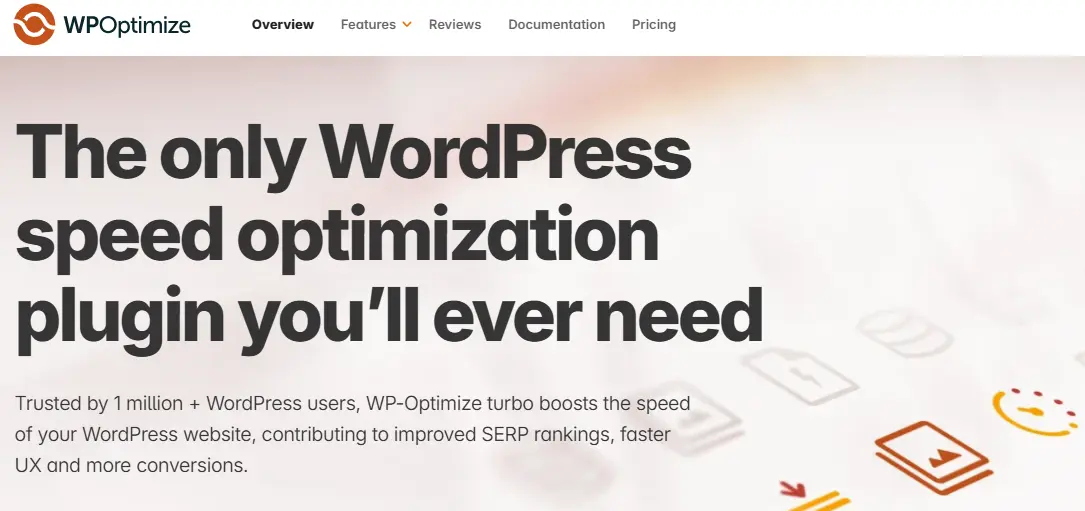
In 2025, website speed and efficiency are critical for retaining visitors, improving conversions, and boosting search engine rankings. WP-Optimize matters because it addresses multiple aspects of WordPress performance in a single, easy-to-use plugin. Slow websites frustrate users, increase bounce rates, and negatively affect Core Web Vitals, which are now key ranking factors for Google.
One of the main reasons WP-Optimize stands out is its database cleanup feature. Over time, WordPress databases accumulate unnecessary data, including post revisions, spam comments, trashed items, and expired transient options. WP-Optimize removes this clutter, reducing database size and improving server response times, which helps pages load faster.
Additionally, WP-Optimize offers caching and image optimization, two crucial elements for modern websites. Caching stores static versions of pages to deliver content quickly, while image compression and lazy loading reduce page weight without sacrificing quality. Together, these features enhance user experience, speed up load times, and improve Core Web Vitals.
For site owners, the plugin is especially valuable because it combines multiple optimization tools into a single solution, eliminating the need for multiple plugins and minimizing potential conflicts. Whether you run a blog, an e-commerce store, or a membership site, WP-Optimize helps maintain a fast, lean, and efficient WordPress website.
Key Features of WP-Optimize
WP-Optimize is a comprehensive WordPress optimization plugin that goes beyond simple caching or image compression. Its combination of database cleanup, caching, and performance enhancement tools makes it an all-in-one solution for improving website speed and efficiency. Here’s a detailed look at its key features.
1. Database Cleanup and Optimization
Over time, WordPress databases accumulate unnecessary data such as post revisions, trashed posts, spam comments, and expired transient options. WP-Optimize automatically scans your database and removes this clutter, reducing database size and improving server response times. The plugin also allows users to schedule regular cleanups, ensuring that the database remains lean without manual intervention. This results in faster page queries and a smoother overall website performance.
2. Page Caching
Caching is critical for delivering content quickly to visitors. WP-Optimize includes a robust page caching module that stores static versions of your web pages. When a visitor accesses your site, these cached pages load instantly, reducing server load and improving load times. The plugin supports cache preloading, which generates cached pages in advance, ensuring that all visitors get a fast experience, even during traffic spikes.
3. Image Optimization and Lazy Loading
Large, unoptimized images can significantly slow down a website. WP-Optimize features image compression that reduces file sizes without compromising quality. It also supports lazy loading, which defers the loading of off-screen images until they are needed. This approach decreases initial page weight, speeds up page load times, and improves Core Web Vitals, directly benefiting SEO.
4. Minification and Script Optimization
WP-Optimize also optimizes your website’s front-end performance by minifying CSS, JavaScript, and HTML files. Minification removes unnecessary characters, comments, and whitespace, resulting in smaller file sizes. The plugin can also defer or combine scripts, reducing render-blocking resources and accelerating page rendering for users.
5. Scheduled Optimization
Automation is a key feature of WP-Optimize. Users can schedule regular database cleanups, cache preloads, and image optimizations, ensuring consistent website performance without constant manual adjustments. This makes it especially useful for large websites with frequent updates, blogs, or online stores.
6. Compatibility and User-Friendly Interface
WP-Optimize works seamlessly with most themes, caching plugins, and CDNs. Its intuitive dashboard provides easy access to optimization tools, real-time statistics, and configuration options. Beginners can quickly optimize their site, while advanced users can fine-tune settings for maximum performance.
7. Premium Features
The premium version offers additional functionalities, such as multi-site support, advanced image optimization, WebP conversion, and more granular control over caching and database cleanup. These extensions make WP-Optimize scalable for growing websites, e-commerce stores, and high-traffic platforms.
How to Set Up WP-Optimize (Step-by-Step Guide)
Setting up WP-Optimize is straightforward, even for beginners. The plugin integrates seamlessly with WordPress, allowing you to optimize your site without touching any code. Follow these steps to fully leverage its features and boost your website performance.
Step 1: Install and Activate the Plugin
From your WordPress dashboard:
- Go to Plugins → Add New.
- Search for WP-Optimize.
- Click Install Now, then Activate.
Once activated, WP-Optimize will add a new menu item in your dashboard, making it easy to access all optimization settings.
Step 2: Configure Database Cleanup
A clean database improves speed and reduces server load. Navigate to WP-Optimize → Database and select the cleanup options:
- Remove post revisions.
- Delete trashed posts and spam comments.
- Clear expired transients.
You can also schedule automatic cleanups to keep your database lean over time without manual intervention.
Step 3: Enable Page Caching
Caching stores static versions of your pages to speed up load times. Go to WP-Optimize → Cache and:
- Turn on page caching.
- Enable cache preloading to automatically generate cached pages for all visitors.
Step 4: Optimize Images
Reducing image sizes significantly improves page load speed. In WP-Optimize → Images:
- Choose your compression settings to reduce file size without losing quality.
- Enable lazy loading for off-screen images.
- Pro users can also enable WebP conversion for faster image delivery.
Step 5: Minify and Optimize Scripts
Optimize your CSS, JavaScript, and HTML files:
- Navigate to WP-Optimize → Minify/Combine.
- Minify files to reduce their size.
- Optionally, defer or combine scripts to reduce render-blocking resources.
Step 6: Monitor Performance
Regularly check your plugin dashboard to track:
- Database size.
- Cache efficiency.
- Image compression results.
Adjust settings as needed to maintain optimal website performance.
By following these steps, WP-Optimize ensures your WordPress site runs faster, smoother, and more efficiently, enhancing both user experience and SEO without requiring technical expertise.
WP-Optimize Pricing (2025 Update)
One of the key advantages of WP-Optimize is its flexible pricing, catering to both beginners and professional WordPress site owners. The plugin is available in free and premium versions, allowing users to choose the level of functionality they need.
1. Free Version
- Available on WordPress.org.
- Includes essential features like:
-
Database cleanup and optimization.
-
Basic page caching.
-
Image compression for standard formats.
-
Lazy loading of images.
-
- Ideal for bloggers, small businesses, or those testing optimization for the first time.
- Provides a strong foundation to improve website performance without any cost.
2. Premium Version
WP-Optimize Premium unlocks advanced tools for professional or high-traffic websites. Key features include:
- Advanced image optimization, including WebP and AVIF conversion.
- Multisite support for networks of WordPress sites.
- Scheduled optimization for databases, cache, and images.
- Enhanced caching options and preloading.
- Priority support and regular updates.
- Pricing starts at approximately $49/year for a single site, with plans scaling for multiple sites.
3. Value Comparison
Compared to other optimization plugins like LiteSpeed Cache, Perfmatters, and Autoptimize:
- WP-Optimize provides an all-in-one solution combining database cleanup, caching, and image optimization.
- Its pricing is affordable for both small blogs and growing businesses.
- The Pro version delivers additional premium features without requiring multiple separate plugins.
Overall, WP-Optimize offers excellent value for money, making it suitable for WordPress users who want a comprehensive optimization tool with flexible pricing and scalable options in 2025.
Pros and Cons of WP-Optimize
WP-Optimize is a popular all-in-one WordPress optimization plugin, but like any tool, it has its strengths and limitations. Understanding these can help you decide if it’s the right choice for your website.
Pros
-
All-in-One Optimization: WP-Optimize combines database cleanup, caching, image optimization, and script minification in a single plugin. This eliminates the need for multiple plugins, reducing potential conflicts and simplifying website management.
-
User-Friendly Interface: The plugin offers an intuitive dashboard that makes it easy for beginners to navigate. Key optimization features are clearly labeled, and scheduling automated tasks ensures consistent performance without technical expertise.
-
Database Cleanup: WP-Optimize effectively removes unnecessary data such as post revisions, spam comments, trashed items, and expired transients. This reduces database bloat, improves server response time, and enhances page speed.
-
Image Optimization and Lazy Loading: With image compression, lazy loading, and WebP conversion (Pro), the plugin reduces page weight, improves load times, and enhances Core Web Vitals—key factors for SEO in 2025.
-
Affordable Premium Plan: The Pro version provides advanced features like multisite support, WebP image conversion, and scheduled optimizations at a competitive price, making it suitable for small to medium businesses.
Cons
-
Limited Advanced Caching Options in Free Version: While caching is included, some advanced caching features are only available in the premium plan.
-
Performance Dependent on Hosting Environment: WP-Optimize can significantly improve speed, but results may vary depending on server configuration and hosting quality.
-
Feature Overlap With Other Plugins: If you already use caching or image optimization plugins, there may be overlapping features, which can require careful configuration to avoid conflicts.
Overall, WP-Optimize offers a comprehensive and efficient optimization solution. Its pros far outweigh the cons, making it a strong choice for WordPress users looking to improve site speed, SEO performance, and overall efficiency.
WP-Optimize vs Competitors
When it comes to WordPress optimization, WP-Optimize isn’t the only plugin on the block. Let’s see how it stacks up against some popular alternatives in 2025.
WP-Optimize vs LiteSpeed Cache
LiteSpeed Cache is excellent for server-level caching, especially if your site is hosted on LiteSpeed servers. While it offers advanced caching features, WP-Optimize shines with its all-in-one approach—combining database cleanup, image optimization, and caching in a single plugin. If you want a simpler setup with multiple tools under one roof, WP-Optimize is easier for beginners.
WP-Optimize vs Perfmatters
Perfmatters focuses heavily on front-end optimization, allowing users to disable scripts, manage assets, and reduce bloat on a granular level. While Perfmatters is more advanced for developers, WP-Optimize provides a broader solution that includes database cleanup and image optimization, making it ideal for users who want a more complete, beginner-friendly package.
WP-Optimize vs Autoptimize
Autoptimize is primarily a code optimization plugin, focusing on minifying and deferring scripts and styles. WP-Optimize, on the other hand, goes beyond code optimization to handle caching, database cleanup, and images, providing a more rounded performance boost for general WordPress sites.
WP-Optimize vs Smush / EWWW Image Optimizer
Plugins like Smush or EWWW focus on images. WP-Optimize also optimizes images, but it pairs this with database and caching features. Essentially, it replaces multiple single-purpose plugins, making it a convenient choice for users who want an all-in-one solution.
Bottom line: WP-Optimize may not match every plugin in a single specialized area, but its combination of database cleanup, caching, and image optimization makes it one of the most versatile and beginner-friendly optimization tools for WordPress in 2025.
Who Should Use WP-Optimize in 2025?
WP-Optimize is an all-in-one optimization plugin designed for WordPress users who want faster websites without juggling multiple tools. In 2025, it remains one of the most effective solutions for improving site speed, reducing database clutter, and compressing images—all within a lightweight package. But who exactly should consider using WP-Optimize?
1. Bloggers and Content Creators: If you publish regularly, your WordPress database can quickly fill up with post revisions, drafts, and spam comments. WP-Optimize helps clean and streamline your database, ensuring your site remains fast and efficient for readers.
2. Small Businesses and Service Websites: For businesses that rely on WordPress to showcase services or attract leads, site speed is crucial. WP-Optimize combines caching, image compression, and database optimization, helping improve search rankings and customer experience without needing multiple plugins.
3. E-Commerce Stores (WooCommerce): Online stores often suffer from bloated databases, large product images, and dynamic content. WP-Optimize works well with WooCommerce, cleaning unnecessary data, compressing product images, and caching pages for faster shopping experiences.
4. Membership and Community Sites: Websites with heavy user activity—such as forums, memberships, or e-learning platforms—generate lots of background data. WP-Optimize keeps the database lean while ensuring the site remains responsive under high traffic.

Should You Use WP-Optimize in 2025?
The WP-Optimize Review shows that this plugin remains one of the most effective all-in-one optimization tools for WordPress users in 2025. By combining database cleanup, image compression, and caching, it delivers a noticeable boost in site speed, Core Web Vitals, and overall user experience. Whether you run a blog, business website, or e-commerce store, WP-Optimize simplifies performance optimization without the need for multiple plugins.
Compared to specialized tools, WP-Optimize offers a streamlined solution that saves time, reduces website bloat, and enhances SEO performance. Its lightweight design ensures minimal impact on site speed, while advanced features like multisite support and scheduled optimizations make it suitable for both small and large websites.
For WordPress users seeking a simple yet powerful way to improve website performance, the WP-Optimize Review confirms that this plugin is a smart choice in 2025. Its all-in-one approach makes it ideal for anyone looking to maintain a fast, secure, and highly optimized website, combining convenience with efficiency.
Frequently Asked Questions (FAQs)
1. What is WP-Optimize used for?
WP-Optimize is a WordPress plugin that cleans your database, compresses images, and adds caching to improve overall website performance.
2. Is WP-Optimize free?
Yes, WP-Optimize offers a free version with essential features like database cleanup and basic caching. A premium version unlocks advanced features such as multisite support, scheduling, and additional optimization tools.
3. Does WP-Optimize replace caching plugins?
WP-Optimize includes its own caching system, so you don’t need a separate caching plugin. However, some advanced users may still pair it with other tools for extra flexibility.
4. Is WP-Optimize safe for beginners?
Yes, it’s beginner-friendly. Most features work with one-click setup, and the plugin provides automatic backups before making database changes.
5. Can WP-Optimize speed up my WooCommerce store?
Absolutely. WP-Optimize helps WooCommerce sites by cleaning unnecessary data, compressing product images, and caching dynamic pages for faster loading.
6. How does WP-Optimize compare to similar plugins?
Unlike plugins that focus on a single feature (like image optimization or caching), WP-Optimize offers an all-in-one solution, saving time and reducing plugin bloat.
Interesting Reads:
The SEO Framework Review 2025: Is It the Best WordPress SEO Plugin?
How to Clear Your Cache in WordPress?
Autoptimize Review 2025: Is It the Best WordPress Optimization Plugin?
