

Updating your WordPress installation is critical to maintaining a secure, high-performing website. WordPress releases both major updates and minor updates to improve features, patch security vulnerabilities, and maintain compatibility with themes and plugins. Ignoring these can expose your site to data breaches, plugin failures, and performance issues.
This comprehensive guide walks you through the complete update process—from preparation and manual methods to using the admin dashboard, FTP credentials, or command line tools. Whether you’re a beginner or an advanced user, this is your one-stop reference for handling core WordPress updates safely and effectively.
Also Read: WordPress Update 6.8.2 Maintenance Release
Before Updating WordPress: Important Preparations
Before triggering any update, you should take the following safety steps:
1. Backup Your WordPress Site
Use a trusted backup plugin or hosting backup system to save your files and WordPress database. This prevents irreversible loss if something goes wrong. Always back up your site before applying core updates, theme updates, or plugin updates.
2. Set Up a Staging Site (Optional but Recommended)
A staging environment is a clone of your live site where you can test updates safely. Many managed WordPress hosts include staging features. Applying updates here first can help catch issues like broken layouts or update errors.
3. Deactivate Plugins Temporarily
Some WordPress plugins may not be compatible with the latest WordPress core files. Deactivating them beforehand—especially caching plugins—helps reduce risks during the update.
4. Enable Maintenance Mode
Activating maintenance mode lets visitors know the site is undergoing changes. You can use a plugin like WP Maintenance Mode or do it manually via .maintenance file in the root folder.
Also Read: Self-Hosted vs Hosted eCommerce Stores
Method 1: Updating WordPress via Admin Dashboard
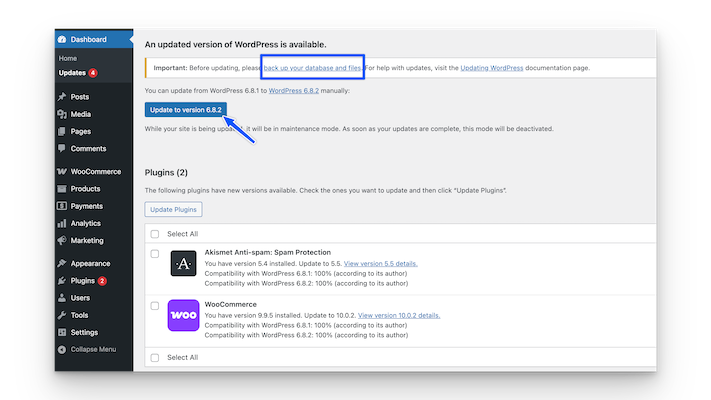
The most common way to update is through the admin dashboard.
Steps:
- Log in to your WordPress dashboard.
- Navigate to Dashboard > Updates.
- If an update is available, click Update Now under the core update section.
- After updating the WordPress core, update plugins and themes to avoid compatibility issues.
WordPress typically applies minor updates automatically, but major updates must be confirmed manually unless you’ve configured auto-updates.
Method 2: Manual Update Using FTP
Manual updating is best when the dashboard isn’t working or access is limited.
Steps:
- Download the latest version from the official WordPress repository.
- Unzip the file locally and remove the wp-content folder and wp-config-sample.php.
- Connect to your server using an FTP client (e.g., FileZilla) and your FTP credentials.
- Delete the old wp-admin and wp-includes folders.
- Upload the new versions of these folders and all other updated files.
- Visit yourdomain.com/wp-admin/upgrade.php to complete the upgrade process.
Be cautious when replacing core WordPress files. Mistakes in the root directory can trigger a 500 error or even break your site completely.
Method 3: WP-CLI (Command Line)
WP-CLI is the most efficient way for developers and sysadmins to update WordPress in production or large multisite installations.
Steps:
- SSH into your server.
- Navigate to your WordPress installation directory:
bash
CopyEditcd public_html - Run:
sql
CopyEditwp core check-update
wp core update
wp core update-db
wp plugin update --all
wp theme update --all
This process ensures your WordPress database, themes, and plugins are updated from the command line.
Method 4: Automatic WordPress Updates
WordPress applies minor updates automatically. You can enable major updates using one of the following methods:
Option 1: Plugin-Based Auto-Updates
Use a plugin like Easy Updates Manager to control how updates are applied—including plugins, themes, and the WordPress core.
Option 2: Enable via wp-config.php
Add the following line to your config file to enable full core auto-updates:
php
CopyEditdefine('WP_AUTO_UPDATE_CORE', true);
This setting ensures your site always runs the latest maintenance updates and security patches.
Updating WordPress Themes and Plugins
After updating the core, always check your WordPress themes and WordPress plugins for updates to ensure full compatibility.
Steps:
- Go to Dashboard > Updates.
- Select all outdated plugins and click “Update Plugins.”
- Do the same for your themes.
Important: Always use a child theme if you’ve made customizations. Updating a parent theme will overwrite all direct modifications.
Why Regular WordPress Updates Are Essential
Updating WordPress protects your site and ensures optimal performance:
- Security Patches: Fix known issues and reduce exposure to security threats.
- Performance Optimization: Updates often improve performance and speed.
- Feature Enhancements: Access the latest tools and admin capabilities.
- Plugin Compatibility: Stay aligned with plugin developers who follow the WordPress release schedule.
- PHP Version Support: Ensure compatibility with newer PHP versions and reduce server-level errors.
Stay Updated and Stay Safe
A proactive update strategy is a key part of ongoing website maintenance services. Whether you’re running a blog, eCommerce store, or membership site, keeping your WordPress installation current protects you from avoidable issues like broken layouts, error 404s, and security vulnerabilities.
Looking for professional help?
Explore our WordPress Care Plans for complete update management.
Stay current with official updates like the WordPress 6.8.2 Maintenance Release.
Interesting Reads:
Best WooCommerce Stripe Plugins
