

When running an online store, data migration and backups are inevitable. Whether you’re moving to a new host, setting up a staging site, or consolidating multiple stores, you’ll often need to export and import WooCommerce orders & coupons. Managing this manually is time-consuming and error-prone, especially when dealing with thousands of records.
According to recent eCommerce insights, 70% of online businesses eventually undergo some form of store migration or restructuring. This makes it critical for store owners to have a reliable way to transfer data without disrupting operations. WooCommerce, by default, allows basic product and customer exports but doesn’t offer smooth handling for orders and coupons.
This is where the Order Import Export for WooCommerce plugin comes in. It simplifies the process, allowing you to move back up or restore WooCommerce orders and coupons with just a few clicks.
In this step-by-step guide, we’ll cover why this is important, how to use the plugin effectively, best practices for safe migration, and the advantages of automating the process.

Why Export and Import WooCommerce Orders & Coupons?
Before jumping into the setup, it’s worth understanding the scenarios where exporting and importing orders and coupons can be crucial.
1. Store Migration
When moving to a new hosting provider or domain, you’ll need to transfer existing orders and coupons to maintain business continuity.
2. Setting Up a Staging Site
Developers and store owners often create staging environments to test updates. Exporting and importing orders ensures your test site reflects real customer data.
3. Data Backup
Having regular backups of your orders and coupons ensures you won’t lose critical data in case of a server crash or error.
4. Merging Multiple Stores
If you operate multiple WooCommerce stores and want to consolidate, bulk exporting and importing orders streamlines the process.
5. Audits & Reporting
Exporting orders in bulk allows you to run external reports or audits without depending solely on WooCommerce’s native reporting tools.
By having an efficient system in place, you save time, reduce errors, and keep your store running smoothly.
About the Order Import Export for WooCommerce Plugin
The Order Import Export for WooCommerce plugin is designed to handle bulk order and coupon data transfers with ease.
Key Features
- Order Export/Import: Move all order data, including customer details, products purchased, order status, and payment info.
- Coupon Export/Import: Transfer coupon codes, discounts, usage limits, and expiry dates.
- Bulk Data Handling: Export/import thousands of records at once.
- Customizable Fields: Choose which fields to export or import.
- CSV Support: Works with standard CSV files for compatibility.
- Error Handling: Ensures invalid or incomplete data doesn’t break your site.
- User-Friendly Interface: Step-by-step setup without coding.
Why Choose This Plugin?
- Built specifically for WooCommerce.
- Saves hours of manual work.
- Supports complex order and coupon structures.
With this plugin, you don’t have to worry about losing important sales or discount records during a migration or backup.
Step-by-Step Guide: How to Export and Import WooCommerce Orders & Coupons
With the Order Import Export for WooCommerce plugin, migrating or backing up orders and coupons is simple. Follow these steps to manage your store data with ease.
Step 1: Install and Activate the Plugin
Begin by installing the plugin:
- Download the Order Import Export for WooCommerce plugin.
- In your WordPress dashboard, go to Plugins → Add New → Upload Plugin.

- Upload the ZIP file, click Install Now, and then Activate.
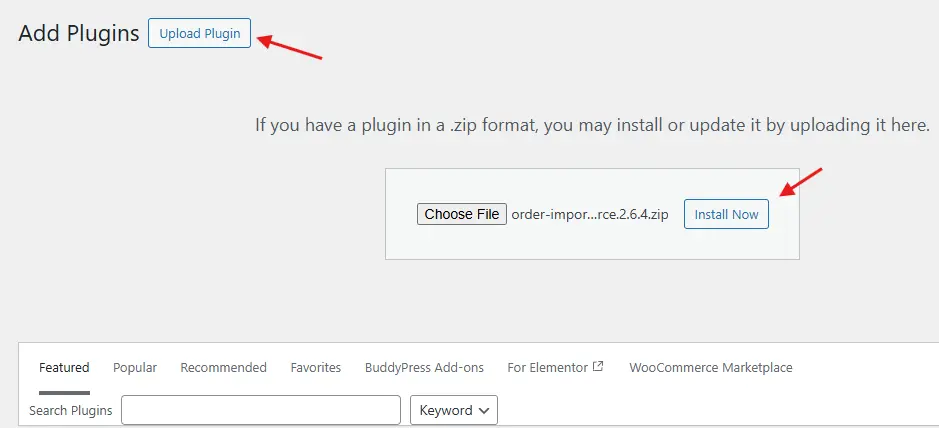
Step 2: Access Plugin Settings
Once activated, head to WooCommerce → Order Im-Ex.
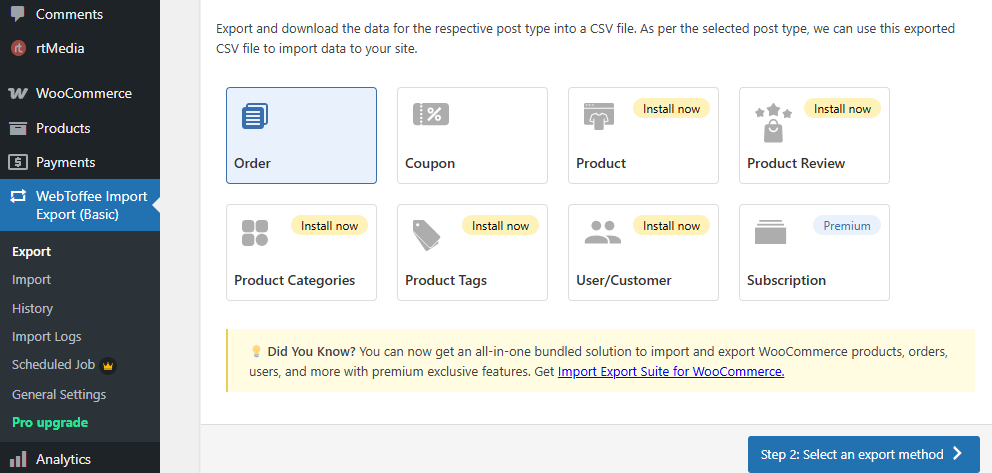
This is where you’ll find all options for exporting and importing orders and coupons.
Step 3: Export WooCommerce Orders
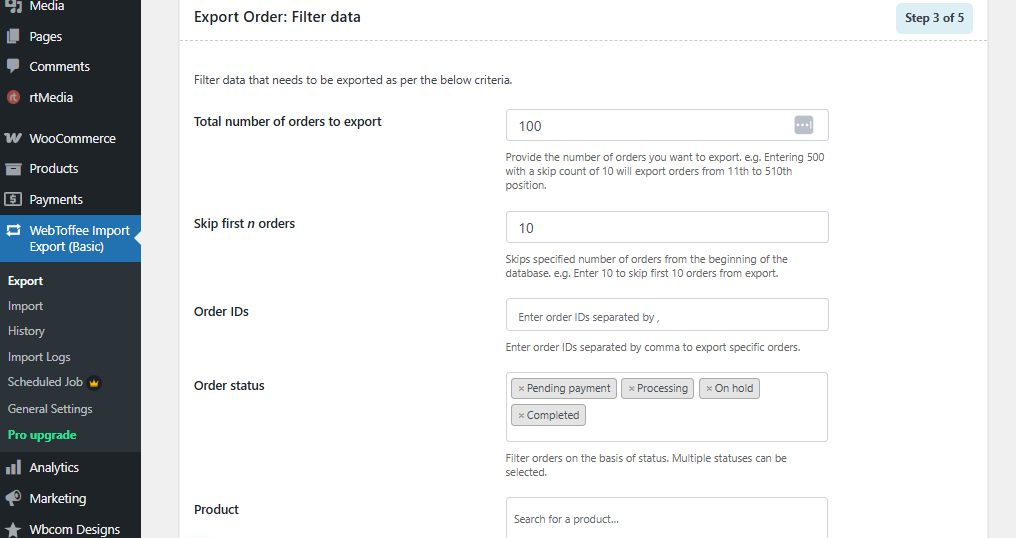
- Click Export Orders.
- Choose the order details you want to include (ID, date, customer info, products, status, etc.).

- Apply a date range if you only want orders from a specific period.
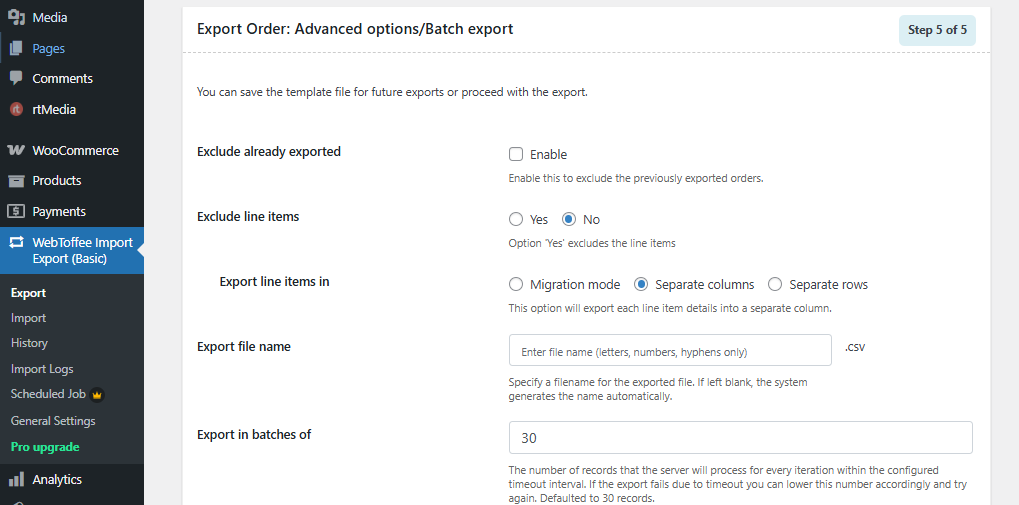
- Click Generate CSV to download your file.

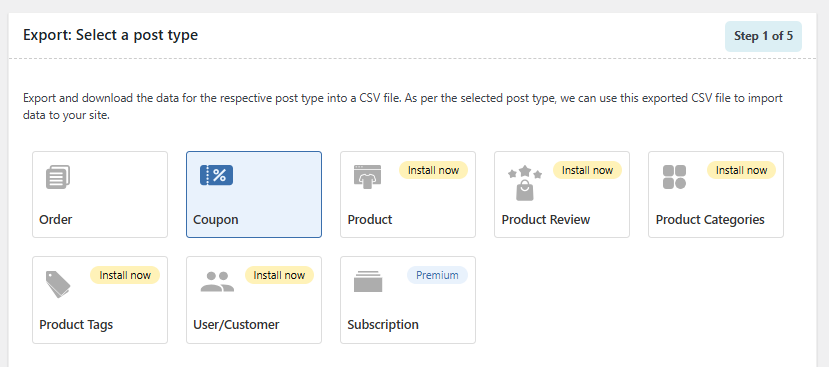
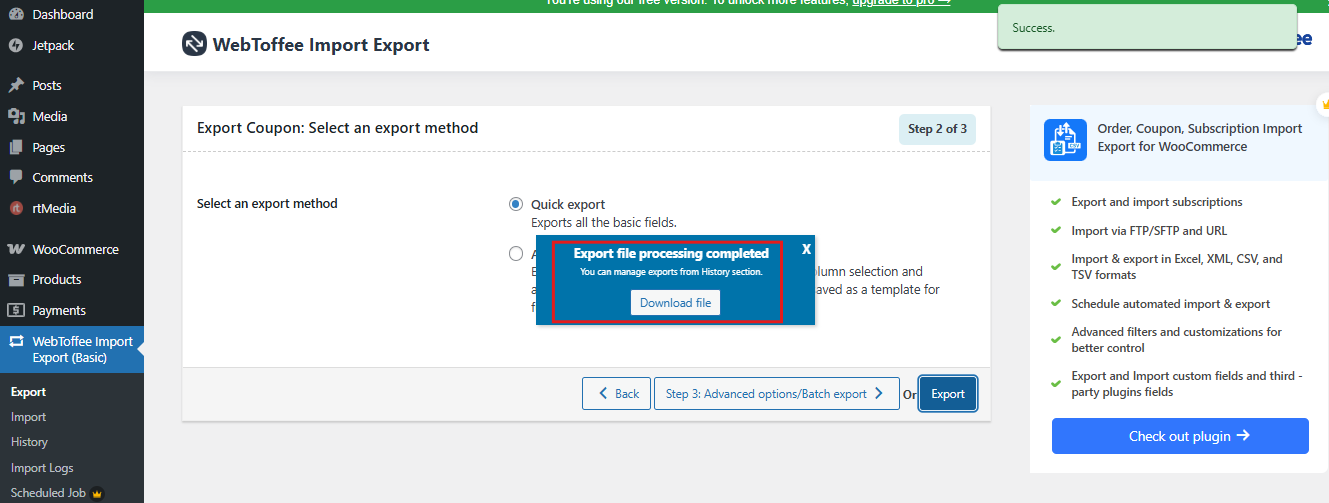
Step 4: Export WooCommerce Coupons
- Open the Export Coupons tab.

- Select the fields you need (coupon code, description, discount type, usage limits, expiry date, etc.).
- Download the CSV file to your computer.

Step 5: Import WooCommerce Orders
- Go to Import Orders in the plugin menu.
- Upload the CSV file you previously exported or received from another store.
- Carefully map the fields to match WooCommerce’s order structure.
- Run the import and wait for confirmation.
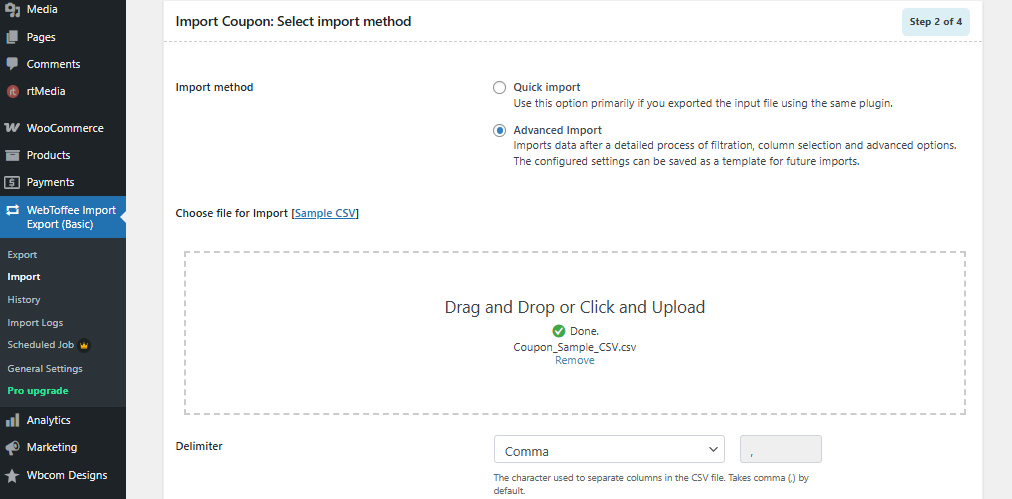
Step 6: Import WooCommerce Coupons
- Navigate to Import Coupons.
- Upload the CSV file containing coupon data.

- Map key fields such as coupon code, discount type, restrictions, and expiry.
- Complete the import process.
Step 7: Verify Imported Data
After the process finishes:
- Visit WooCommerce → Orders and WooCommerce → Coupons to check the imported records.
- Apply a coupon in the cart to confirm it works correctly.
By following these steps, you can seamlessly export and import WooCommerce orders & coupons without data loss, saving time and ensuring your store continues to run smoothly.
Advantages of Using the Order Import Export Plugin
Migrating or backing up orders and coupons can quickly become overwhelming if you rely on manual methods. A dedicated tool like the Order Import Export for WooCommerce plugin streamlines the entire process and ensures your data is handled safely and efficiently. Here are the key advantages:
Time Efficiency: Bulk import and export options save you countless hours compared to manual data entry. Even if you’re dealing with thousands of records, the plugin processes them in minutes.
Accuracy: Manual migration often leads to typos, missing fields, or mismatched data. With automated handling, you significantly reduce the risk of human error and maintain clean, reliable records.
Scalability: As your store grows, so does your data. The plugin is built to handle large datasets, making it simple to manage thousands of orders and coupons without slowing down.
Data Security: Your order history and coupon details are critical assets. The plugin ensures this information is safely exported, backed up, and transferable without risk of loss.
Flexibility: You don’t always need every data field. The plugin allows you to select exactly which fields to include, giving you full control over your migration or backup.
Business Continuity: By minimizing downtime and ensuring data accuracy, the plugin helps your store run smoothly during migrations, backups, or staging setups.
Best Practices for Exporting and Importing WooCommerce Orders & Coupons
While the Order Import Export for WooCommerce plugin makes migration and backups simple, following best practices ensures your data remains safe, and your store continues to perform smoothly. Here are some essential guidelines:
1. Always Back Up Before Importing
Before running any import, create a complete backup of your store. This safety net allows you to quickly restore your site in case something goes wrong during the process.
2. Validate CSV Files
After exporting, review your CSV files for formatting issues or missing data. Cleaning files before importing helps prevent errors and avoids corrupting your order or coupon database.
3. Use a Staging Environment
If possible, test imports on a staging site first. This helps you spot issues without affecting your live store and ensures the process runs smoothly in production.
4. Map Fields Carefully
When importing, double-check that CSV columns match WooCommerce’s required fields. Proper mapping avoids problems like missing order details or misplaced coupon codes.
5. Schedule Regular Exports
Don’t wait for emergencies. Schedule periodic exports of orders and coupons as part of your backup strategy. This keeps your data secure and ready for quick recovery.
6. Monitor Site Performance
Large imports can temporarily strain your server. Run them during low-traffic hours to minimize disruptions and maintain a seamless customer experience.

Simplifying WooCommerce Order & Coupon Migration
Migrating or backing up store data doesn’t have to be stressful. With the right approach, you can export and import WooCommerce orders & coupons smoothly, ensuring your store keeps running without disruption.
The Order Import Export for WooCommerce plugin gives you all the tools you need – from bulk CSV handling to accurate field mapping and automated imports. When combined with the best practices we’ve outlined, it saves valuable time, reduces errors, and keeps your business data safe.
Whether you’re planning a full migration, preparing a staging site for testing, or simply want reliable backups, this plugin makes the process seamless and efficient.
For even greater results, get custom WooCommerce development solutions from Wbcom Designs to streamline migrations, backups, and advanced data handling tailored to your unique business needs.
Interesting Reads
How to Make Your WooCommerce Store Multilingual: Translate Products, Categories & Checkout
10 Best WordPress Coupon Plugins for your E-commerce Store
BuddyPress Demo Guide: Everything You Need to Build a Community on WordPress
