

Dropshipping has become one of the most attractive business models for new entrepreneurs. Why? Because you can start selling products without the upfront cost of stocking inventory. Many store owners now choose to Set Up WooCommerce for Dropshipping since it offers a low-risk, scalable way to enter e-commerce. According to market reports, global dropshipping sales surpassed $300 billion in 2024 and are projected to keep growing steadily. This growth highlights that demand remains strong – and there’s still plenty of room for new players to succeed.
If you’re ready to build your store, WooCommerce is the perfect choice. It’s a flexible, open-source platform built for WordPress, giving you full control over store design, SEO, and extensions. With the right plugin and setup, you can run a professional dropshipping store that automates supplier communication, manages product assignments, and streamlines order fulfillment.
In this guide, we’ll walk you through every step to configure WooCommerce for dropshipping. You’ll also learn best practices, common pitfalls, and why the official WooCommerce Dropshipping plugin is a must-have tool for automation.

What Is Dropshipping (and Why Use WooCommerce)?
Dropshipping is a business model where you sell products online without keeping inventory yourself. Instead of buying stock upfront, you partner with a supplier who handles product storage, packaging, and shipping. When a customer places an order on your store, you forward the order details to your supplier. The supplier then ships the product directly to the customer on your behalf.
This model eliminates the need for warehousing and lowers startup costs, making it highly appealing to entrepreneurs and small businesses. Dropshipping is expected to grow to $476 billion by 2026 (Statista), highlighting the demand for low-risk eCommerce opportunities.
WooCommerce is the perfect platform for dropshipping because it integrates seamlessly with suppliers, provides flexible customization, and supports automation tools. With WooCommerce, you can easily connect to suppliers like AliExpress, automate order fulfillment, and manage payments – all from one dashboard. This makes it an ideal choice to start dropshipping with WooCommerce effectively.
Key Terms You Should Know
Before we move into the step-by-step setup, it’s helpful to understand a few important terms you’ll encounter while working with WooCommerce dropshipping:
- Supplier – The company or individual that stocks, packs, and ships products directly to your customers. For example, sellers on AliExpress can act as your suppliers.
- Supplier Mapping – The process of linking each WooCommerce product in your store to a specific supplier who will fulfill that product.
- Automated Supplier Email – A system-generated email WooCommerce sends to your supplier with customer order details, so they can ship the product without manual input from you.
- Order Status Workflow – The sequence of statuses in WooCommerce (such as Pending -> Processing -> Completed) that triggers notifications and supplier emails.
- WooCommerce Dropshipping Plugin – The official WooCommerce extension that helps automate supplier notifications, manage product mapping, and simplify the fulfillment process.
Understanding these terms upfront makes the setup process smoother and ensures you can follow along without confusion.
Step-by-Step Guide to Set Up WooCommerce for Dropshipping
If you’re ready to launch your store, this practical guide will walk you through how to Set Up WooCommerce for dropshipping the right way. By following each step carefully, you’ll streamline product sourcing, automate supplier communication, and ensure your store runs smoothly from day one.
Step 1: Install and Activate WooCommerce
First, install WooCommerce on your WordPress site.
- Go to Plugins -> Add New in your WordPress dashboard.
- Search for WooCommerce and click Install Now.

- Once installed, click Activate.
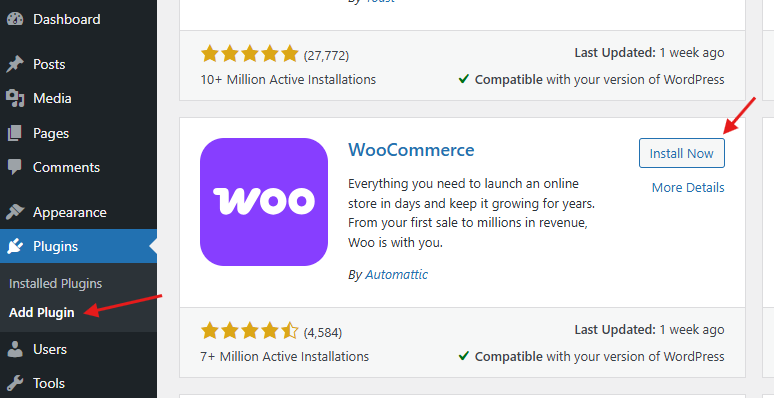
WooCommerce will then launch its setup wizard, where you’ll add details like store name, location, currency, and payment methods. This step ensures your store foundation is ready before adding dropshipping features.
Step 2: Install the WooCommerce Dropshipping Plugin
To enable dropshipping functionality, install the official WooCommerce Dropshipping plugin.
- Purchase and download the plugin.
- Go to Plugins -> Add New -> Upload Plugin in WordPress.

- Upload the ZIP file and click Install Now.
- After activation, a new dropshipping settings panel will appear in WooCommerce.
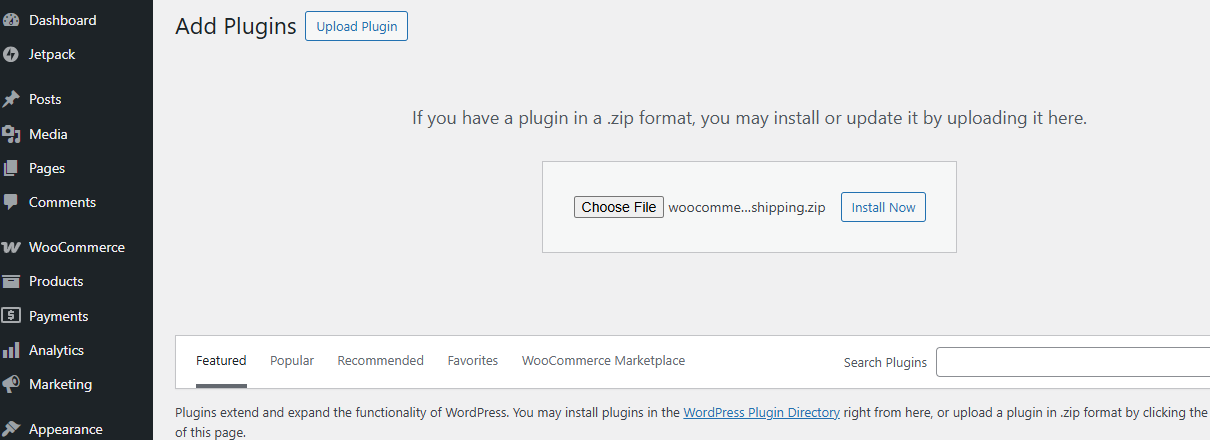
This plugin automates order notifications, inventory syncing, and supplier management, making it essential for running a smooth dropshipping business.
Step 3: Choose a Reliable Supplier
Now, you need to connect your store with a supplier. One of the most popular choices for dropshipping beginners is AliExpress because of its:
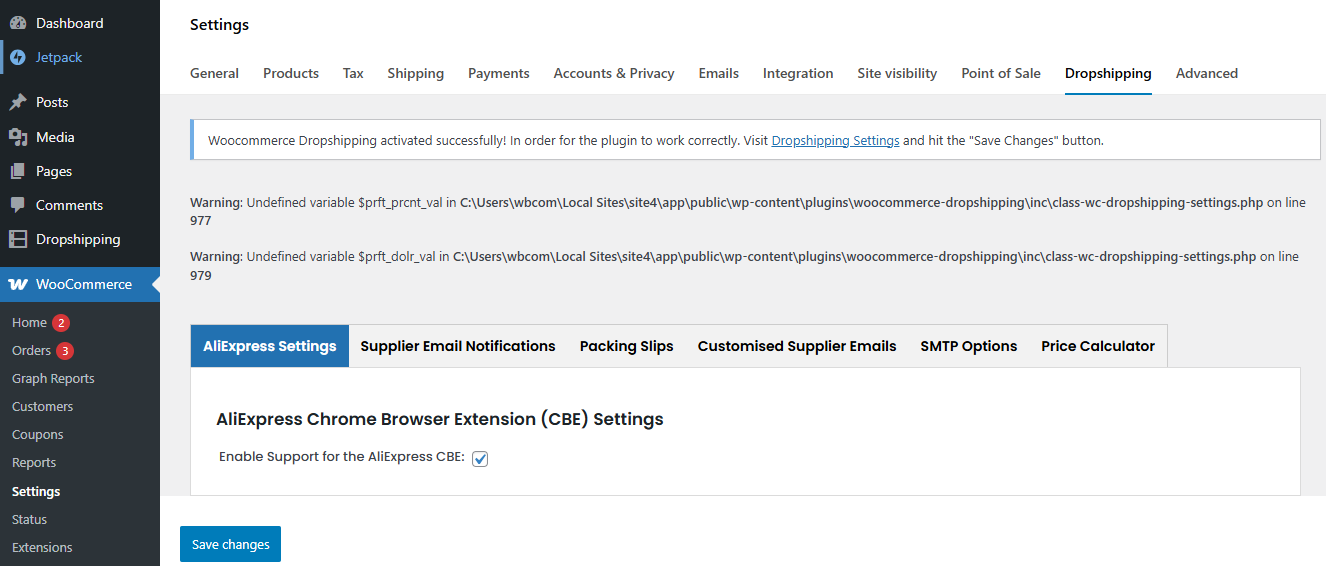
- Wide variety of low-cost products
- Global shipping options
- Easy integration with WooCommerce via dropshipping plugins
Browse AliExpress to select niche products that match your store strategy. For example, if you run a fitness store, you could choose resistance bands, yoga mats, or water bottles.
Step 4: Import Products from AliExpress
Once you have identified your supplier and products:
- Use the WooCommerce Dropshipping plugin or an extension that supports AliExpress product import.

- You can also use the AliExpress Chrome Browser Extension to quickly import products directly from AliExpress to your WooCommerce store.

- Import product details like title, images, description, and pricing, then customize them for SEO to avoid duplicate content.
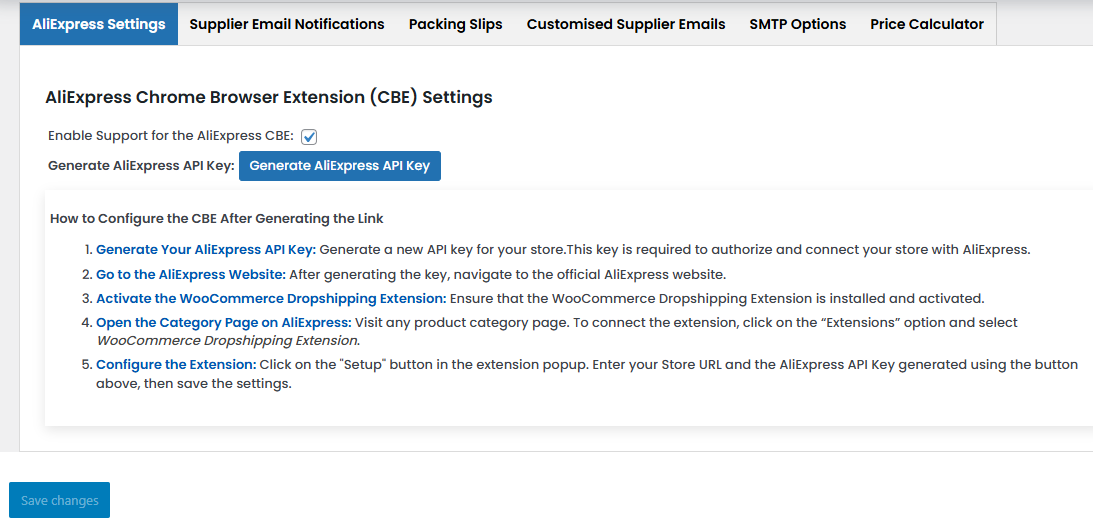
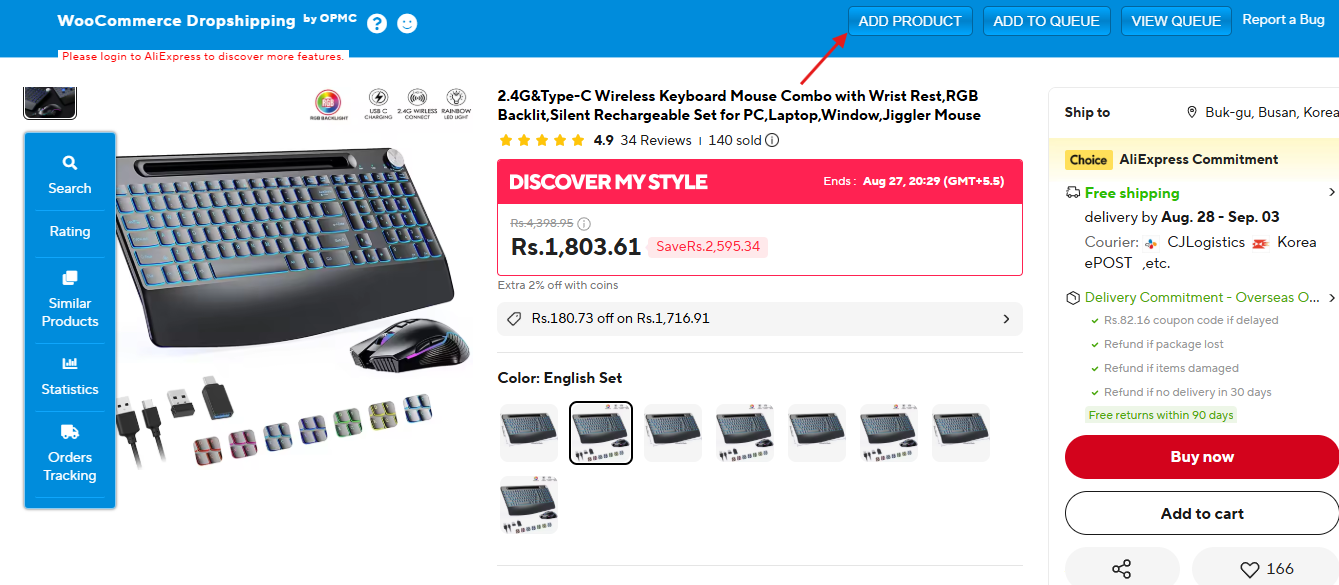
This step ensures your product catalog looks professional and aligns with your brand.
Step 5: Configure Product Pricing and Markup
Dropshipping profits depend on how you set your prices. In WooCommerce:
- Go to Products -> All Products and edit your imported AliExpress items.
- Set pricing rules or manually adjust each product.
- Consider adding a markup of 20-40% to cover costs and ensure profit.
You can also use pricing automation rules in your dropshipping plugin to keep margins consistent.
Step 6: Set Up Payment Gateways
To start receiving payments, enable secure checkout methods:
- Go to WooCommerce -> Settings -> Payments.

- Enable gateways like PayPal, Stripe, or Razorpay.
- Test the payment process in Sandbox mode before going live.
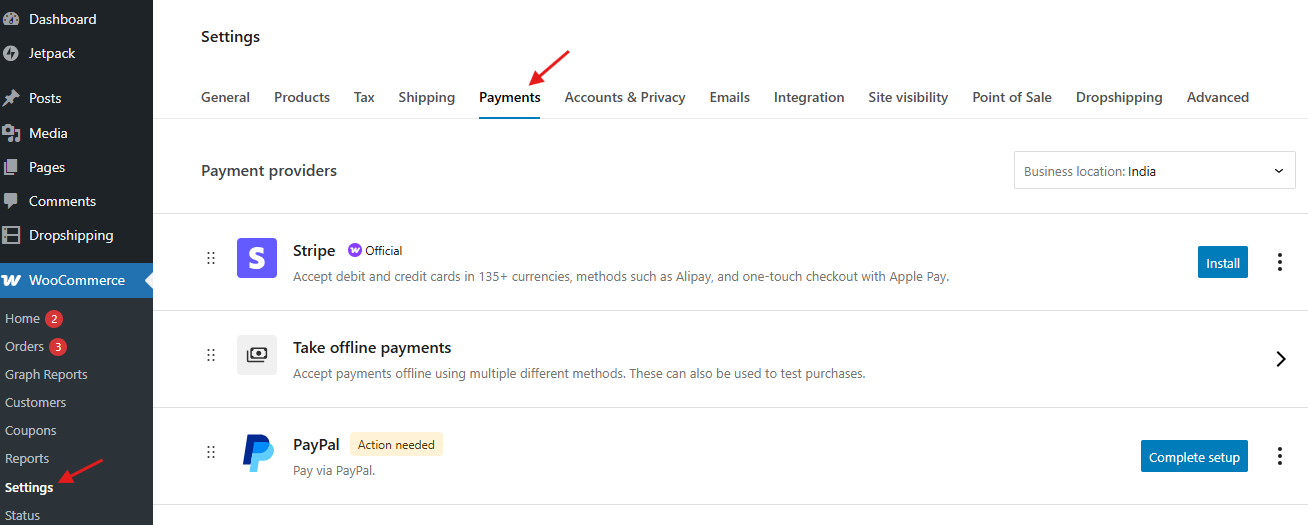
This guarantees customers can pay conveniently, boosting trust in your store.
Step 7: Configure Shipping Settings
Even though AliExpress suppliers handle shipping, you must communicate delivery times and costs.
- Go to WooCommerce -> Settings -> Shipping.

- Add Flat Rate, Free Shipping, or Calculated Shipping options
- Be transparent about longer delivery times (AliExpress shipping may take 2-3 weeks for some regions)

Clear shipping rules help reduce cart abandonment and refund requests.
Step 8: Automate Order Fulfillment
When a customer places an order:
- WooCommerce automatically notifies your AliExpress supplier via the Dropshipping plugin.
- The supplier ships the product directly to your customer.
- You can monitor order status from your WooCommerce dashboard.
Automation ensures smooth workflows and saves hours of manual processing.
Step 9: Test Your Store Before Launch
Before going live:
- Place a test order for an AliExpress product
- Check whether payment, order notifications, and shipping details work correctly
- Review email confirmations and order tracking updates
Testing helps catch errors early, so customers have a seamless shopping experience.
Step 10: Launch and Market Your Dropshipping Store
Once everything works smoothly, it’s time to launch.
- Promote your store via social media ads, Google Ads, and email marketing
- Use SEO to drive organic traffic to your WooCommerce site
- Offer discounts or free shipping for first-time buyers
Consistent marketing ensures steady traffic and long-term growth.
Common Mistakes to Avoid
Even with the right setup, many beginners run into issues that could have been prevented. Let’s look at the most common mistakes when you start dropshipping with WooCommerce and how to avoid them.
1. Choosing Unreliable Suppliers: Working with suppliers who ship late or provide low-quality products can hurt your store’s reputation. Always test sample orders from AliExpress or any other supplier before committing.
2. Ignoring Shipping Times: Customers expect clarity. If your supplier takes 15-20 days to deliver, but your store promises 5-7 days, you’ll face refund requests and poor reviews. Set realistic shipping expectations in your store policies.
3. Not Configuring Automated Emails Properly: The WooCommerce Dropshipping plugin sends order details to suppliers automatically. If you skip this step, suppliers may not receive correct information, causing delays. Double-check your email setup.
4. Overloading Your Store with Products: It’s tempting to list hundreds of AliExpress products at once. However, too many untested items can overwhelm customers. Start small, track performance, and scale gradually.
5. Forgetting About Branding: Since many dropshippers use the same products, what sets you apart is branding. Add a professional logo, create product descriptions in your voice, and consider offering custom packaging if your supplier allows.

Start Small, Grow with WooCommerce
WooCommerce is one of the most flexible platforms for launching a dropshipping business. With the WooCommerce Dropshipping plugin, you can automate supplier communication, streamline product mapping, and manage orders without manual headaches.
By following this step-by-step guide – installing WooCommerce, adding suppliers, importing products, configuring pricing, testing workflows, and launching your store – you’ll be fully prepared to Set Up WooCommerce for Dropshipping and grow a sustainable business.
Remember: dropshipping success doesn’t happen overnight. Start small, validate your products, build strong supplier relationships, and scale smartly with data-driven marketing. With WooCommerce as your foundation, you’ll have the right tools to build and grow with confidence.
Interesting Reads
How to Enable Order Tracking in WooCommerce (Step-by-Step Guide)
