

Modern customers demand personalization. According to research, over 80% of shoppers prefer stores that offer product customization because it creates a sense of ownership and uniqueness. However, by default, WooCommerce only allows for standard product variations such as size and color. This often falls short for stores that want to offer tailored experiences, like engraved jewelry, personalized apparel, or configurable products.

Why Add Custom Product Options to WooCommerce?
Adding custom product options is about more than just variety. It enhances the customer experience and increases your store’s sales potential.
1. Personalization and Engagement: Customers can customize products to match their preferences — whether that’s adding initials to jewelry, uploading an image for a T-shirt, or choosing special packaging. This increases customer satisfaction and engagement.
2. Higher Sales Value: Personalized products often carry a higher perceived value. Stores that offer customization can justify charging more, leading to higher average order values.
3. Competitive Advantage: In crowded markets, offering product personalization sets your store apart from competitors who only provide standard options.
4. Improved Customer Experience: Instead of limiting buyers to predefined variations, you give them more flexibility to tailor products exactly to their needs.
5. Reduced Order Errors: Clear, structured custom options (like size charts, dropdowns, and input fields) reduce miscommunication and ensure customers get exactly what they ordered.
About the Advanced Product Fields for WooCommerce Plugin
The Advanced Product Fields for WooCommerce plugin is one of the most popular tools for adding custom fields to WooCommerce products.
Key Features
- Custom Input Fields: Add text boxes, number fields, dropdowns, checkboxes, and radio buttons.
- File Upload Options: Allow customers to upload images, logos, or documents.
- Conditional Logic: Show or hide fields based on customer selections.
- Custom Pricing: Add extra costs for certain options (e.g., gift wrapping or engraving).
- Flexible Layouts: Arrange fields neatly to fit your product page design.
- No Coding Needed: Beginner-friendly setup with drag-and-drop configuration.
Why Choose This Plugin?
- Lightweight and optimized for speed.
- Works seamlessly with WooCommerce and most themes.
- The premium version adds even more advanced customization options.
How to Add Custom Product Options to a WooCommerce Store
Adding custom fields in WooCommerce is simple with the Advanced Product Fields for WooCommerce plugin. Let’s walk through the process step by step.
Step 1: Install and Activate the Plugin
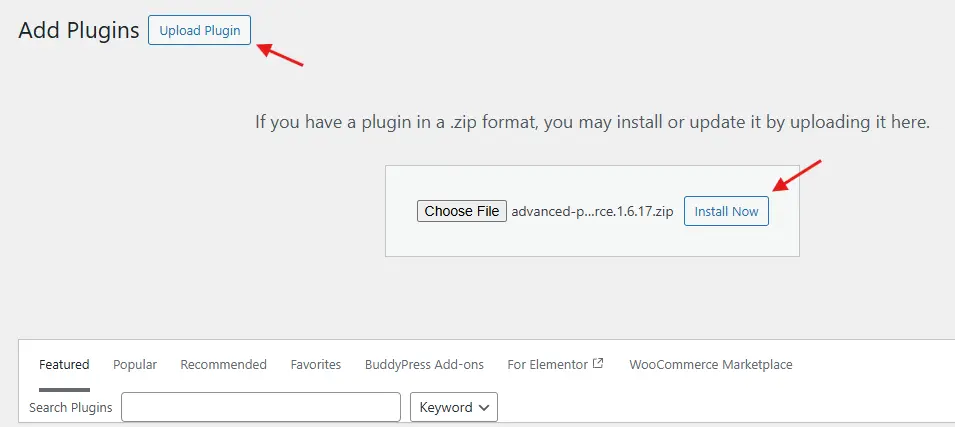
Start by installing the plugin from your WordPress dashboard:
- Go to Plugins → Add New.
- Search for Advanced Product Fields for WooCommerce.

- Click Install Now and then Activate.
Step 2: Access the Plugin Settings
Once activated, head over to WooCommerce → Product Input Fields. This is where you’ll manage all of your custom product fields and field groups.
Step 3: Add a New Field Group
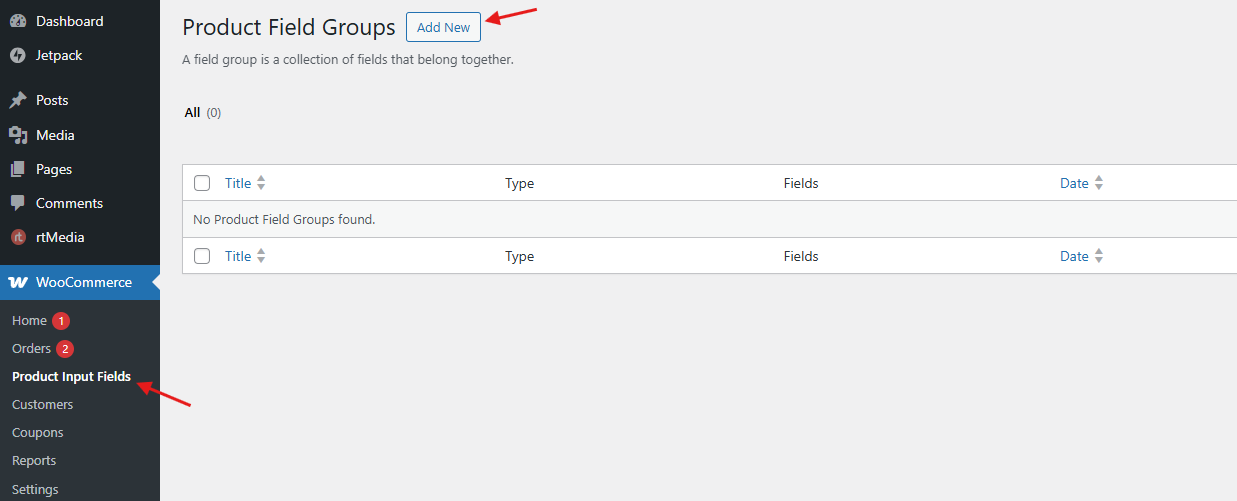
Create your first field group by clicking Add New. You can assign this group to specific products or categories, ensuring only selected products display the extra options.
Step 4: Add Custom Fields
Now, add the fields you need. The plugin gives you flexibility with multiple field types:
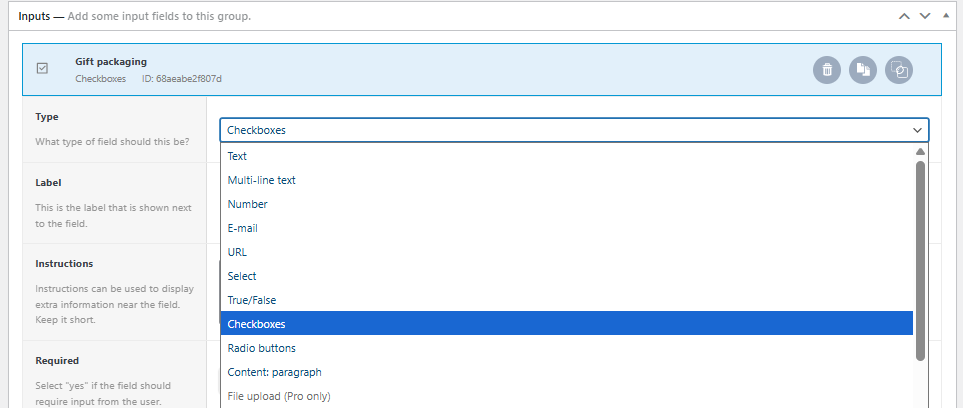
- Text Field – Great for customer names, initials, or short notes.
- Textarea – Perfect for gift messages or detailed instructions.
- Dropdown Menu – Use for size, material, or style choices.
- Checkbox – Ideal for optional add-ons like gift wrapping.
- Radio Buttons – Useful when customers must pick only one option.
- Number Field – For custom values like measurements or quantities.
- File Upload – Allow customers to upload images, logos, or artwork.
Step 5: Configure Field Options
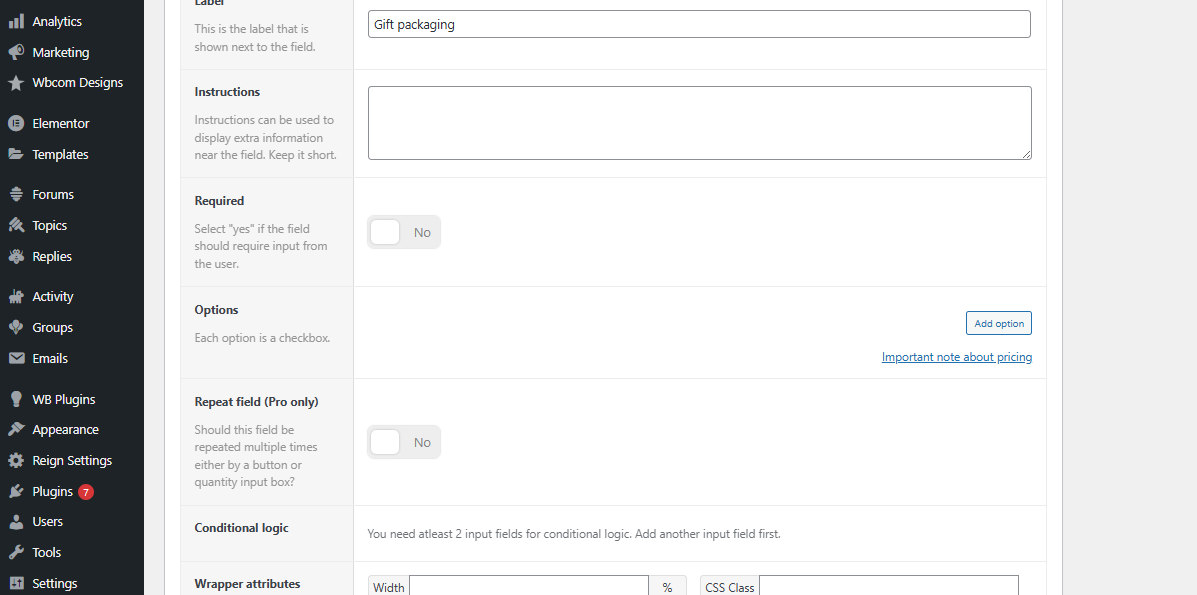
Each field can be customized further:
- Add clear labels (e.g., “Enter Your Name for Engraving”).
- Use placeholder text or instructions for guidance.
- Decide whether the field should be required or optional.
- Add pricing rules for extra-cost options like engraving or premium packaging.
Step 6: Display Fields on the Product Page
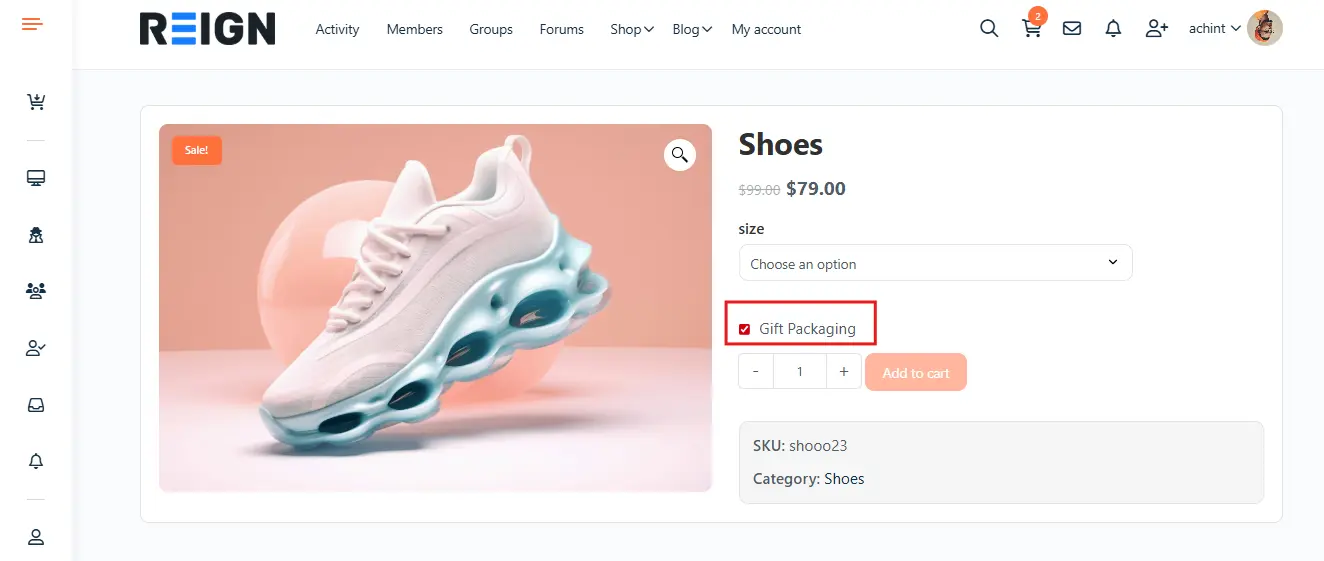
The fields you’ve created will automatically display on the relevant product page. Customers can fill them out before adding the product to their cart.
Step 7: Test the Setup
Finally, test everything to ensure it works smoothly:
- Visit the product page and check that fields appear correctly.
- Place a test order to verify that custom data is passed to the cart, checkout, and order details.
Examples of Custom Product Options
Here are some practical ways you can use custom fields in WooCommerce:
- Engraved Jewelry: Add a text field for initials or a special date.
- T-Shirts: Allow customers to upload an image or add custom text.
- Gift Wrapping: Add a checkbox for gift wrap service with an extra cost.
- Event Tickets: Collect attendee names and meal preferences.
- Food Delivery: Add options for toppings, extras, or cooking instructions.
Advantages of Adding Custom Product Options
Enabling custom product options in your WooCommerce store does more than just improve functionality — it creates a richer shopping experience and drives business growth. Here are the key benefits:
- Increased Customer Satisfaction
Personalization makes shoppers feel valued. When they can add their own text, choose unique features, or upload a design, they’re more engaged and satisfied with their purchase. - Boosted Revenue
Customization services like engraving, premium materials, or special packaging can be offered at an extra charge, increasing your average order value. - Better Brand Loyalty
Customers who enjoy a personalized shopping experience are more likely to return to your store, building long-term loyalty and repeat sales. - Fewer Returns
Collecting detailed input (like text, size preferences, or special instructions) helps reduce errors and mismatched expectations, which means fewer returns and happier customers. - Scalability
The plugin makes it easy to apply custom fields across multiple products or categories, so you can scale personalization as your store grows.
Best Practices for Adding Custom Product Options
While custom fields can transform your WooCommerce store, the way you implement them has a big impact on customer experience. To get the best results, keep these best practices in mind:
1. Keep Options Simple: Don’t overwhelm shoppers with too many customization choices. Focus on essential fields that truly add value. A clean, minimal layout makes the process smoother and less confusing.
2. Provide Clear Instructions: Every field should be easy to understand. Use descriptive labels and helpful placeholder text to guide customers. For example, instead of “Text Field,” use “Enter Your Name for Engraving.”
3. Use Conditional Logic: If you’re offering multiple customization layers, hide fields that aren’t relevant until they’re needed. This keeps your forms clean and ensures customers only see the options that apply to them.
4. Test Responsiveness: Most online shopping happens on mobile devices. Always test your custom fields on different screen sizes to confirm they display correctly and remain easy to use on smaller devices.
5. Price Options Appropriately: If an option adds extra work or value (like gift wrapping, engraving, or priority shipping), set a fair additional cost. Customers are often willing to pay more for personalization.

